TikTok accounts
 Orders & performance
 Team management
 Profit & cost
 Brand deals
 Creator toolbox
 Solo creators
 Creator teams
 Multi-department companies
Who is this for?
- Team owners onboarding accounts their organization legitimately controls in batches and want to track account payback by source or batch
- Founders tracking total recorded account setup costs versus total commission earned back
- Managers checking how many accounts are still "Paying back" or got "Banned" before breaking even
What to prepare before starting?
- Connect your TikTok accounts to Star Captain so order and commission data are syncing.
- If your team earns off-platform commission, match your shops and set commission rates under "Partner brands & shops" and "Order matching" so all earnings are counted.
- Have the recorded cost (in CNY) and onboarding date ready for your accounts.
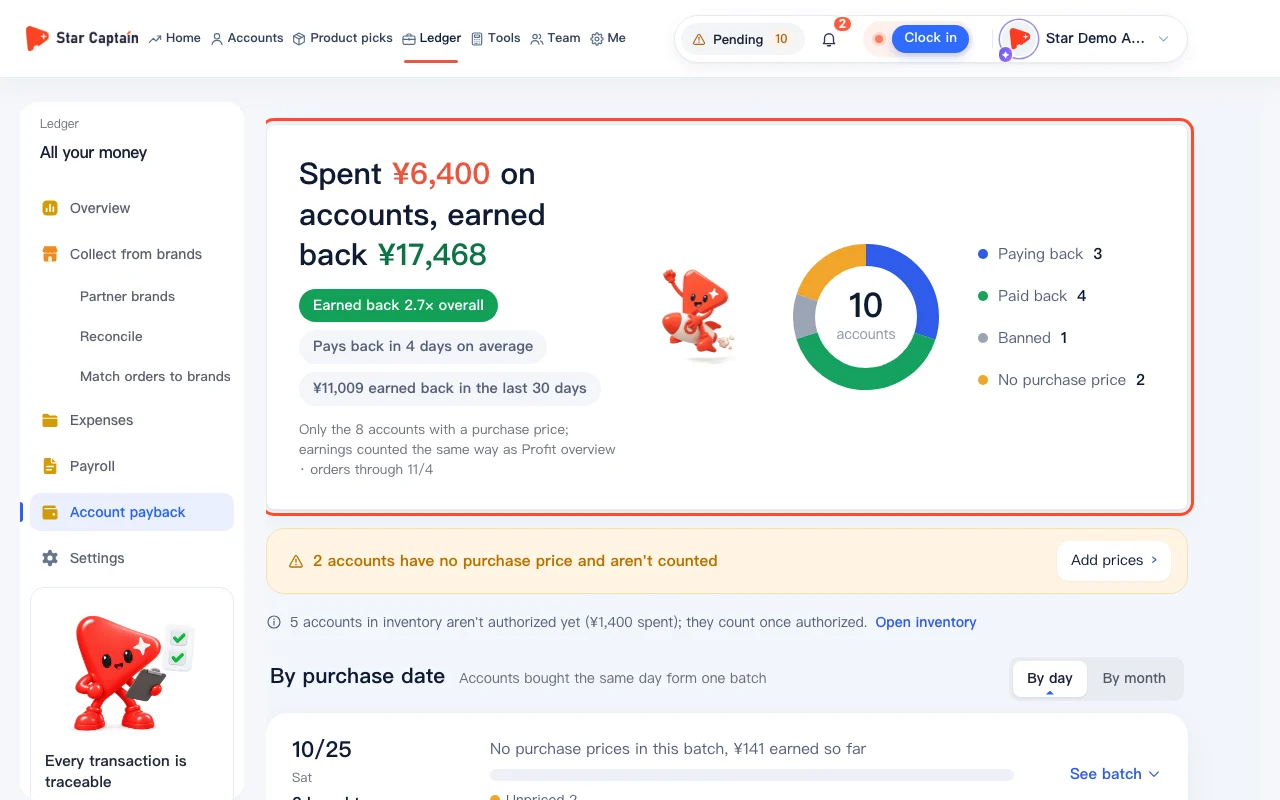
01Open "Account payback" to see overall account payback progress
In the left menu, click "Ledger → Account payback" to check account payback across your workspace. The summary card at the top shows total money spent on accounts, total earned back, overall payback percentage, average days to pay back, and earnings in the last 30 days. Below that, four status cards group your accounts into "Paying back", "Paid back", "Banned", and "No recorded cost".
02Fill in the recorded cost and date for unpriced accounts
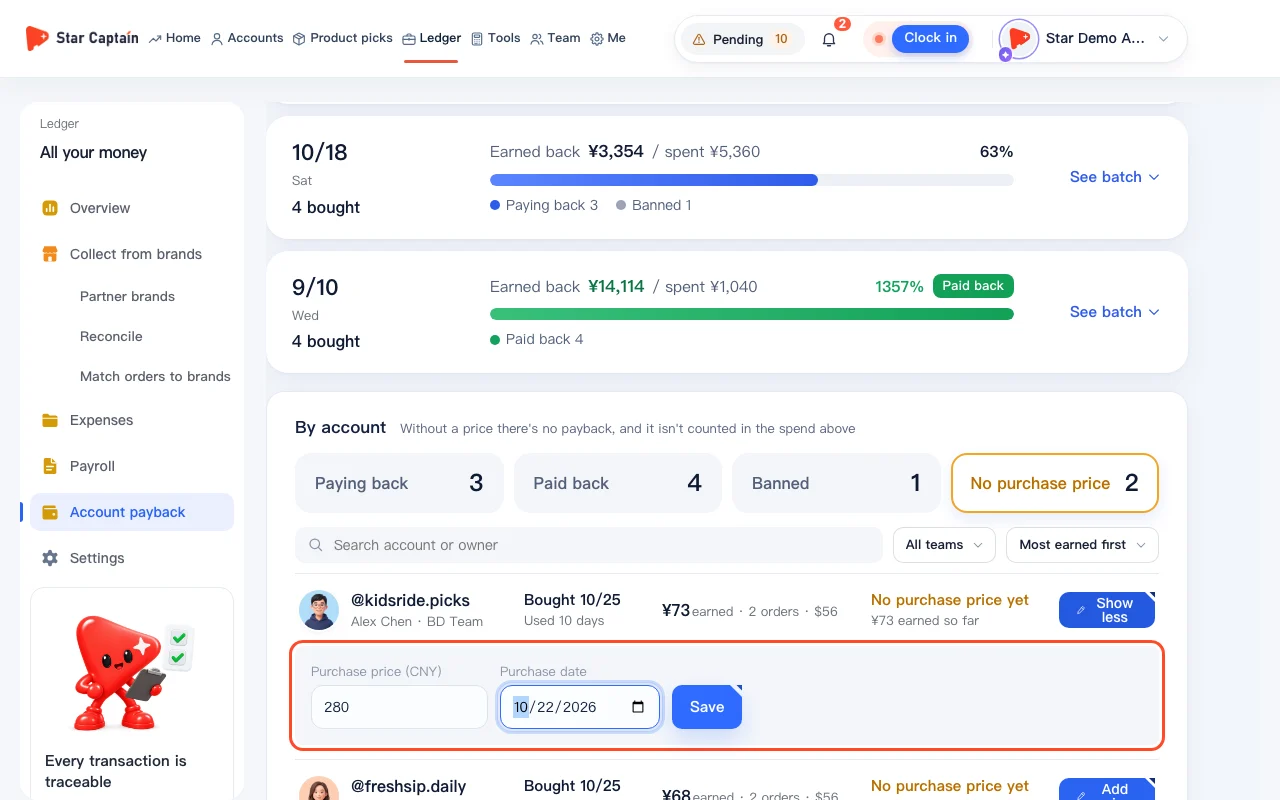
Payback totals only count accounts that have a recorded cost. If a banner says accounts have no recorded cost and aren't counted, click "Add prices" or select the "No recorded cost" card. Click "Add price" on an account row, enter the "Recorded cost (CNY)" and "Onboarding date", and click "Save". If you already entered "Cost each (CNY)" and "Added on" when adding accounts in "Account inventory", those values carry over automatically once the account is authorized.
03Compare batches under "By onboarding date"
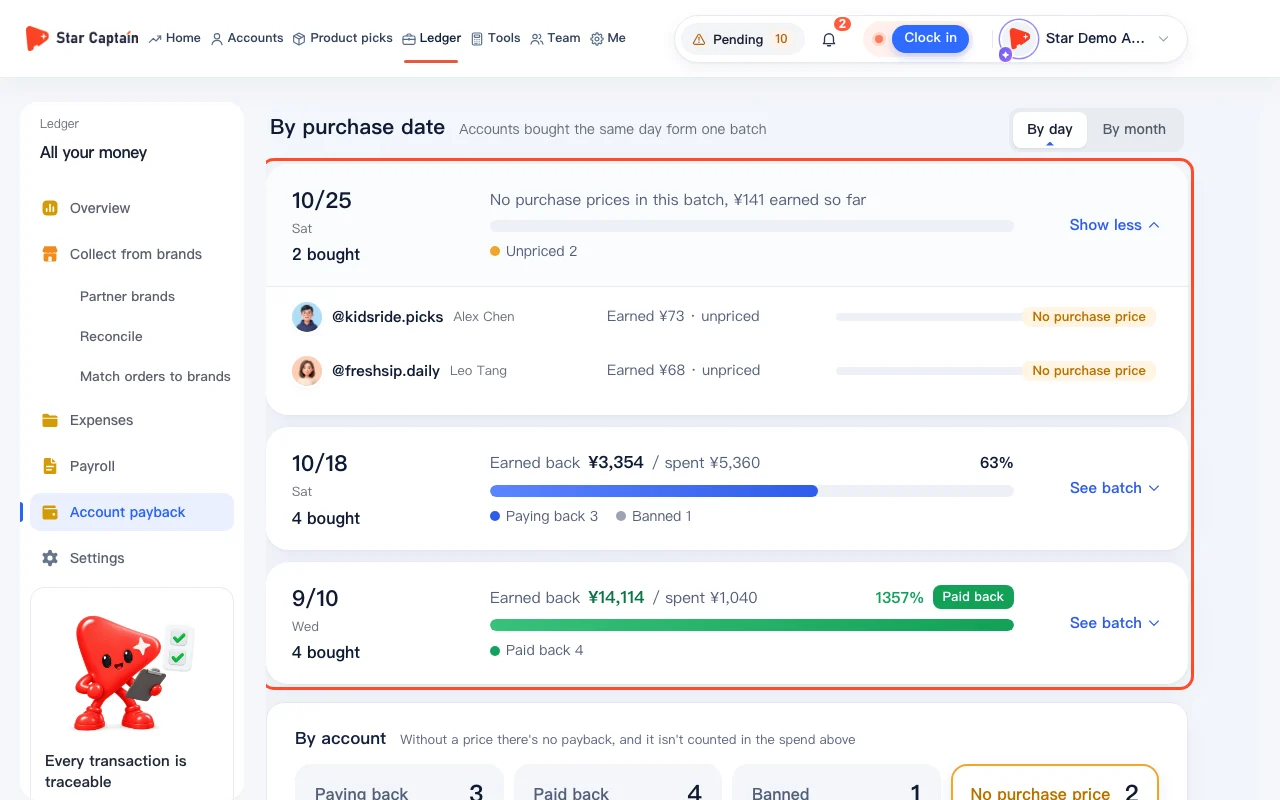
Scroll down to "By onboarding date" (accounts added on the same day form one batch, and you can switch between "By day" and "By month"). Each batch shows earned back versus spent along with how many accounts in that batch are "Paid back", "Paying back", or "Banned".
04Check individual accounts and estimated payback days under "By account"
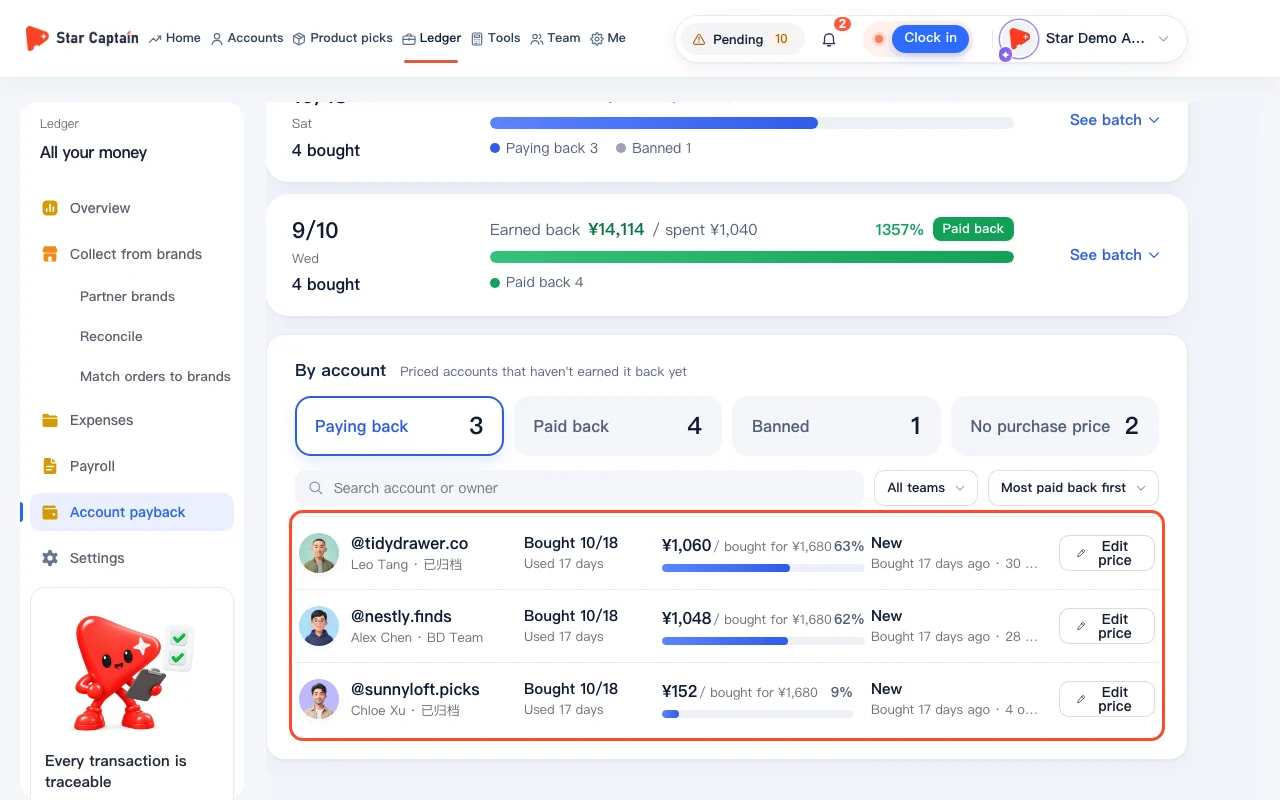
Scroll to the "By account" list. Accounts that have broken even are marked "Paid back" with how many days they took and how much they are ahead. Accounts still working toward break-even show the remaining amount to go and the estimated days to pay back at the last 30 days' pace.
05Filter by team or change the sort order
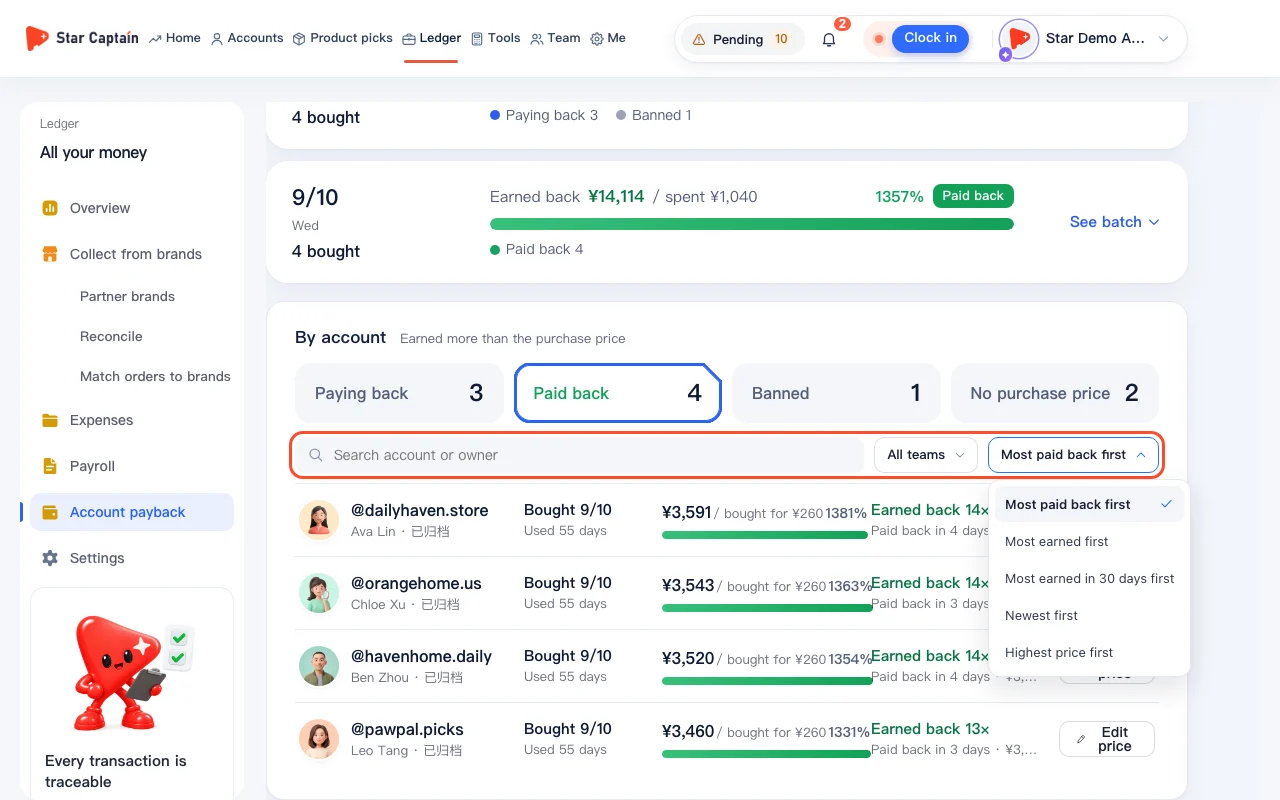
At the top of the "By account" section, filter by "Team", type in "Search account or owner", or use "Sort" to switch between "Most paid back first", "Most earned first", "Most earned in 30 days first", "Newest first", and "Highest price first". To fix a price anytime, click "Edit price" on that row.
Screenshots use demo data. Check the product for what you actually see.
FAQ
How is the "earned back" amount calculated for account payback?
For account payback, Star Captain totals the platform commission and estimated off-platform commission generated by that account's orders, converts the total into CNY, and compares it against the account's "Recorded cost (CNY)".
If an account changes operators, is the recorded cost counted twice?
No. The cost stays with the account. When you change the operator on the "Accounts" page, both the recorded cost and historical earnings remain tied to that account and are never double-counted.
Are banned accounts still included in the total recorded cost?
Yes. As long as a banned account has a recorded cost, its cost stays in the batch total and company total under the "Banned" card so your batch return numbers reflect the real spend.
Can staff see recorded costs and payback numbers?
No. Staff only see the accounts they operate, while cost and profit data are only visible to the team owner by default.