TikTok accounts
 Orders & performance
 Team management
 Profit & cost
 Brand deals
 Creator toolbox
 Solo creators
 Creator teams
 Multi-department companies
Who is this for?
- Agency owners who want to know their real monthly net profit after deducting account setup costs, phones, network fees, office rent, and ad spend
- Team leads and owners who want shared expenses like rent split across teams by account count to see which team and which account actually make money
- Finance admins who want recurring monthly costs like rent counted automatically each month without re-entering spreadsheets
What to prepare before starting?
- You have set up partner brand commission rates and exchange rates in "Ledger → Collect from brands" so order revenue is calculated automatically
- You have recorded your device recorded costs, network monthly fees, AI tool costs, and account costs under "Accounts → Devices & networks" and "Account inventory"
- You have this month's offline fixed costs (such as rent and utilities) and variable expenses (such as ads and sample shipping) ready
01Open "Ledger → Expenses" and check your synced costs
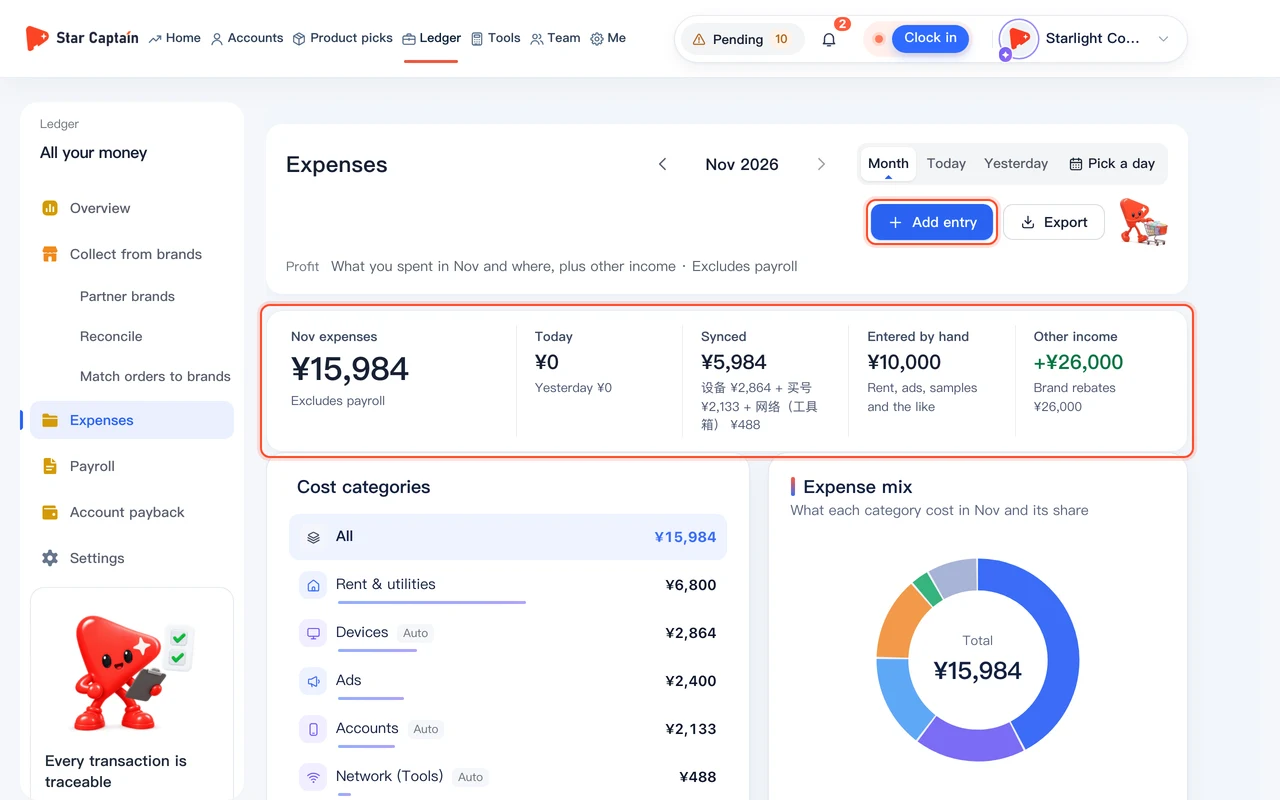
To record expenses and track monthly profit, from the top navigation or left sidebar, go to "Ledger → Expenses". The top summary shows "This month's costs" split into "Synced" ("Accounts, devices, network, tool accounts") and "Entered by hand" ("Rent, ads, samples and the like"), plus "Other income". Costs already recorded on your accounts, devices, networks, and AI tools appear here automatically.
02Click "Add entry" to record rent, ad spend, or sample shipping
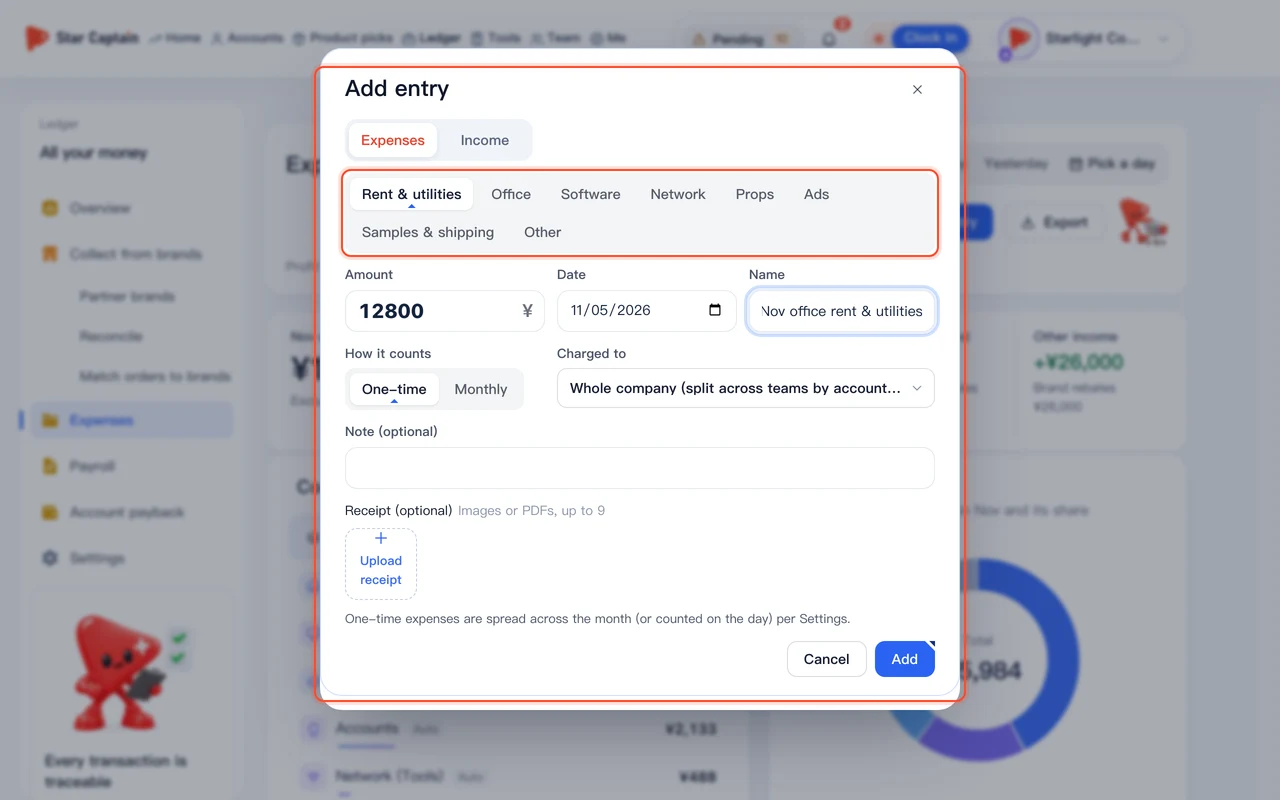
Click "Add entry" in the top-right corner. Choose "Expense or income", pick a category such as "Rent & utilities", "Ads", "Samples & shipping", "Office", "Tool accounts" ("Software"), or "Props", enter the amount, date, and note, and optionally click "Upload receipt" to attach a payment screenshot.
03Choose "One-time" or "Monthly" and pick who the cost is charged to
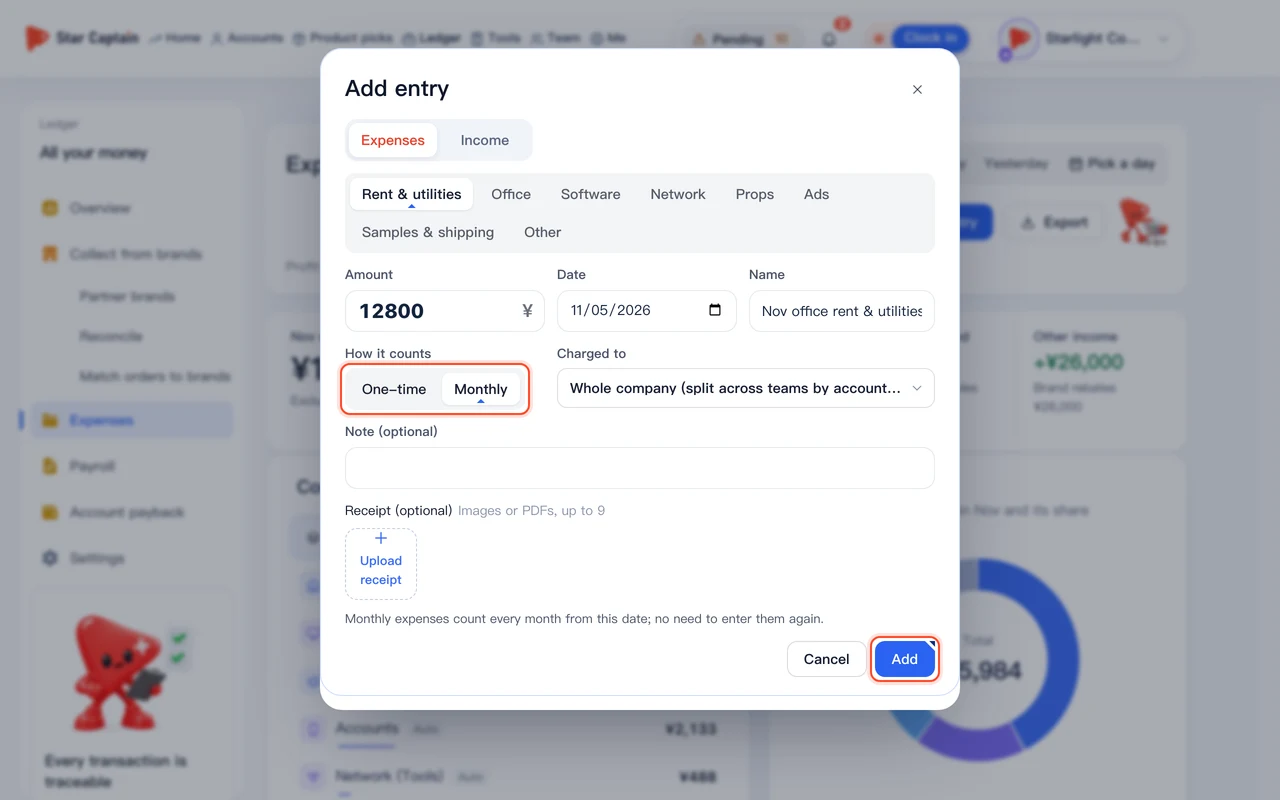
In the same modal, under "How it counts", select "One-time" or "Monthly (counted every month)"—pick "Monthly" for fixed bills like office rent so the system counts them automatically every month. Under "Charged to", choose "Whole company (split across teams by account count)" or assign the expense to a specific "Team" or employee, then click "Add".
04Set cost spreading rules under "Ledger → Settings"
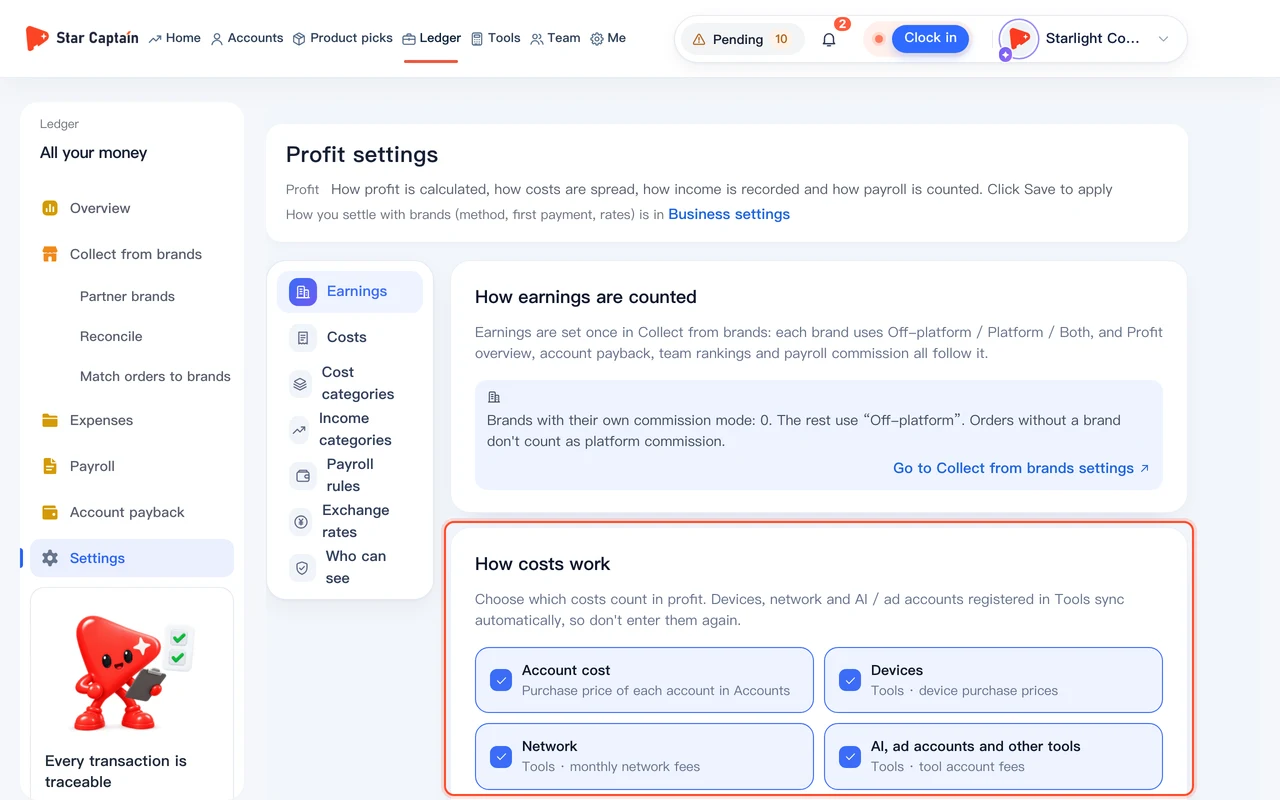
Open "Ledger → Settings". Under "How costs work" ("Costs"), check which synced cost types ("Account cost", "Devices", "Network", "AI, ad accounts and other tools") count toward profit, and set "Spread account cost over (days)" and "Spread device cost over (days)" (for example, spreading phone purchases over 180 days). Under "One-time expenses", choose whether they are set to "Spread across the month" or "On the day", then click "Save changes".
05Open "Ledger → Overview" to inspect monthly profit, cost structure, and account ROI
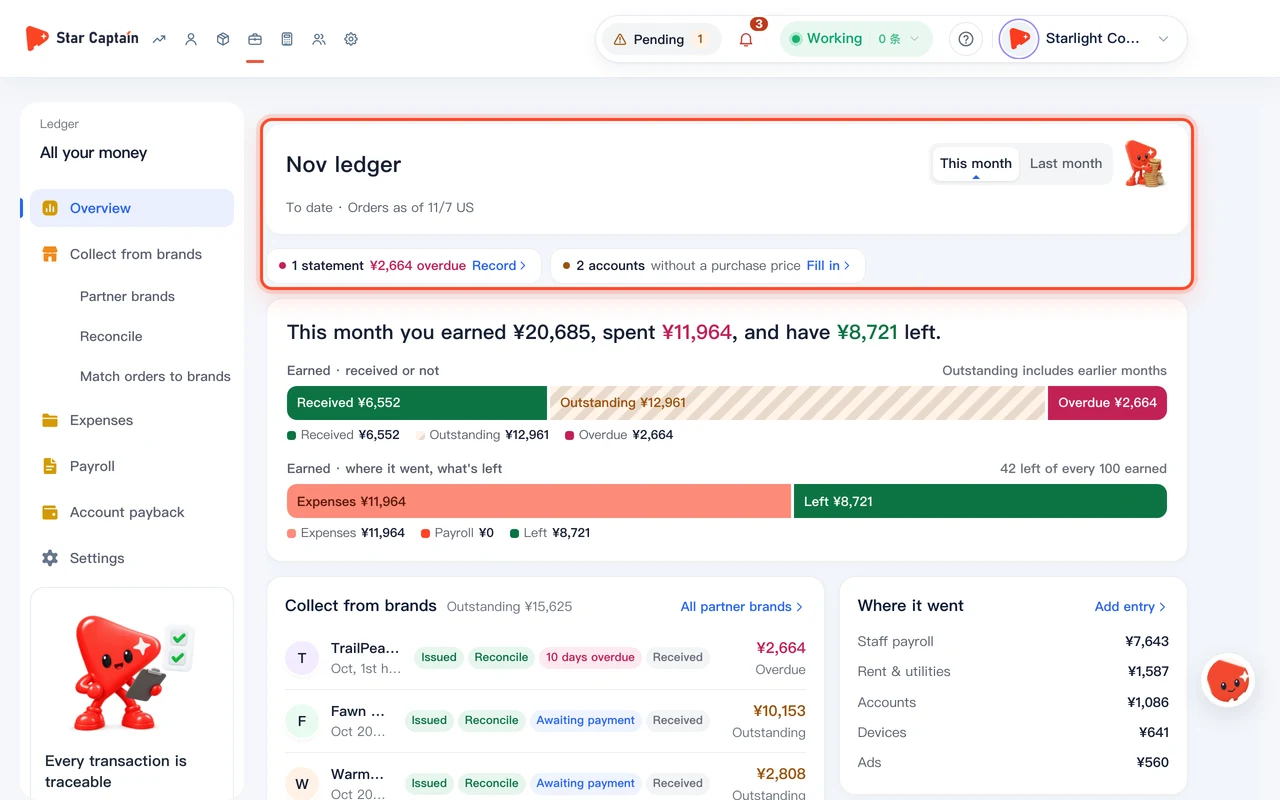
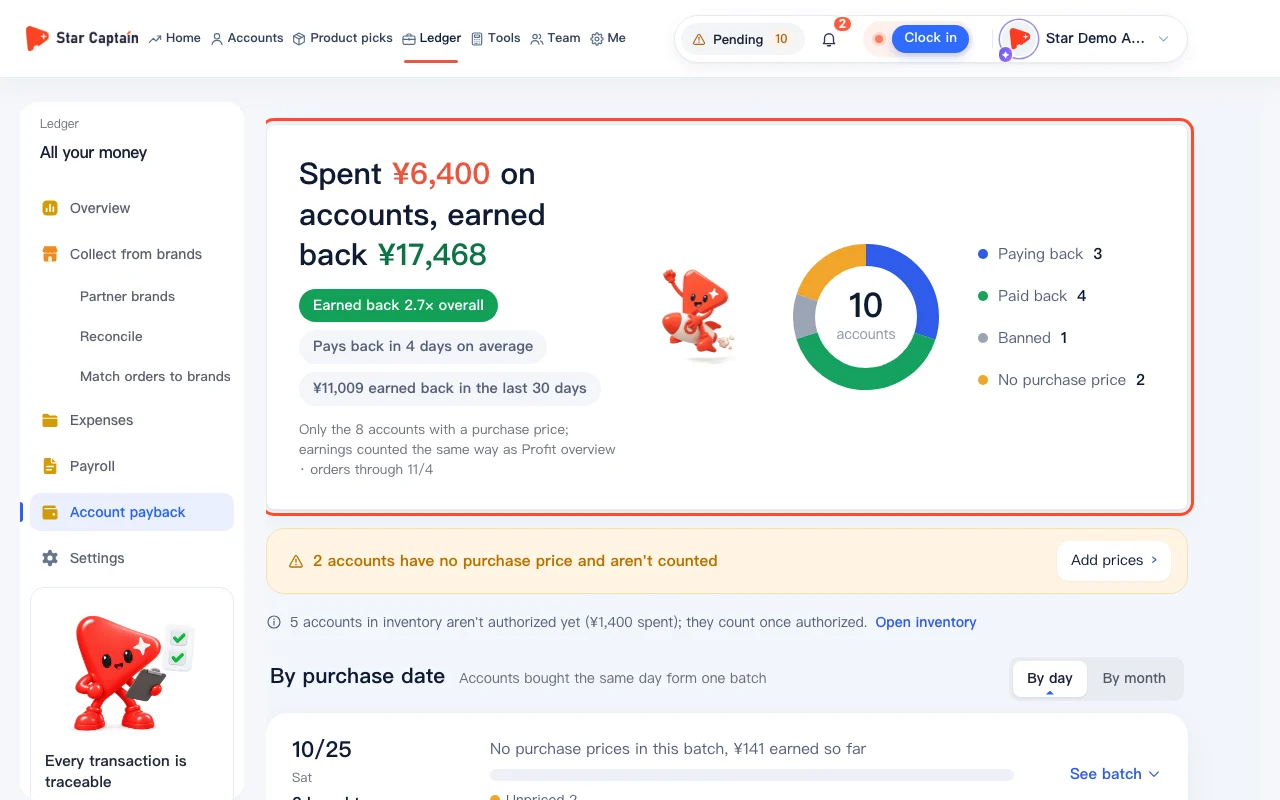
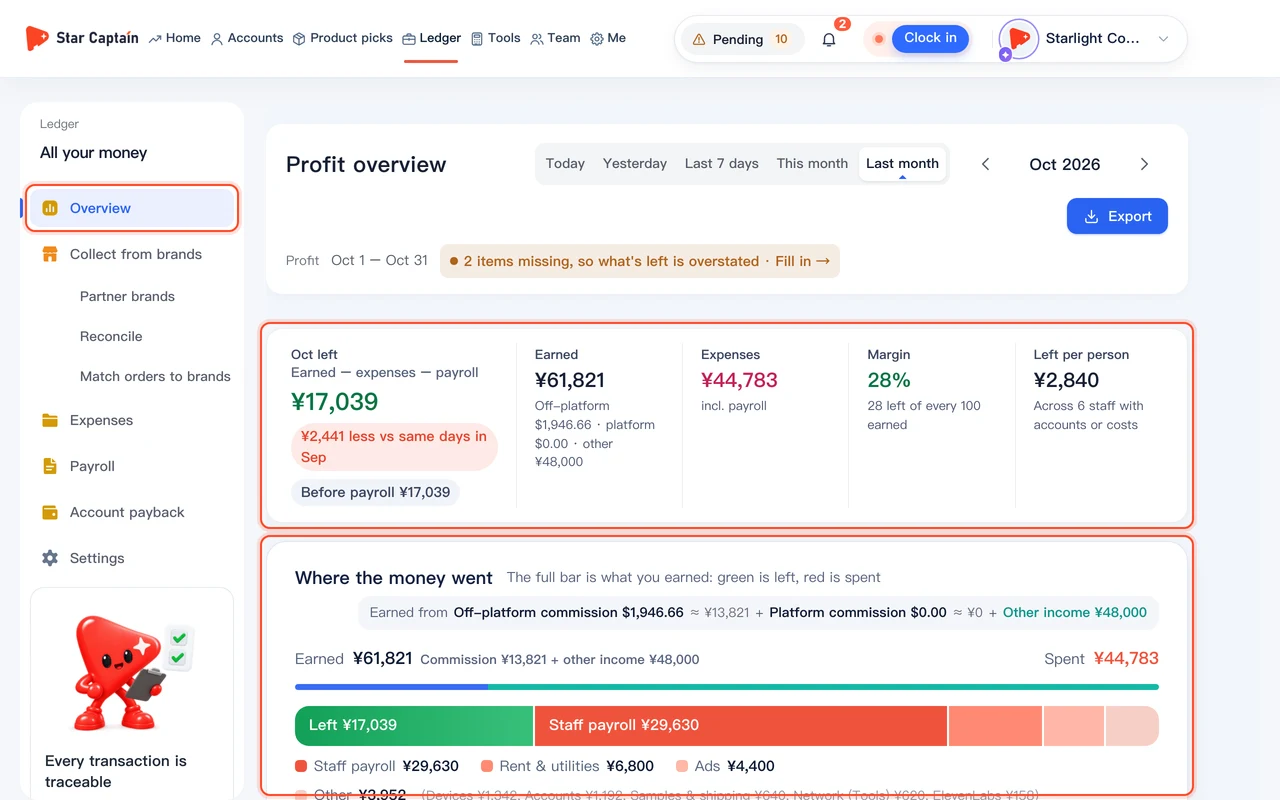
Go to "Ledger → Overview". Switch the period at the top between "This month", "Last month", and "Today", and toggle between "incl. payroll" and "excl. payroll". You will see the formula "Earned − expenses − payroll" (or "Earned − expenses"), followed by "Where the money went", "Daily profit", and "Most profitable teams". Click "See profit or loss by account" to check payback progress for each TikTok account, or click "Export" to download the profit statement.
Screenshots use demo data. Check the product for what you actually see.
FAQ
Where do I edit synced device, network, or AI tool costs?
Device purchase prices, network monthly fees, and AI tool costs come from "Accounts → Devices & networks", while account costs come from your account records. Edit them on those source pages so your asset list and ledger stay in sync. If you want to exclude an entire synced category from profit calculations, uncheck it under "Ledger → Settings → How costs work".
Is profit calculated when orders are placed or when partner brands pay out?
Profit is calculated as orders come in, using your partner brand commission rules and exchange rates minus that period's costs. That way you can see daily operating profit without waiting weeks for bank transfers. Actual payouts are tracked separately under "Ledger → Collect from brands → Reconcile".
How are company-wide expenses like office rent split across teams?
When you set "Charged to" to "Whole company (split across teams by account count)", the ledger divides the expense across teams and staff in proportion to the number of TikTok accounts each team manages.
Can regular operators see company expenses and monthly profit?
No. The expense ledger, payroll totals, and net profit are visible only to the agency owner by default. Regular operators and editors cannot view company cost or profit pages.