TikTok accounts
 Orders & performance
 Team management
 Profit & cost
 Brand deals
 Creator toolbox
 Solo creators
 Creator teams
 Multi-department companies
Who is this for?
- Agency owners and finance managers who calculate monthly commissions across dozens of TikTok accounts using fixed or tiered rates
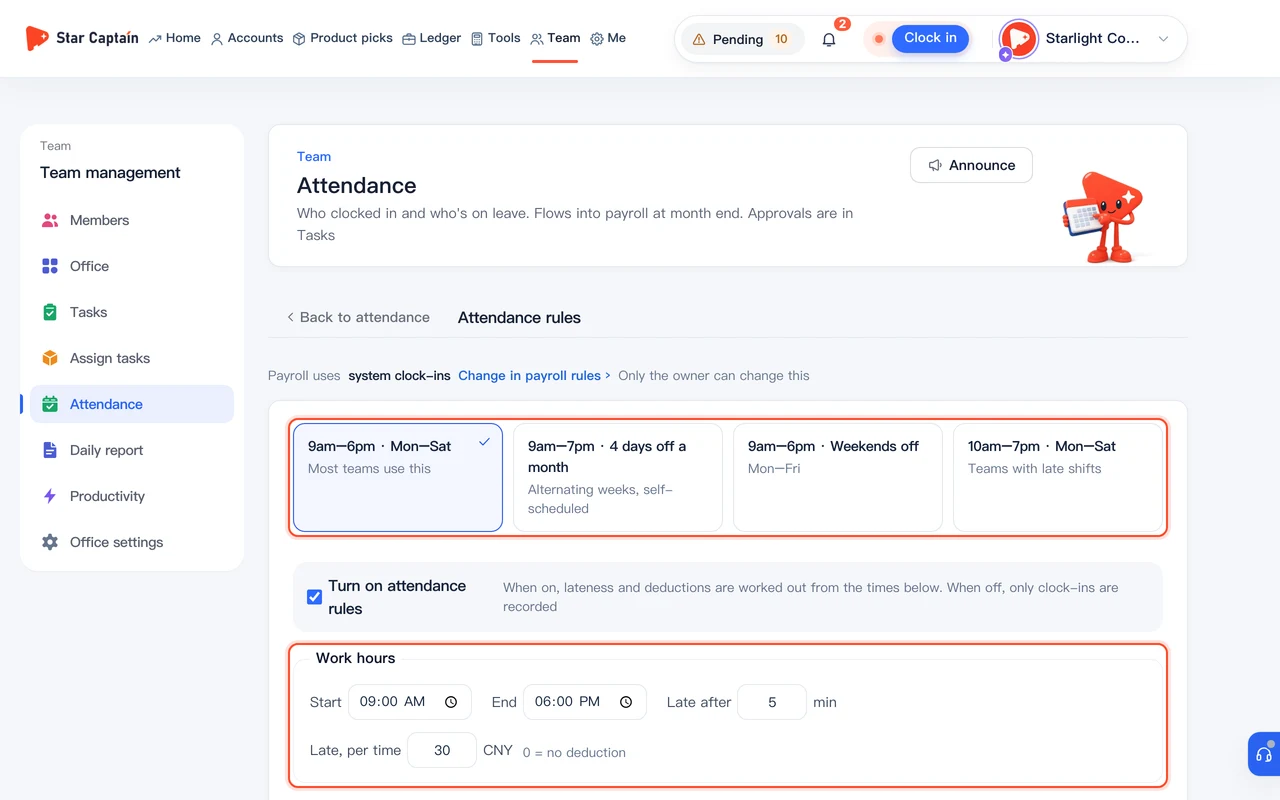
- Team admins who want clock-in records, leave days, and late deductions to prorate base pay automatically without reconciling two spreadsheets
- Teams that pay team leads an override on their group's total commission or deduct account, device, and network costs before calculating operator commission
What to prepare before starting?
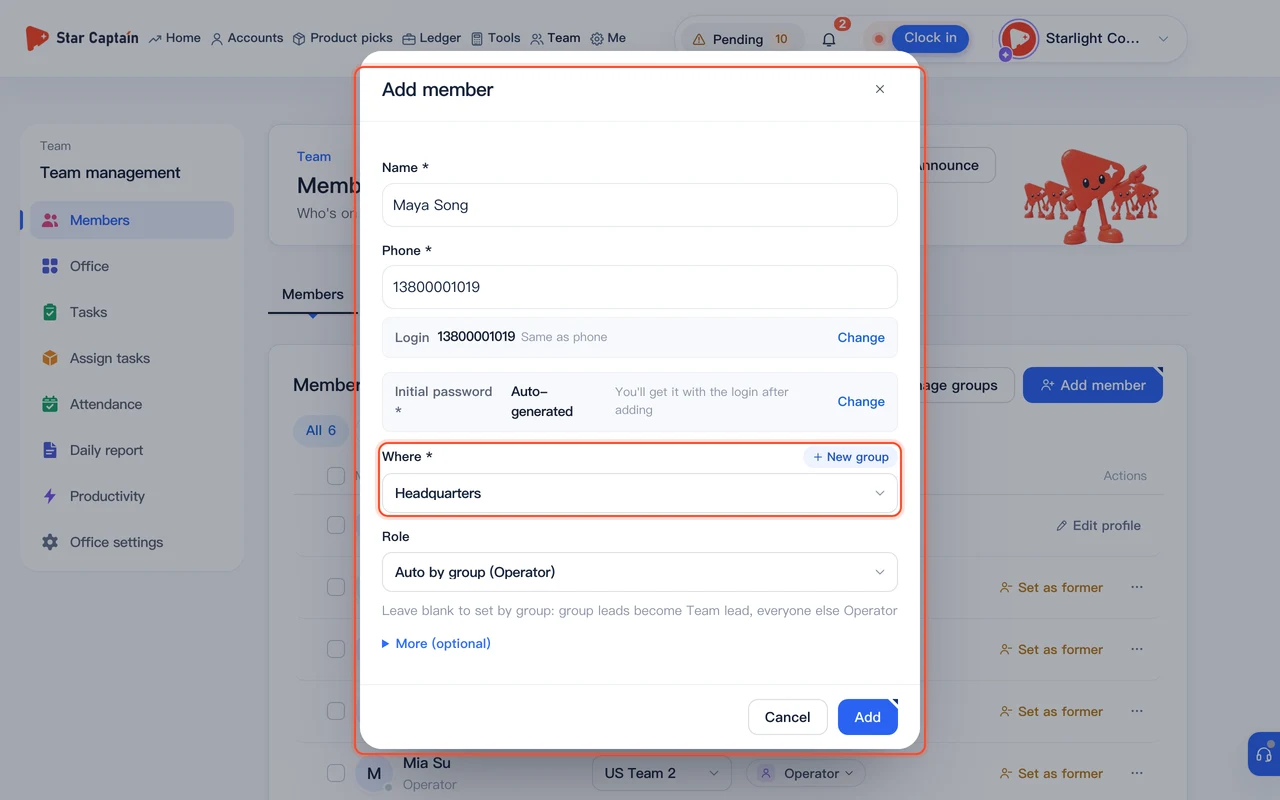
- You have added staff under "Team → Members" and assigned each TikTok account to its operator on the "Accounts" page
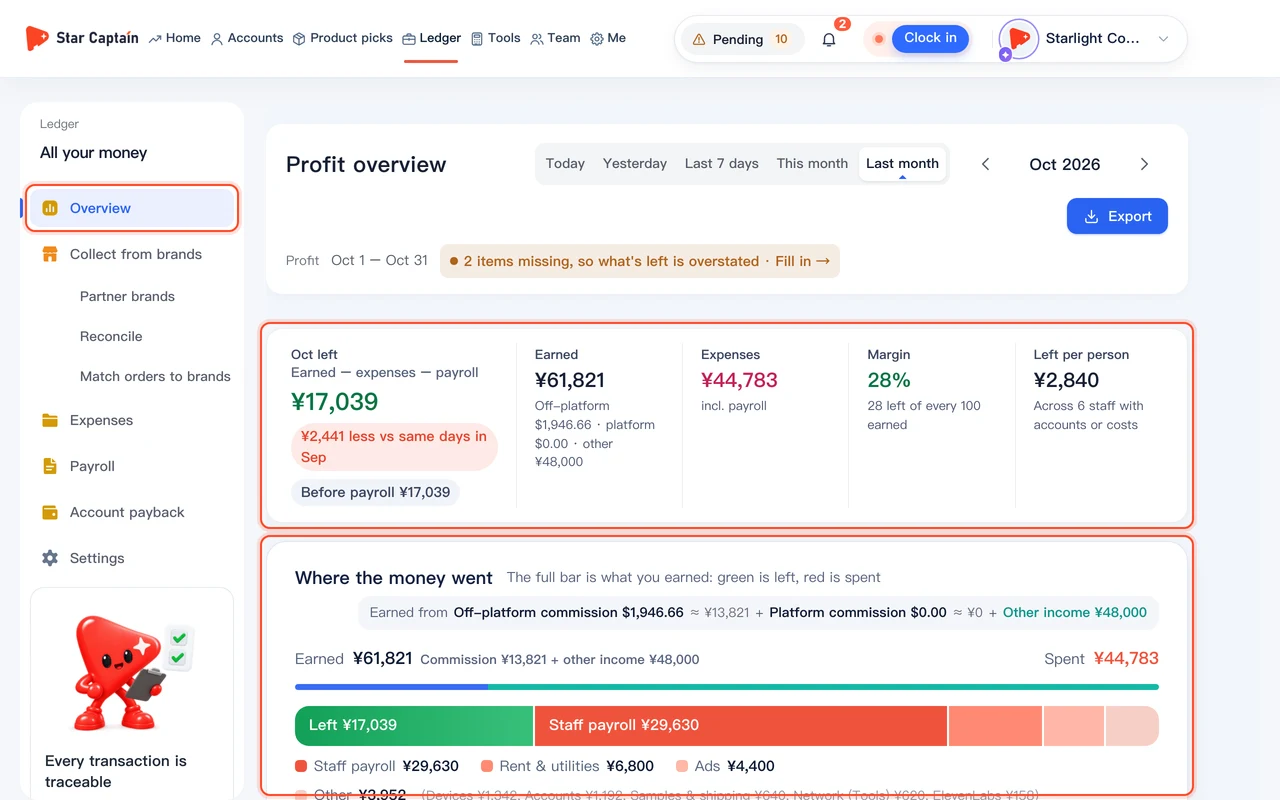
- You have configured partner brand commission rates and exchange rates in "Ledger → Collect from brands" so the system can total each person's account commissions
- Monthly attendance is tracked under "Team → Attendance", or you have an `.xlsx` / `.csv` attendance sheet exported from DingTalk or WeCom
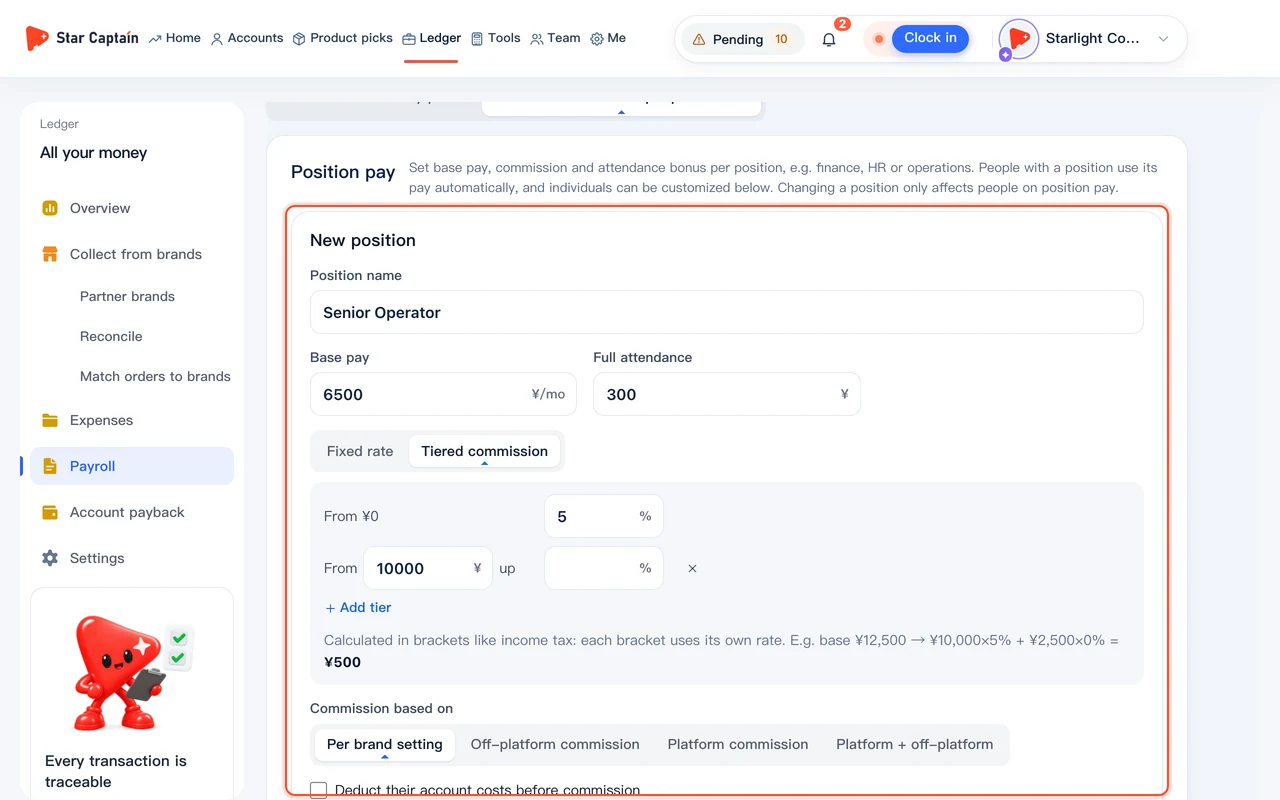
01Open "Ledger → Payroll" and create a position pay template
To set up payroll and generate payslips, from the top navigation or left sidebar, go to "Ledger → Payroll". In the "By position" section, click "New position", enter a position name (such as "Operations"), and fill in "Base pay" and "Full attendance" (attendance bonus). Under "Commission", choose "No commission", "Fixed rate", or "Tiered commission" (in tiered mode, click "Add tier" to set rates for different commission brackets). Expand "Add allowances / fees" if you offer meal or housing allowances, then click "Save".
02Assign staff to positions or customize individual and team commissions
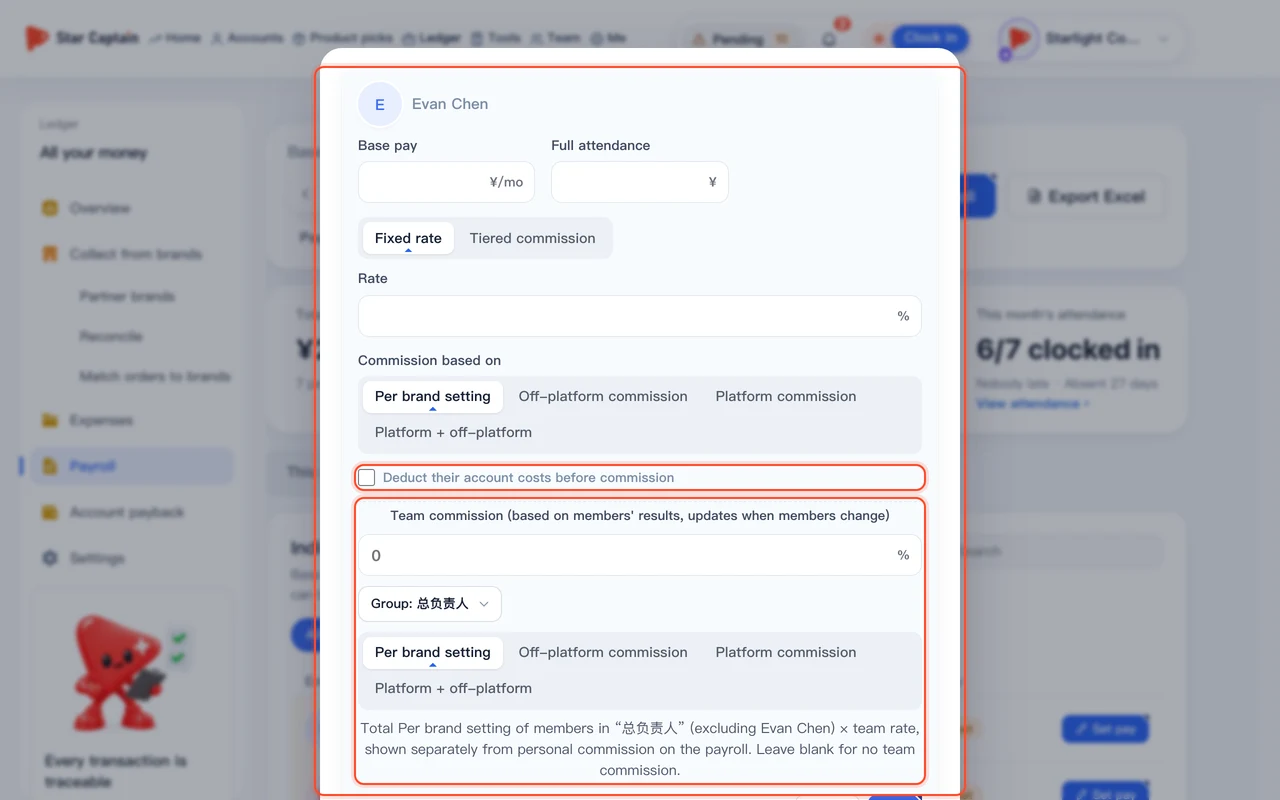
In the staff payroll table, assign each person to a position so everyone in that role shares the same base pay and commission rules. To customize pay for a specific employee, click "Custom" on their row to open "Edit pay for …". Here you can check "Deduct their account costs before commission" (subtracting their account setup, device, and network costs before applying the commission rate) and enable "Team commission" for team leads so they earn a percentage of their group's total commission.
03Pull in attendance from Team clock-ins (or import from DingTalk / WeCom)
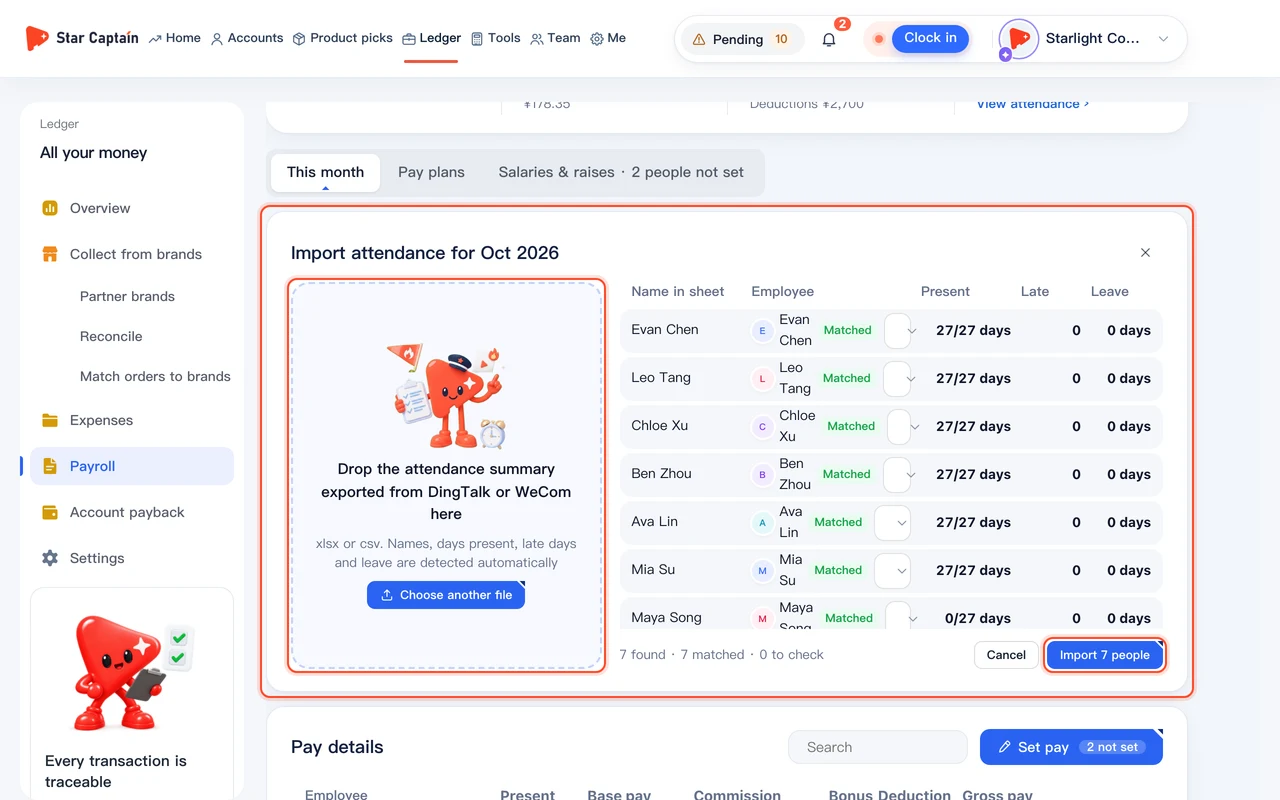
In the "This month's attendance" section, click "Generate from Team clock-ins". The system pulls in each person's days present, late count, leave days, and attendance deductions from "Team → Attendance" and prorates base pay automatically. If your team clocks in with an external app, click "Import attendance" ("Import from DingTalk / WeCom") and upload your `.xlsx` or `.csv` file instead.
04Check "How commission was calculated" and add bonuses or deductions
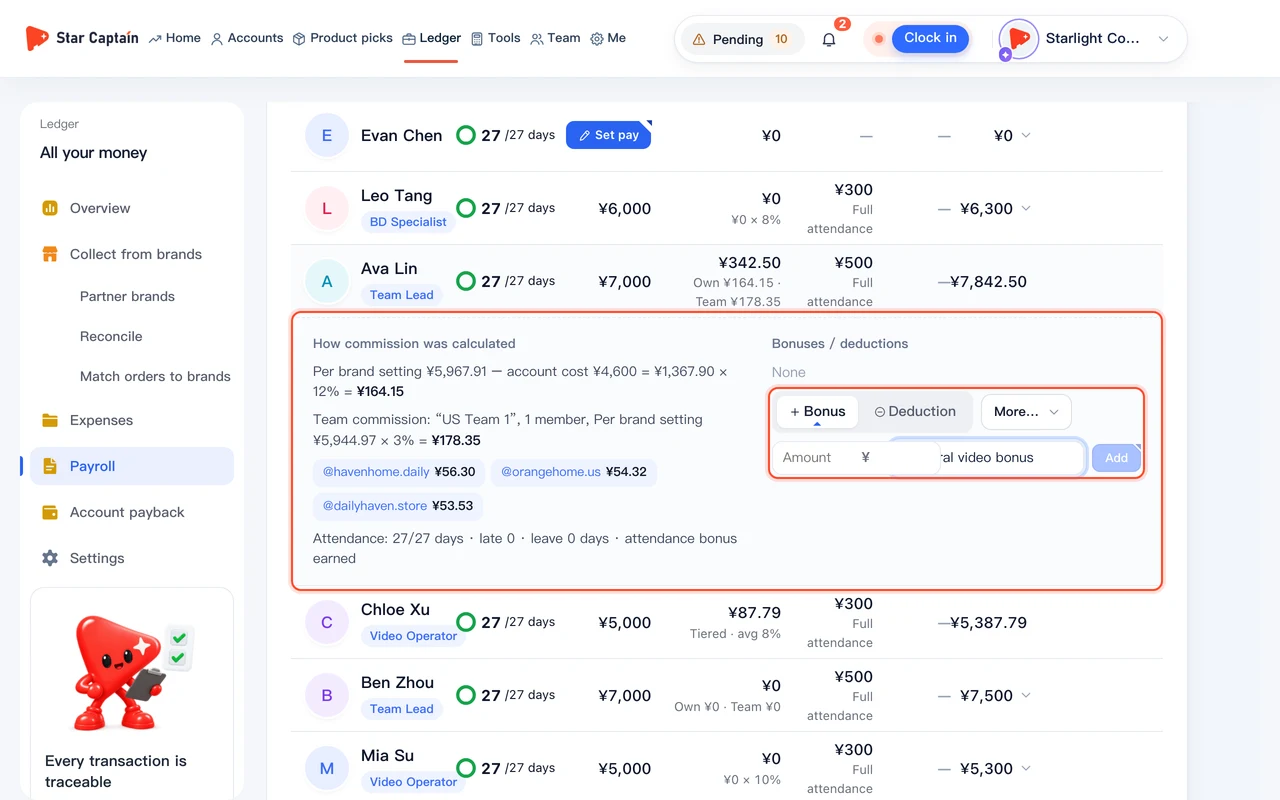
Once attendance and commissions are in, the payroll table shows each employee's base pay, commission, attendance bonus, allowances, deductions, and "Gross pay". Click any employee's row to expand "How commission was calculated" and see exactly how much commission each of their TikTok accounts generated, what costs were deducted, and which tier applied. You can also enter one-off monthly bonuses or deductions right in the detail view.
05Click "Confirm payroll" to freeze amounts, then "Mark as paid"
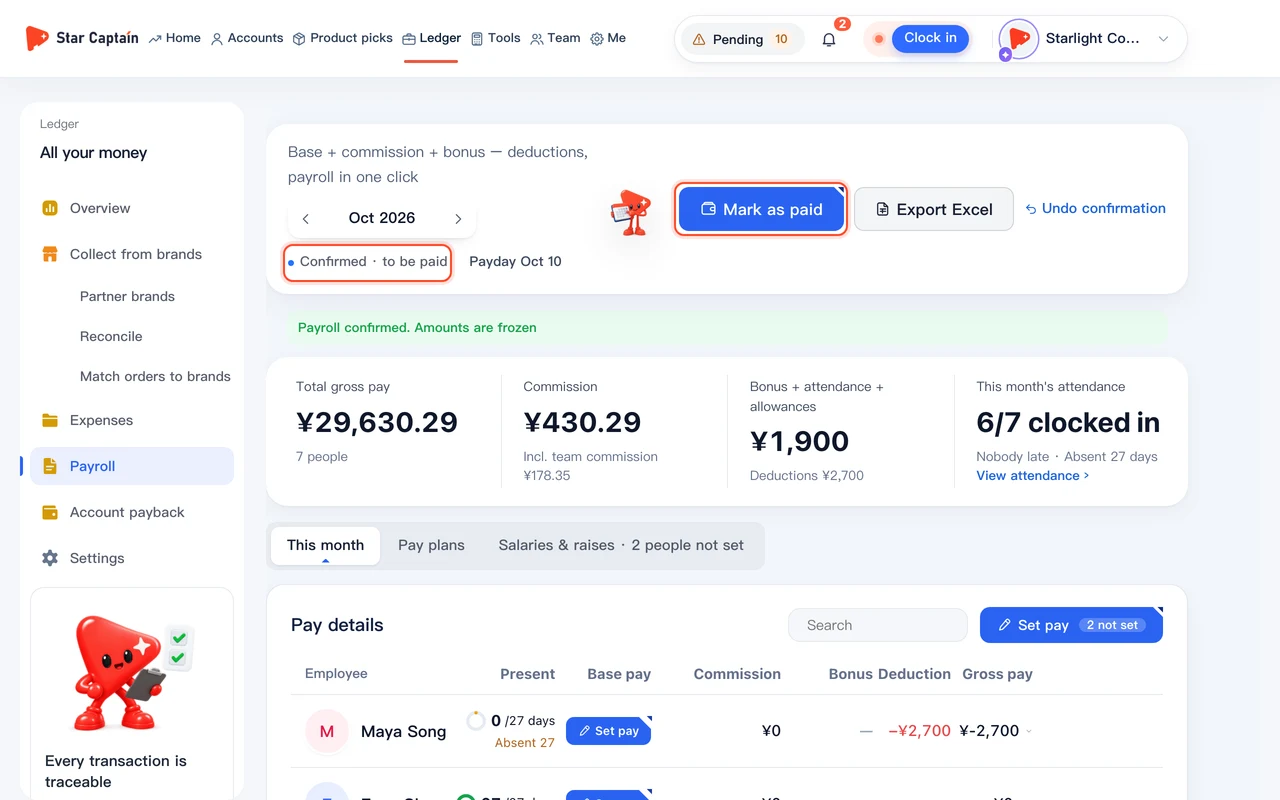
After verifying every row, click "Confirm payroll" in the top-right corner. You will see "Payroll confirmed. Amounts are frozen"—subsequent order changes won't alter this month's numbers, and employees can view their own payslip breakdown under "Me → My pay". Once bank transfers are sent, click "Mark as paid". If you need to make edits before paying, click "Undo confirmation".
Screenshots use demo data. Check the product for what you actually see.
FAQ
How are employee commissions linked to TikTok orders?
Star Captain totals the monthly commissions (platform commissions plus off-platform commissions from partner brands, converted to CNY) from every TikTok account assigned to that employee, then multiplies the total by their position or custom commission rate—no manual order exports needed.
How do we deduct account and device costs before calculating commission?
Open "Edit pay for …" on the employee's row (or enable the global rule under "Ledger → Settings → Payroll rules") and check "Deduct their account costs before commission". The system subtracts the account setup, device, and network costs tied to that employee's accounts before multiplying by their commission rate.
Can employees see other people's salaries once payroll is confirmed?
No. Confirming payroll only unlocks each employee's own payslip under "Me → My pay", showing their own base pay, commission breakdown, bonuses, and attendance deductions. They cannot see anyone else's pay or company totals.
Where do I change our payday date or standard monthly workdays?
Open "Ledger → Settings" and check the "Payroll rules" section. There you can set "When payroll is paid" ("One month behind" or "Same month") and "Payday" (for example, the 10th of next month), toggle "Prorate base pay by attendance", and set "Workdays per month" (such as 22 or 26 days).