TikTok accounts
 Orders & performance
 Team management
 Profit & cost
 Brand deals
 Creator toolbox
 Solo creators
 Creator teams
 Multi-department companies
Who is this for?
- TikTok commerce team owners and leads who want a clear daily view of who is clocked in, late, or on leave
- Agency admins running 6-day weeks, alternating weekends, or flexible comp days who want expected workdays calculated automatically
- Finance managers and owners who want monthly attendance and late deductions to flow straight into payroll without manual spreadsheets
What to prepare before starting?
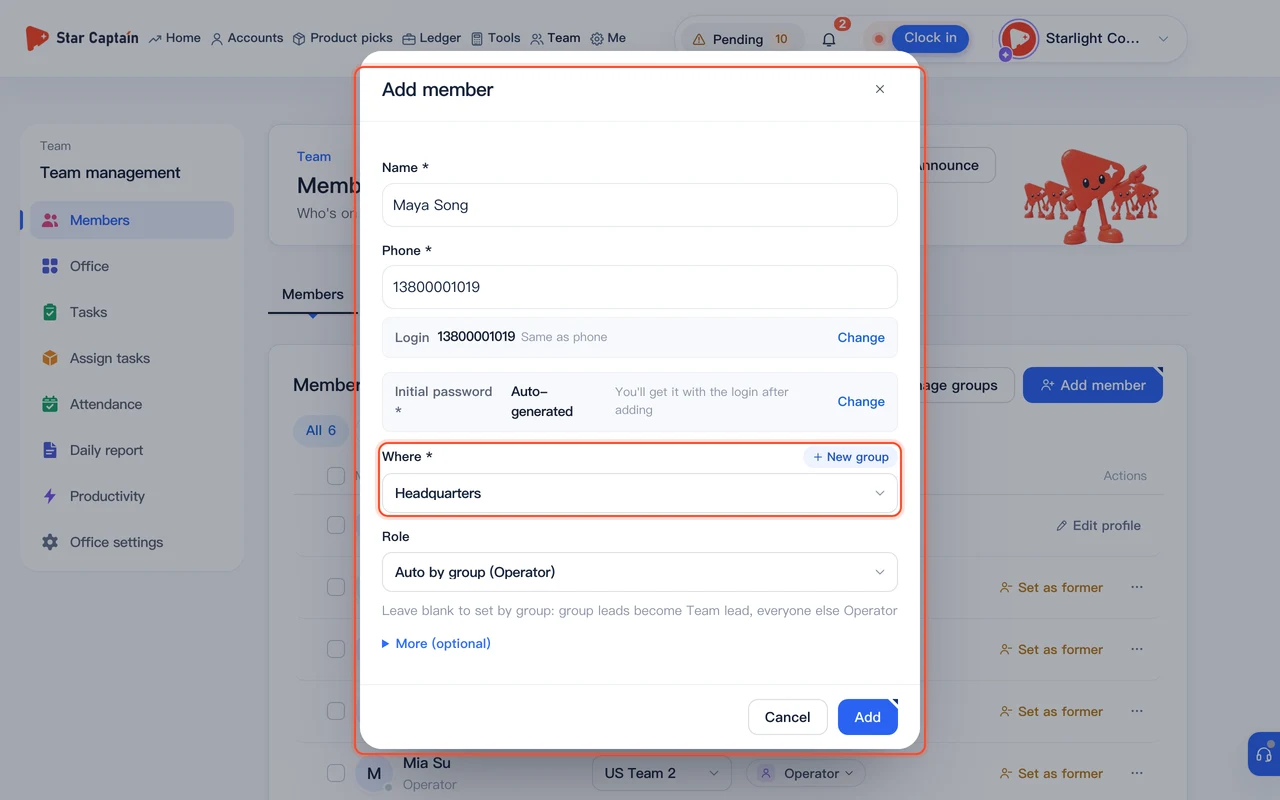
- You have added your staff and enabled their logins under "Team → Members"
- You know your team's start and end times (for example, 09:00–18:00), grace period in minutes, late/early-leave deduction amounts, and days-off policy
- If you plan to restrict clock-ins by location or Wi-Fi, you have your office address coordinates or office public IP ready
01Open "Team → Attendance" and open the rules modal
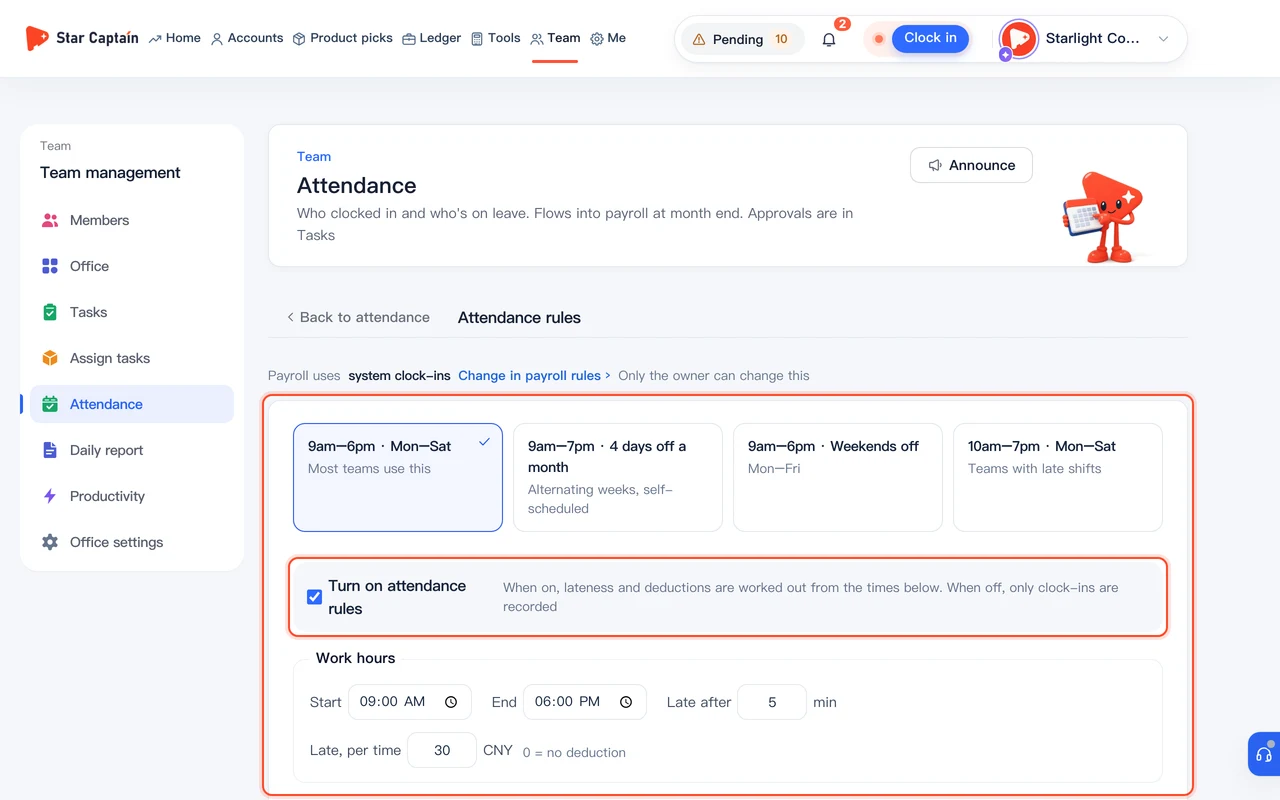
From the left sidebar or top navigation, go to "Team → Attendance". On your first visit, click "Set up" on the banner—or click "Attendance rules" in the top-right corner at any time—and toggle on "Turn on attendance rules".
02Pick a schedule preset and set work hours, late deductions, and days off
Under "Templates", pick a preset such as "9am–6pm · Mon–Sat", "9am–7pm · 4 days off a month", "9am–6pm · Weekends off", or "10am–7pm · Mon–Sat". Next, verify "Work hours" ("Start" and "End"), "Late after … min", and "Late deduction" (including "First … late arrivals a month free" under "Advanced rules" and the deduction per late arrival). Under "Days off", choose "Fixed days off" or "Flexible days off", and add any public holidays under "Company holidays".
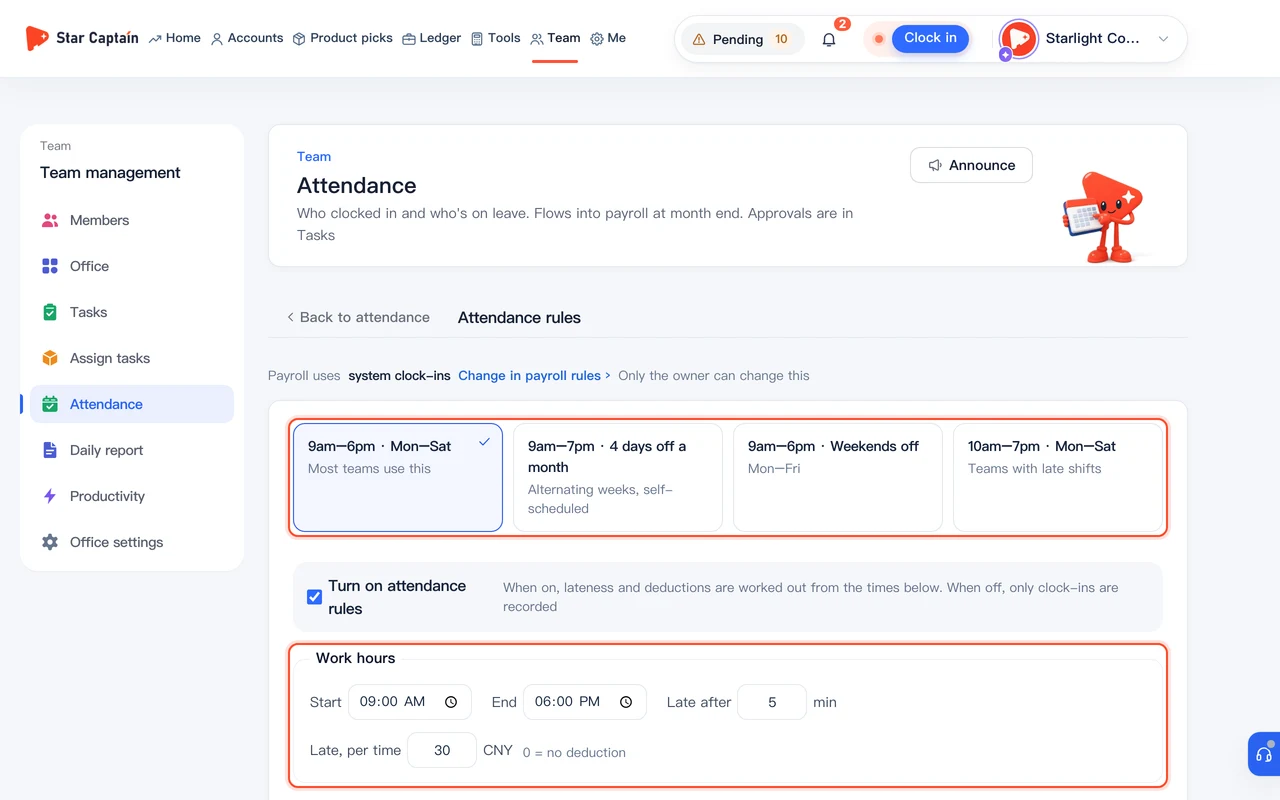
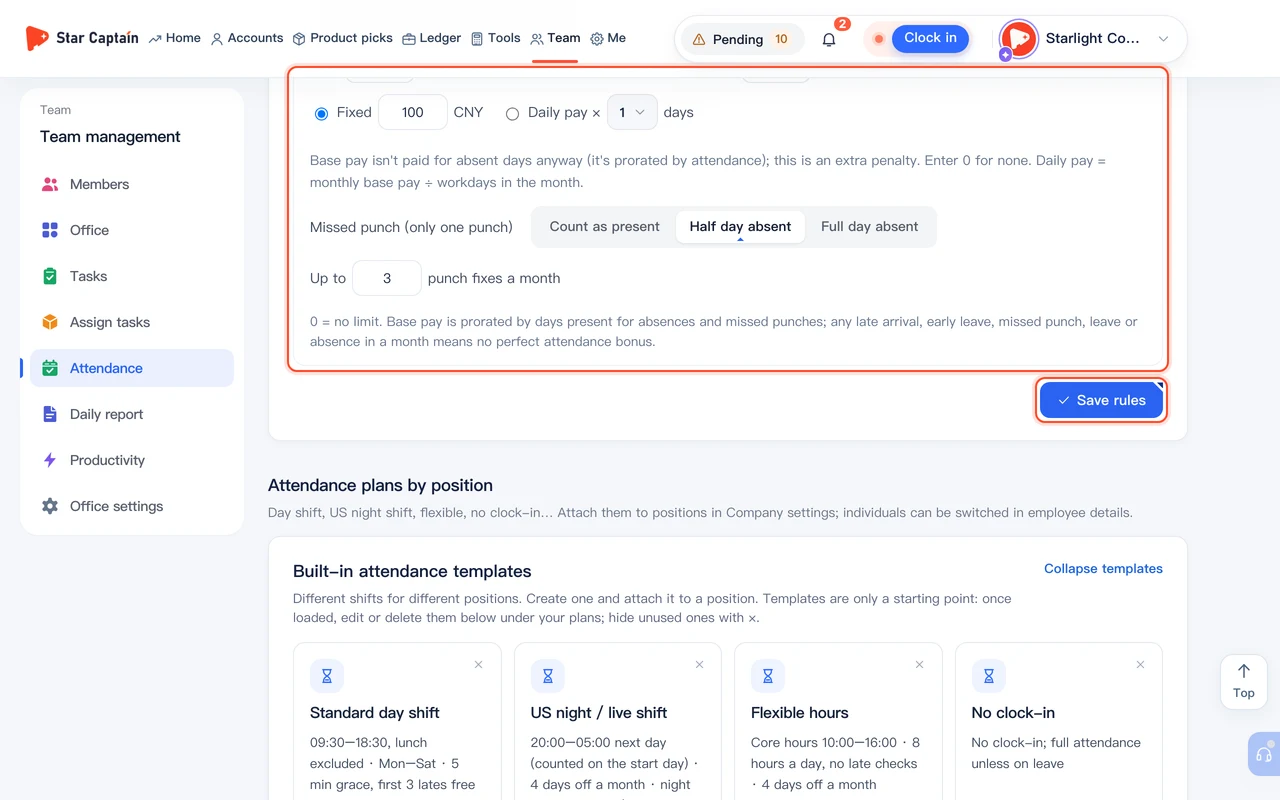
03Configure clock-in area and advanced missed-punch rules, then save
Expand "Advanced rules" at the bottom of the modal. Under "Clock-in area", choose "Anywhere", "Office location", "Office network", or "Either" (for office location, you can click "Use my location", set "Radius … m", and optionally allow off-site clock-ins marked as "Off-site"). Check the deduction rules for "Early leave", "Absent", and "Missed punch (only one punch)", set "Up to … punch fixes a month", and click "Save rules".
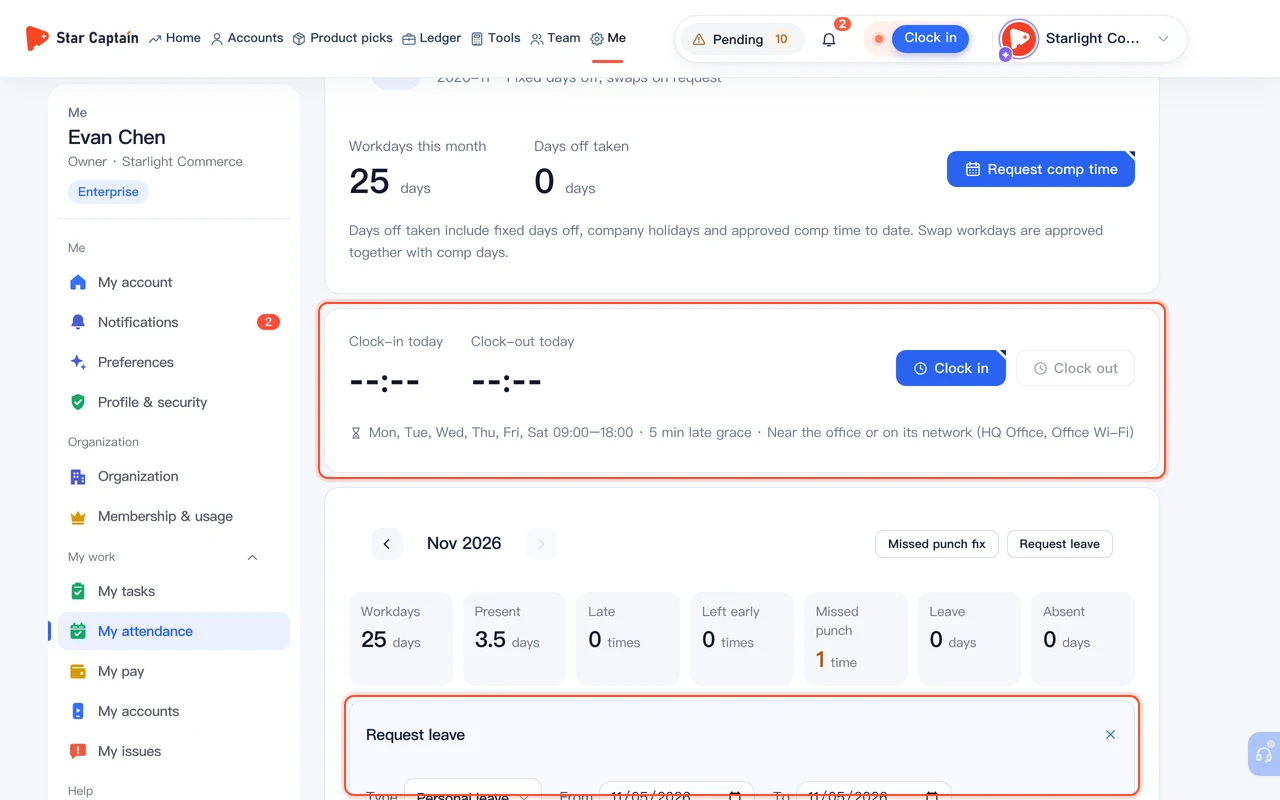
04Staff clock in, clock out, and request leave or punch fixes under "Me"
When employees sign in, they open "Me" from the top right or left navigation. In "My day" or "My attendance", they click "Clock in" when starting work and "Clock out" before leaving (or "Update clock-out" if they stay later). If someone forgets to punch or needs time off, they click "Missed punch fix", "Request leave", or "Request comp time" right on the card, pick the date and leave type ("Personal leave", "Sick leave", "Annual leave", or "Comp time"), enter a reason, and click "Submit".
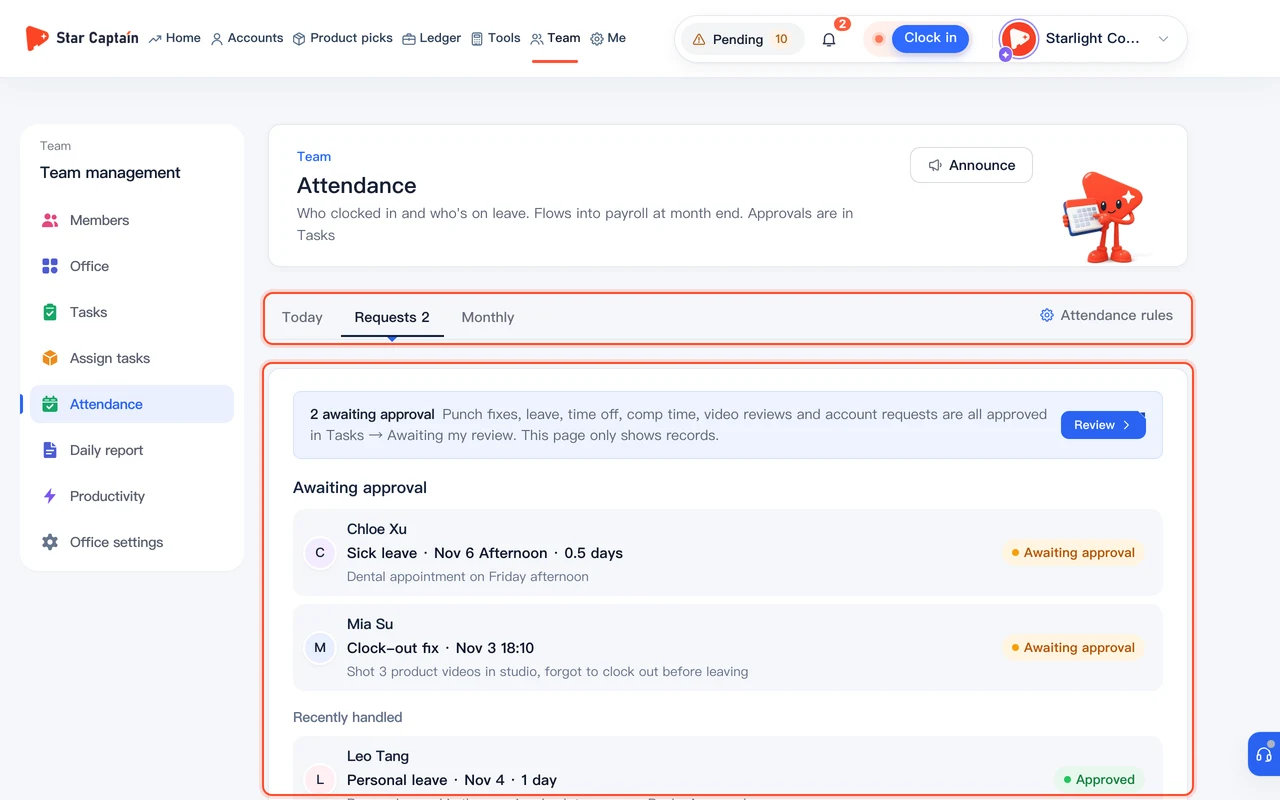
05Approve requests, adjust records, and check the "Monthly" summary
Back in "Team → Attendance", the "Today" view shows everyone's live status ("clocked in", "late", "not clocked in", "on leave"). If an employee forgot to punch, click "Adjust" on their row to set their status to "On time", "Late", "Leave", or "Day off" and fill in their times. Switch to "Requests" (or "Team → Tasks → Awaiting my review") to approve or reject leave and punch-fix requests, and open the "Monthly" tab to inspect each person's days present, late count, leave days, and attendance deductions before running payroll.
Screenshots use demo data. Check the product for what you actually see.
FAQ
Can staff still clock in when shooting videos outside the office?
Yes, if you allow it in "Attendance rules → Advanced rules → Clock-in area". Check the option "When outside the office location or network, allow clock-in and mark as 'Off-site'" so staff on location shoots can still punch in while managers see the off-site tag.
Our team gets 4 flexible days off per month instead of fixed weekends. How do we set that up?
In "Attendance rules", set "Days off" to "Flexible days off" and enter "Each person gets … days off a month" (for example, 4). Staff can click "Request comp time" under "Me" to pick their rest days, and once approved, those dates count as scheduled days off rather than absences.
If an employee forgets to clock out, can a manager fix it directly without waiting for a request?
Yes. On the "Today" list or the monthly calendar under "Team → Attendance", click "Adjust" next to the employee's record to enter their "Clock in" and "Clock out" times, update their status, and save a note.
How do monthly attendance numbers flow into payroll?
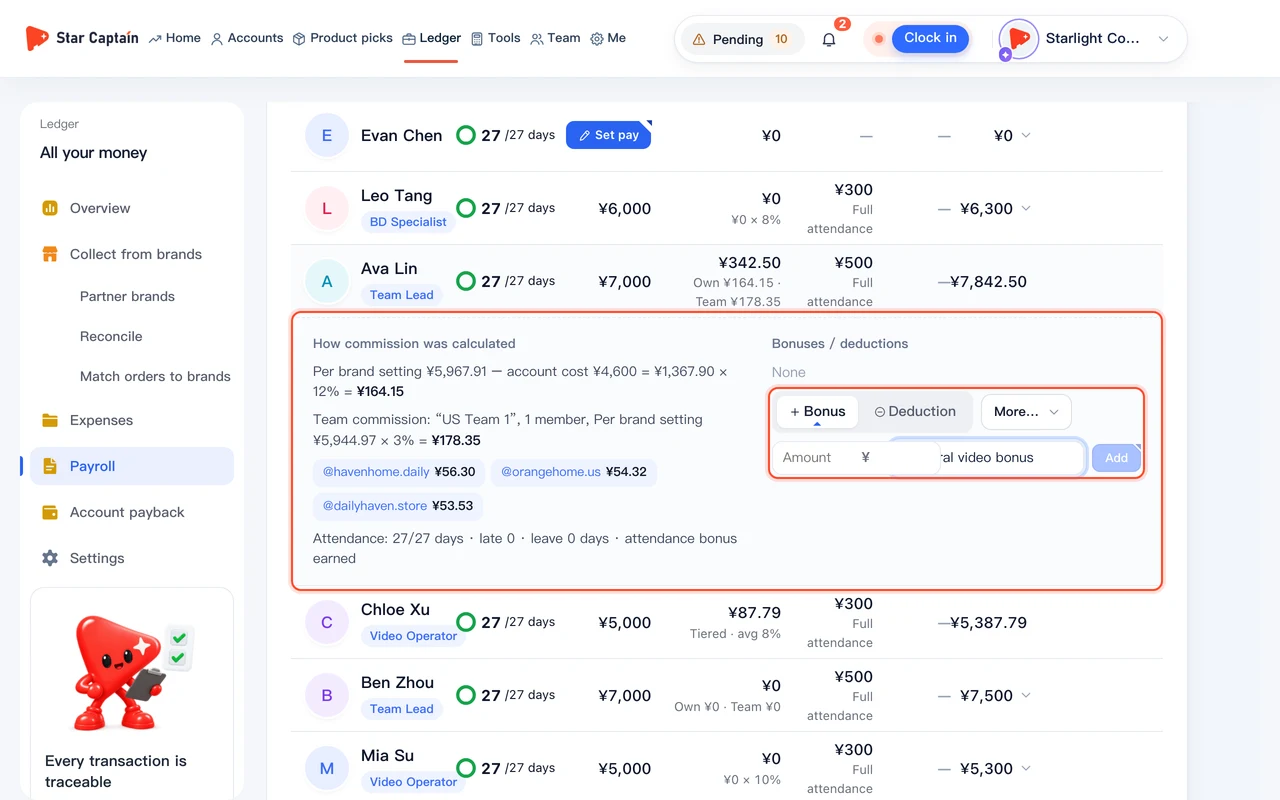
Once attendance rules are turned on, days present, leave days, and late/early deductions are tallied automatically. At the end of the month, go to "Ledger → Payroll" and click "Generate from Team clock-ins" to prorate base pay and apply attendance deductions in one click.