TikTok accounts
 Orders & performance
 Team management
 Profit & cost
 Brand deals
 Creator toolbox
 Solo creators
 Creator teams
 Multi-department companies
Who is this for?
- Team owners who bought a batch of TikTok accounts and need to assign accounts to staff or teams
- Owners or team leads reassigning accounts when staff members change roles
- Operators who just received a new account and need the password and 2FA key to log in
What to prepare before starting?
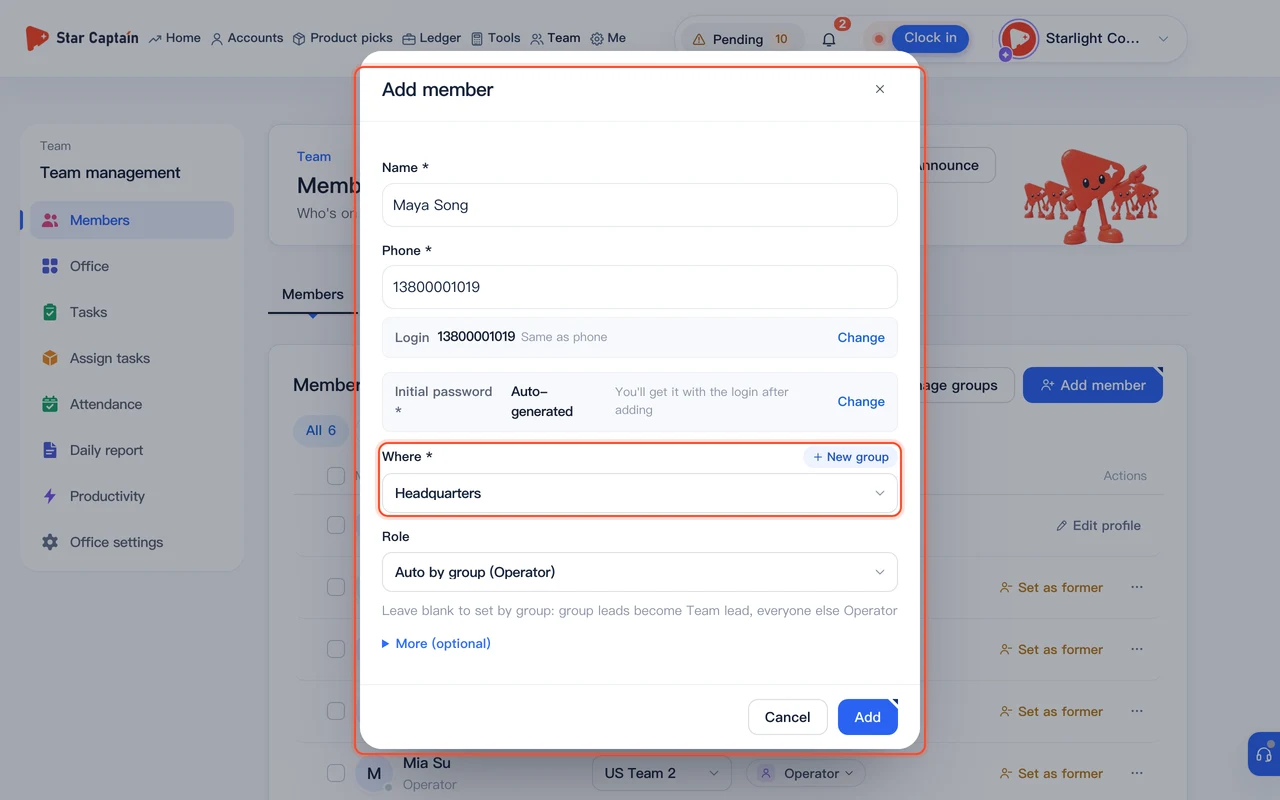
- Make sure the staff member has joined your Star Captain team and shows up in the member list.
- If you are adding newly new accounts, have the handle, password, 2FA key, email, and per-account cost ready.
- Your login needs permission to manage inventory or change account operators.
01Open "Account inventory" and add new accounts
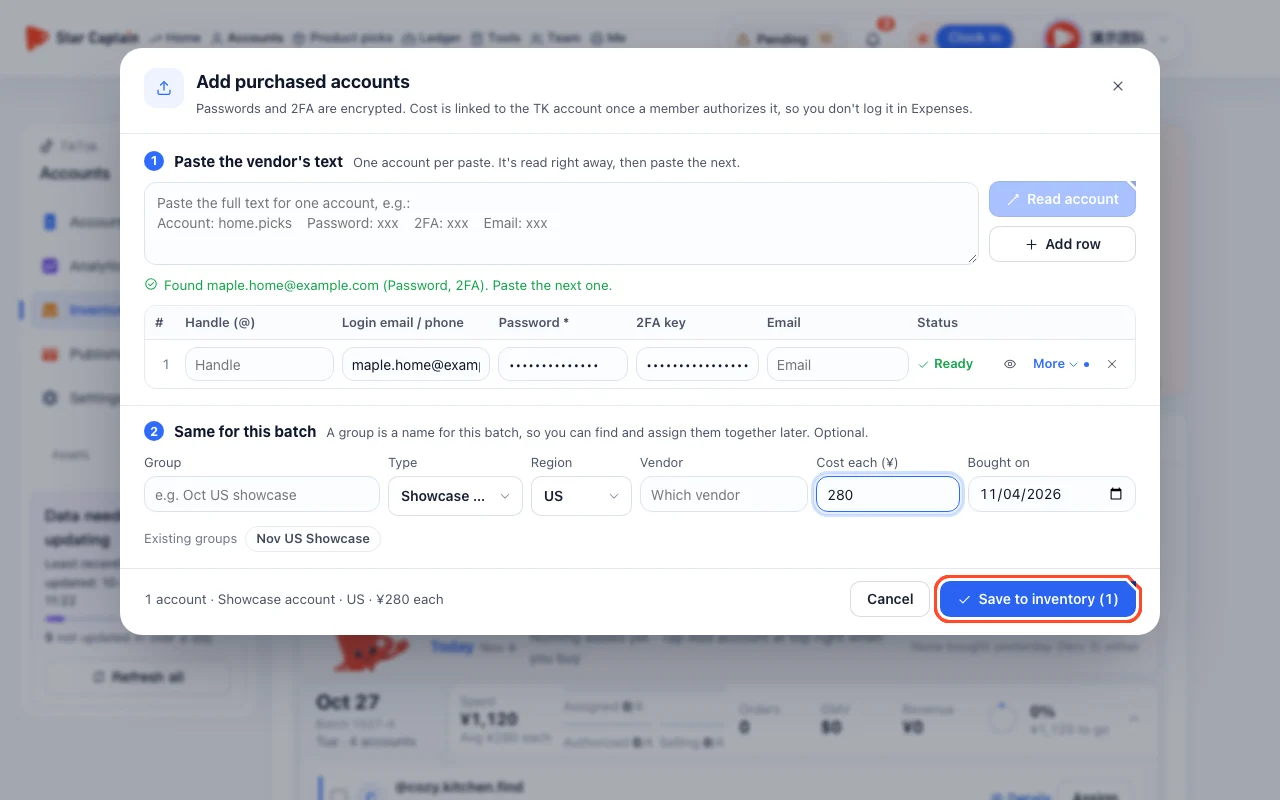
In the left menu, click "Inventory" under "Accounts", then click "Add account" or "Bulk import" in the top right. In the "Add new accounts" window, paste the account details and click "Read account", or click "Add row" to enter the handle, password, 2FA key, email, and "Cost each (CNY)", then click "Save to inventory". Passwords and 2FA keys are stored encrypted.
02Assign accounts to staff from inventory
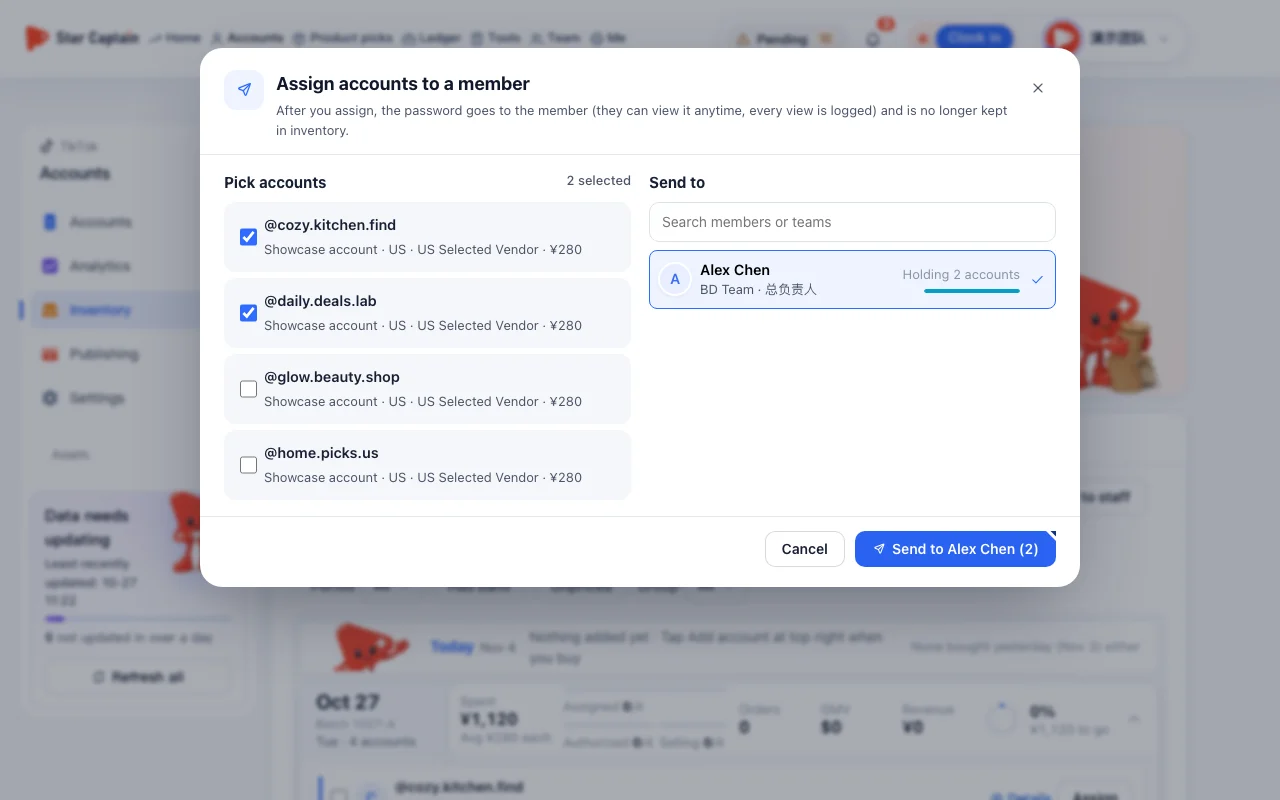
To assign accounts to staff from "In stock", check the accounts you want to hand out and click "Assign to staff" (or click "Assign" on a single row). In the "Assign accounts to a member" window, review the selected accounts, search for a member or team under "Send to", and confirm.
03Approve staff account requests (optional)
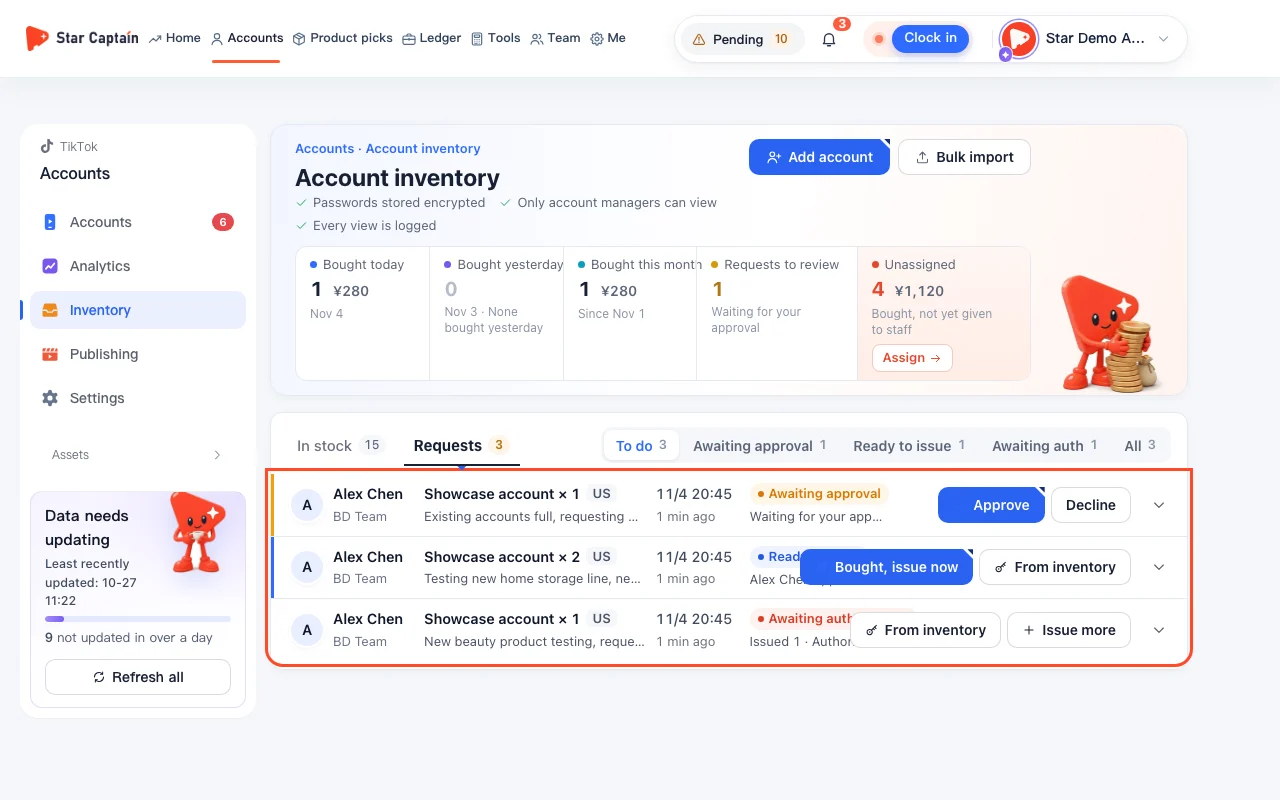
If your team uses the request flow, a staff member clicks "Request account" under "Me → My accounts". A team lead or manager then clicks "Approve" under "Requests" in "Account inventory", clicks "Issue", and picks "From inventory" or "Bought, issue now" to assign accounts to staff.
04Staff view login details and scan to authorize
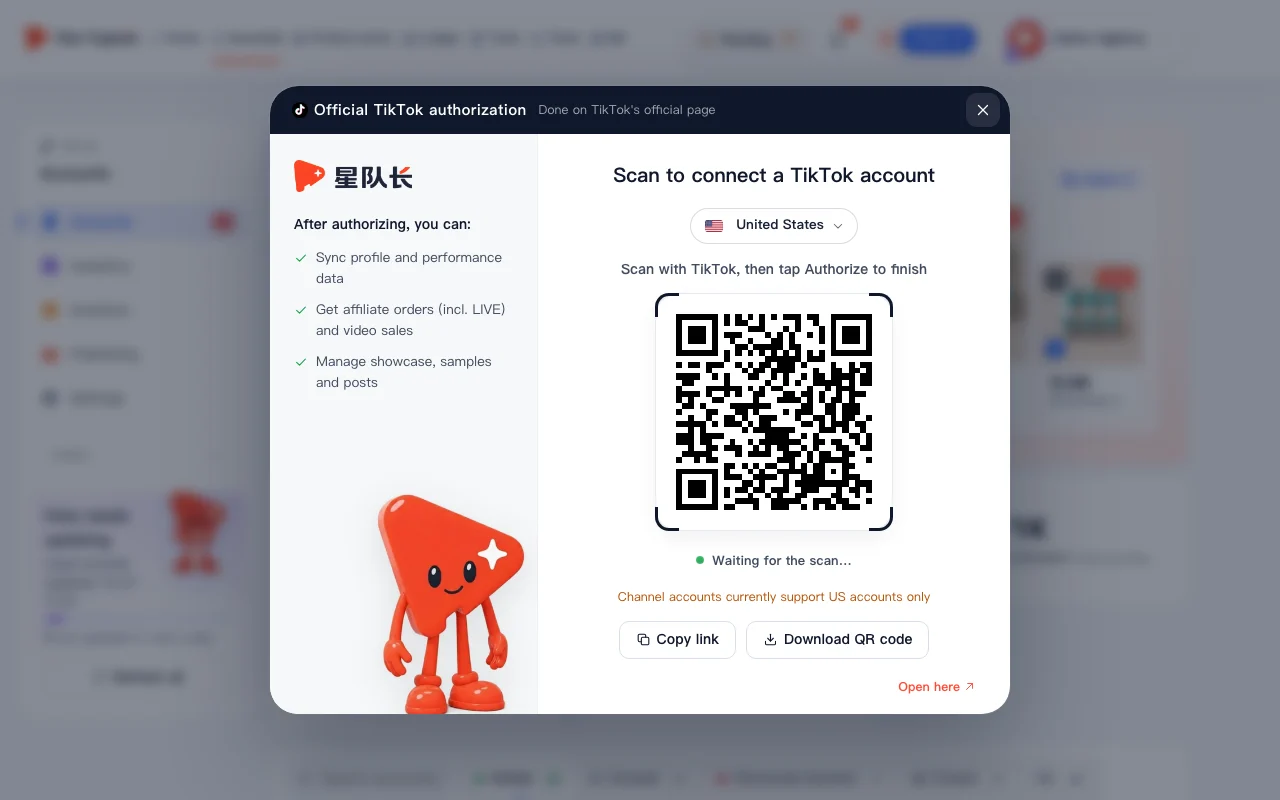
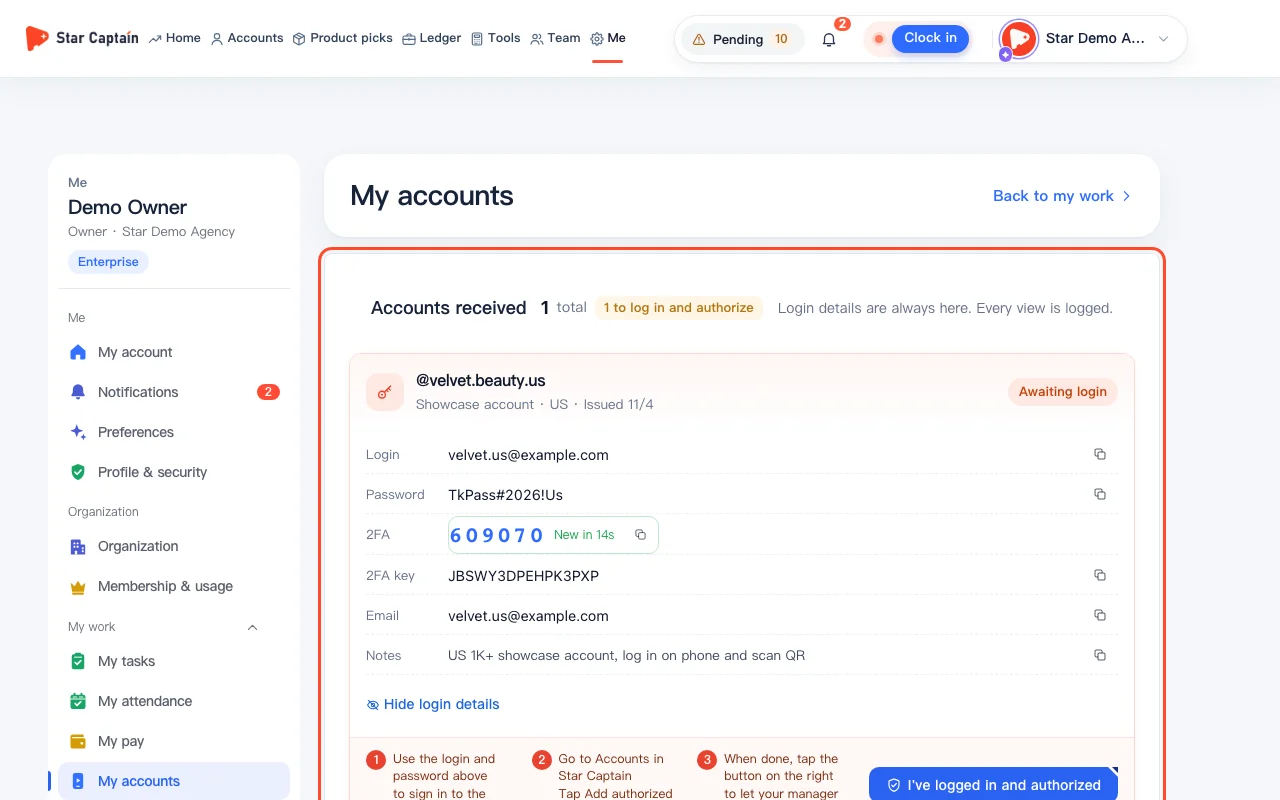
Once assigned, the staff member opens "Me → My accounts" and finds the account under "Accounts received". They click "View login details (password · 2FA · email · notes)", log in to TikTok on their phone, scan to authorize under "Accounts → Add authorized account", and click "I've logged in and authorized".
05Change the operator on the "Accounts" page for authorized accounts
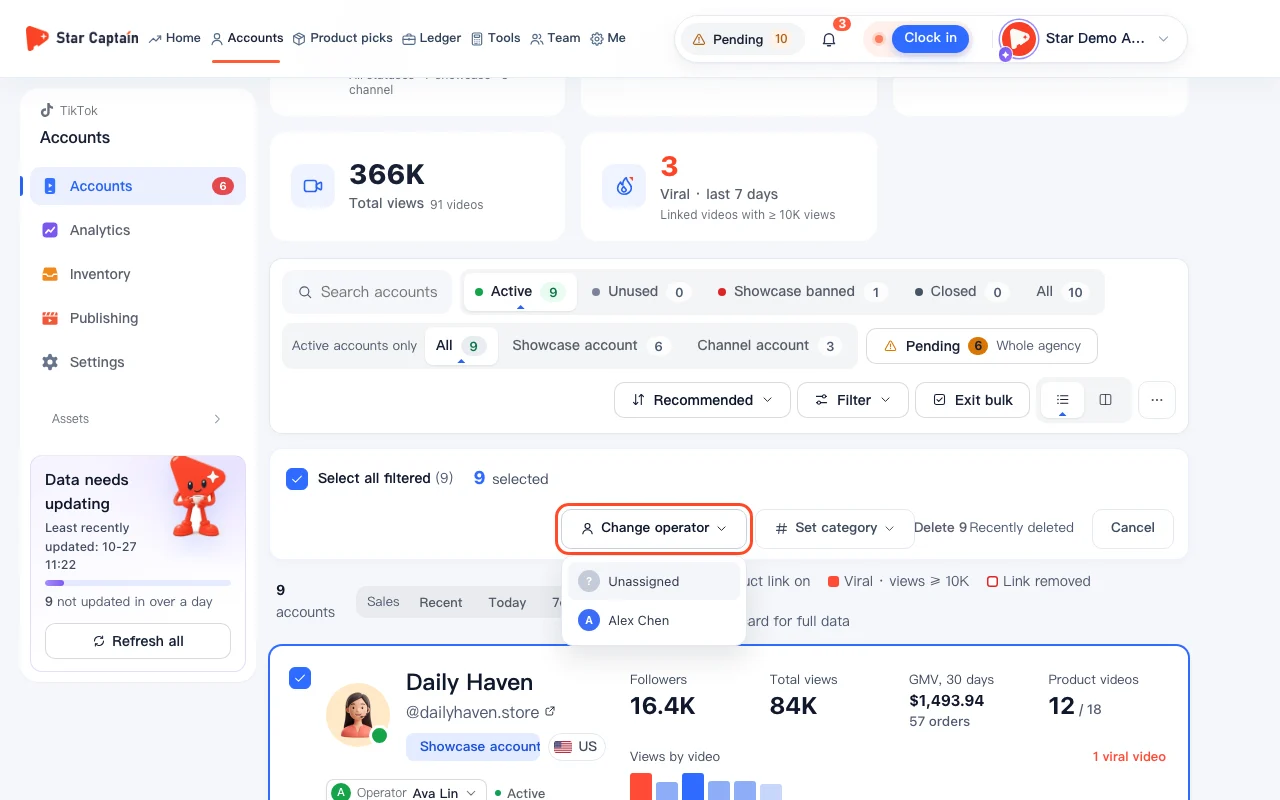
If an account is already authorized in Star Captain, you don't need the inventory page. Open "Accounts" in the left menu and click the operator chip on the account card to pick a new operator. To reassign several accounts at once, click "Bulk actions", select the accounts, and click "Change operator".
Screenshots use demo data. Check the product for what you actually see.
FAQ
Who can see the passwords when I assign accounts to staff?
Passwords and 2FA keys are encrypted. After you assign accounts to staff, the password goes to the staff member so they can view it anytime, every view is logged, and the password is no longer kept in the inventory list.
Can I take back or reassign an account if I sent it to the wrong person?
Before the account is authorized, open its "Details" in "Account inventory" and click "Reassign…" to pick someone else, or click "Take back" to return it to stock.
How do I move an already authorized account to another staff member?
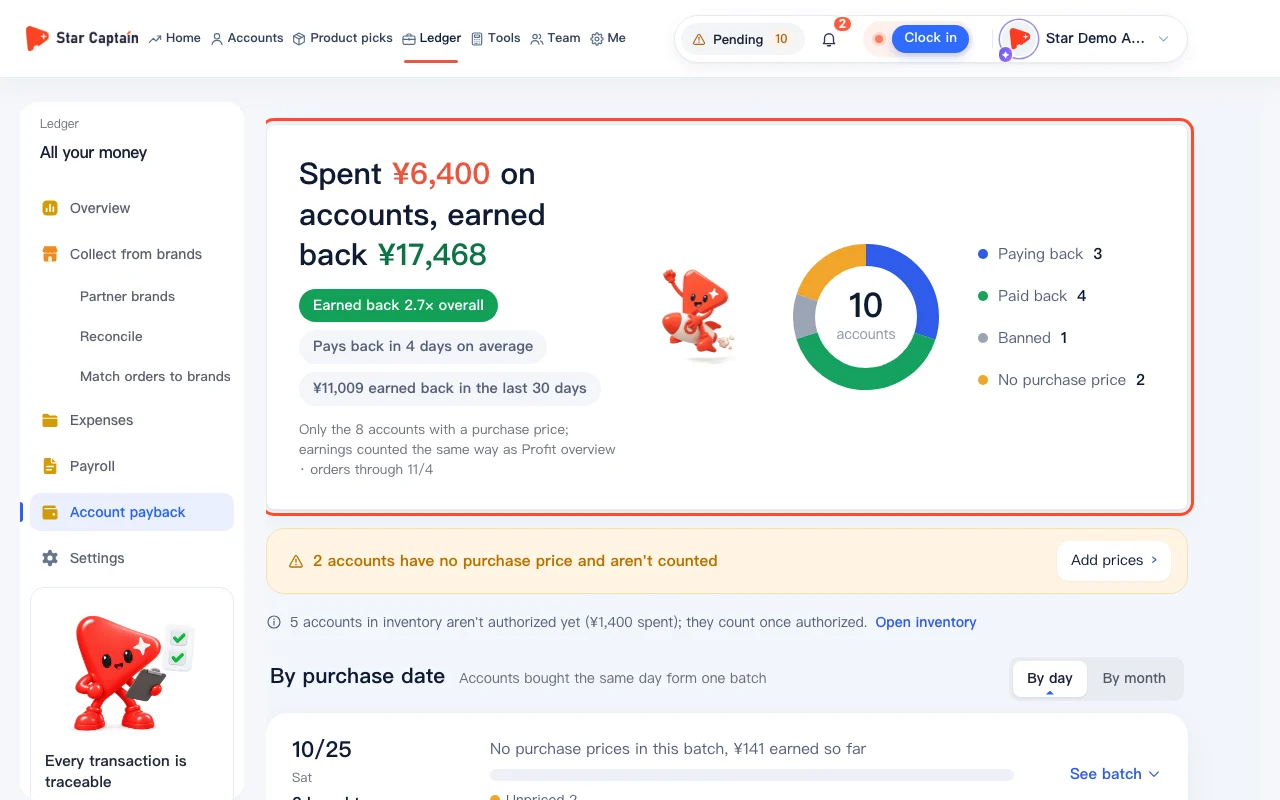
Change the operator directly on the "Accounts" page. The recorded cost stays with the account and isn't counted twice.
Can staff see other teammates' accounts?
No. Staff only see the accounts assigned to them, while full team accounts and cost data are only visible to the team owner.