TikTok accounts
 Orders & performance
 Team management
 Profit & cost
 Brand deals
 Creator toolbox
 Solo creators
 Creator teams
 Multi-department companies
Who is this for?
- Agency owners who have connected their TikTok accounts and want editors, operators, and business managers to sign in with their own accounts
- Team admins who organize accounts by group and want team leads to manage their own group while operators only see their own accounts
- Managers who need to enable sign-in for existing roster members, reset forgotten passwords, or customize permissions for specific staff
What to prepare before starting?
- You are signed in to the Star Captain web workspace as the agency owner or an admin with team management permissions
- You have each member's name, phone number, target group, and role ("Operator", "Business", "Team lead", "Editor", or "Finance") ready
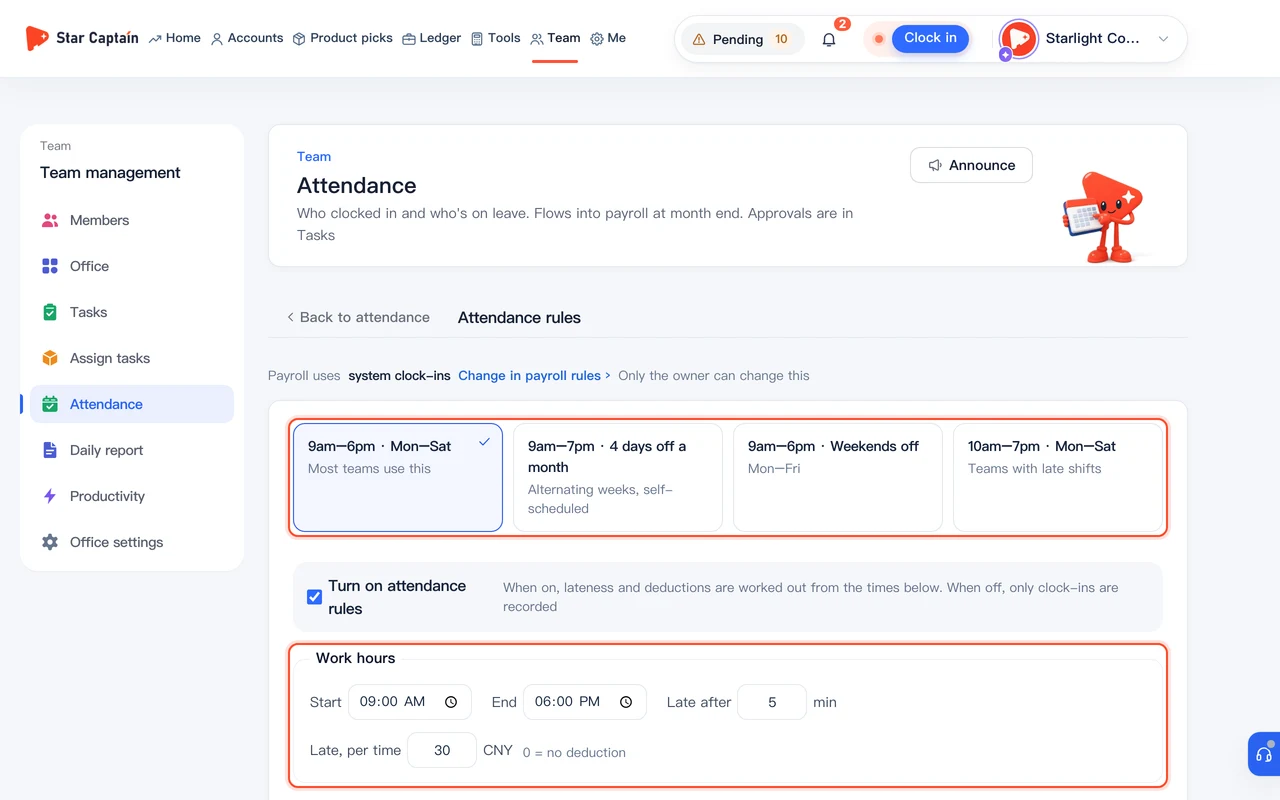
- You have decided each role's data scope ("Self only", "Own team", or "Whole agency") and commission visibility
01Open "Team → Members" and create your groups
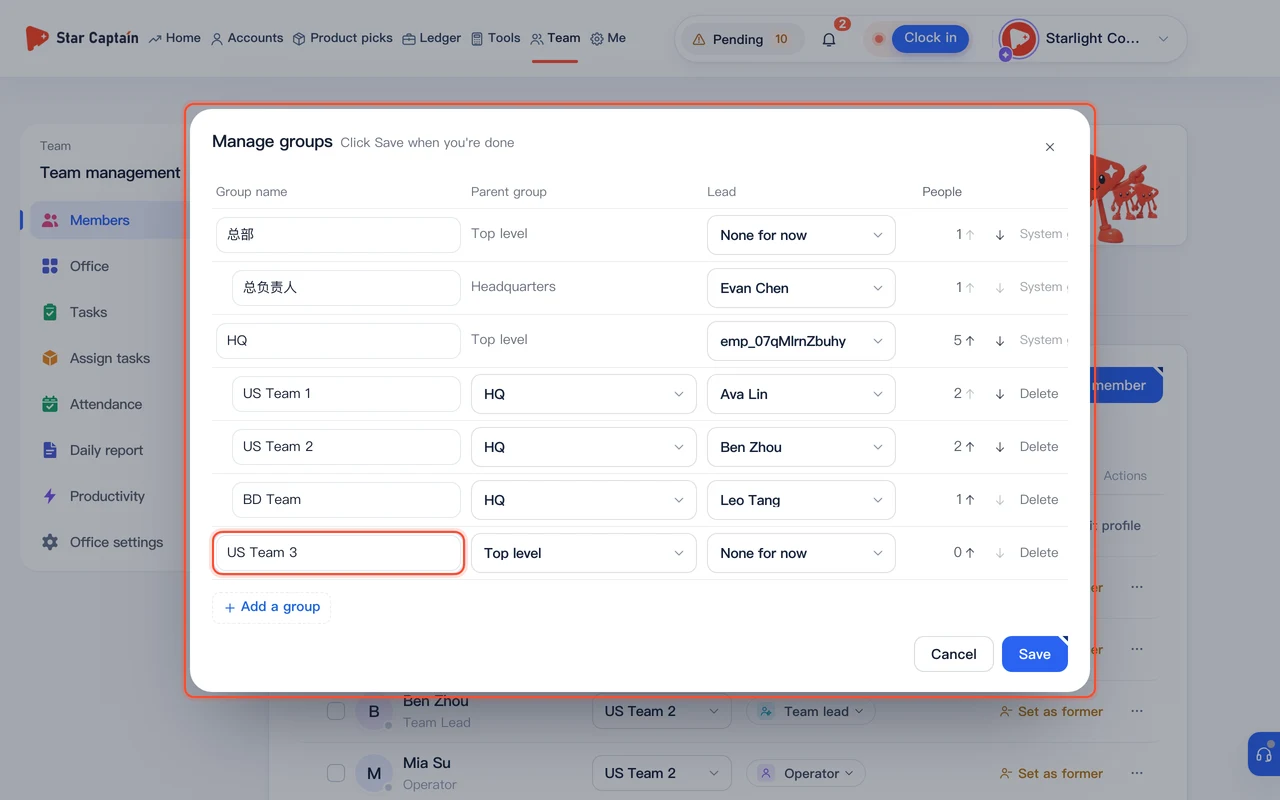
To add team members, from the left sidebar or top navigation, go to "Team → Members". Before adding people, click "Manage groups" (or "New group") in the top-right corner. Enter the "Group name" (for example, US Team A), select its "Parent group", pick a "Lead", and click "Save". A group's lead becomes its team lead automatically, and new members can be placed directly into this group.
02Click "Add member" and fill in name, group, and role
Back on the member list, click "Add member" in the top-right corner. Enter "Name *", then under "Where *" select the group you created (or click "+ New group…" right from the dropdown), and optionally enter "Phone". Under "Role", leave "Auto by group" selected or manually pick "Operator", "Business", "Team lead", "Editor", or "Finance", then choose a "Position (sets pay)" if you use position-based pay templates.
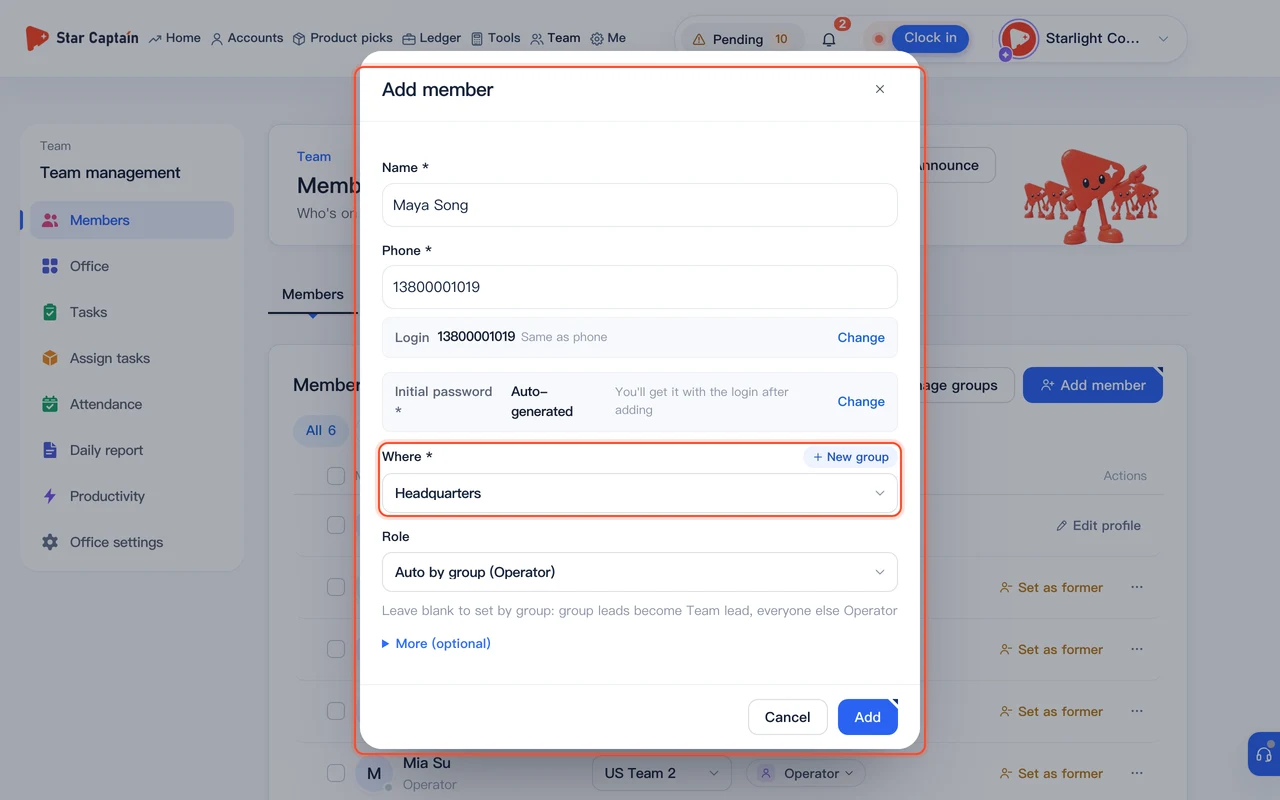
03Set the login and initial password, then click "Add"
In the same "Add member" modal, fill in "Login *" (if you entered a phone number, click "Use phone" to copy it over, or type at least 3 letters/digits) and "Initial password *" (at least 6 characters, or click "Generate"). Click "Add" to add the person to your roster with sign-in enabled immediately.
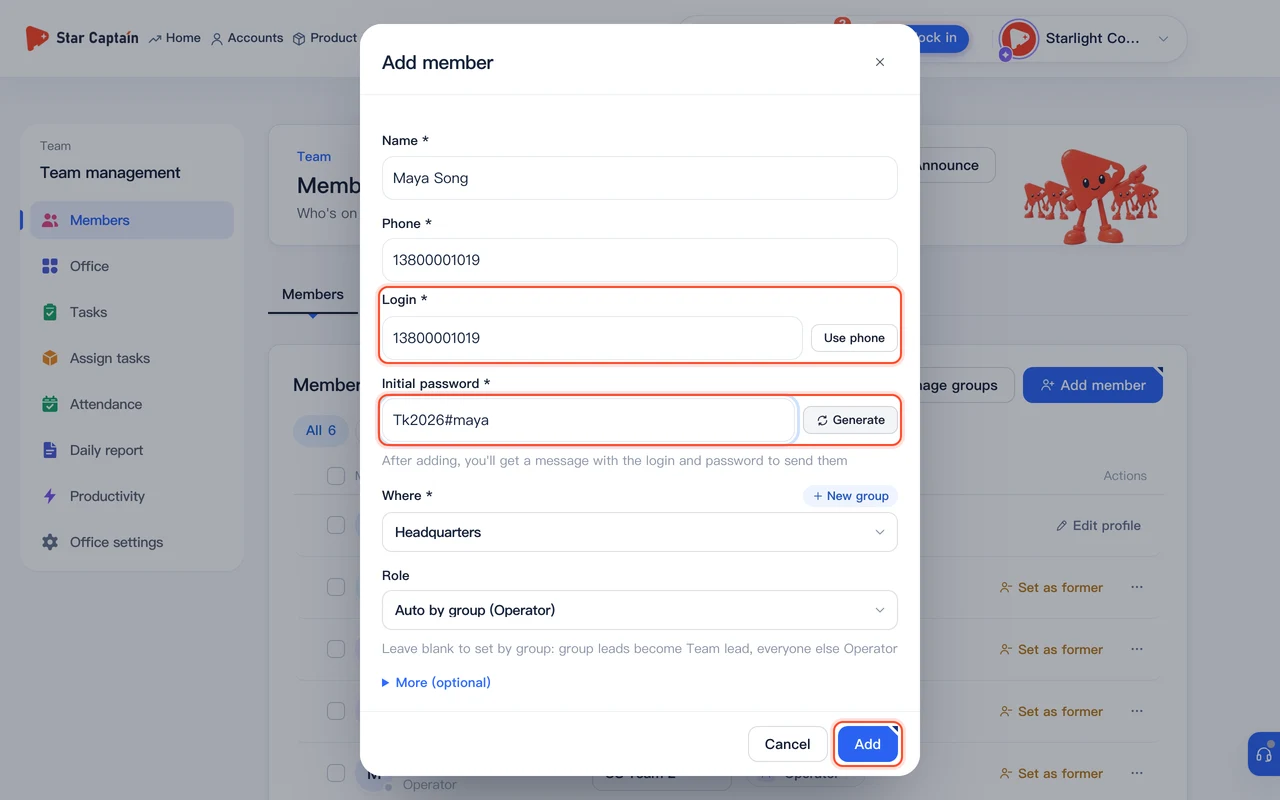
04Copy the sign-in message for the member (or enable login for existing staff)
Once added, the modal displays a "Send this to them" card with the workspace URL, login, and initial password. Click "Copy message for WeChat" and send it to the employee—they can sign in on both the web workspace and the mini program. For existing roster members marked "No login", click their row to open the detail drawer and click "Set up login", or click "Change login / reset password" whenever someone forgets their password.
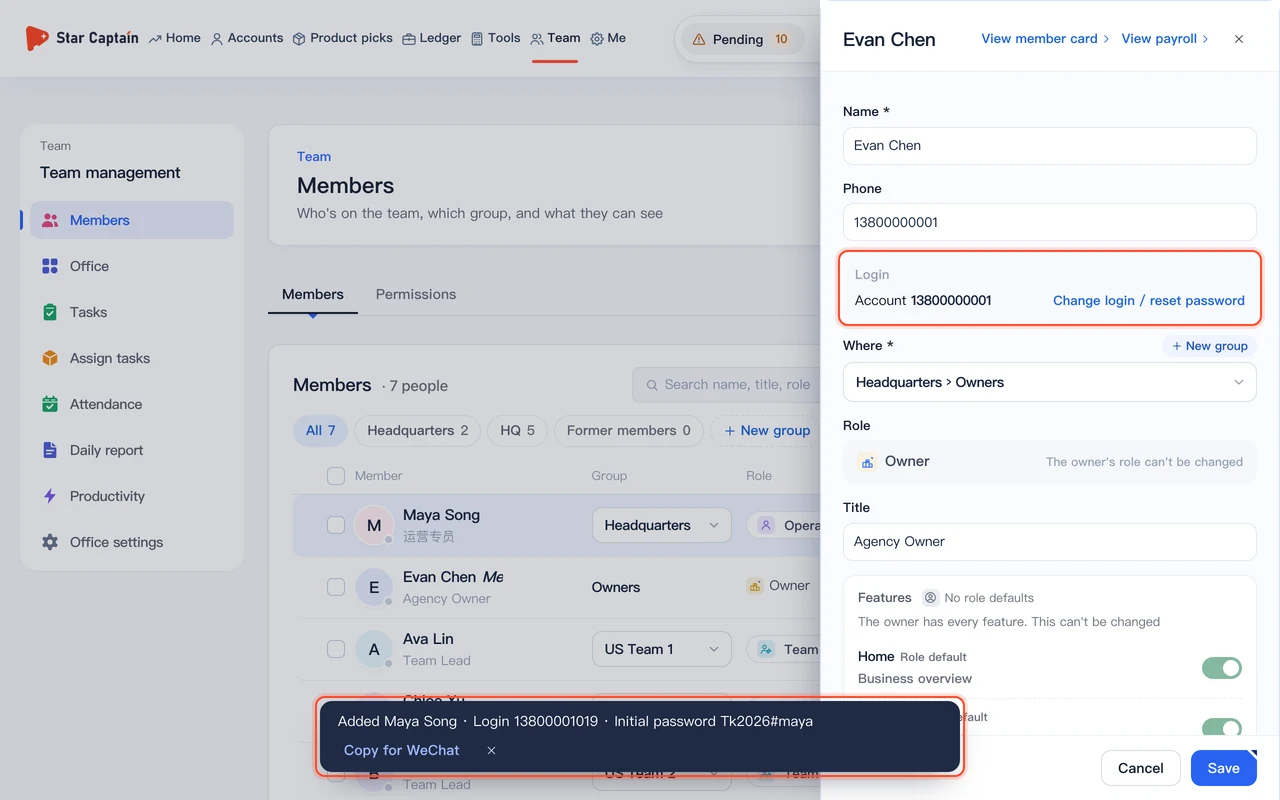
05Review data scope and feature switches under "Roles"
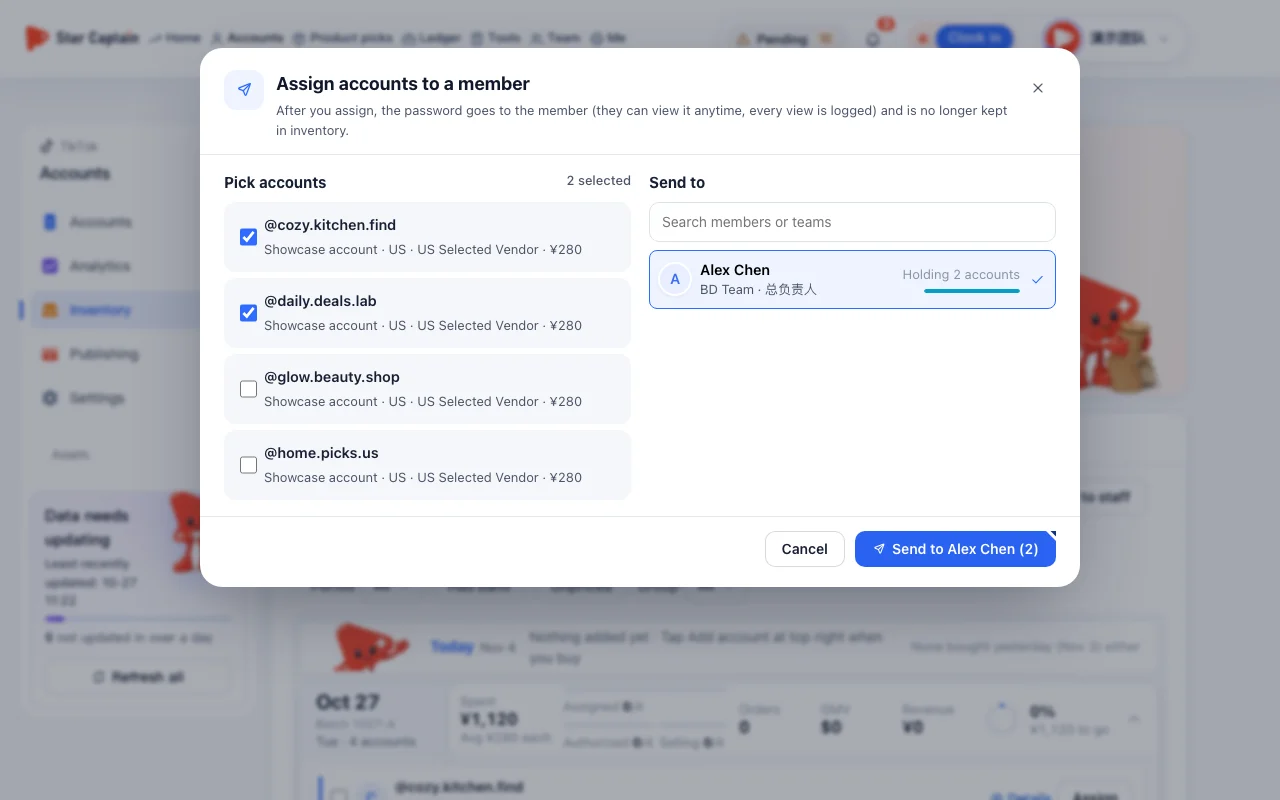
Open "Team → Permissions" (or switch to the "Roles" tab at the top of "Team → Members") and click "Compare permissions" or "Role settings". You can click "New role" ("Start from a common role") to create standard roles in one click, or click "Edit" on any role to configure "Whose data" ("Self only", "Own team", "Own group", "Own department", "Whole agency"), "Who they manage", "Commission display" ("No commission", "Partial commission", "Full commission"), and "Features". To override permissions for a single person, switch "View by" to "By person"—a blue dot marks anyone with custom settings ("Customized").
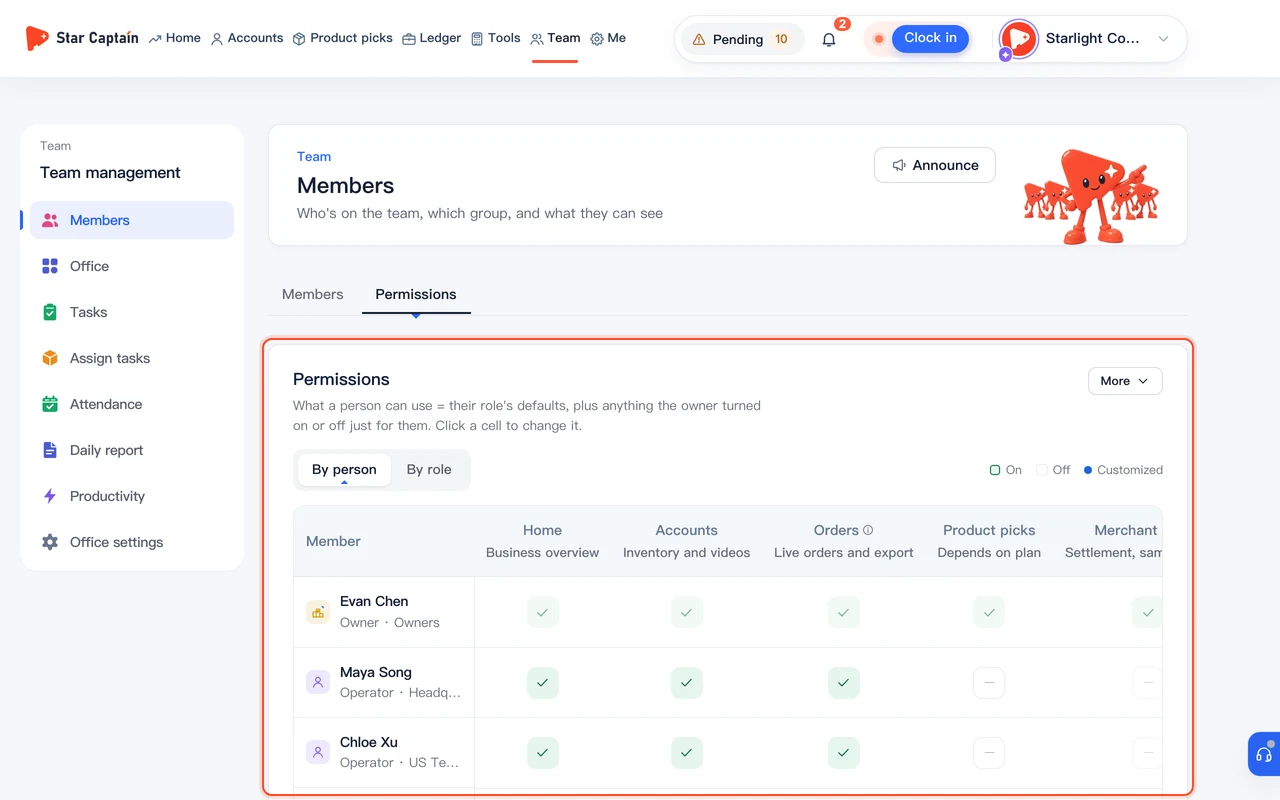
Screenshots use demo data. Check the product for what you actually see.
FAQ
How do employees sign in to Star Captain? Does it work on mobile?
Employees sign in using the "Login" and "Initial password" you generated for them. The same credentials work on desktop browsers, mobile web, and the WeChat mini program.
What is the difference between Operator, Business, and Team lead roles?
"Operator" focuses on editing, posting videos, and checking orders on their own assigned accounts. "Business" unlocks "Collect from brands" ("Merchant billing") to manage partner brands, shop commission rates, account inventory, and statements. "Team lead" sees their own team's data by default and can assign products, review submitted videos, and approve attendance requests for their team.
If an employee leaves or I deactivate their login, do we lose their TikTok accounts or past orders?
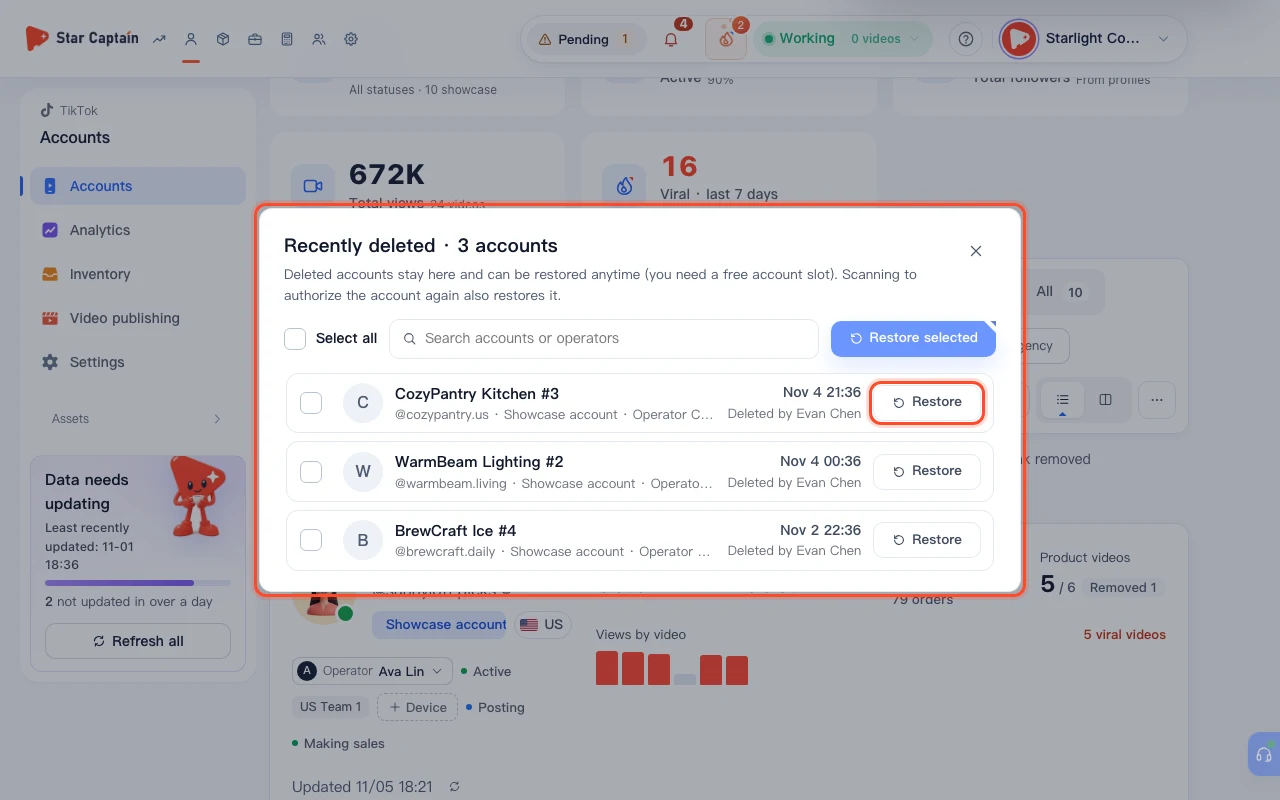
No. Clicking "Set as former" or "Deactivate (recommended)" in their detail drawer turns off their login and moves them to "Former members". All TikTok accounts, historical orders, and video review records stay intact, and you can reassign their accounts to another team member on the "Accounts" page.
Can I hide off-platform commissions and company costs from regular operators?
Yes. Company expenses and net profit are restricted to the agency owner by default. For order commissions, open "Roles", edit the operator role, and set "Commission display" to "No commission" or "Partial commission".