TikTok accounts
 Orders & performance
 Team management
 Profit & cost
 Brand deals
 Creator toolbox
 Solo creators
 Creator teams
 Multi-department companies
Who is this for?
- Agency owners and team leads who need to restore deleted accounts after someone accidentally removed an active showcase account
- Admins investigating who reassigned an account operator, modified a role permission, or updated partner link commission rates in the workspace
- Operations managers overseeing dozens of TikTok accounts who want a clear audit log of manual team and account changes
What to prepare before starting?
- Your role has management access to "Accounts" and "Team → Members" (regular operators cannot view "Activity log")
- Make sure your organization has an available account slot before you restore deleted accounts
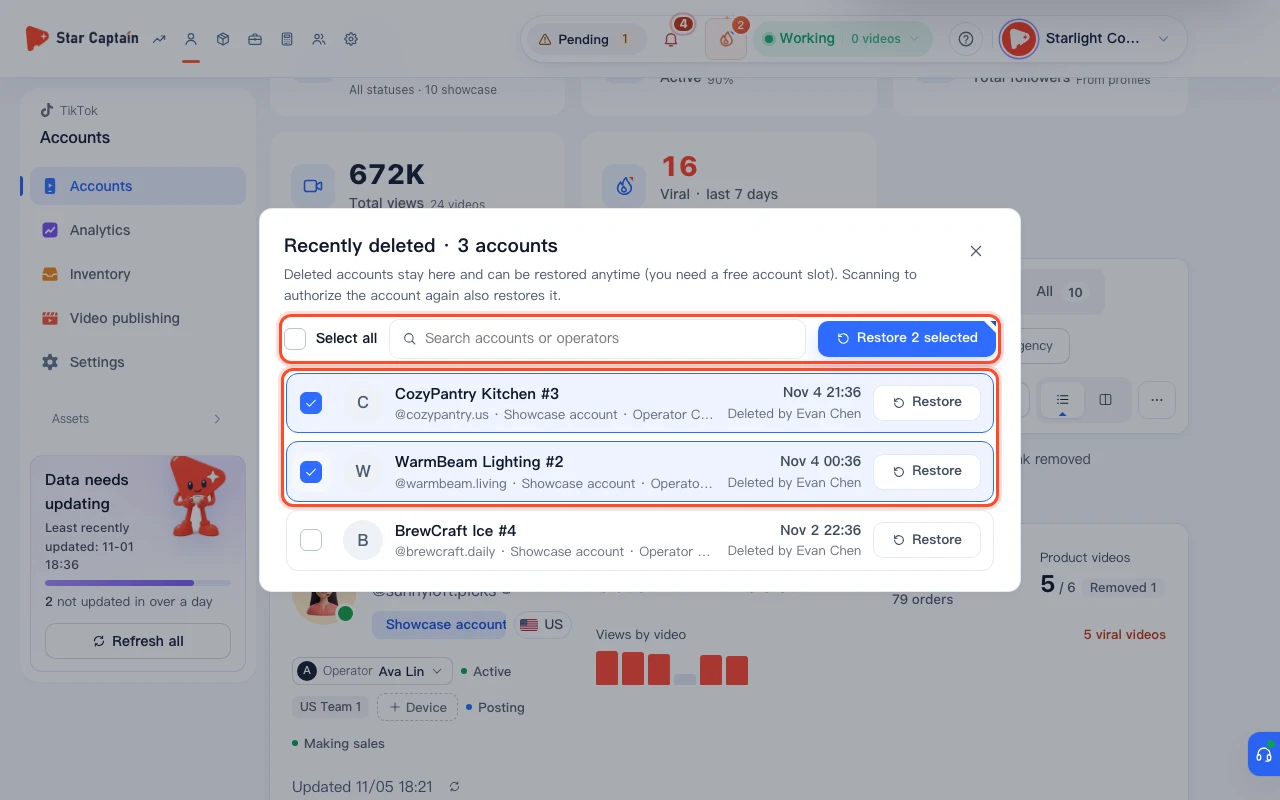
01Open "Accounts → Recently deleted" to restore deleted accounts within 30 days
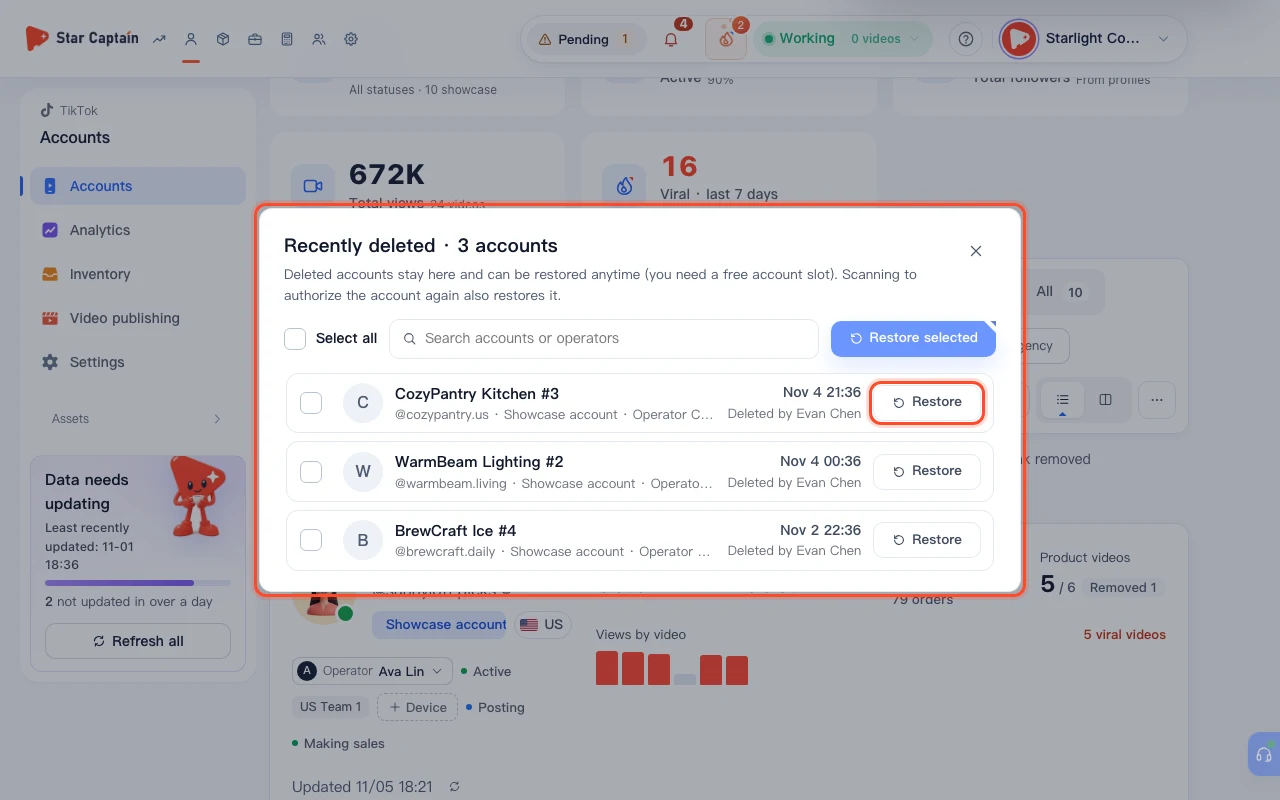
To restore deleted accounts, go to "Accounts" and open "Recently deleted" from the `...` menu at the top right of the list (or visit `/app/accounts/trash`). As the banner notes: "Deleted accounts stay here and can be restored anytime (you need a free account slot). Scanning to authorize the account again also restores it." Any account removed within the last 30 days is listed here with its deletion time and actor.
02Search by account or operator and click "Restore" or "Restore selected"
Type an `@handle` or operator name into "Search accounts or operators" to filter the trash list. Click "Restore" on a single row, or select multiple checkboxes on the left and click the blue "Restore selected" button at the top right. Once "Restored" appears, the accounts return to the active list and resume order syncing.
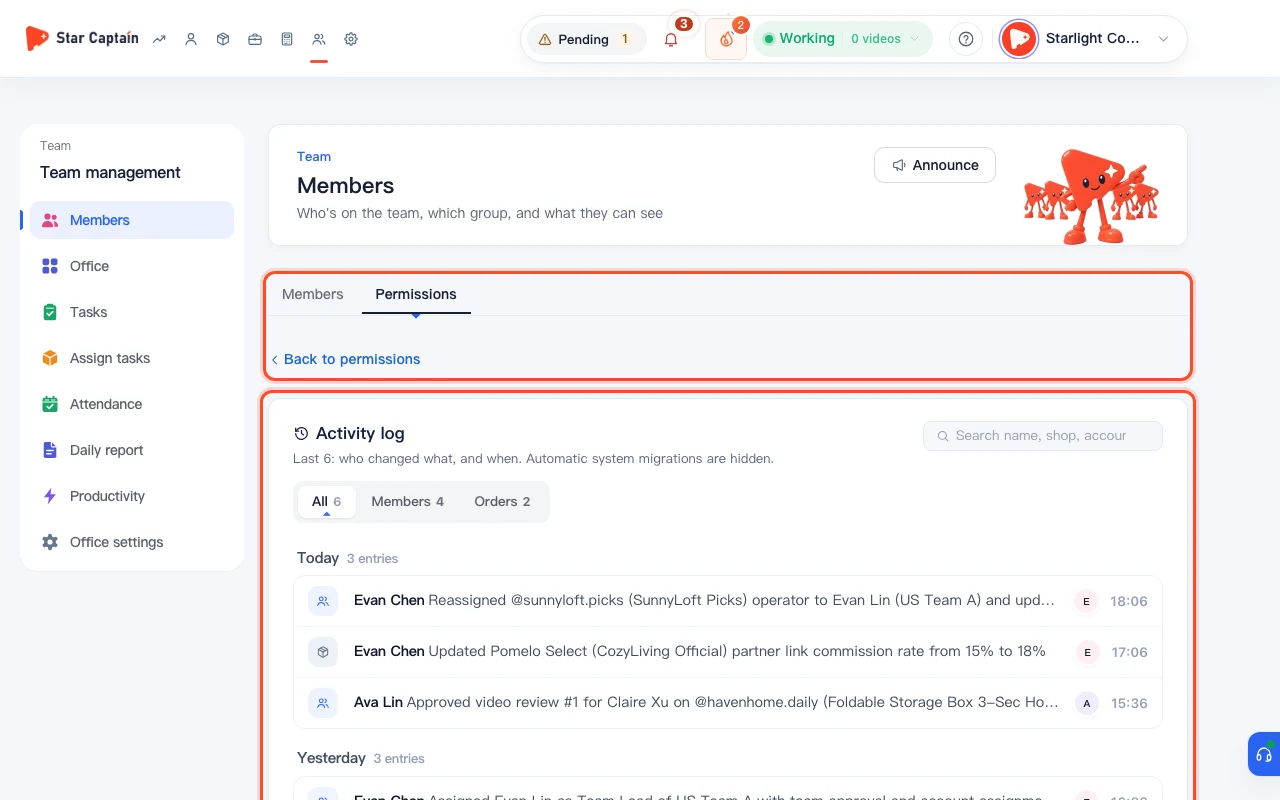
03Open "Team → Members → Activity log" to review chronological changes
Navigate to "Team → Members" and open the "Activity log" view (`/app/team/audit`). The subtitle states: `Last {n}: who changed what, and when. Automatic system migrations are hidden.` You can filter by "All", "Members", or "Orders", and entries are grouped by date (`Today`, `Yesterday`, or `{m}/{d} · {wd}`) showing the actor, action, and timestamp.
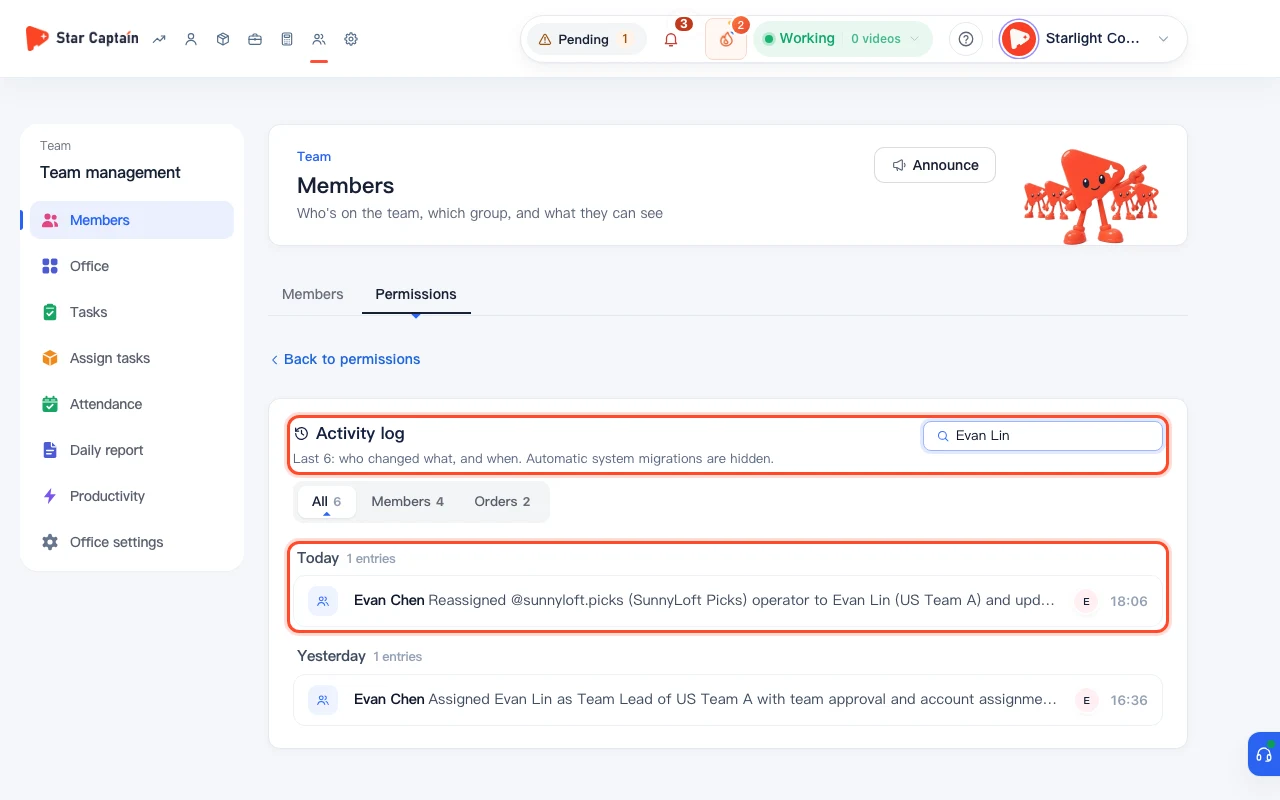
04Filter the activity audit log with "Search name, shop, account"
Type a staff member's name, TikTok Shop name, or account handle into "Search name, shop, account" at the top right of the Activity log. The list immediately filters to every manual action involving that person, shop, or account—such as account deletions, operator reassignments, or role edits.
Screenshots use demo data. Check the product for what you actually see.
FAQ
Why does deleting an account show a warning saying "This account had N orders in the last 7 days"?
Before removing an account, Star Captain checks whether the account generated orders in the past 7 days or is actively syncing, reminding you that "Orders stop syncing once it's deleted" and that you can restore deleted accounts from "Recently deleted" within 30 days.
What happens if someone re-scans the authorization QR code for a deleted TikTok account without clicking "Restore" first?
Scanning to authorize a deleted TikTok account automatically restores it from "Recently deleted" and reconnects its historical orders and videos.
Why doesn't the Activity Log show routine background order syncs?
Routine automated syncs and background migrations are hidden on purpose (`Automatic system migrations are hidden`) so admins can focus on human-initiated changes to accounts, permissions, and settings.
Can regular operators view the Activity Log or recover accounts on their own?
No. "Team → Members → Activity log" is restricted to admins and leads with member-management permissions. To recover accounts from "Recently deleted", your role must have account-management access and your organization must have an open account slot.