
 TikTok accounts
 Orders & performance
 Team management
 Profit & cost
 Brand deals
 Creator toolbox
 Solo creators
 Creator teams
 Multi-department companies
Star Captain tutorials: one task per tutorial, in the order you'll need them
34 guides organized into 5 onboarding groups—each written as "where to click → what you see → what to do next" with real workspace screenshots (demo data) so new staff can follow along right away.
Want the background and best practices first?Read the guides →
01 · Getting started & accounts
Connect TikTok accounts via QR code, bulk import new accounts, assign them to staff, track work phones and network expiry reminders, configure account groups and viral threshold settings, inspect account scores and conversion funnels, and restore deleted accounts.
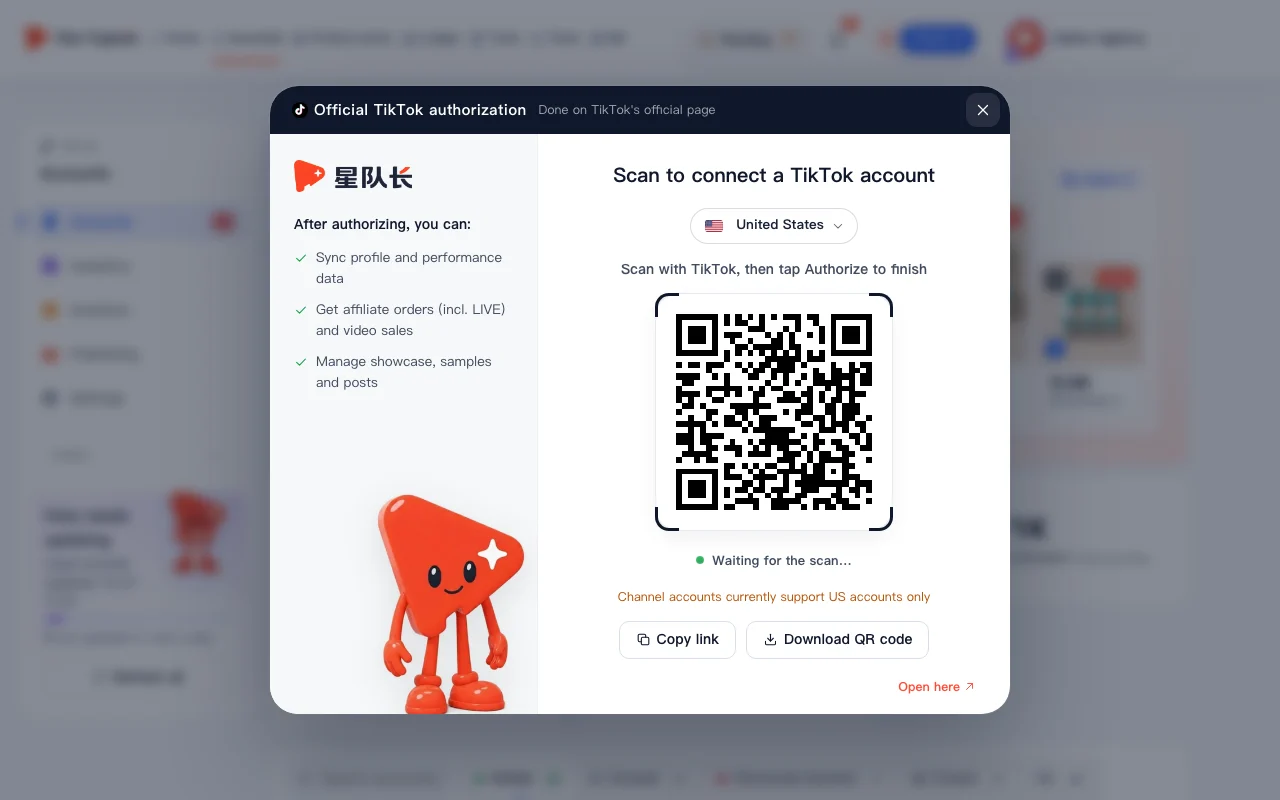
How to bind a TikTok account to Star Captain
Bind a TikTok account to Star Captain in 5 steps: open Accounts, click Add authorized account, scan the QR code with TikTok, and tap Authorize.
Read tutorial →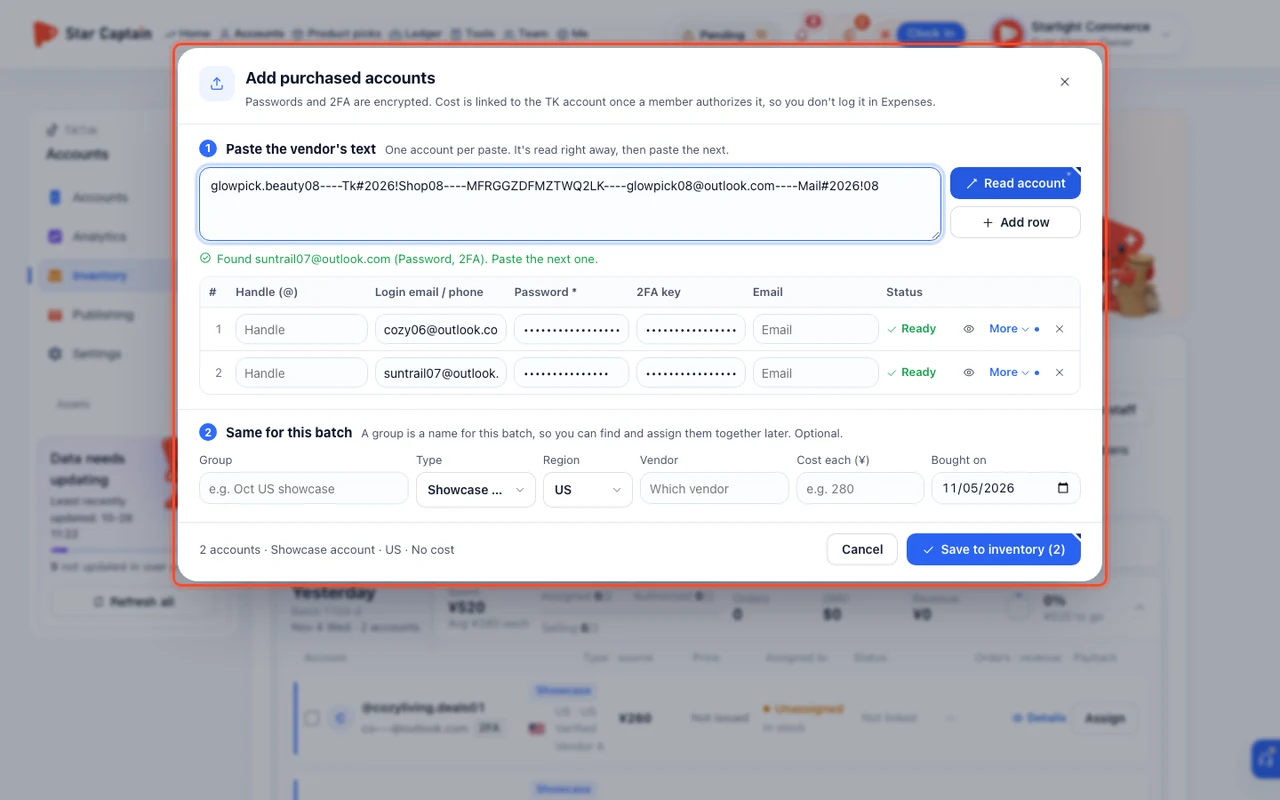
How to Bulk Import New Accounts into Account Inventory
Learn how to bulk import accounts to inventory: Paste account onboarding text into Star Captain's Account inventory to parse handles, passwords, and 2FA keys,.
Read tutorial →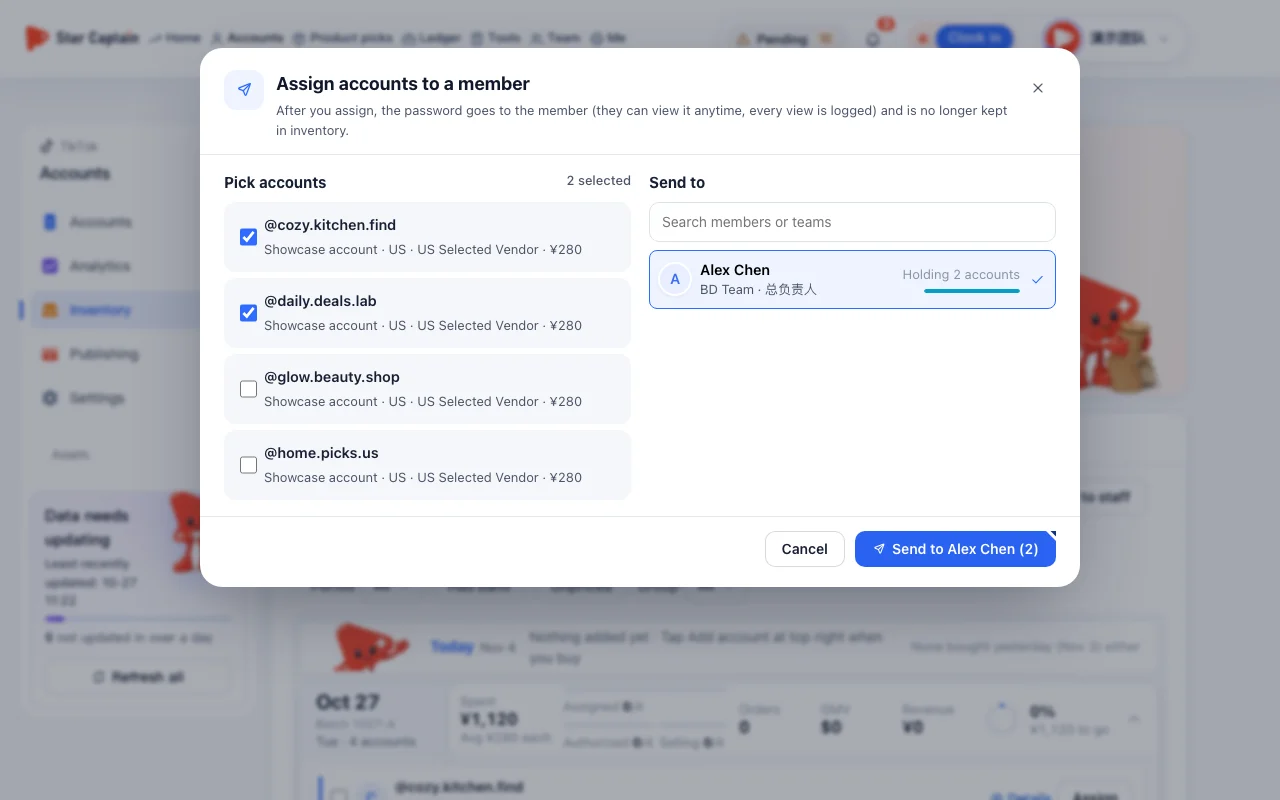
How to assign accounts to staff in Star Captain
Assign accounts to staff in Star Captain: add new accounts in Account inventory to click Assign to staff, or change the operator on Accounts.
Read tutorial →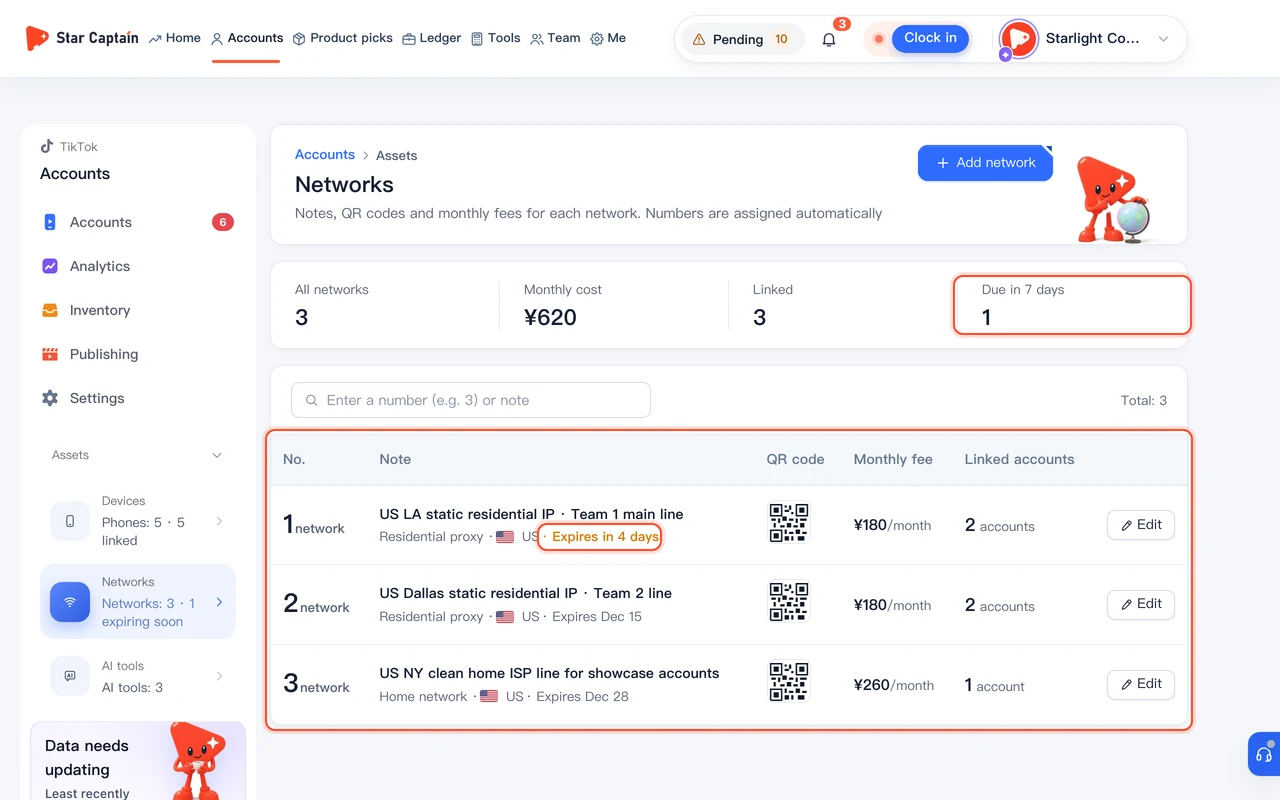
How to Register Devices and Networks and Get Expiry Reminders
Learn how to register devices and networks in Star Captain: link work phones, network QR codes, and AI tools, track 7-day expiry reminders, and sync costs.
Read tutorial →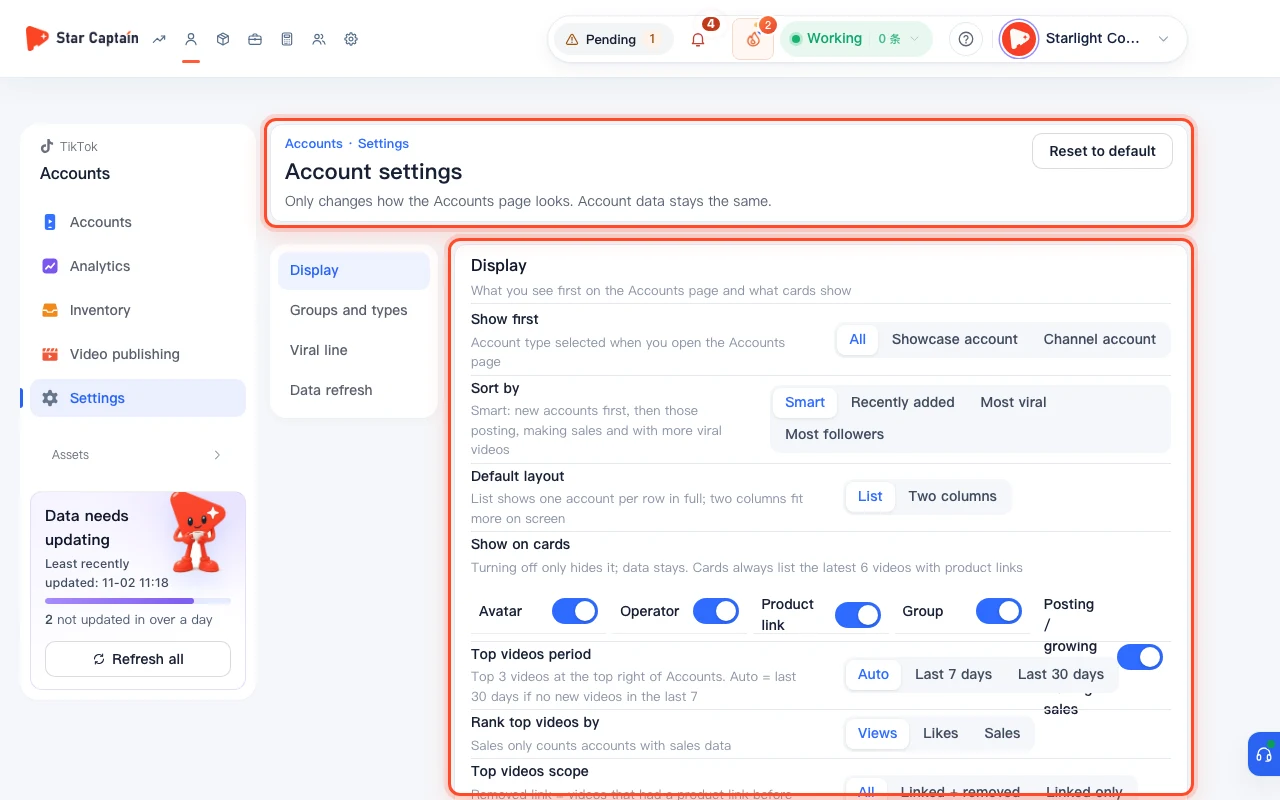
How to Configure Account Groups and Viral Threshold Settings in Star Captain
How to set up Star Captain account group settings: choose default sort and card display, add groups and custom account types, then set the viral line and save.
Read tutorial →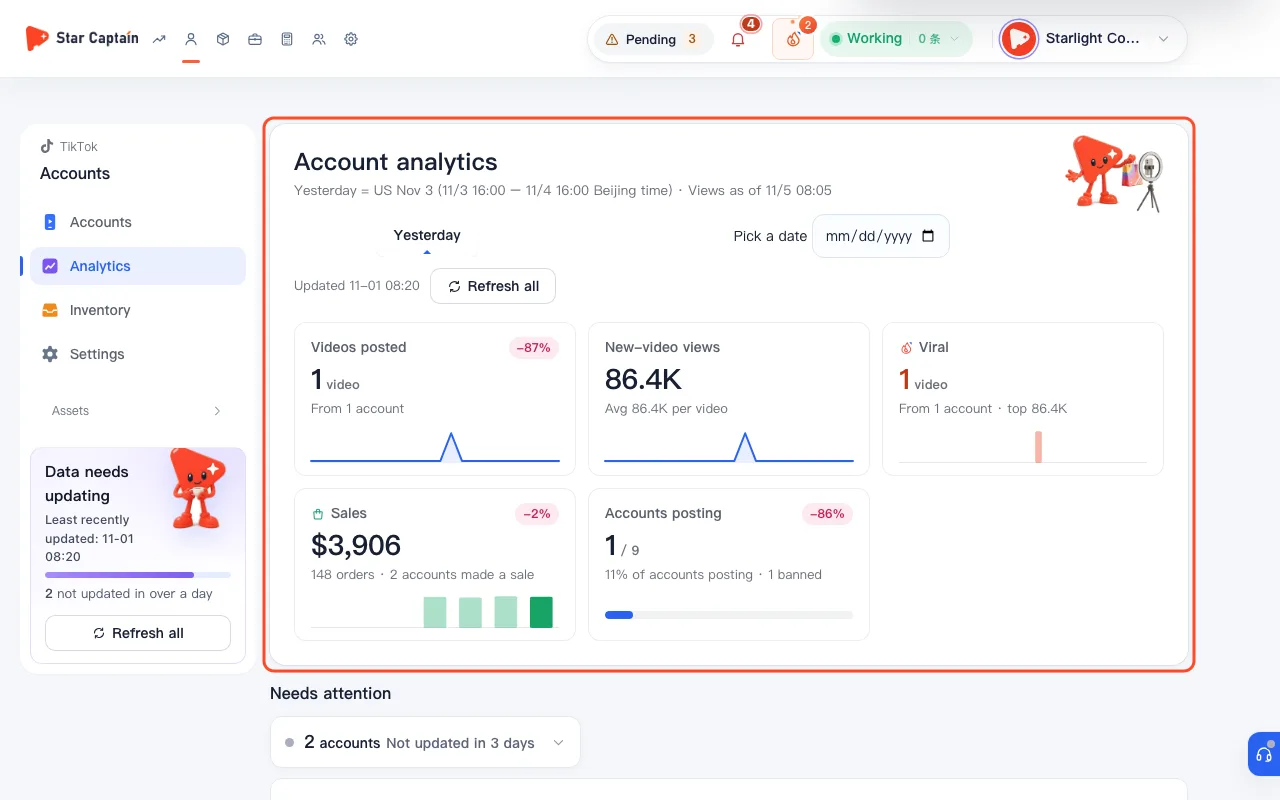
How to Use Account Analytics to Check Account Scores and Spot Idle or Restricted Accounts
Learn how to analyze account performance and health: Use Account analytics in Star Captain to check 100-point account scores, spot newly banned or idle.
Read tutorial →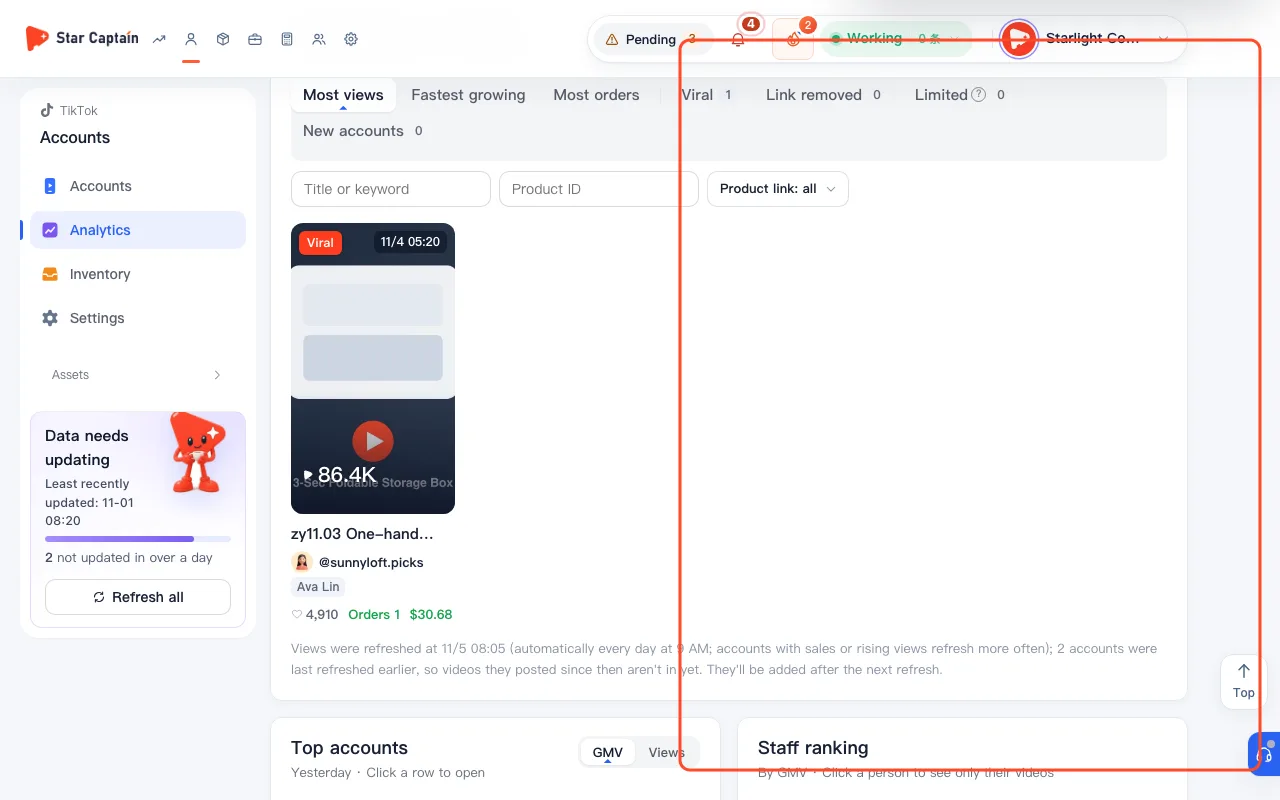
How to Analyze Videos and Product Links and Spot Throttling
How to analyze videos and product links in Star Captain: switch Video results modes, spot removed product links or throttling, and check CTR and conversion.
Read tutorial →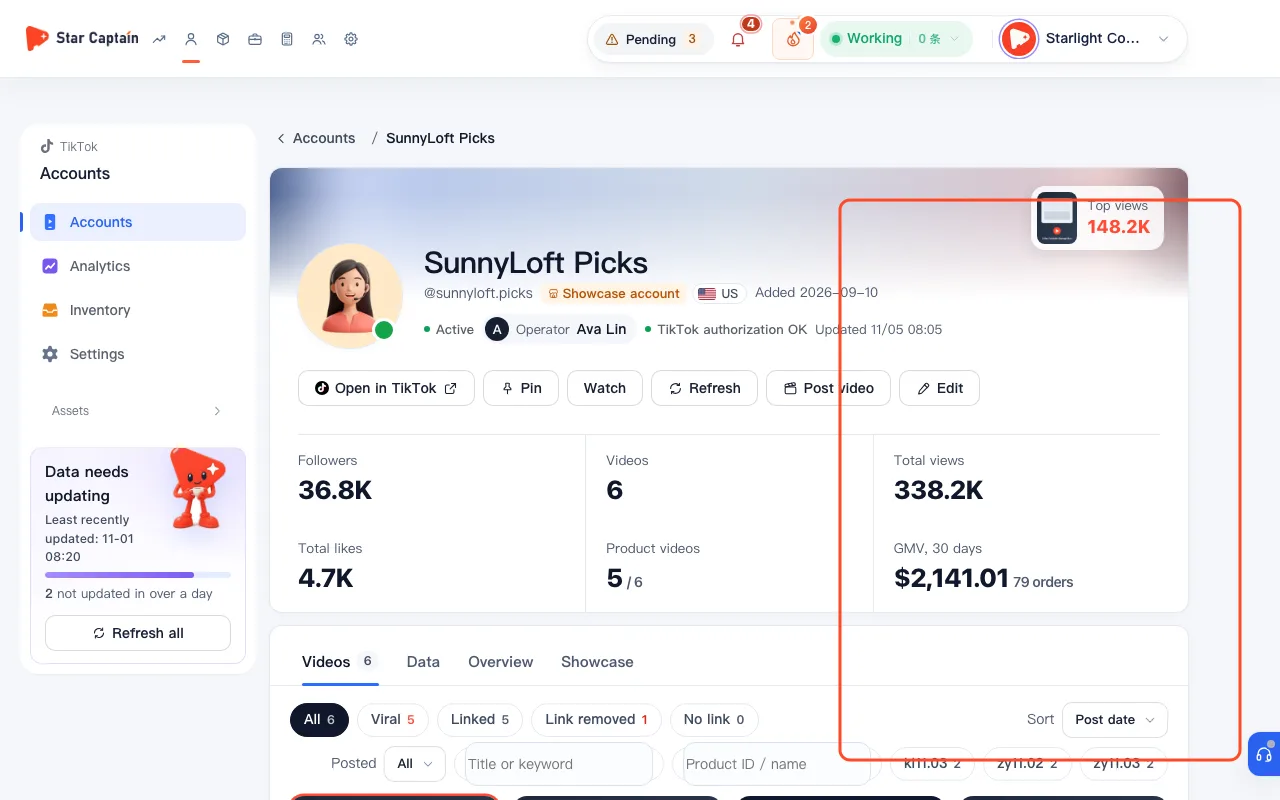
How to Inspect Single Account Conversion and Works in Detail
How to inspect single account conversion and works in Star Captain: check the sales conversion funnel, view distribution, median views, and product links.
Read tutorial →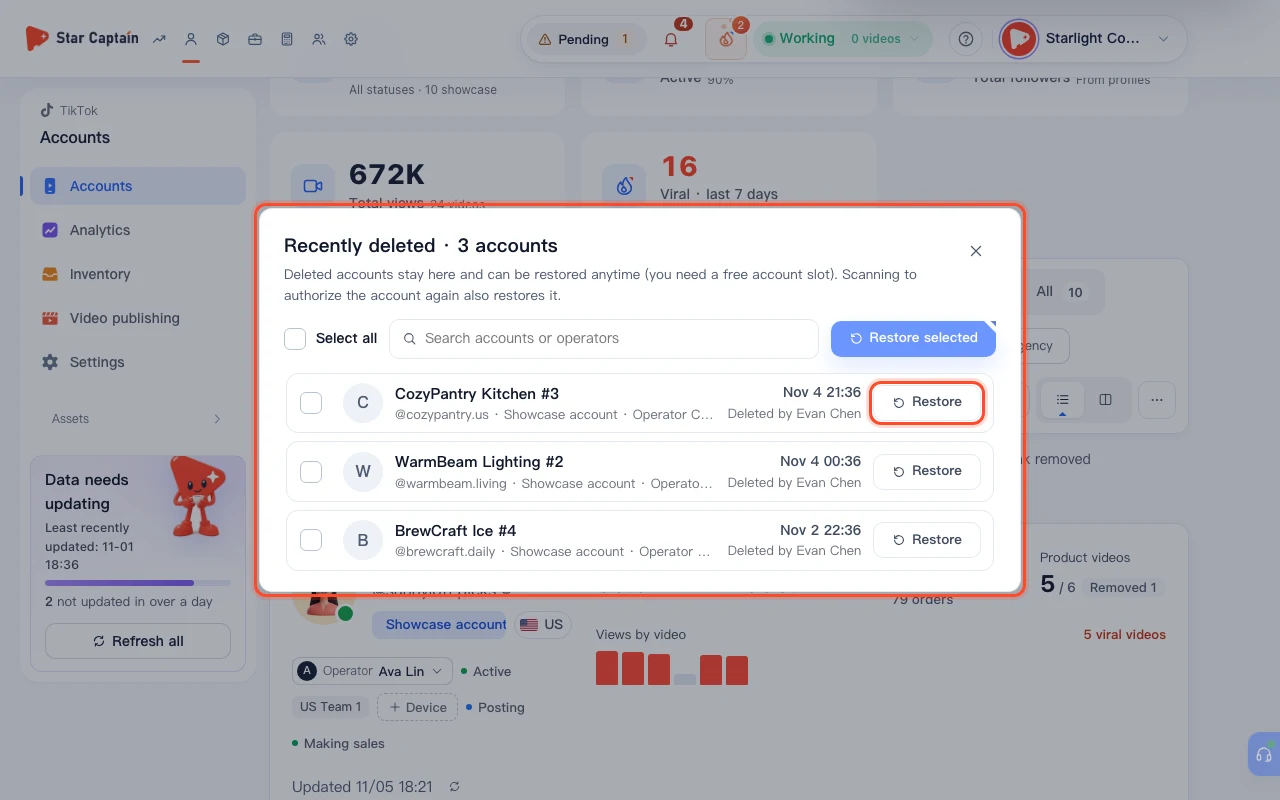
How to Restore Deleted Accounts and Check the Team Activity Audit Log
Learn how to restore deleted accounts within 30 days under Accounts → Recently deleted and check the team activity audit log in Star Captain.
Read tutorial →02 · Team & daily management
Add members and logins, organize departments and subgroups, set daily targets and statuses, assign products and review videos, log posts and check productivity, and run daily approvals and reports.
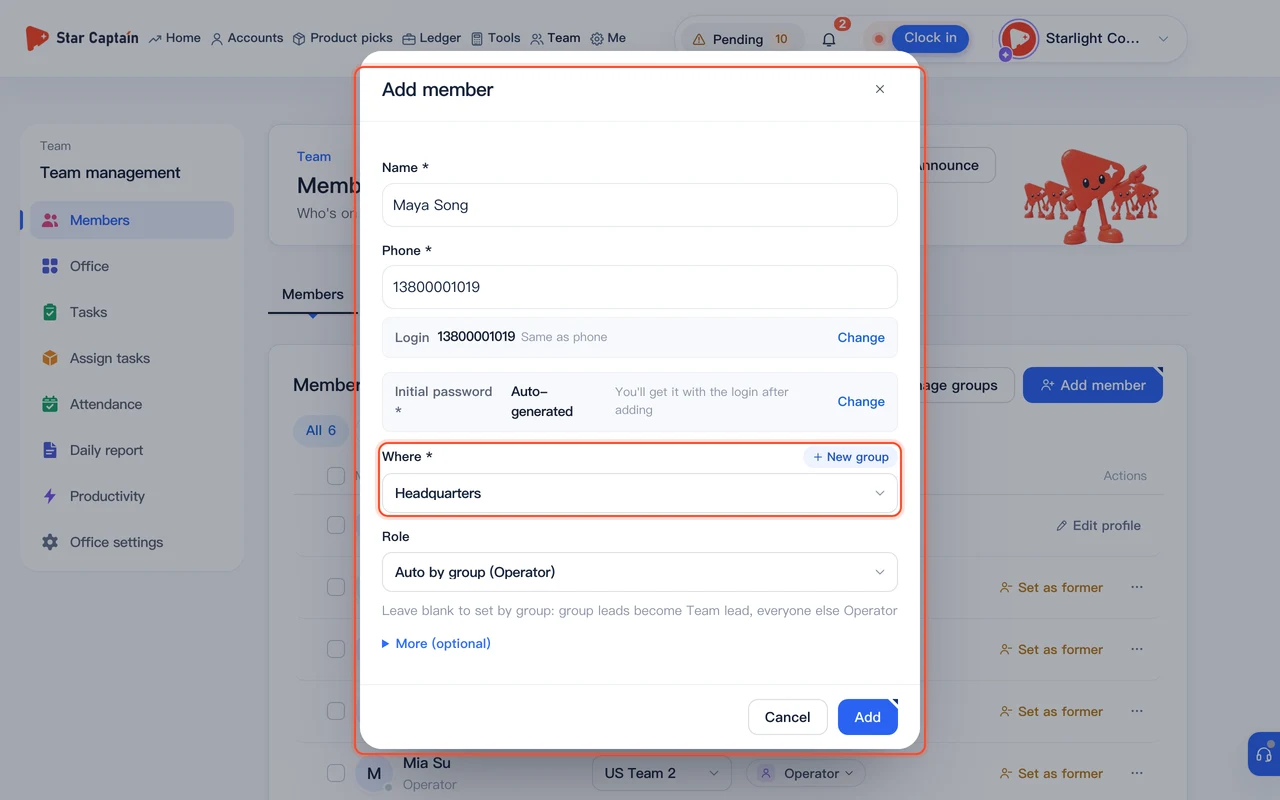
How to Add Team Members, Set Up Logins, and Assign Roles
Learn how to add team members, create groups, set up logins, and assign role permissions for operators, business managers, and team leads in Star Captain.
Read tutorial →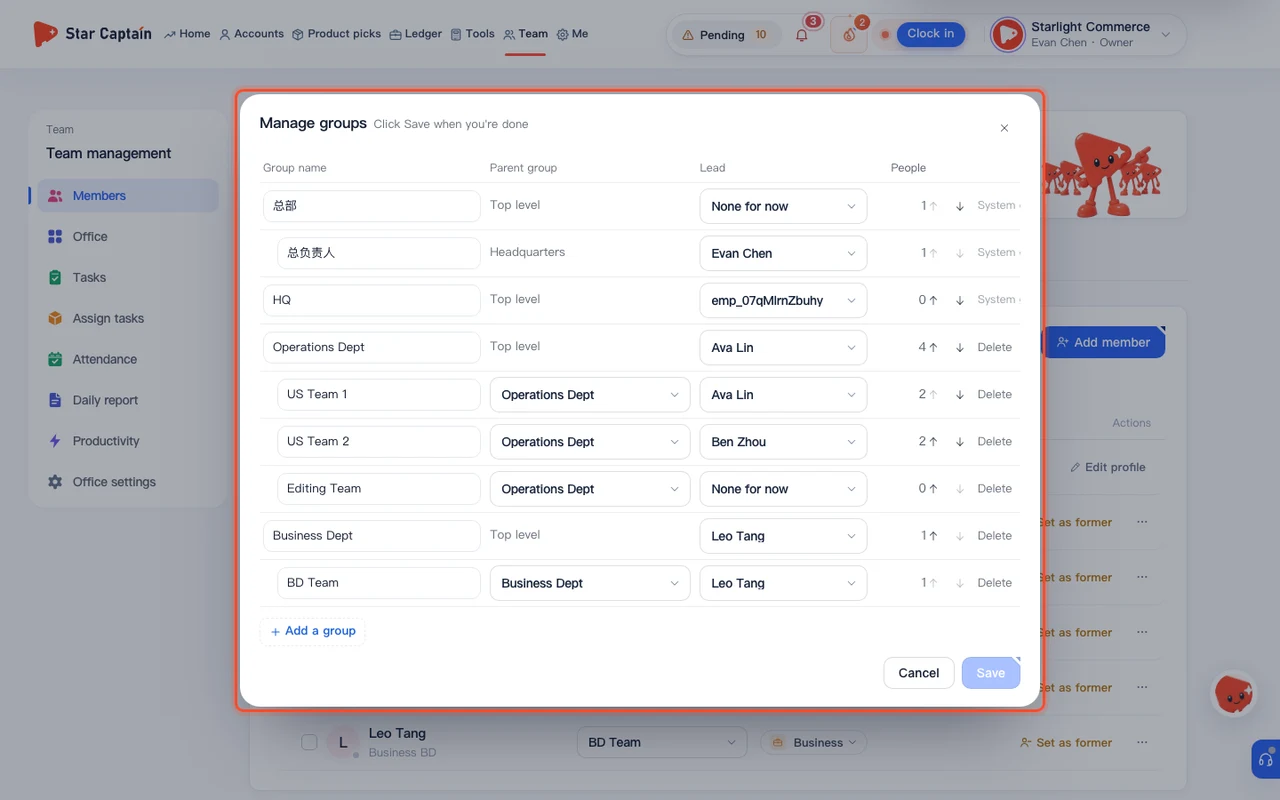
How to Set Up Departments and Subgroups So Team Leads Only Manage Their Own Group
Learn how to set up departments and team leads: Create departments and subgroups in Star Captain, assign group leads, move members in bulk, and scope.
Read tutorial →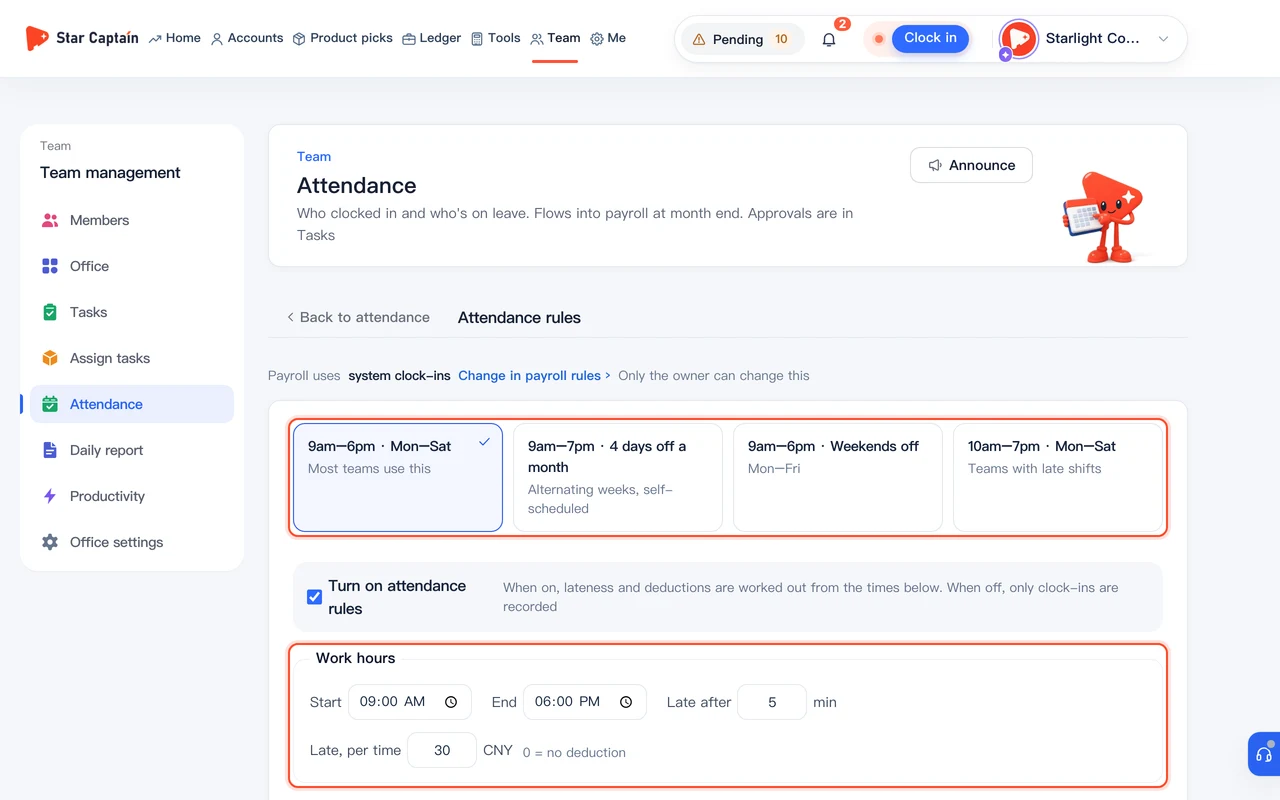
How Staff Clock In and How to Track Attendance
Learn how staff clock in and how to track attendance in Star Captain: set work hours, late deductions, clock-in areas, and monthly payroll sync.
Read tutorial →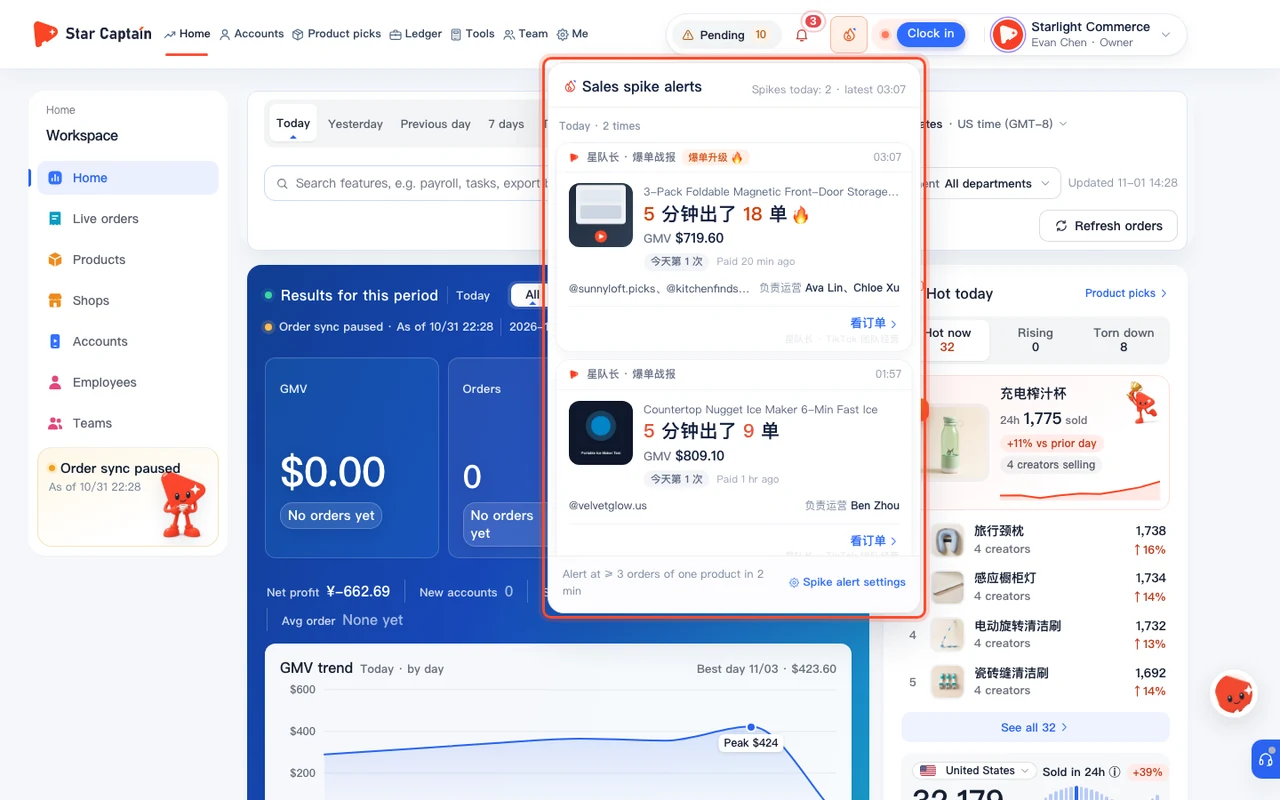
How to Configure and Check Notifications and Alerts
How to set up Star Captain notification settings: check messages and sales spikes, set your order threshold, turn on the morning brief, link WeChat, and send team notices.
Read tutorial →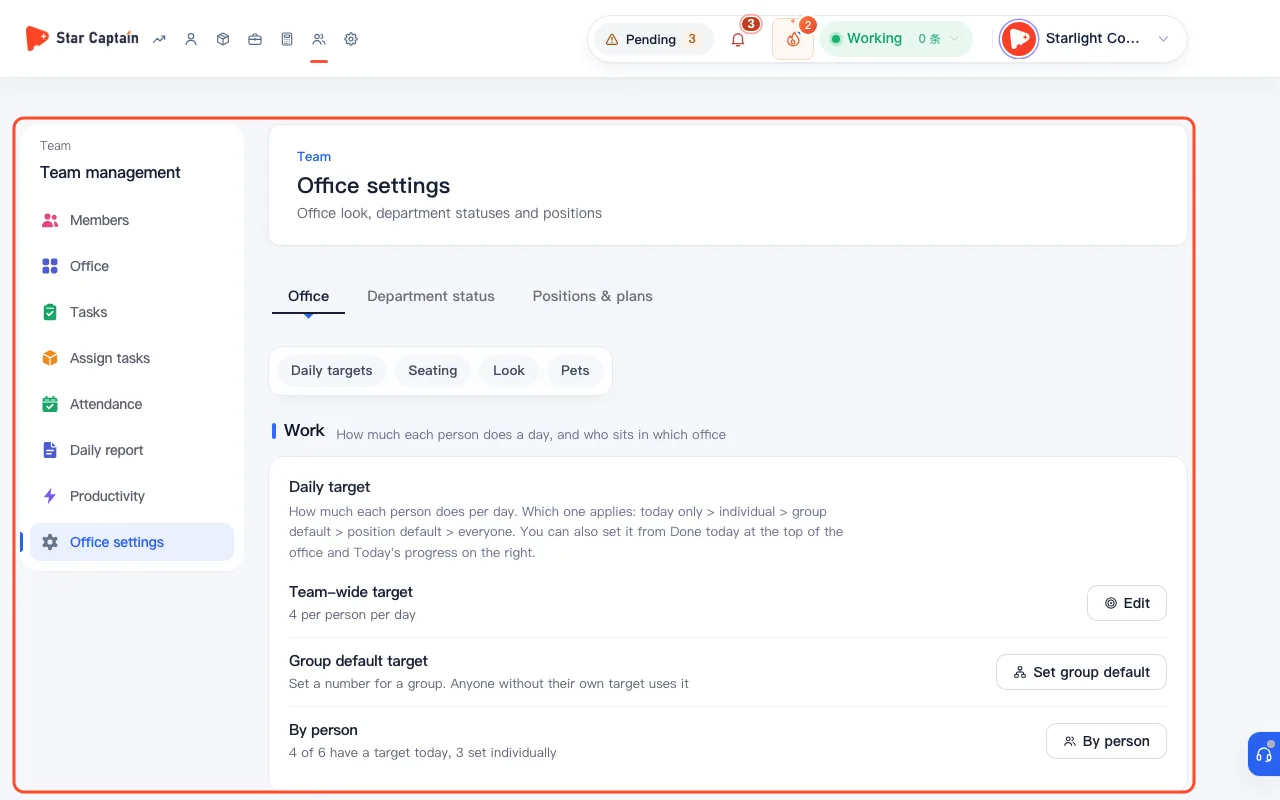
How to Set Daily Targets, Department Work Statuses, and Live Office Seating
Learn how to set daily targets and department statuses: Set daily targets by department and role in Star Captain, customize department statuses and counting.
Read tutorial →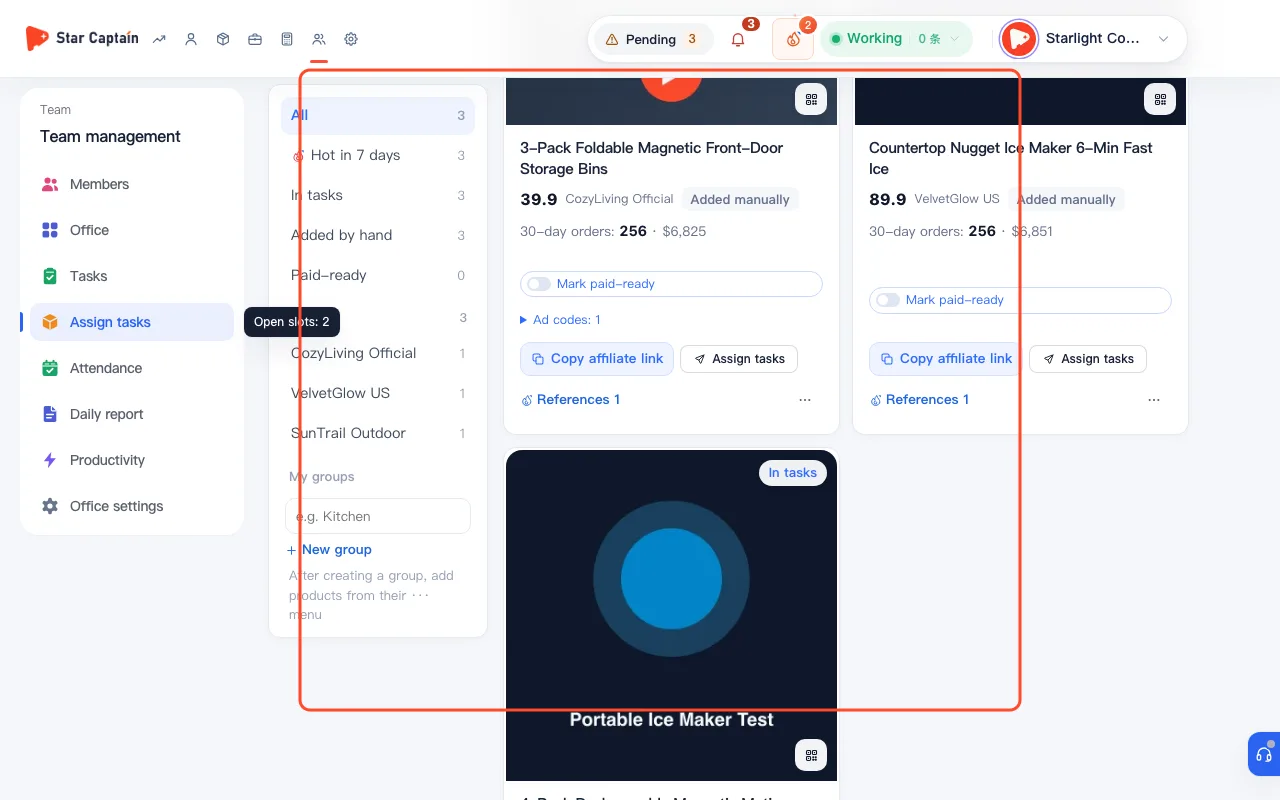
How to Assign Products and Review Videos Frame by Frame
How to assign products and review videos in Star Captain: add items to the Product library, assign editing tasks to staff or the task pool, and review cuts.
Read tutorial →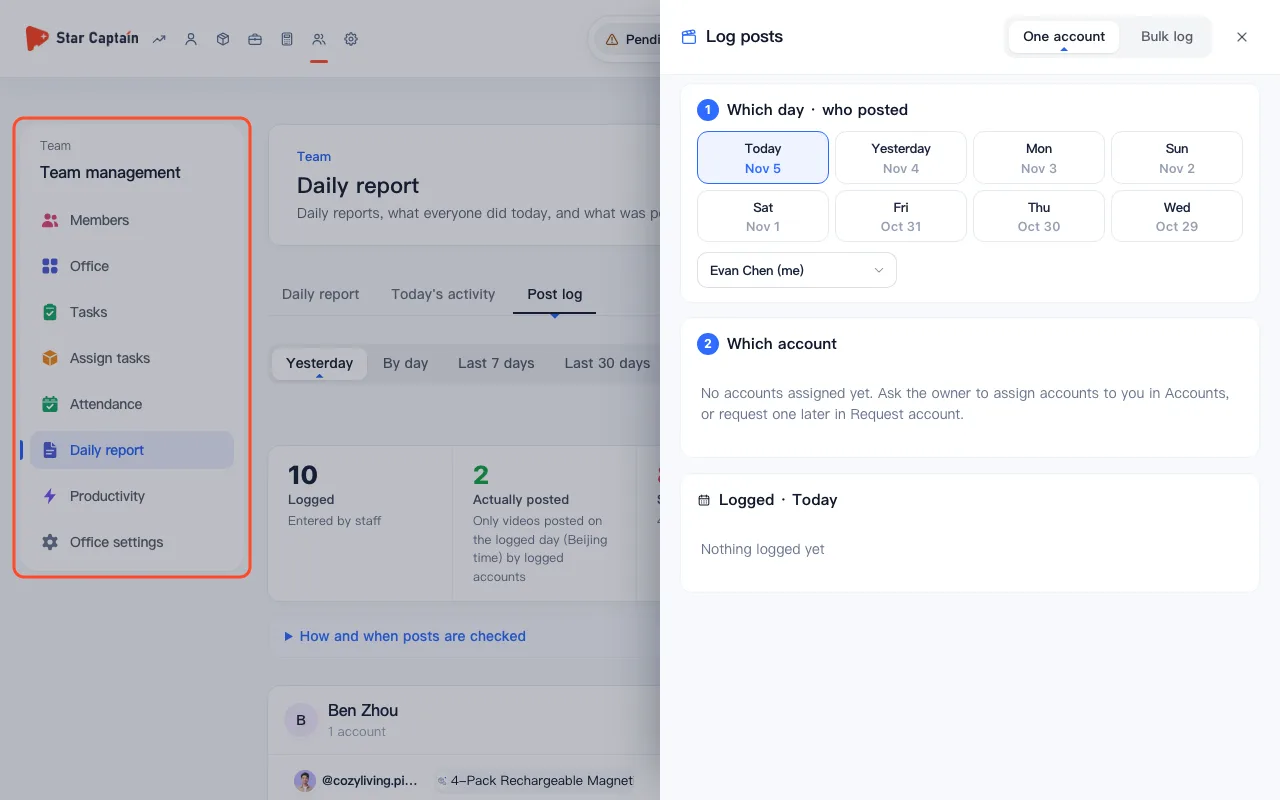
How to Log Published Videos, Auto-Check Shortfalls, and Review Productivity
Learn how to log published videos and check productivity: Log published videos in Star Captain by single account or in bulk, auto-verify shortfalls against.
Read tutorial →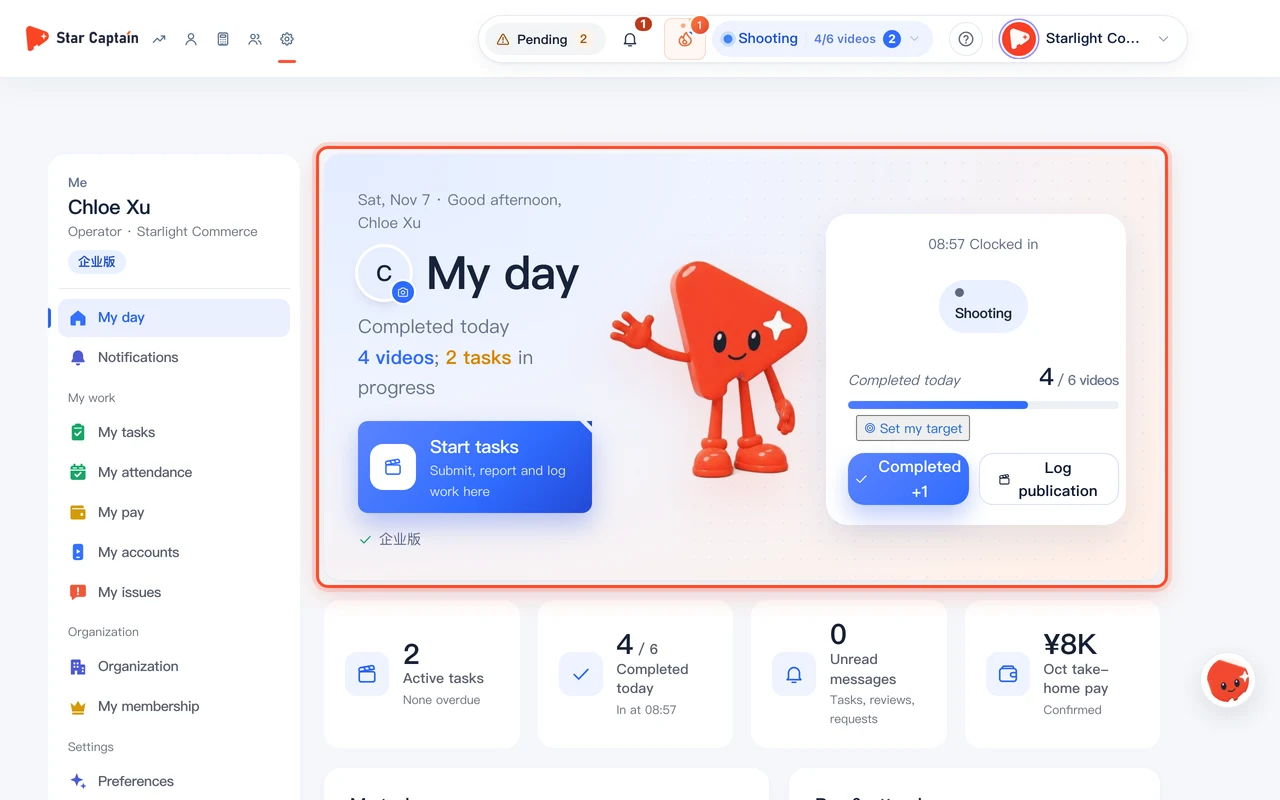
How to Use Personal Center for Daily Work, Tasks, and Payslips
How to use Personal Center for daily work in Star Captain: check My day, follow 4-step task progress, request accounts, view 2FA codes, and check payslips.
Read tutorial →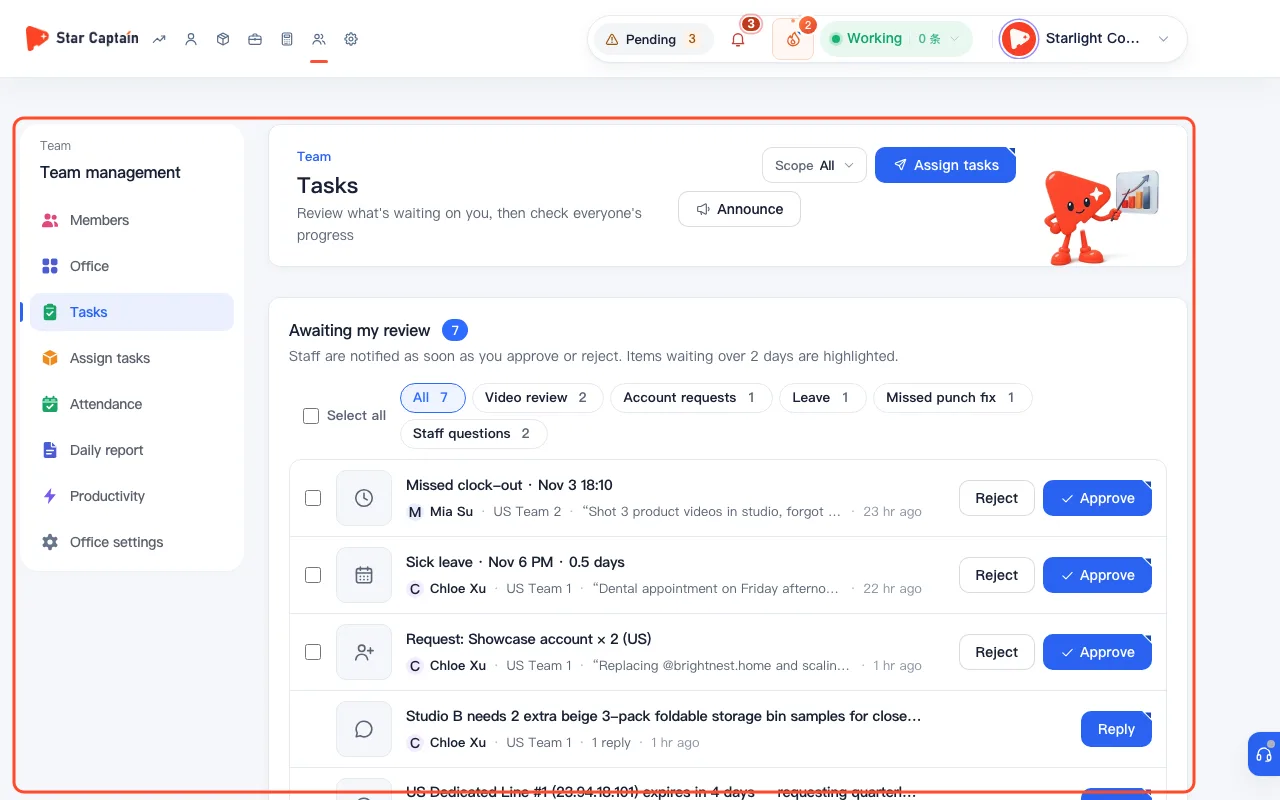
How to Handle Team Inbox and Approvals in the For Me Panel
How to handle team inbox and approvals in Star Captain's For me panel: review videos, approve showcase account and attendance requests, and reply to staff.
Read tutorial →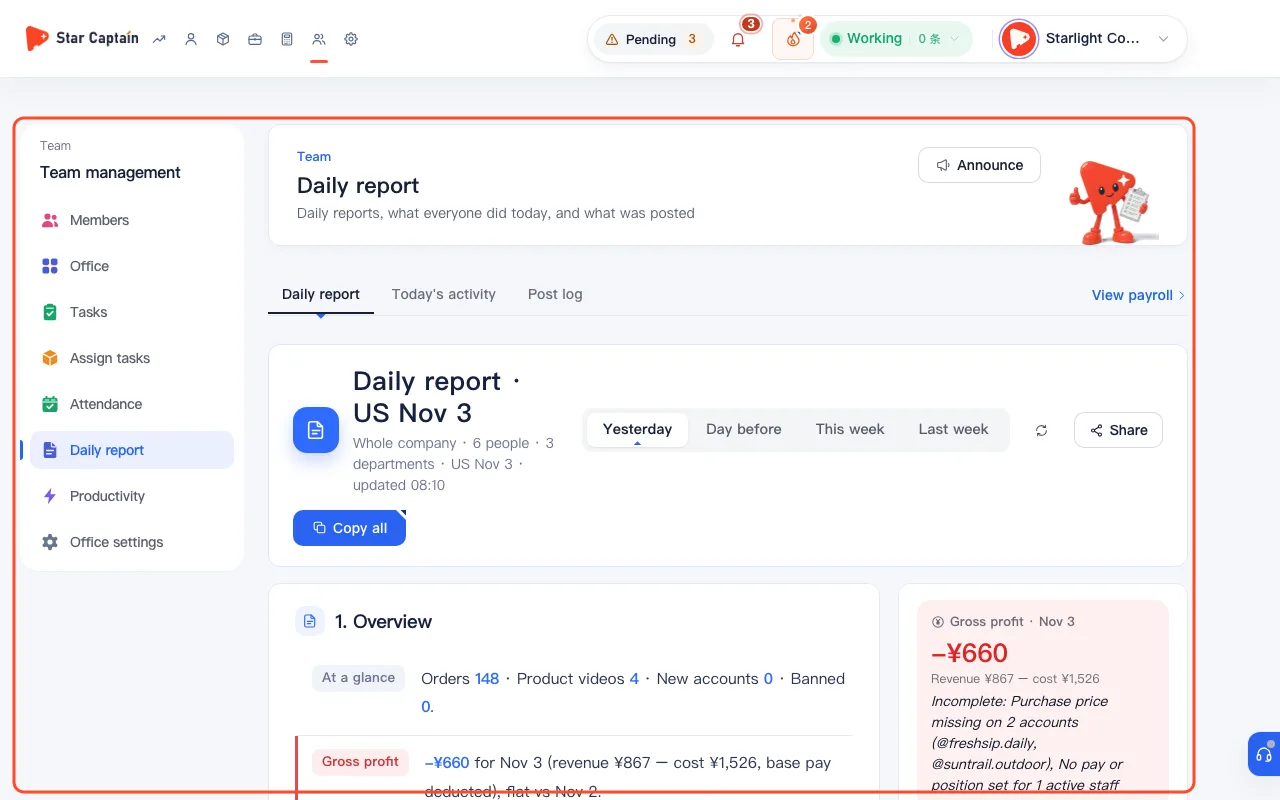
How to Read Team Daily and Weekly Reports and Create a View-Only Share Link
Learn how to read and share team daily reports: Read team daily reports and weekly reviews in Star Captain, inspect account source payback and department.
Read tutorial →03 · Orders & partner brand billing
See which accounts sell today, view performance rankings across products, shops, and staff, filter live orders by traffic source or refunds and export Excel sheets, match orders to partner brands, and track statement payments.
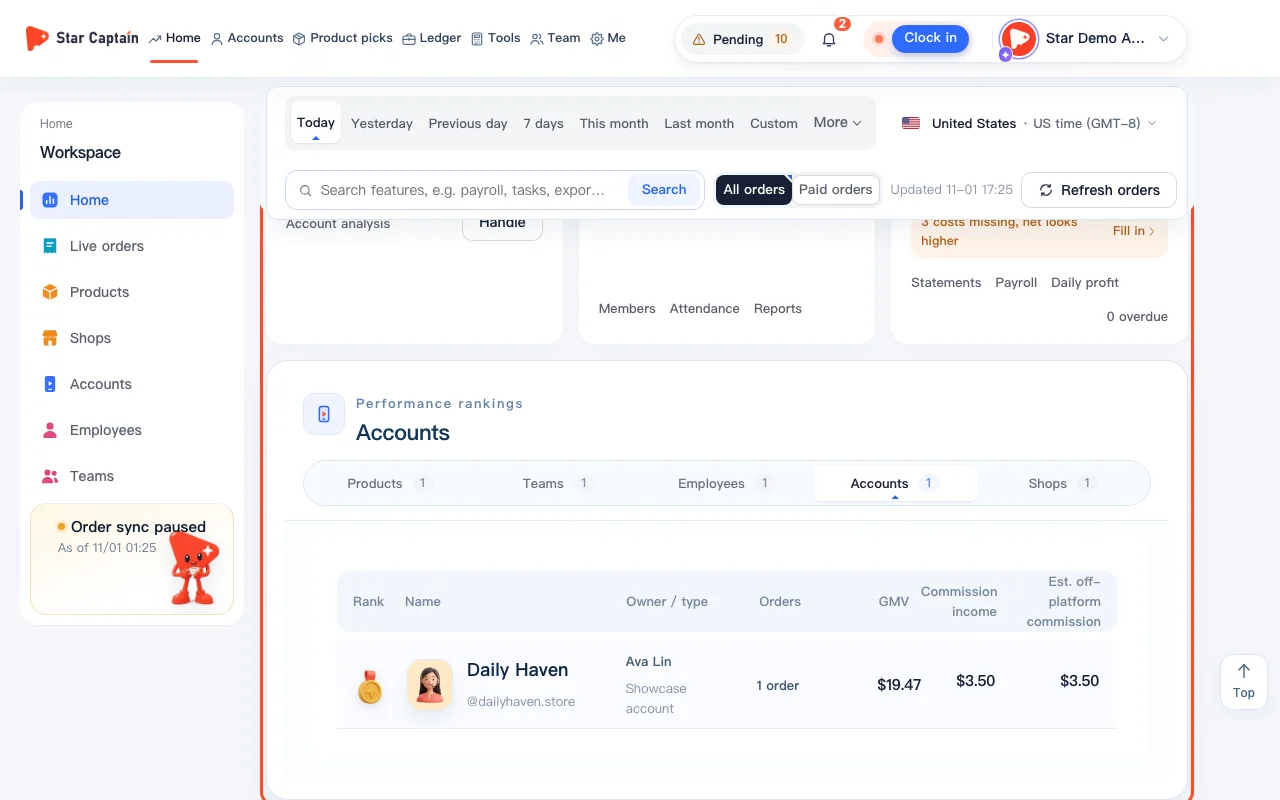
How to see which accounts sell today in Star Captain
See which accounts sell today in Star Captain: check Selling accounts and Performance rankings on Home, inspect Live orders, or filter by Making sales.
Read tutorial →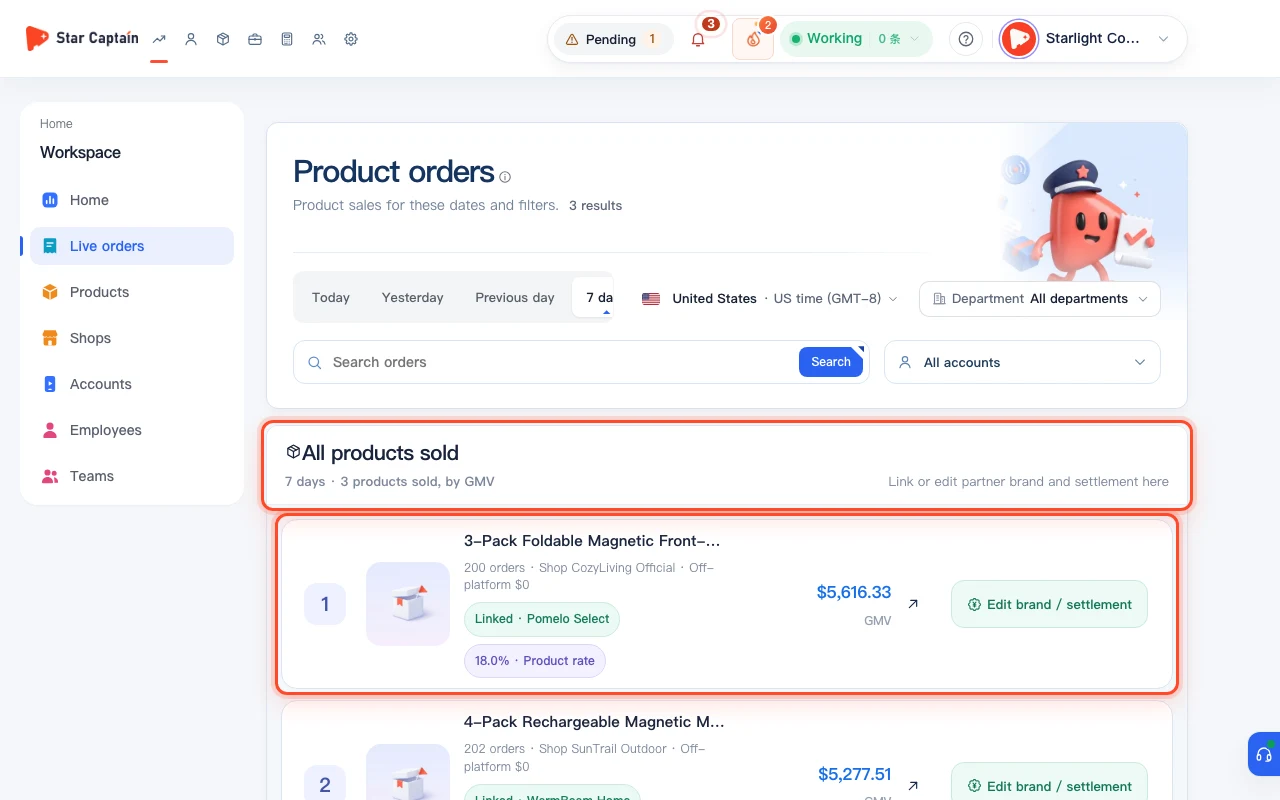
How to View Star Captain Performance Rankings Across Products, Shops, and Staff
How to view Star Captain performance rankings on Home: switch between Products, Shops, Accounts, Employees, and Teams, or open Full ranking by GMV.
Read tutorial →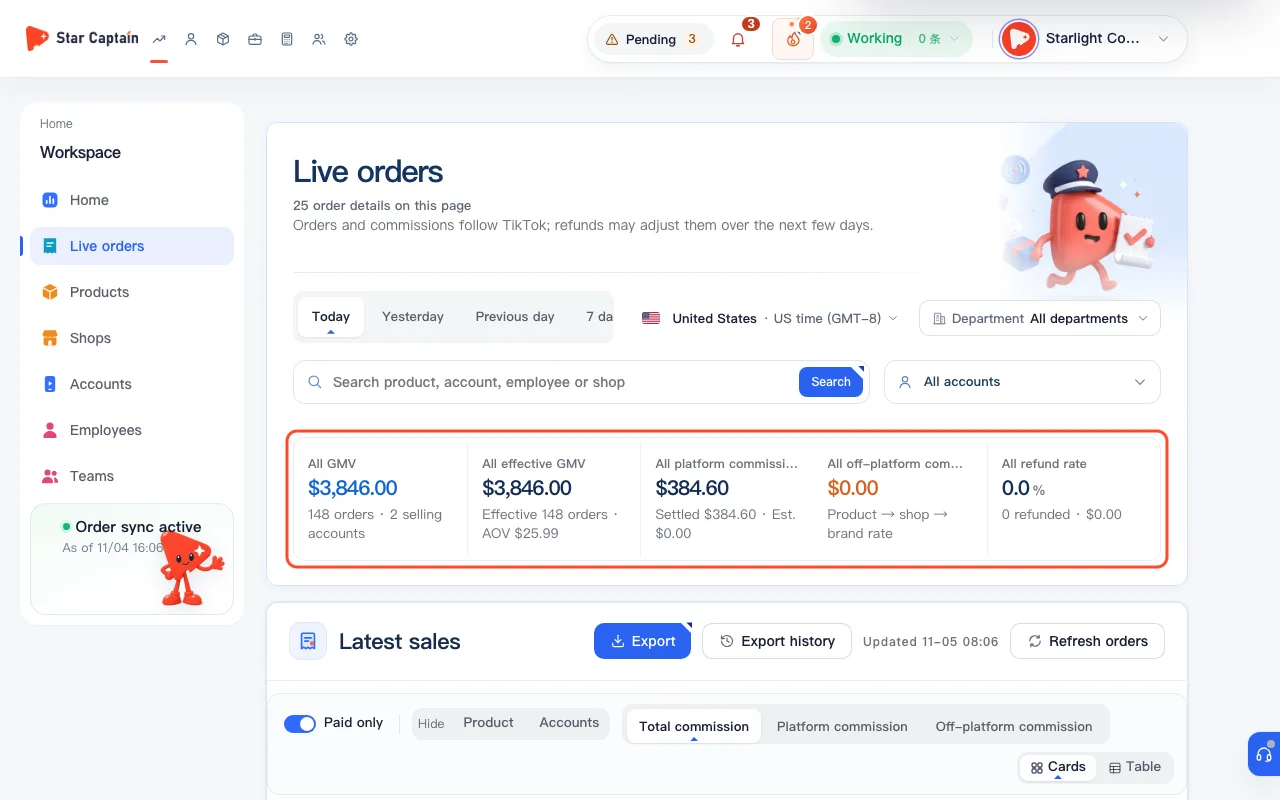
How to Filter Live Orders by Traffic Source and After-Sales Status and Export to Excel
Learn how to filter and export live orders: Filter live orders in Star Captain by organic vs. paid traffic, inspect product refund rates under Refunds, and.
Read tutorial →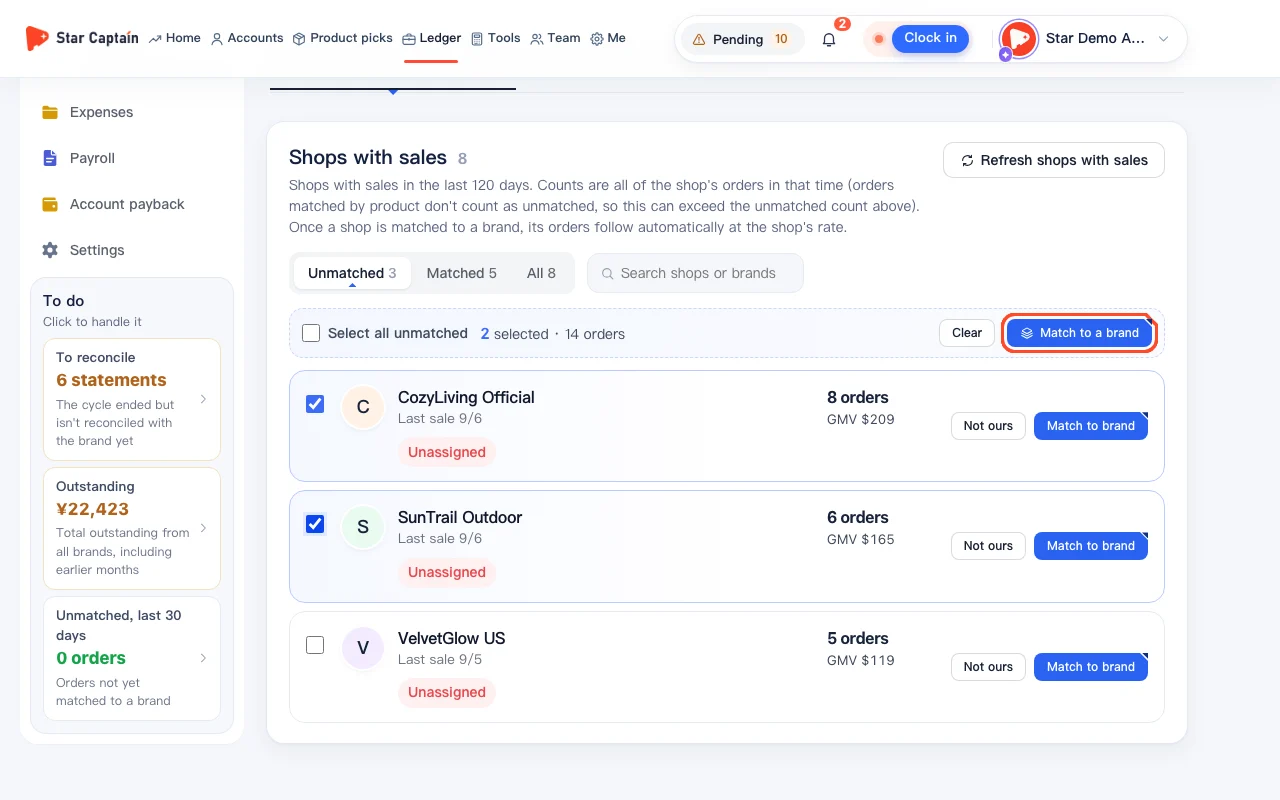
How to match orders to partner brands automatically
Attribute orders to merchants automatically in Star Captain: add partner brands and link shops with commission rates, or bulk match shops in Order matching.
Read tutorial →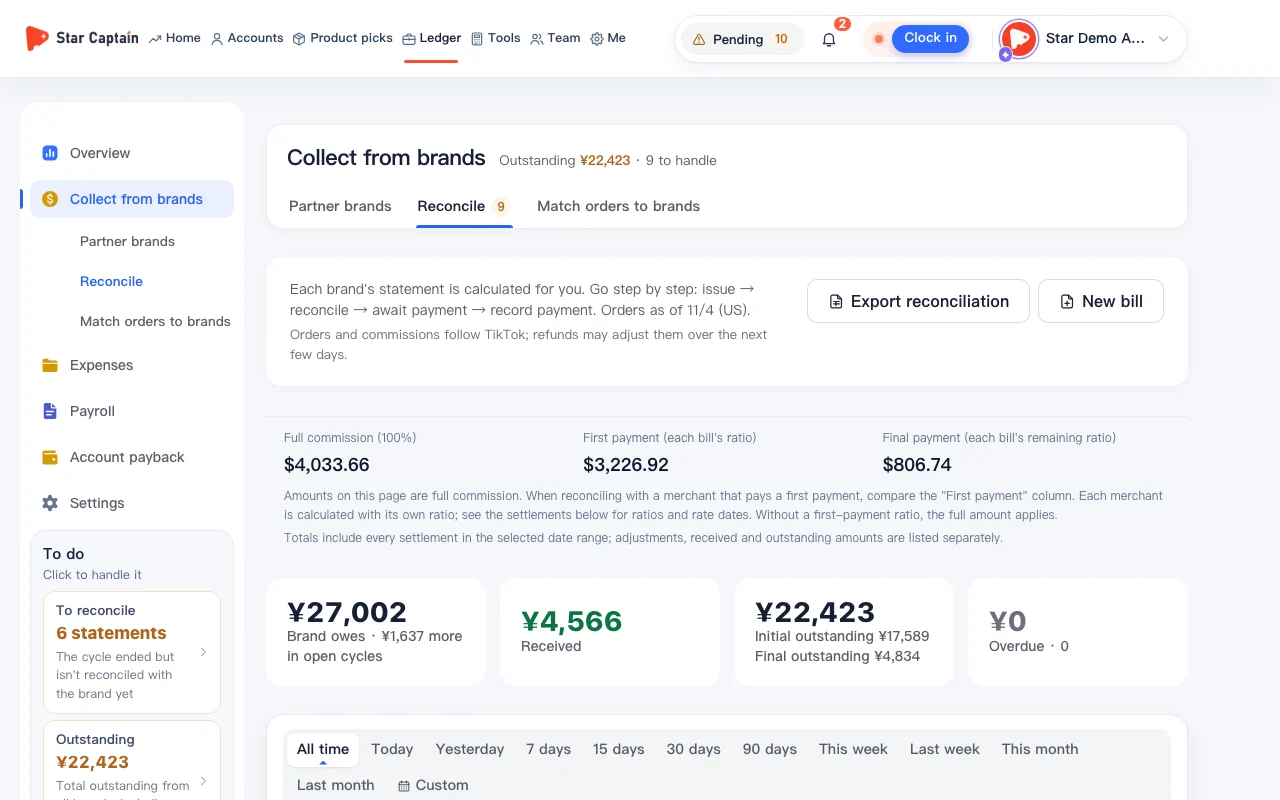
How to reconcile with partner brands and export statements
Reconcile with merchants in Star Captain: open Reconcile to export Excel statements, upload the brand's sheet to catch missing orders, and record payments.
Read tutorial →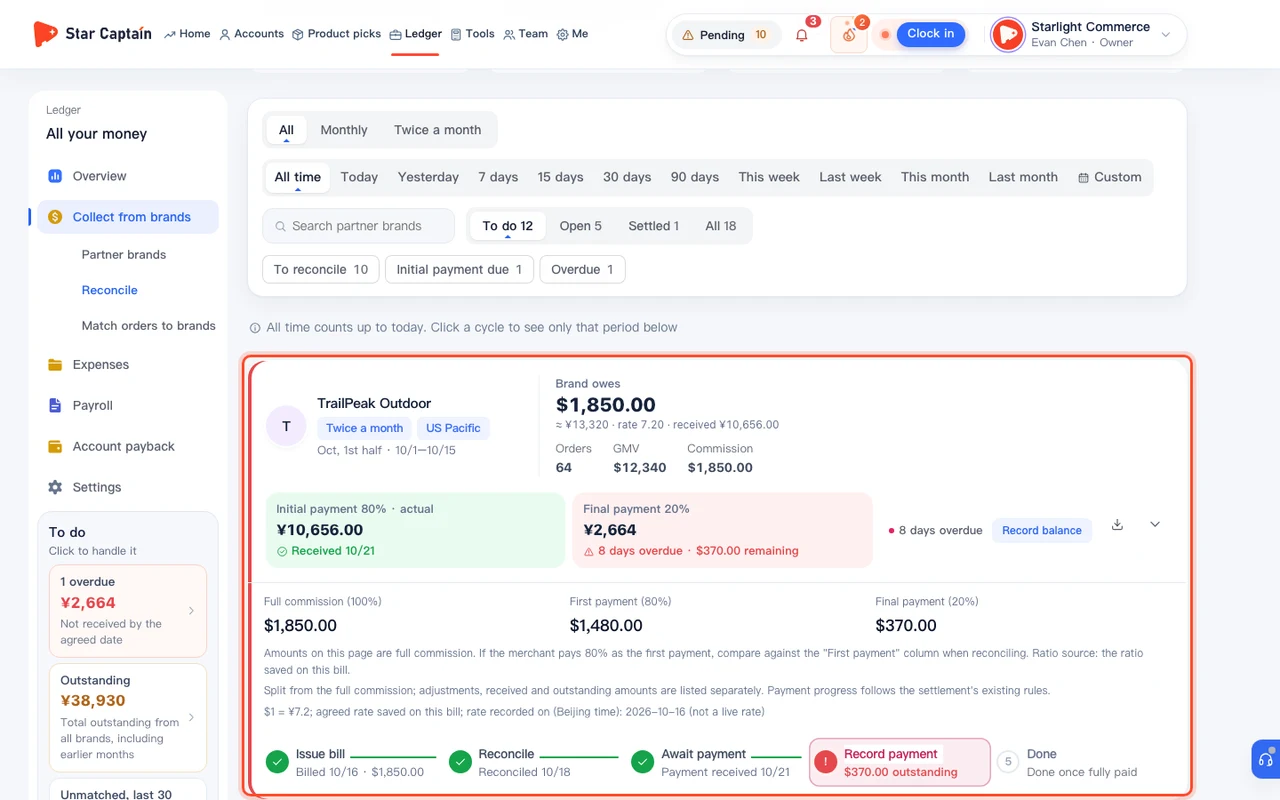
How to Issue Statements, Record Brand Payments, and Track Overdue Balances
Learn how to issue statements and record brand payments: Set settlement cycles and payment splits in Star Captain, issue statements for partner brands,.
Read tutorial →04 · Costs, payroll & profit
See brand collections, monthly expenses, and net profit on the General Ledger page, check daily profit and team profit ranking, track single-account and batch payback ROI, record expenses, and run monthly payroll.
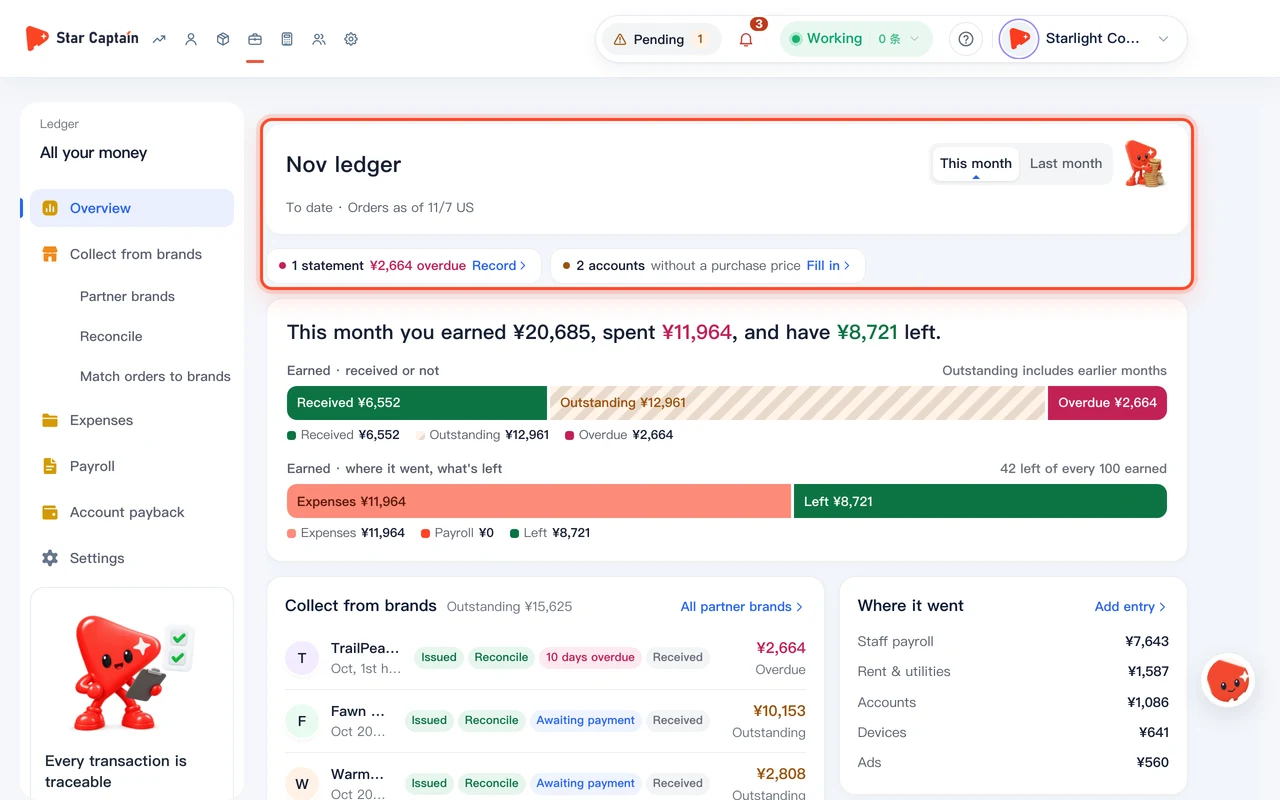
How to Read the Money Ledger Overview for Brand Collections and Payback
Read the money ledger overview (/app/money) in Star Captain to see monthly earnings, brand payments received vs. outstanding, expenses, and payback.
Read tutorial →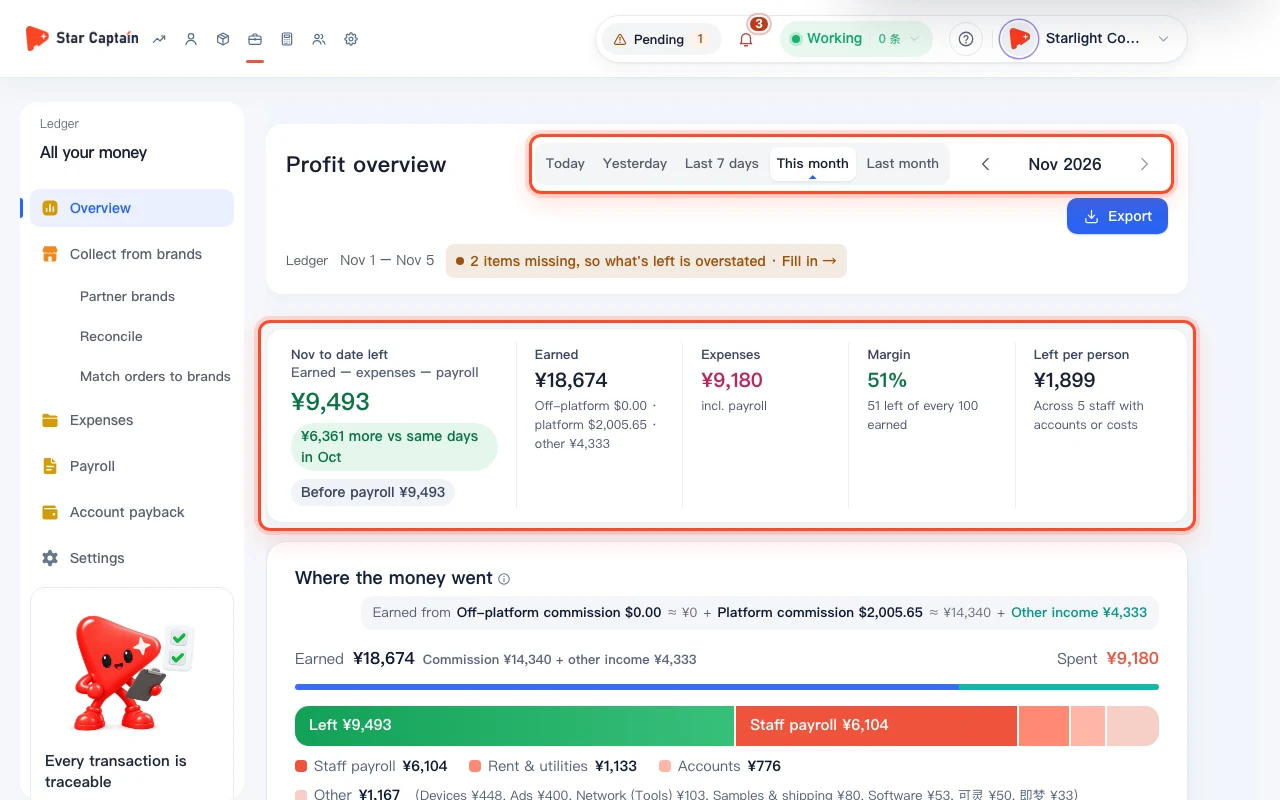
How to Check Daily Profit and Team Profit Ranking in Star Captain
How to check daily profit and team profit ranking in Star Captain: switch periods on Ledger → Profit overview, review Daily profit, and compare Most profitable teams.
Read tutorial →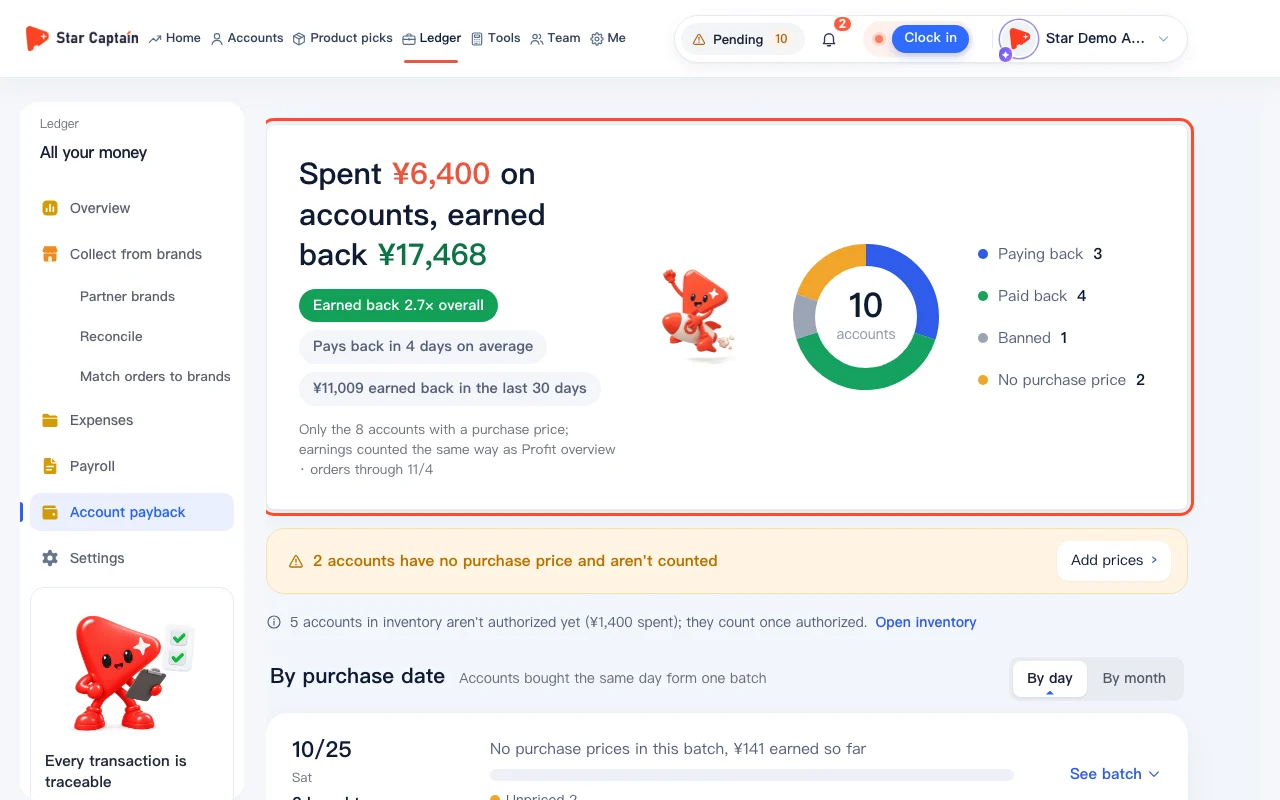
How to check TikTok account payback and batch ROI
Check TikTok account payback in Star Captain: open Account payback, enter each account's recorded cost and date, and track payback days and batch ROI.
Read tutorial →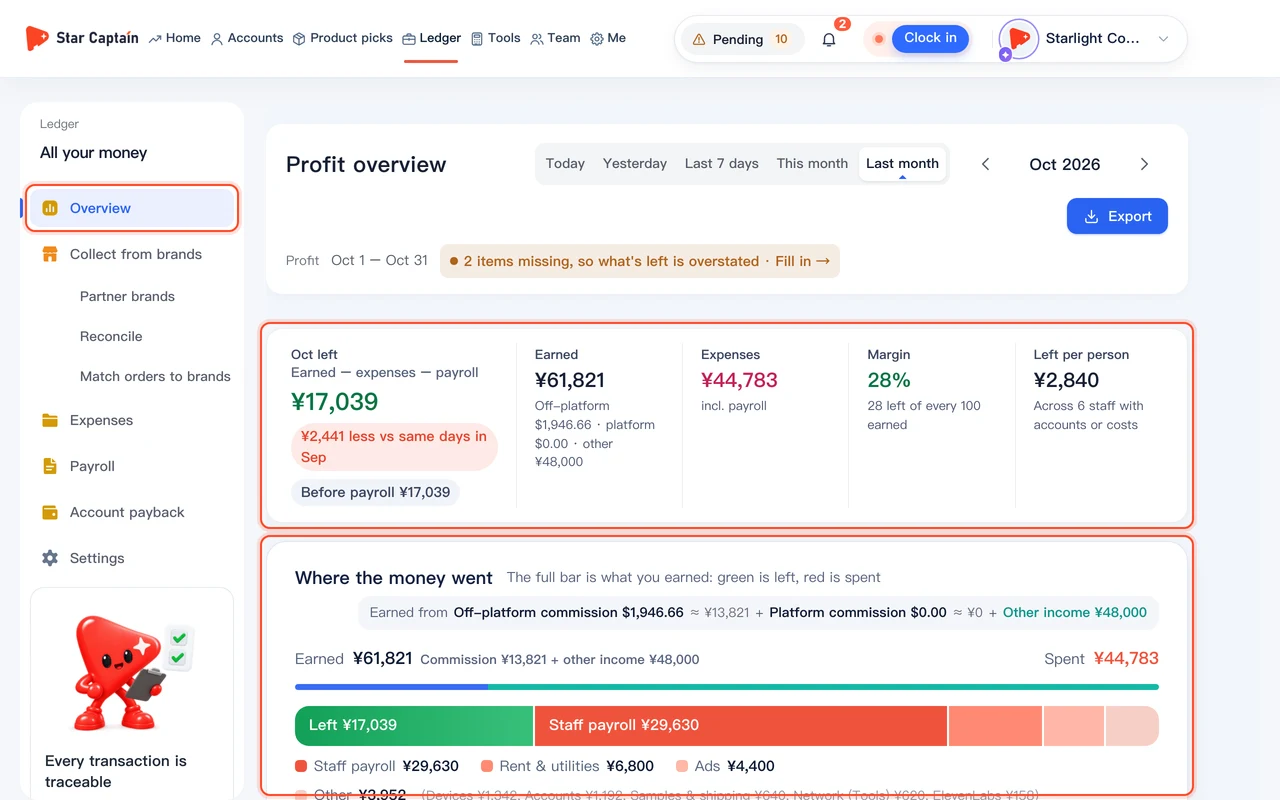
How to Record Expenses and Track Monthly Profit
Learn how to record expenses and track monthly profit in Star Captain: sync device, network, and account costs, log rent and ads, and see daily net profit.
Read tutorial →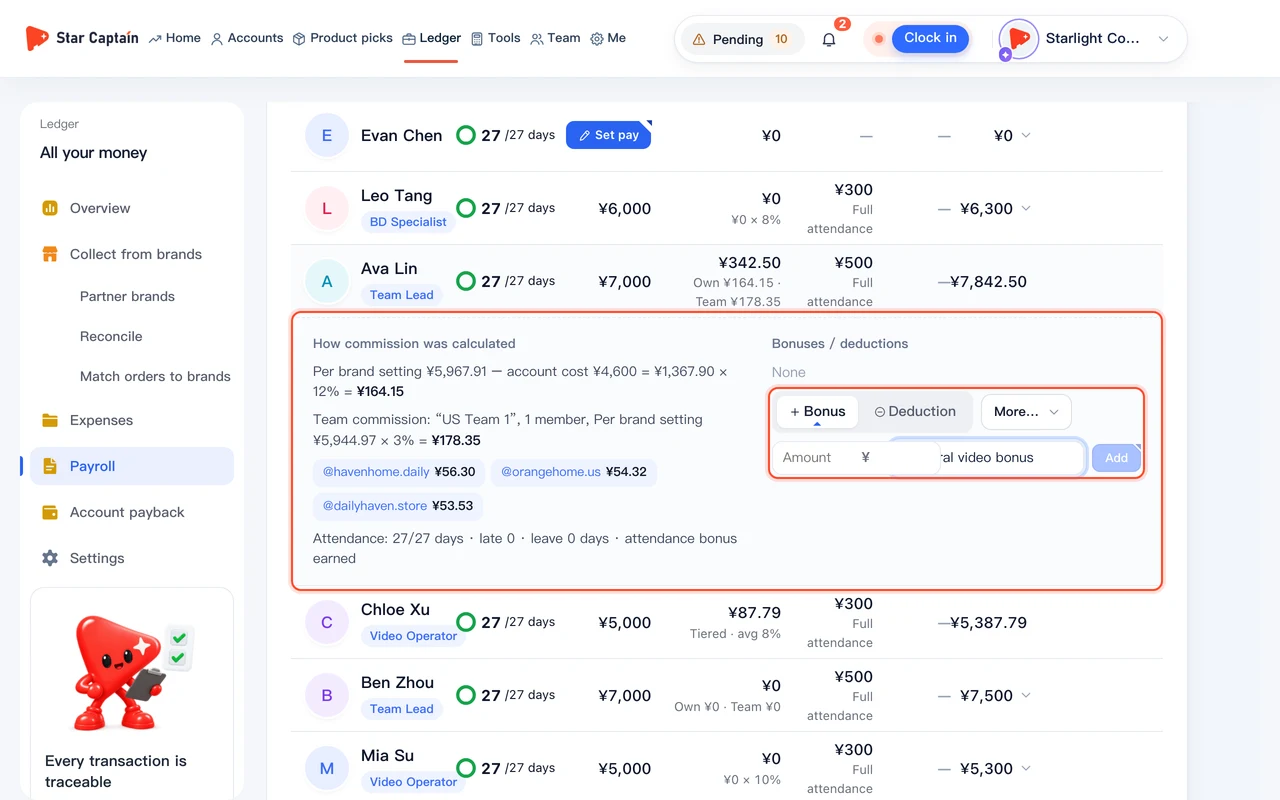
How to Set Up Payroll and Generate Payslips in One Click
Learn how to set up payroll and generate payslips in Star Captain: configure base pay and commission tiers, pull in team clock-ins, and confirm monthly pay.
Read tutorial →05 · Product picks, teardown & assistant
Find promotable items in Product picks, manage saved picks and viral video rankings, tear down viral TikTok videos into shot-by-shot scripts, and ask the Star Captain Assistant about your data.
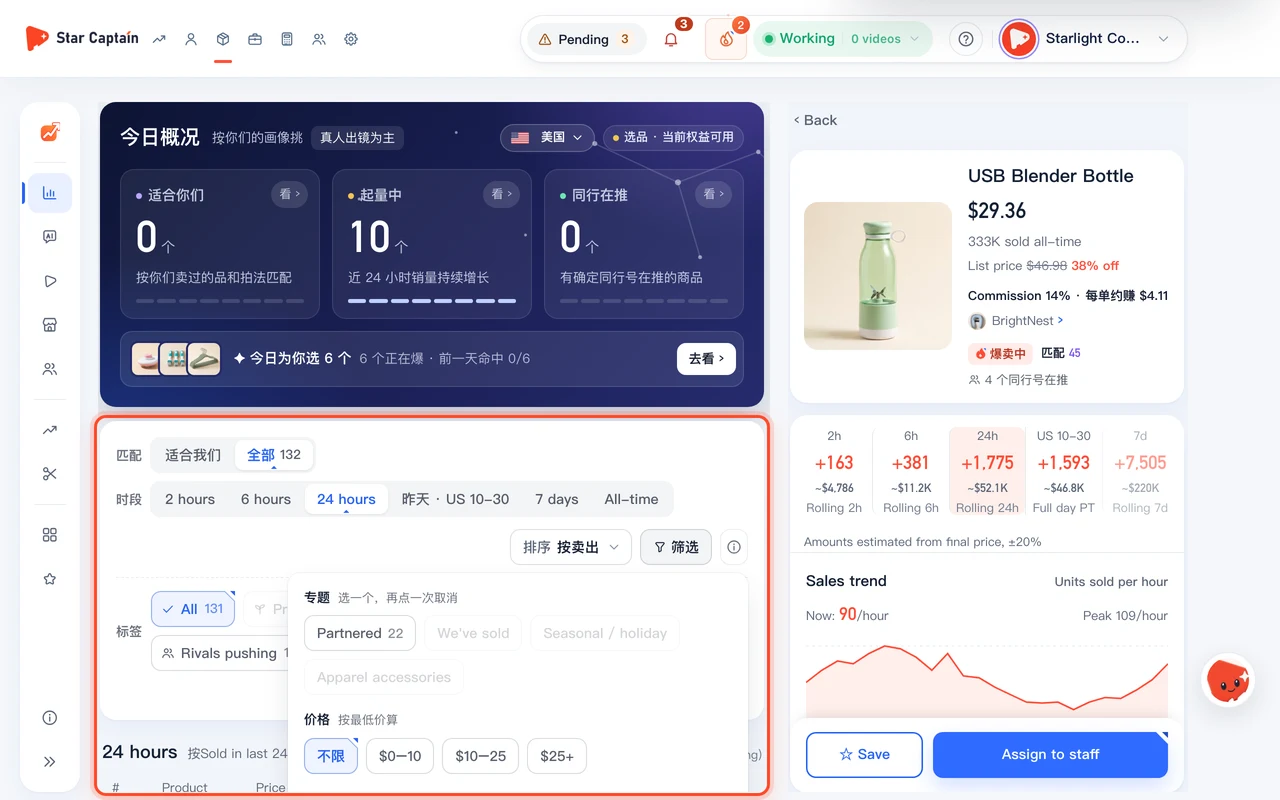
How to Find Products to Promote in Product Picks
Learn how to find products in Product Picks: Use Star Captain's Product picks to check the Today overview, filter Best sellers, and verify account listing.
Read tutorial →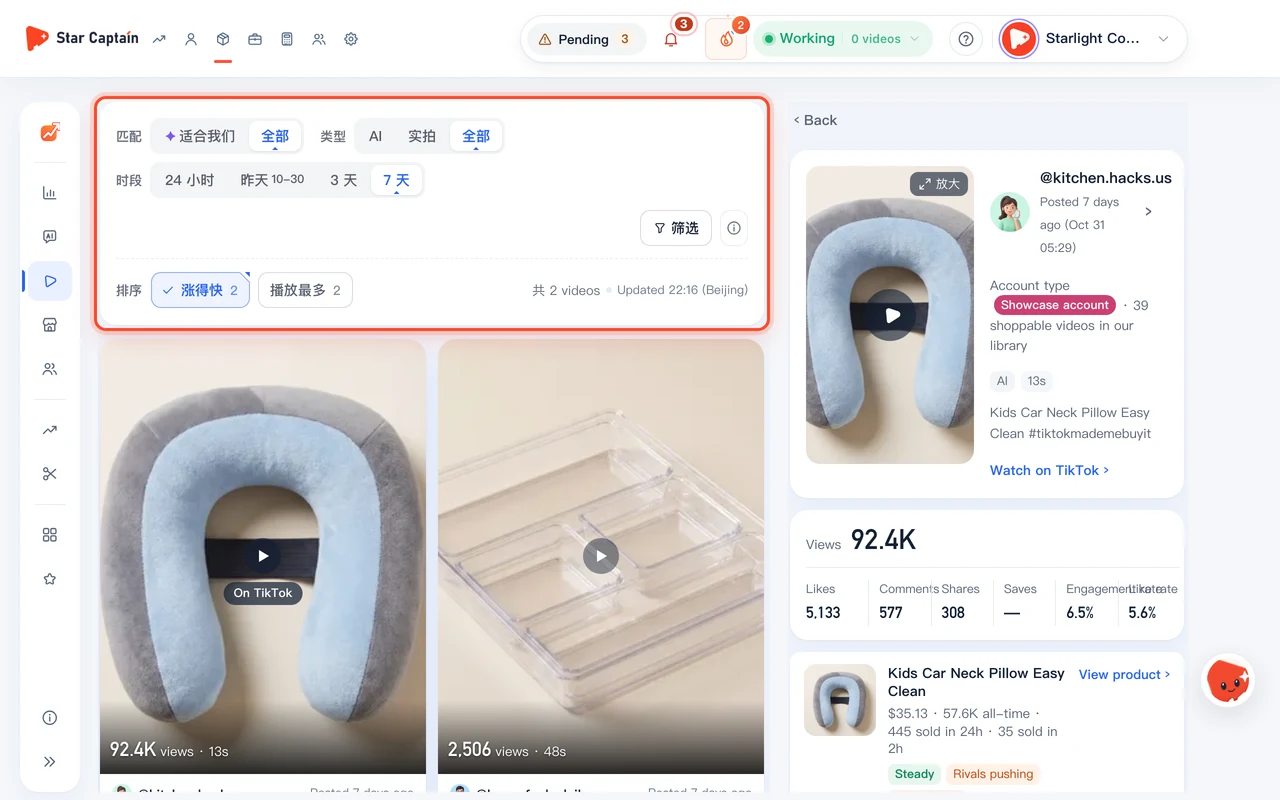
How to Manage Saved Product Picks and Filter Viral Videos by Shooting Style for Teardown
Manage saved picks and viral videos in Star Captain: organize shared team saves, filter viral videos by Real or AI type, and click Tear down.
Read tutorial →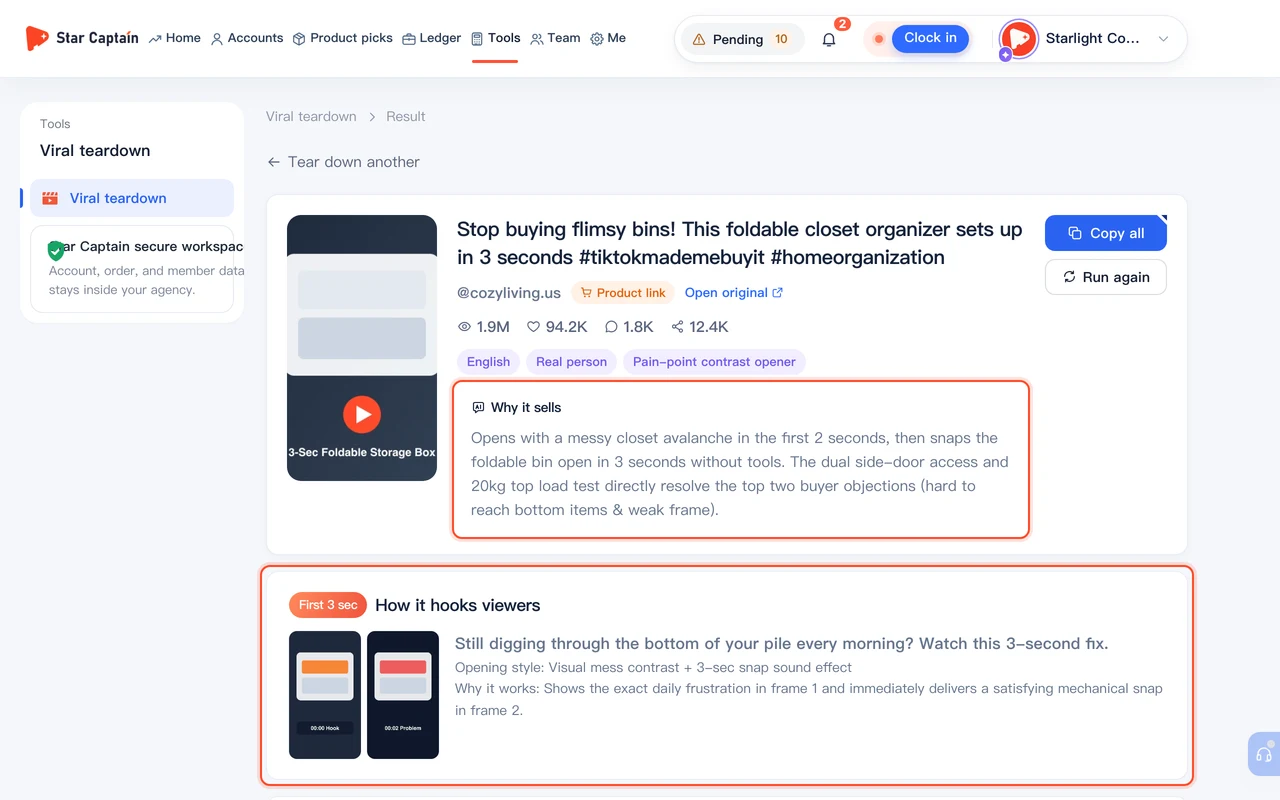
How to Tear Down a Viral TikTok Video
Learn how to tear down a viral TikTok video in Star Captain: paste a link to capture frames, transcribe lines, and review the 3-second hook and storyboard.
Read tutorial →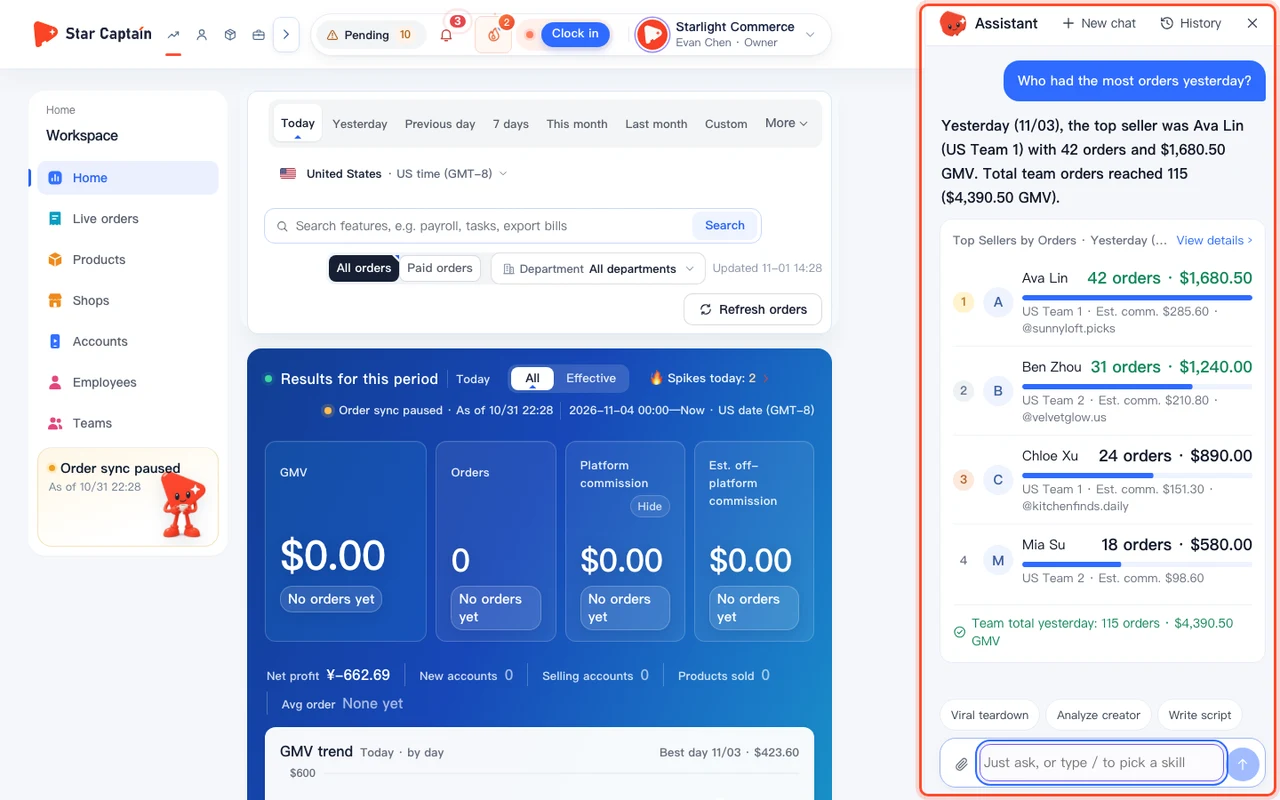
How to Ask the Star Captain Assistant About Your Data (Like "Which Account Had the Most Orders Yesterday?")
Learn how to ask Star Captain Assistant: Open the Star Captain Assistant from any workspace page to ask natural-language questions about top-selling.
Read tutorial →Want the background and best practices first? Read the guides →
What else do teams ask about Star Captain tutorials?
Which group of Star Captain tutorials should I start with when setting up Star Captain?
All 34 Star Captain tutorials are organized into 5 groups in the order a new team sets up the workspace: start with Group 1 (Getting started & accounts, 9 tutorials) to connect TikTok accounts via QR code, bulk import new accounts, assign them to staff, register phones and networks, configure account groups and viral threshold settings, inspect account scores, video links, and single-account conversion funnels, and restore deleted accounts or audit activity logs. Next, use Group 2 (Team & daily management, 10 tutorials) to add members, set up departments, set daily targets, assign products and review videos frame by frame, log published posts, and run Personal Center, inbox approvals, and daily reports. Once orders come in, follow Group 3 (Orders & partner brand billing, 6 tutorials) to track daily sales, view performance rankings across products, shops, and staff, filter and export live orders, match orders to partner brands, export statements, and record payments. At month-end, check Group 4 (Costs, payroll & profit, 5 tutorials) for the general ledger overview, daily profit and team profit ranking, account payback, expense tracking, and one-click payroll, and use Group 5 (Product picks, teardown & assistant, 4 tutorials) whenever your team researches products, manages saved folders and viral video rankings, breaks down viral videos, or asks the assistant about workspace data.
Do the Star Captain tutorials screenshots show real customer data?
No — every account, order, amount, staff name, device, and partner brand shown across all 34 Star Captain tutorials is fictional demo data created specifically for these guides, with no real customer information. When you sign in to your own workspace, you'll see your team's live data.
Do the Chinese and English Star Captain tutorials show the same workspace interface?
Yes. Both versions of our Star Captain tutorials follow the exact same workflows and button locations, with Chinese workspace screenshots on the Chinese pages and English workspace screenshots on the English pages.
How often are the Star Captain tutorials updated, and what if my screen looks slightly different?
We update the text and screenshots of our Star Captain tutorials whenever the workspace interface changes, and each tutorial shows its last updated date at the top. Where a left-menu label is shorter than the page heading (such as "Match orders to brands" in the menu versus "Order matching" on the page), the tutorial names both so you can easily find the right spot.
Can I follow these Star Captain tutorials on the Free plan?
Yes. The Free plan starts at $0 with no credit card required (up to 3 members and unlimited TikTok accounts), so you can follow the onboarding, account connection, live order tracking, and role setup Star Captain tutorials right away; tutorials covering partner settlements, account payback, live office, task reviews, and payroll note the applicable plan tier on the page.
How do the 34 Star Captain tutorials differ from the 49 operational guides?
The 34 Star Captain tutorials walk through exact workspace clicks ("where to click → what you see → what to do next") with annotated screenshots each, while the 49 operational guides explain broader agency management formulas, SOPs, and commission workflows. Both sections cross-link to each other.
