TikTok accounts
 Orders & performance
 Team management
 Profit & cost
 Brand deals
 Creator toolbox
 Solo creators
 Creator teams
 Multi-department companies
Who is this for?
- Business managers and operations leads who organize new partner products, agency affiliate links, showcase QR codes, and reference videos for the editing team
- Team leads who assign daily video quotas either to specific editors or to a shared "Task pool" where available teammates claim slots
- Reviewers who want to pause on the exact video frame to leave timestamped revision notes instead of typing vague messages in group chats
What to prepare before starting?
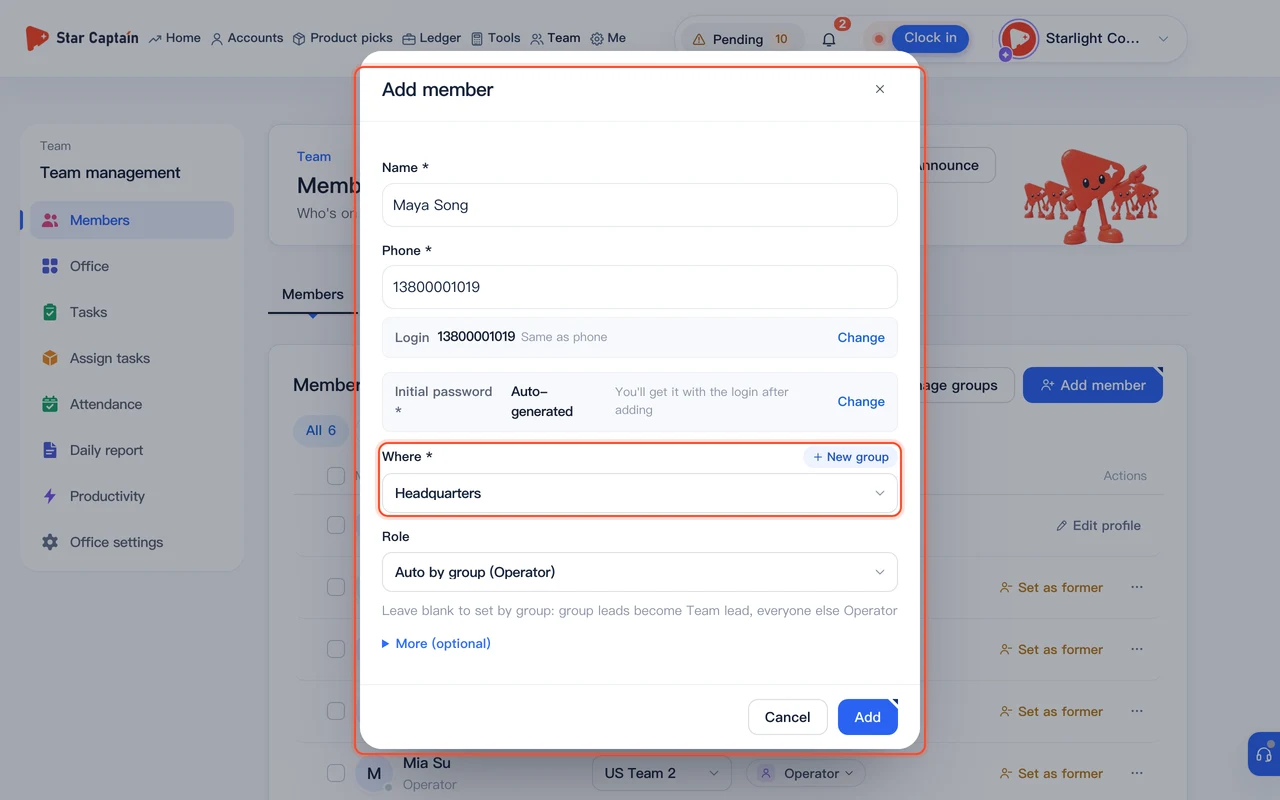
- You have added your editors and operators under "Team → Members" and organized them into groups if needed
- You have a TikTok product link, product ID (`PID`), or short agency affiliate link ready to paste
01Open "Team → Product library", paste a product link or ID, and click "Add to library"
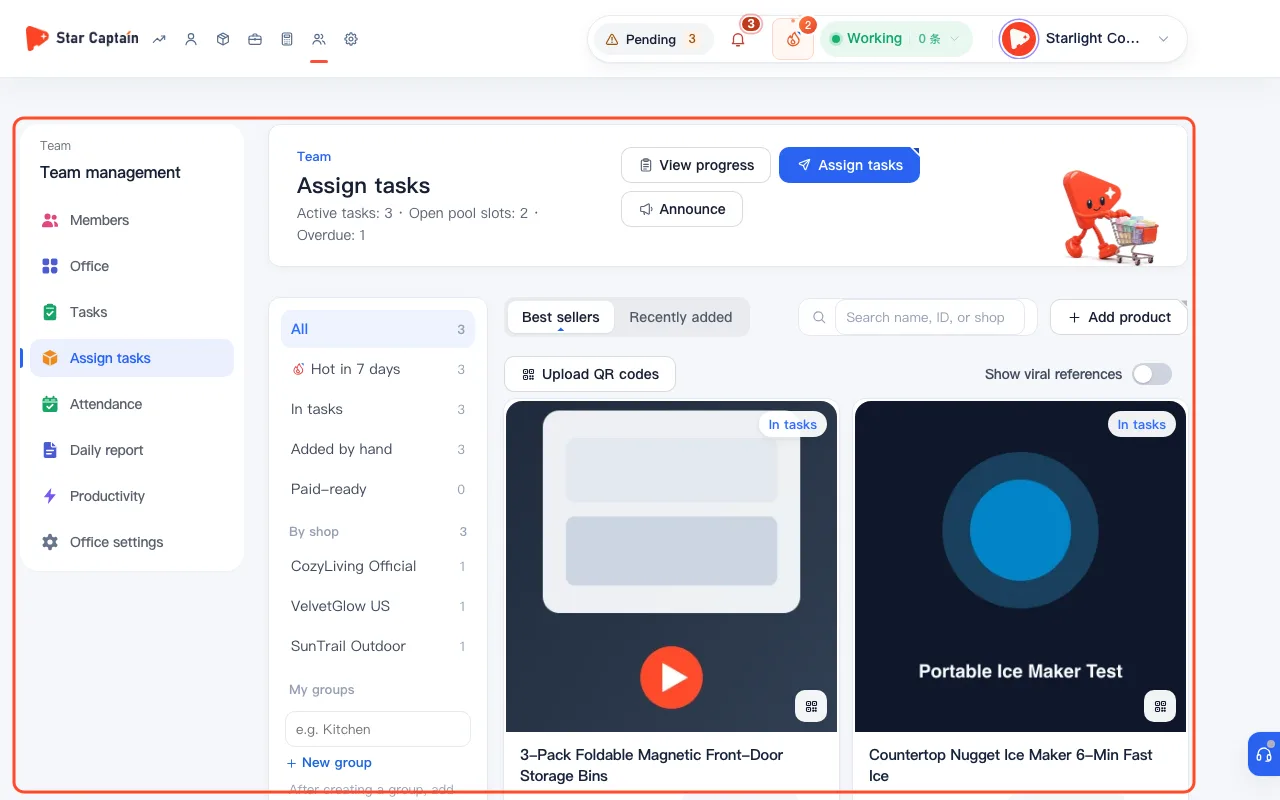
To assign products and review videos, first open "Team" and switch to "Product library". Products your accounts have already sold appear in the library automatically. To add a new item, paste a TikTok product page link, product ID, or short agency affiliate link into "Paste a TikTok product link or ID to fetch the name, image and price" and click "Add to library". Star Captain fetches the title, main image, and price automatically (or click "No link? Add manually").
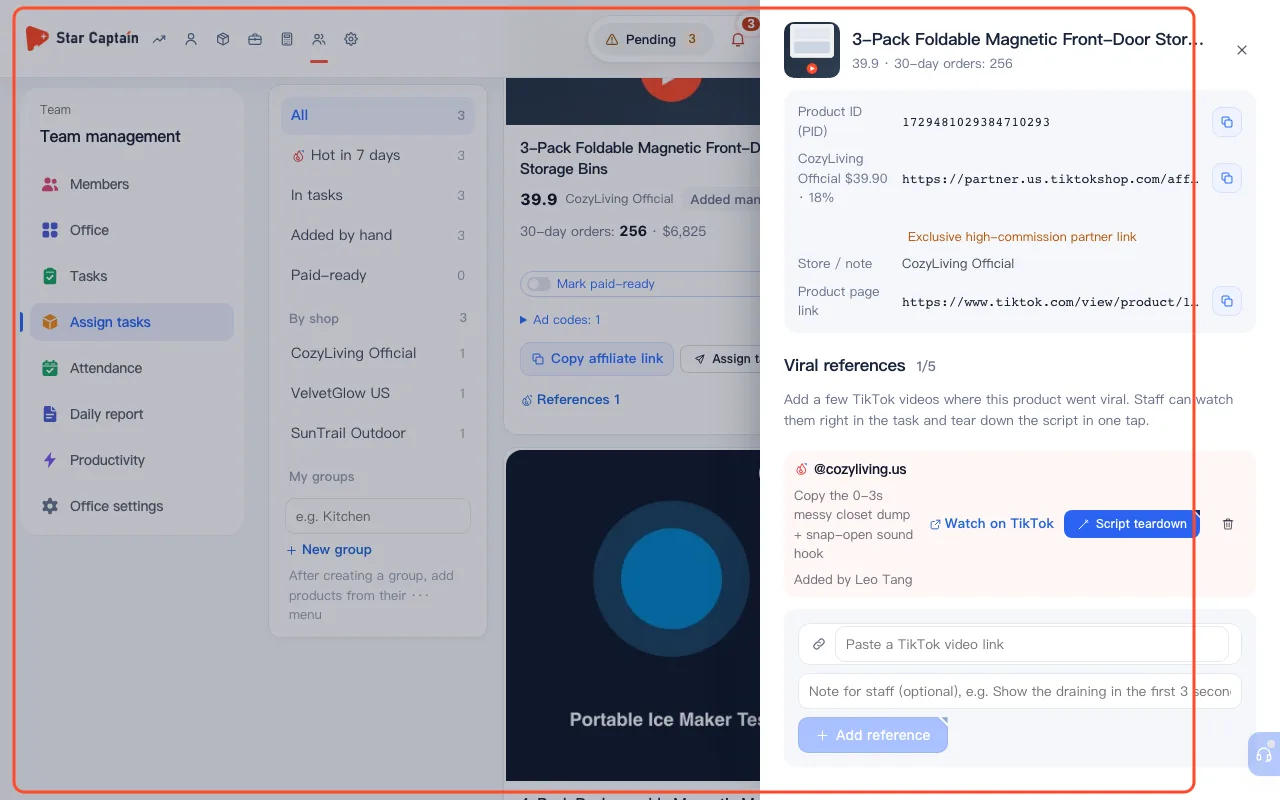
02Add "Affiliate links", a "Showcase QR code", and "Viral references" to the product
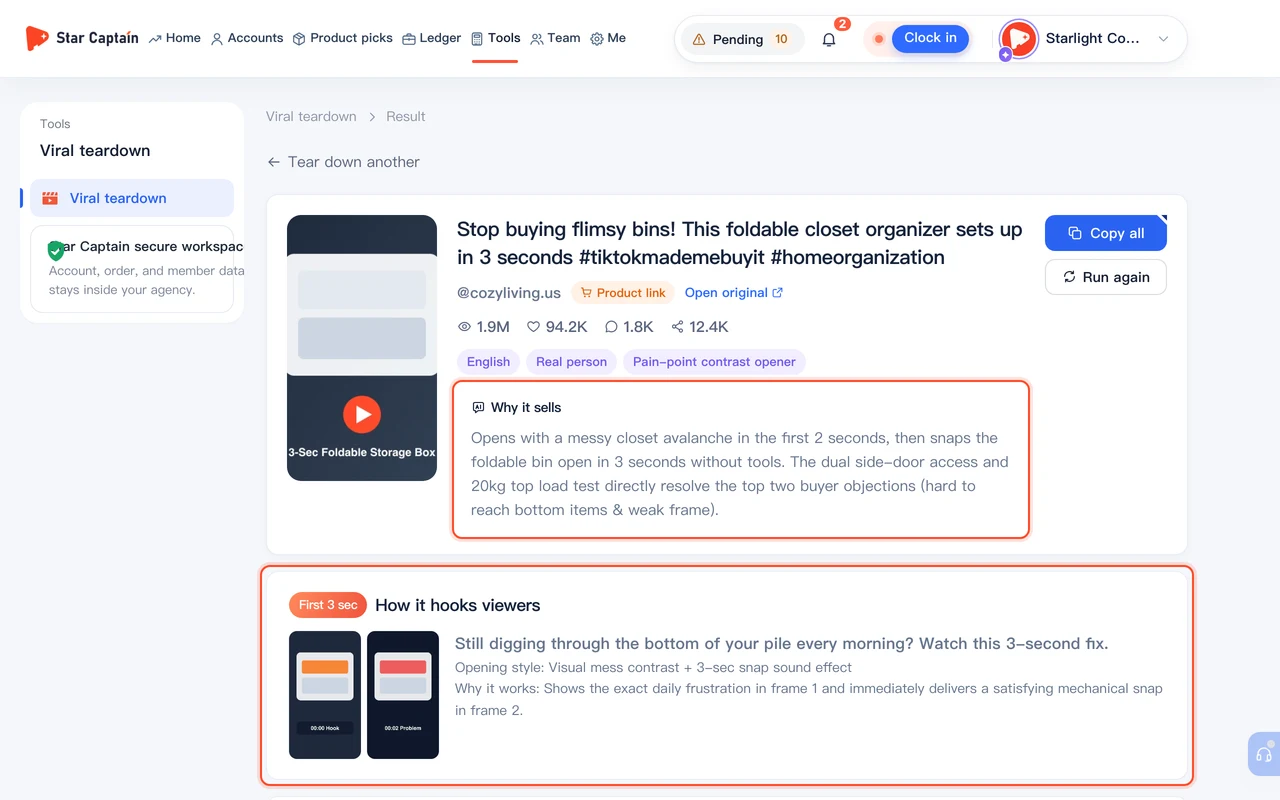
Click "···" on any product card and select "Edit name, store, affiliate links, image, QR code" (or click "View details and viral references"). Under "Affiliate links (agency links)", you can add links from multiple stores with the store name, partner price, and a note like `OK for 1K+ follower accounts`. Upload a "Showcase QR code" (or use "Upload QR codes" at the top of the library to bulk match images by product ID or product name), then paste reference TikTok video links under "Viral references" and click "Add reference".
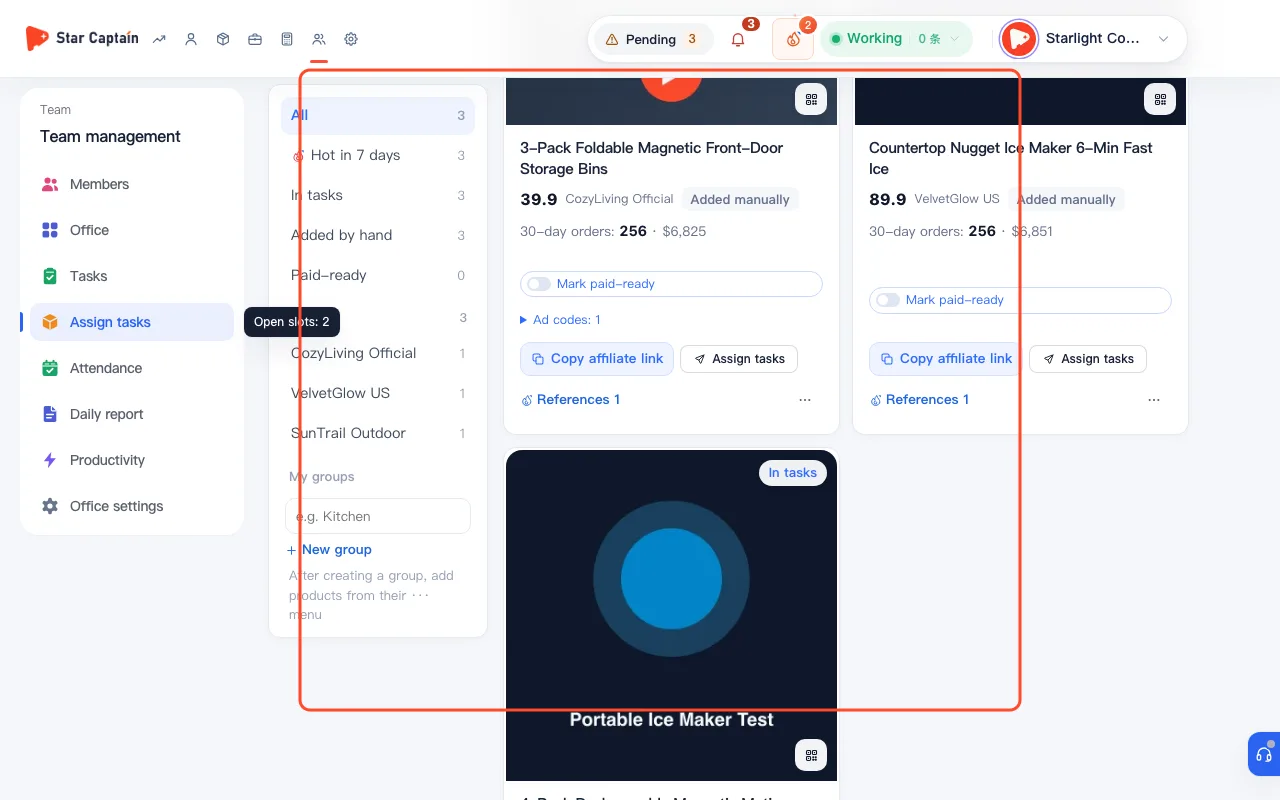
03Select products, click "Assign tasks", choose "Assign to people" or "Post to task pool", and click "Assign"
Select one or more products in the library and click "Assign tasks" ("Assign {n} items"). In step 1 ("Products · videos per person"), set how many videos each person should edit. In step 2 ("How to assign"), choose either "Assign to people" (pick specific staff) or "Post to task pool" (set "Slots" and "Who can claim" so anyone free in the group can claim a slot). In step 3 ("When it's due"), pick the "Due" date ("Today", "Tomorrow", "In 3 days", or "In a week"), add a "Note for staff", choose "What counts as done" ("Loose (auto-check)" or "Strict (claim + submit)"), optionally check "Tear down viral references when assigning", and click "Assign".
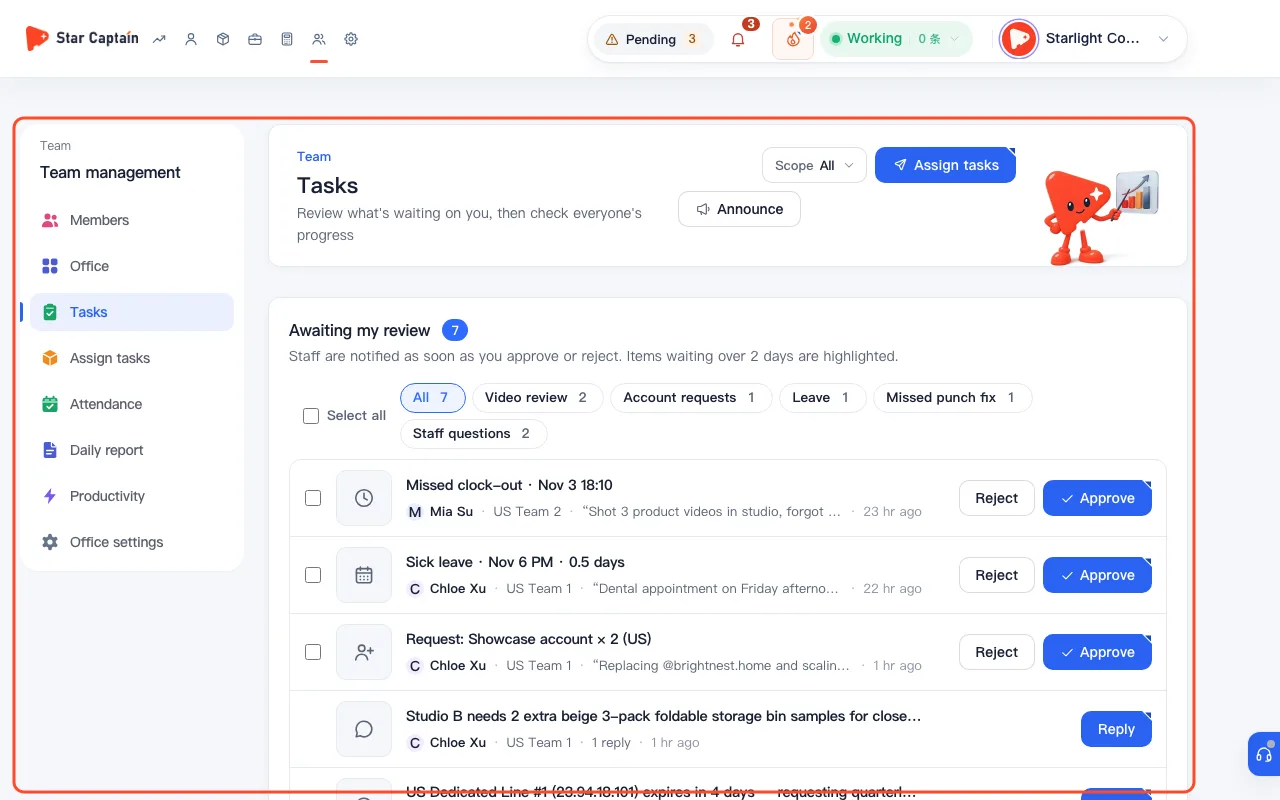
04Track progress across "To claim → Editing → To review → Needs changes → Approved"
Switch to the "Tasks" view to monitor every assignment across the 5-column board ("To claim", "Editing", "To review", "Needs changes", and "Approved") or table view. Each task card shows "{done} / {target} done", the due countdown, and any unclaimed assignees (click "Remind" to send a notification). You can click "Extend", "Reassign", or "End" directly on any task card as schedules change.
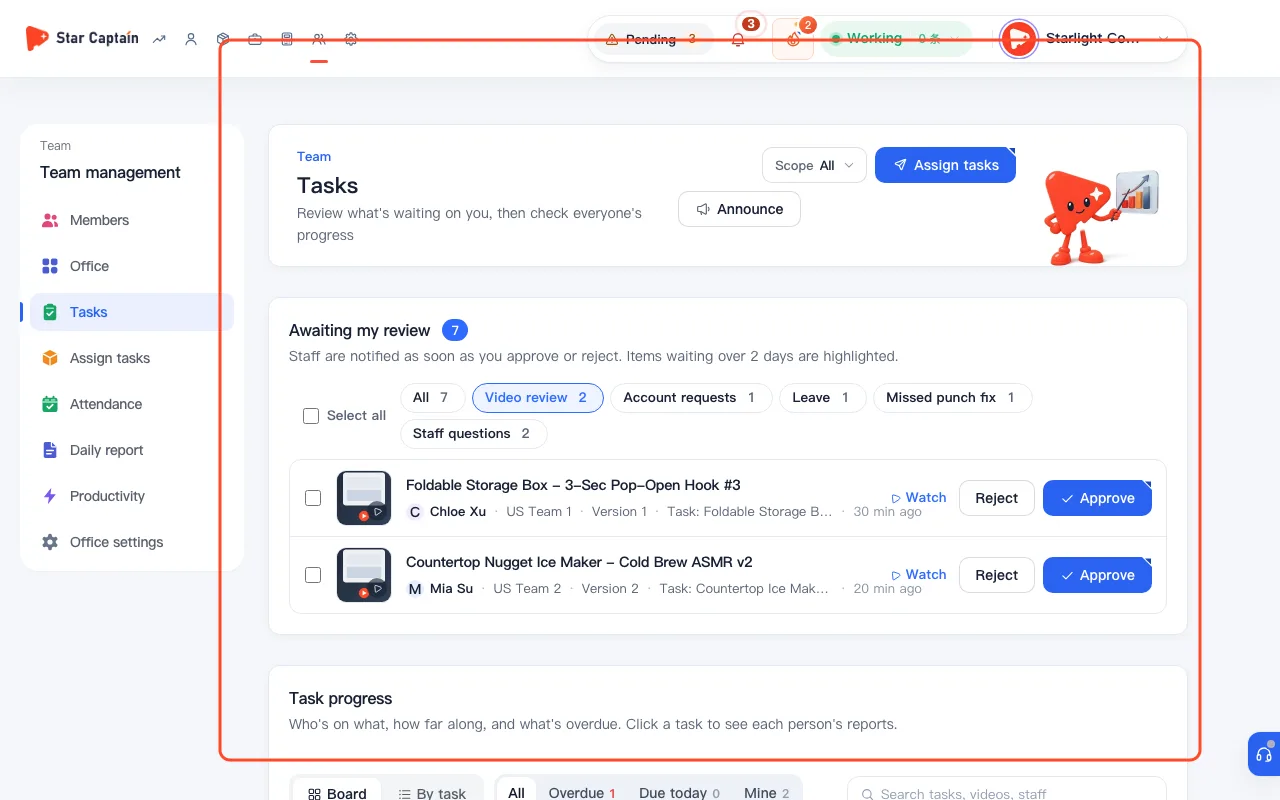
05Click "Review" to leave frame-specific feedback and approve or return the video
When an editor uploads a cut, the card moves into "To review" so leads can assign products and review videos in one workflow. Click "Review" on the card to open the review player, pause on any frame that needs an adjustment, and write a frame-accurate comment—when the editor clicks your note, the player jumps straight to that exact timestamp. Approve clean cuts to move them into "Approved", or return cuts with issues to "Needs changes" ("Open comments: {n} · Waiting on changes") until the revised version passes.
Screenshots use demo data. Check the product for what you actually see.
FAQ
What is the difference between "Loose (auto-check)" and "Strict (claim + submit)"?
When you assign products and review videos, "Loose (auto-check)" counts an assigned task as claimed automatically, and whenever the employee logs a published post for that product, it counts toward the task's completion target. Under "Strict (claim + submit)", the employee must click "Claim task", upload the edited video via "Submit video", and pass a lead's review before it counts as done.
How does "Upload QR codes" match a batch of QR code images to products?
Name each QR image file with the product's ID or product name (for example, `1729384756102938475.png` or `silicone-sink-strainer.jpg`) and drag the batch into "Upload QR codes". Star Captain matches them automatically ("Matched by product ID" or "Matched by product name"), lets you manually pick a product for any unmatched file, and saves the whole batch in one click.
What happens when I check "Tear down viral references when assigning"?
Every viral reference video attached to the task's products is automatically torn down into a structured script brief, original transcript, and translation right inside the task details so editors can read it immediately. Reference videos that were already torn down are reused without counting again.
If a product is delisted mid-campaign and I click "End task", do completed videos still count?
Yes. Ending a task moves it to "Ended" with the rule "The {n} videos done so far all count; the rest are no longer needed", preserving all completed post logs and video submissions for your staff.