TikTok accounts
 Orders & performance
 Team management
 Profit & cost
 Brand deals
 Creator toolbox
 Solo creators
 Creator teams
 Multi-department companies
Who is this for?
- Operators and team leads who track daily US, Mexico, or Brazil orders and compare organic traffic against paid Shop Ads orders
- Operations managers who monitor "Order refund rate", "Products with refunds", and "Canceled / to verify" orders
- Finance and operations staff who export filtered order details and team summaries to Excel for weekly reviews or bookkeeping
What to prepare before starting?
- You have connected at least one TikTok account under "Accounts" so orders sync automatically into the workspace
- If you want to filter or check off-platform commissions by brand, you have linked your partner shops under "Ledger → Collect from brands"
01Open "Orders" and switch between "Live sales", "By product", and "Refunds"
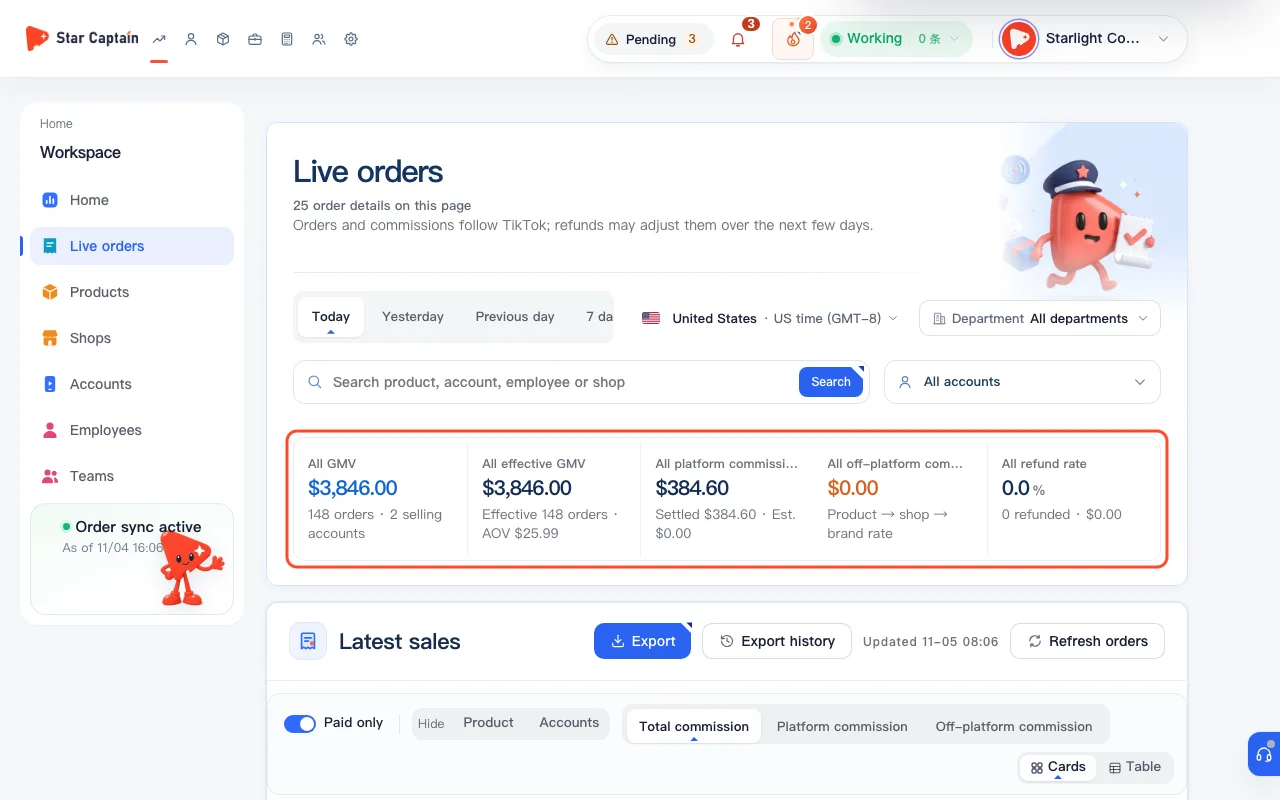
Click "Orders" in the top navigation (or "Home → Live orders"). The summary cards at the top display "GMV, all sources", "All orders", "Platform commission", "Est. off-platform commission", and "Order refund rate" for your active filter range. On the "Orders views" bar, switch between "Live sales", "By product", "Refunds", "Departments", and "Groups" depending on what you want to inspect.
02Filter by "Traffic" to separate "Organic orders" and "Paid orders"
In the "Order filters" bar, find "Traffic" (set to "All traffic" by default) and switch between "Organic orders", "Paid orders", or "Mixed / unclear". All top summary cards—orders, GMV, platform commission, and off-platform commission—recalculate immediately using the same filter so you can compare organic and ad-driven sales side by side.
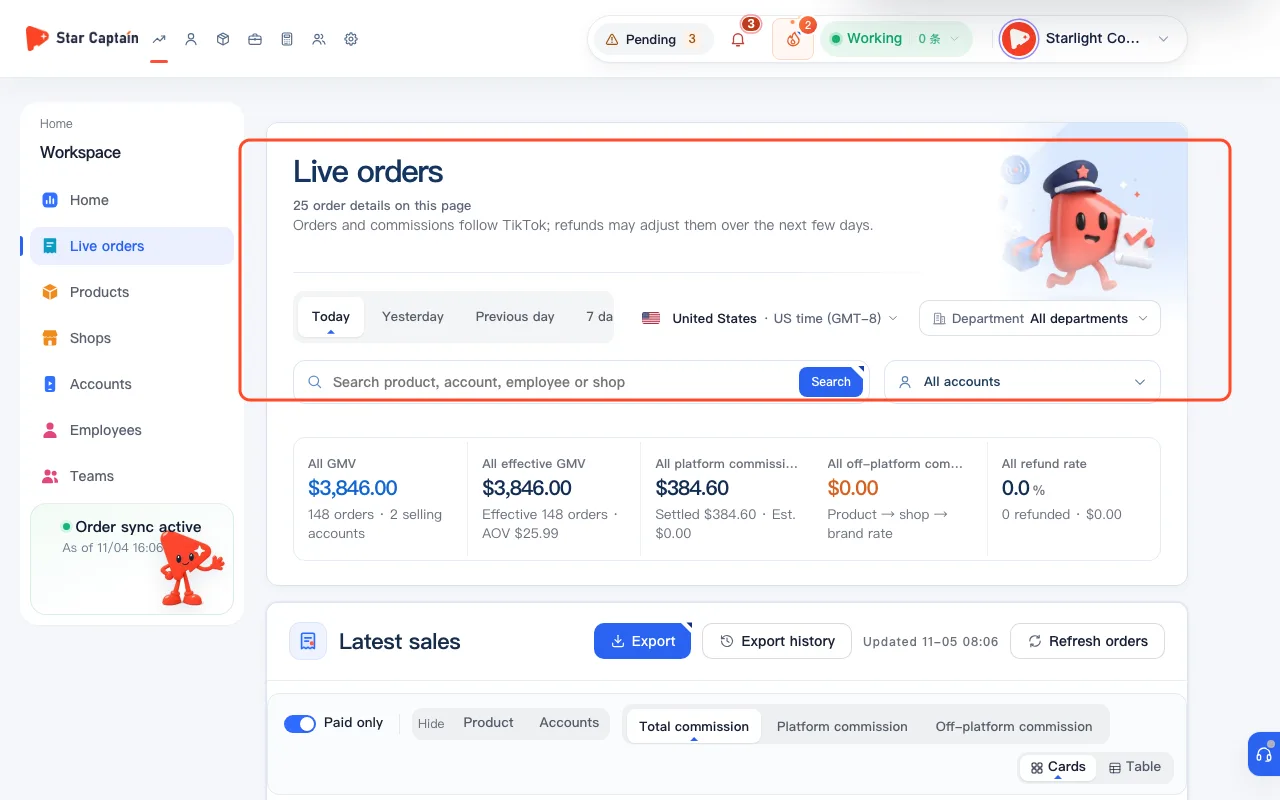
03Check cancellations and returns with "Order status" and the "Refunds" view
Use the "Order status" filter to switch between "All statuses", "Canceled", "After-sales to verify", and "No after-sales". For a deeper breakdown, click the "Refunds" tab at the top to view "Products with refunds", each item's "Product refund rate" (calculated as `(Refunded + returned) / items sold`), and the "Refund / after-sales orders" list showing "Original amount" and "Refund share".
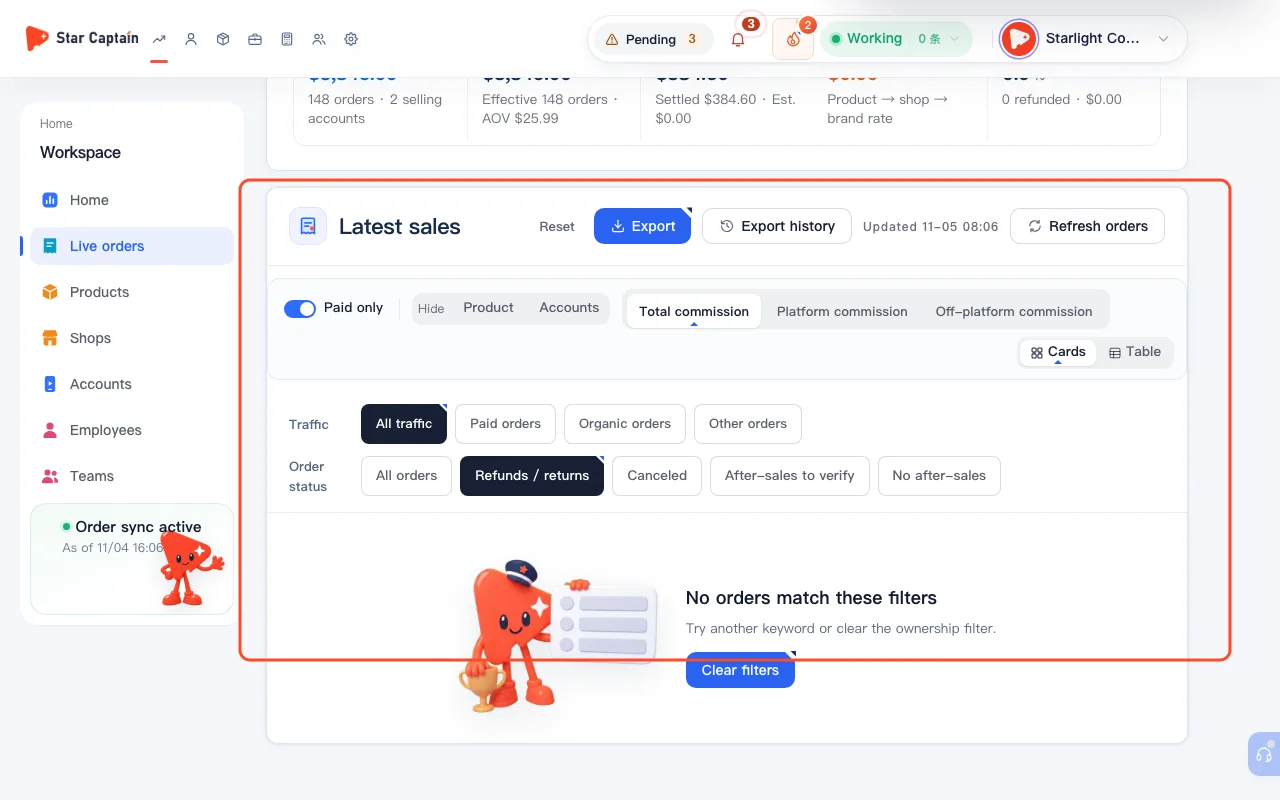
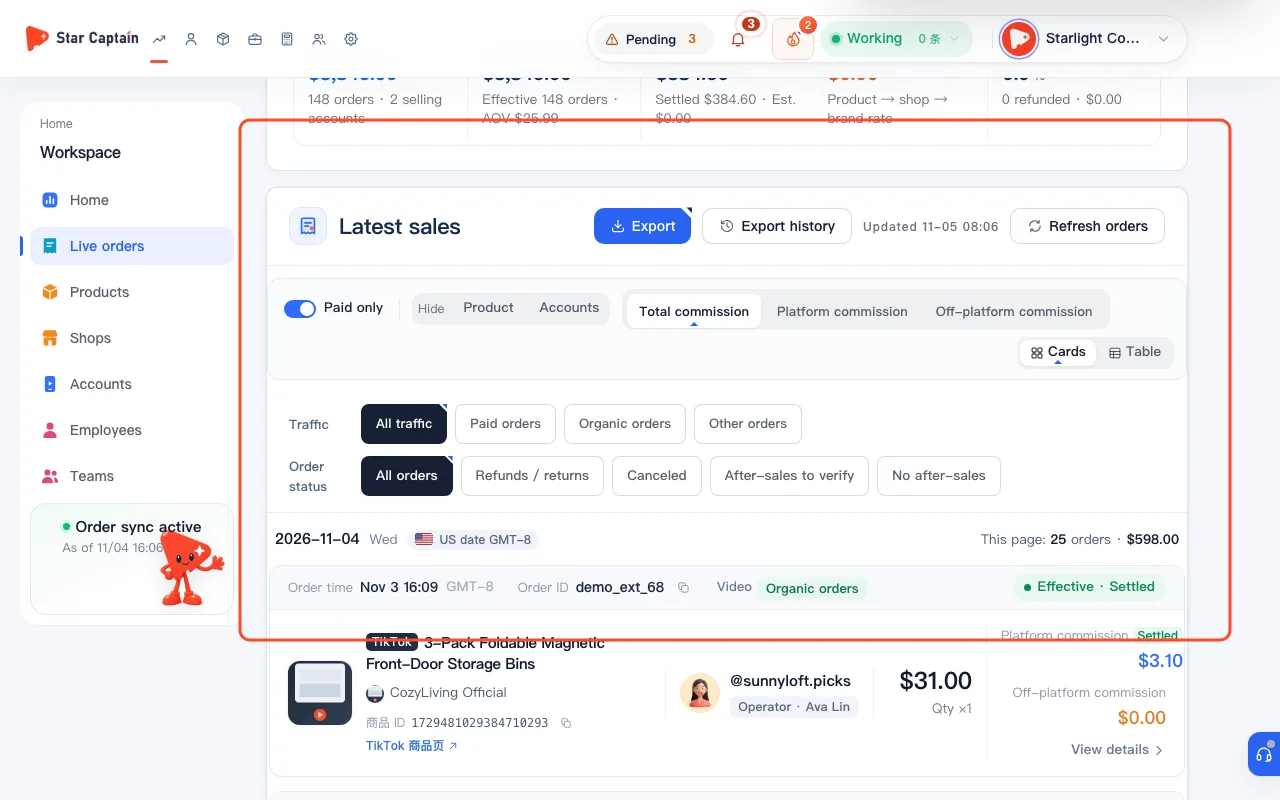
04Narrow down by product, account, or operator using search and "More filters"
Type a product, account, operator, partner brand, or shop name into "Search product, account, operator, brand, shop" and click "Search". Click "More filters" to combine "All departments", "Operators", "Settlement status", and "Sort by" ("GMV, high to low", "Orders, high to low", or "Newest"). Click "View details" on any row to inspect individual order IDs, order times, and linked partner rules.
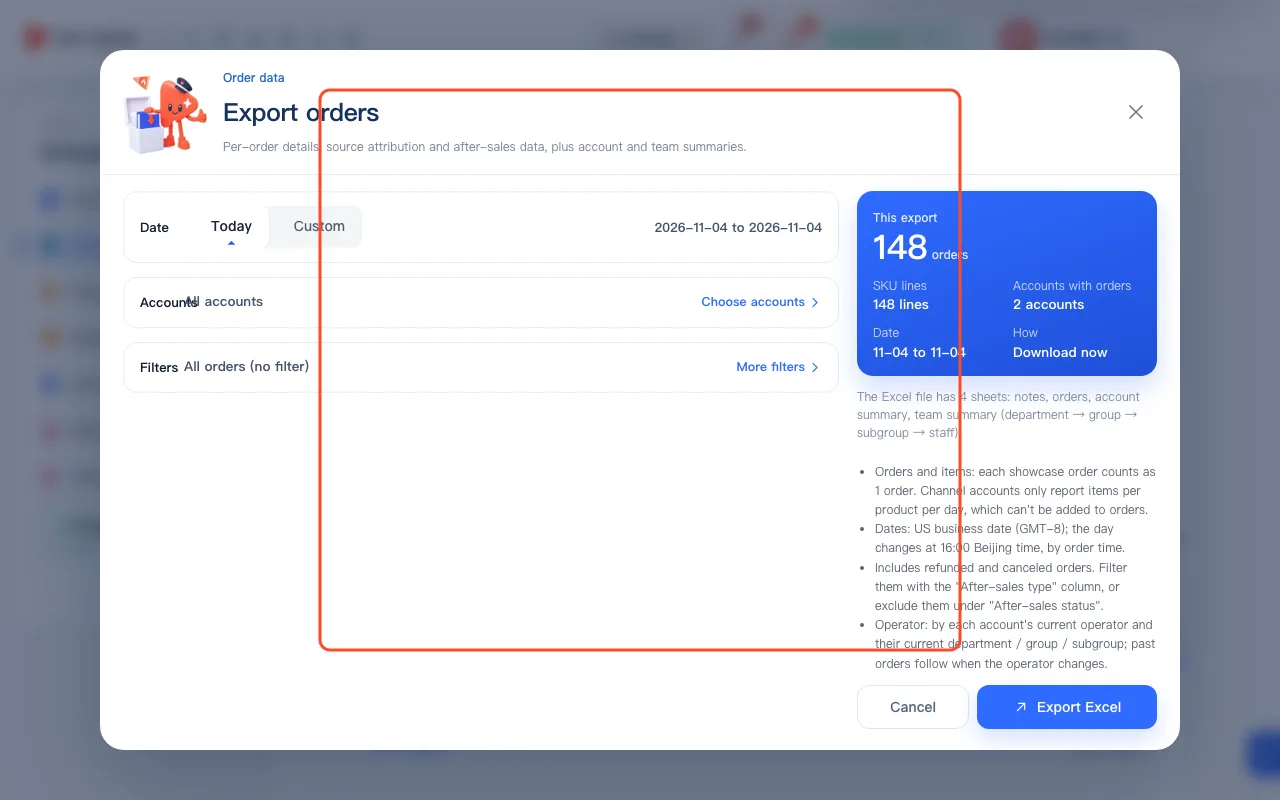
05Click "Export orders" to download a 4-sheet Excel file now or in the background
To filter and export live orders to a spreadsheet, click "Export orders" at the top right to open "Order export & history". Pick your "Export date range", keep "All accounts" or click "Choose accounts" to select specific showcase accounts, and review your "Traffic / after-sales" filters. For smaller ranges, click "Download now" ("Confirm and export"); for larger ranges up to 90 days, click "Build Excel in background" and download the completed file from "Export history" within 24 hours.
Screenshots use demo data. Check the product for what you actually see.
FAQ
Which time zone do order dates and order times use?
US orders are grouped by fixed US date (`GMT-8`, where the day turns at 16:00 Beijing time, matching the TikTok app), while Mexico uses `GMT-6` and Brazil uses `GMT-3`. You can display individual order timestamps in either US time (`GMT-8`) or Beijing time (`GMT+8`).
What sheets are included in the exported Excel file?
Every exported Excel workbook contains 4 sheets: notes, itemized orders, account summary, and team summary (broken down by `department → group → subgroup → staff`), including traffic attribution and after-sales fields.
Why didn't a paid order use our paid commission rate?
Paid orders use a separate paid commission rate only when the shop has its own paid rate configured and "Separate commission for paid orders" is turned on in your brand settlement settings; otherwise, the standard product or shop rate applies.
How long are background Excel exports kept in "Export history"?
Background exports usually finish in under a minute and remain available to download in "Export history" for 24 hours, along with who ran the export and the filter scope. After 24 hours, simply run a new export.