TikTok accounts
 Orders & performance
 Team management
 Profit & cost
 Brand deals
 Creator toolbox
 Solo creators
 Creator teams
 Multi-department companies
Who is this for?
- Business managers and finance staff who reconcile with merchants and send order sheets to partner brands every week or month
- Anyone tired of running manual spreadsheet lookups when they reconcile with merchants and a partner brand sends back a different total
- Team owners tracking which partner brands still owe money or have overdue balances
What to prepare before starting?
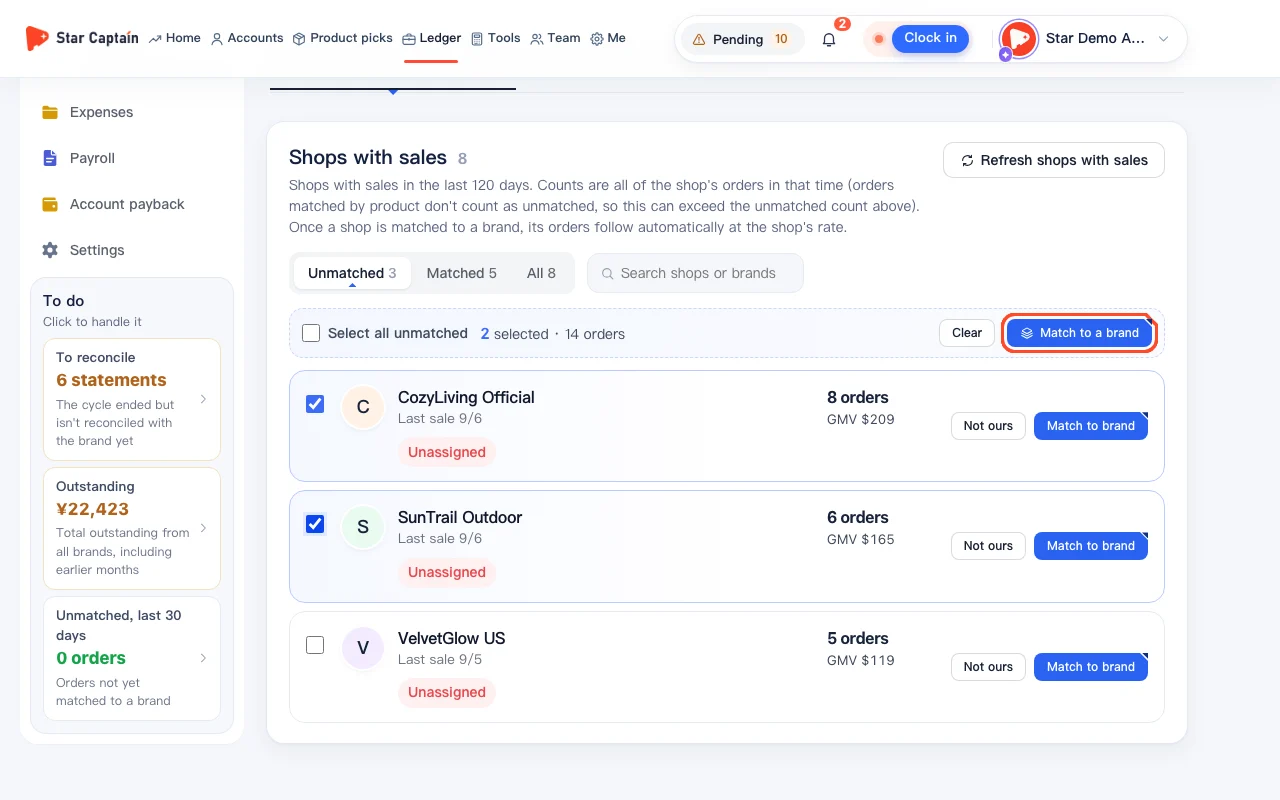
- Before you reconcile with merchants, match your selling shops to their partner brands and set their off-platform commission rates under "Partner brands & shops" and "Order matching".
- If you want to compare numbers against a brand's file, have their .xlsx or .csv statement ready.
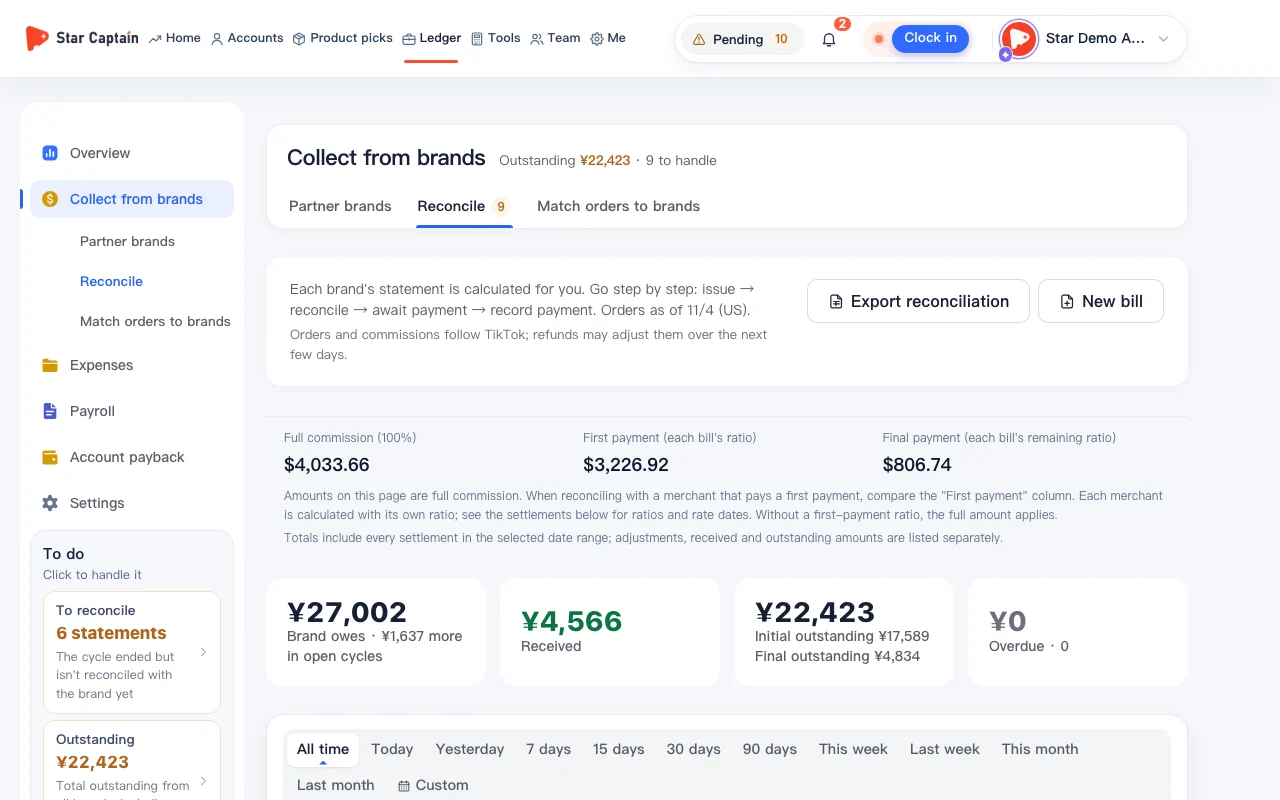
01Open "Reconcile" to reconcile with merchants
To reconcile with merchants, click "Ledger → Collect from brands → Reconcile" in the left menu. Every statement moves through five steps: "Bill → Check → Await pay → Record pay → Done". Filter at the top by "To do", "In progress", "Settled", or "All". To create a statement manually, click "New statement" in the top right and pick "1 · Pick partner brand" and "2 · Which days to settle".
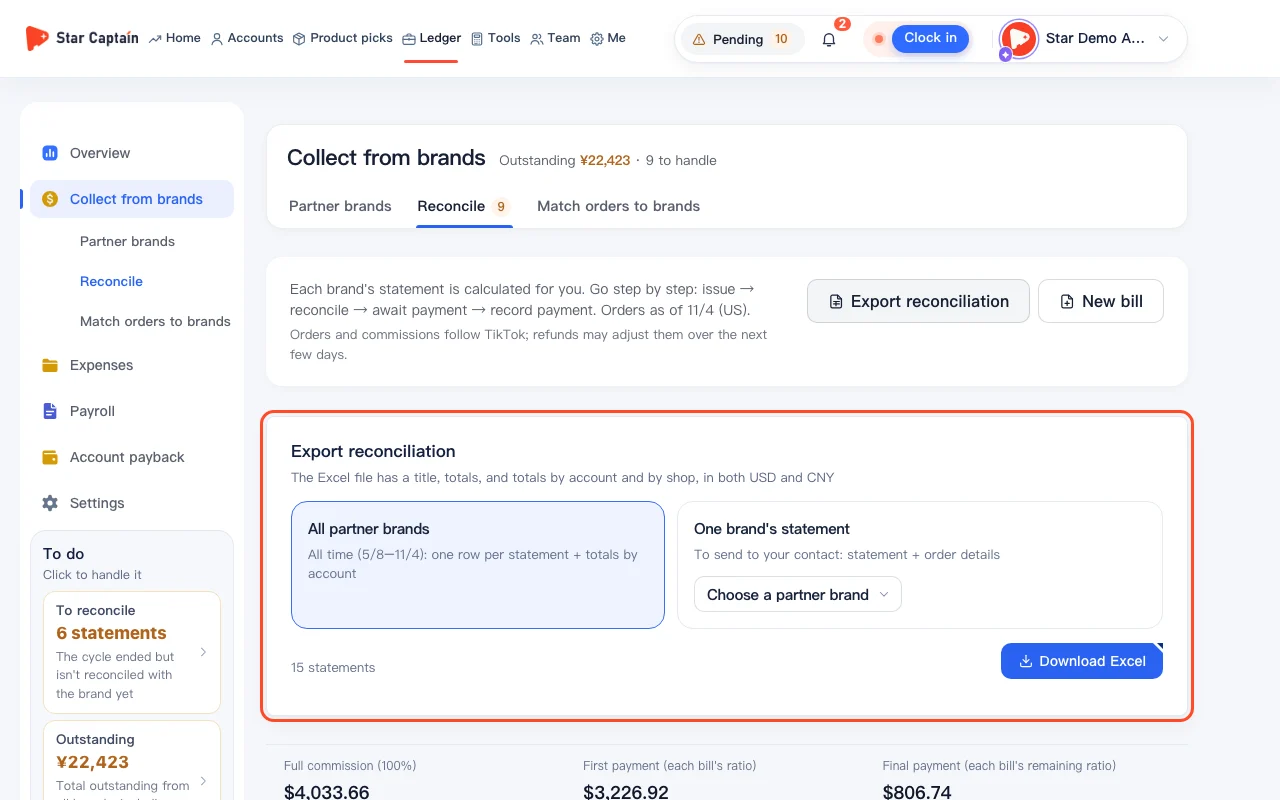
02Download a statement or click "Export reconciliation"
Click the download icon ("Download this statement (to send the brand)") on a statement card, or click "Export reconciliation" in the top right of the page when you reconcile with merchants. In the export panel, choose "One brand's statement" (which includes the statement summary plus order details to send to your contact) or "All partner brands", then click "Download Excel".
03Import the brand's statement to find differences automatically
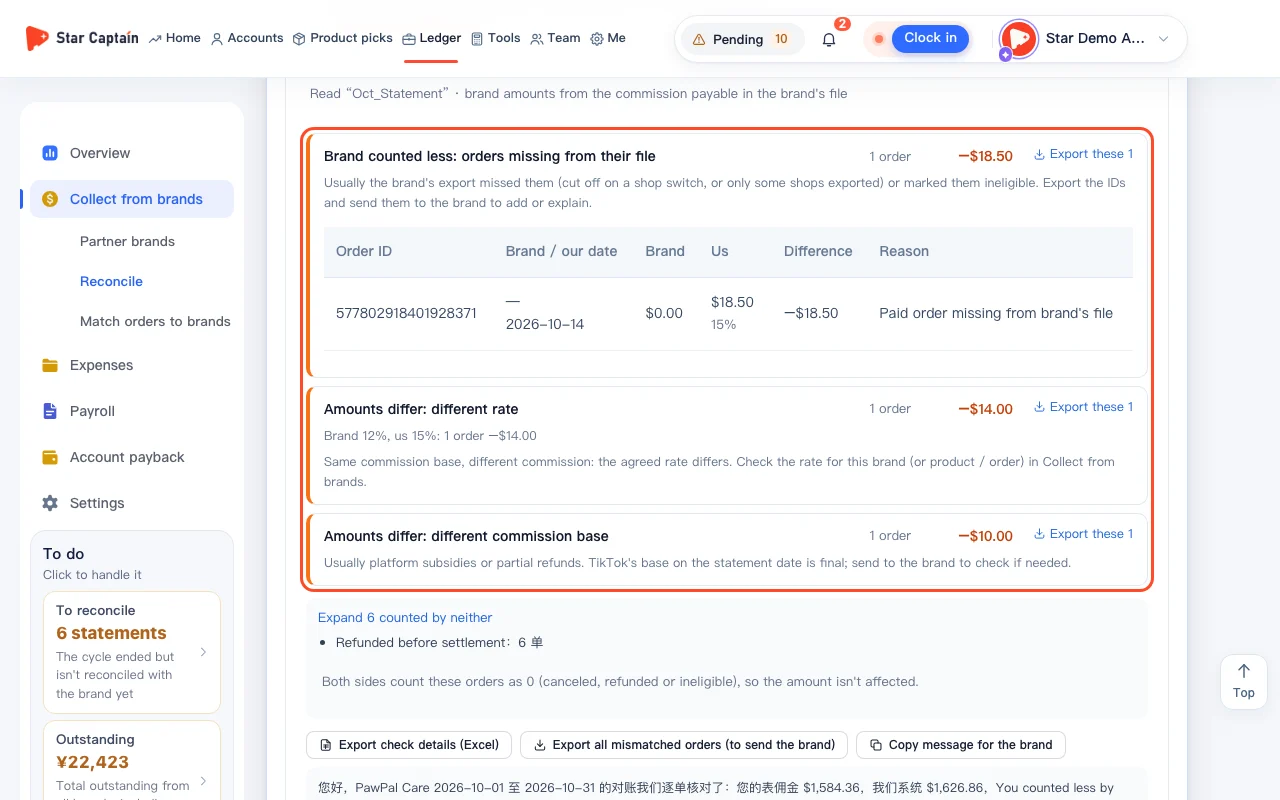
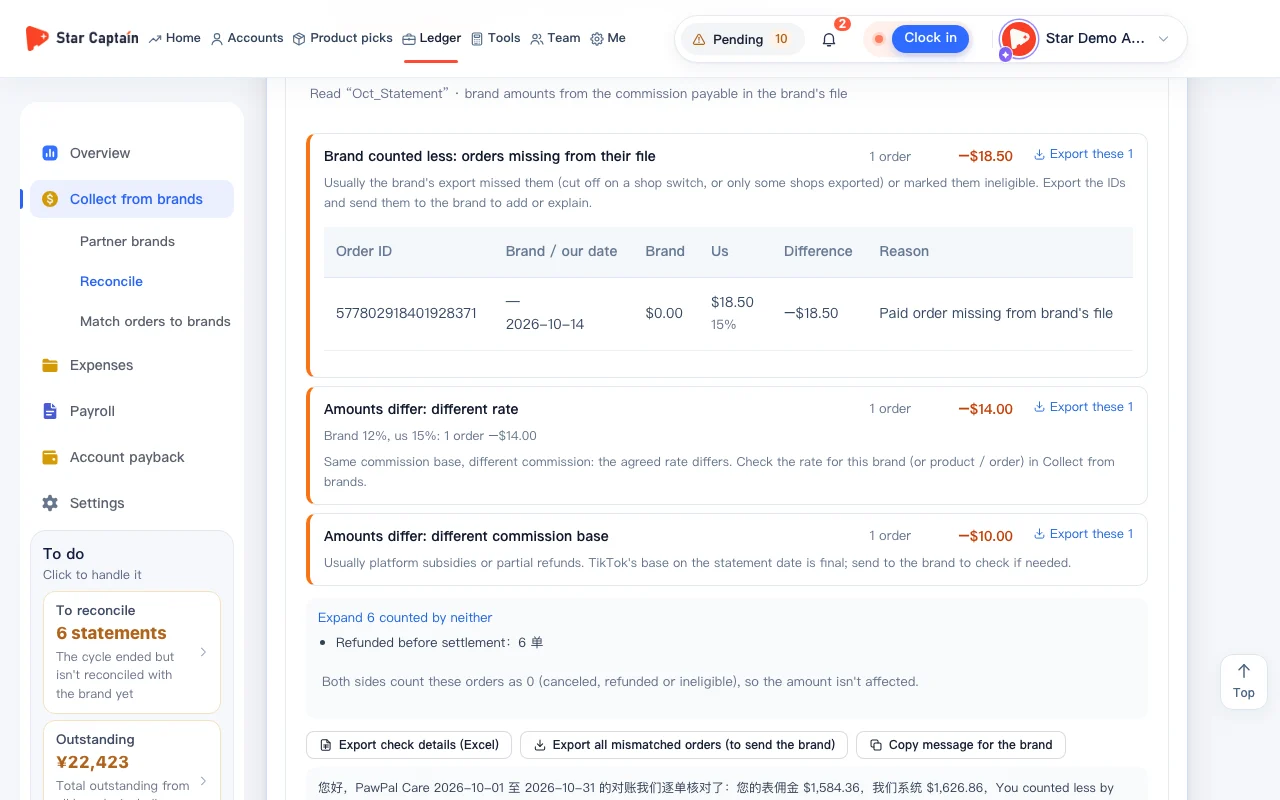
In the "Check" step on a statement card, select "Brand sent a statement" and click "Choose an xlsx / csv file" under "Import the brand's statement". Star Captain compares the orders line by line and groups differences such as "Brand missed", "Different rate", and "Different base" so you can reconcile with merchants without manual formulas. You can click "Export all mismatched orders (to send the brand)" or pick whose numbers to settle with under "Whose numbers for this cycle?".
04Confirm the amount or add a manual adjustment
If you don't need to import a file and already agreed on a total with the brand, look under "Adjustments & differences" ("Amounts don't match?") in the "Check" step. Click "Go with the brand's amount" to enter "Brand's amount" and click "Use this amount", or click "Add an adjustment" to enter the difference and reason, then click "Looks good — move to awaiting payment".
05Record first and final payments when the brand pays
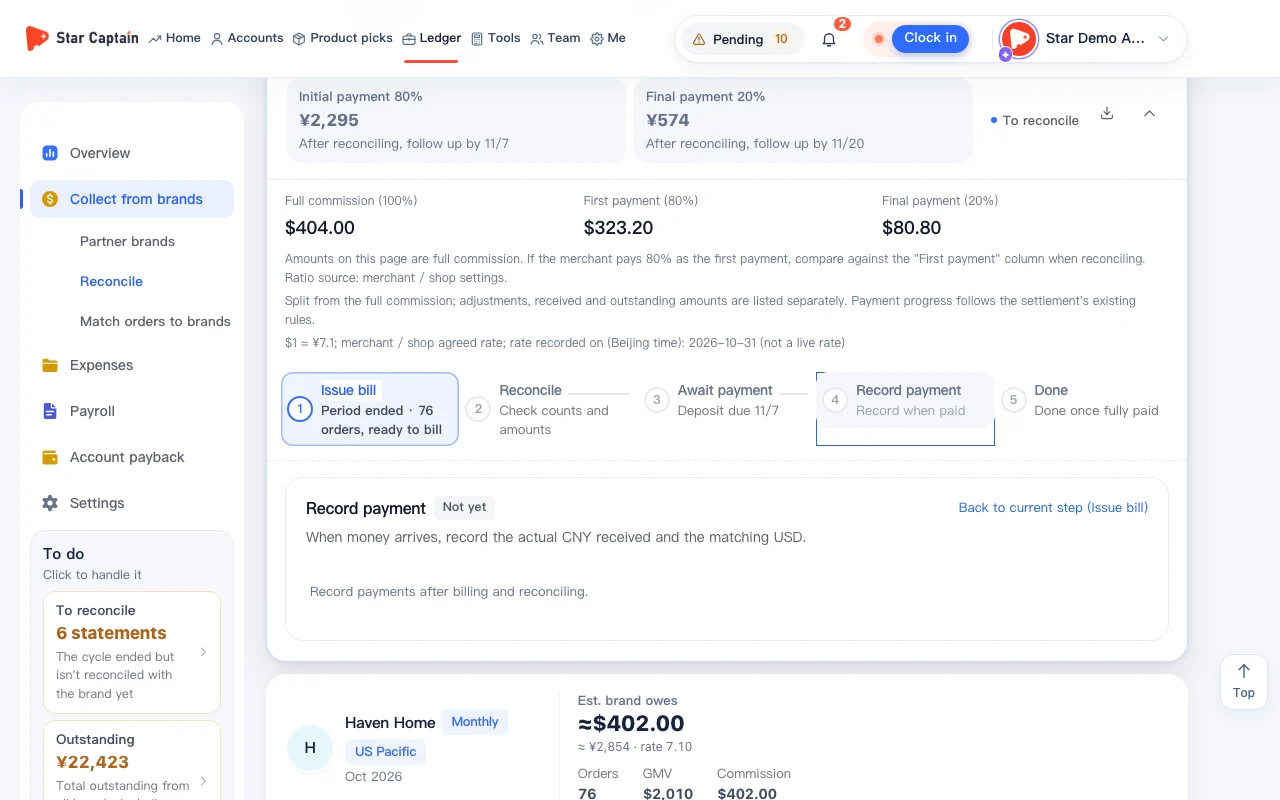
Once the brand transfers the money, click "+ Record payment" (or "Record initial / final payment") on the card (or click "Payment arrived — record it" in the "Await pay" or "Record pay" step). Fill in "Amount received (CNY)", "USD amount", and "Date received", optionally add a screenshot under "Upload payment screenshot (optional)", and click "Record". When the full balance is received, the statement moves to "Done".
Screenshots use demo data. Check the product for what you actually see.
FAQ
Why do I need to match shops before I reconcile with merchants?
Before you reconcile with merchants, Star Captain uses your order matching rules to know which orders belong to which partner brand and what commission rate applies. If you still have unmatched shops, a notice at the top of the page will remind you to match them first so no orders are left out.
How do I record split payments like an initial payment and a final payment?
You can switch between "Initial payment" and "Final payment" in the "Record pay" step on the same statement to log each payment separately. The card updates the received and remaining amounts after each entry until it is fully settled.
Which timezone is used for statements?
US orders are counted in GMT-8 by default, and statements can be generated using either "By brand time" (US Pacific Time) or "By system time" (GMT-8) when you reconcile with merchants.
Do exported statements show refunded orders?
Yes. The statement summary breaks down total orders, effective orders, refunded orders, and commission, and the detail sheet marks the status of each order for line-by-line checking.