TikTok accounts
 Orders & performance
 Team management
 Profit & cost
 Brand deals
 Creator toolbox
 Solo creators
 Creator teams
 Multi-department companies
Who is this for?
- Business managers and team owners who want to attribute orders to merchants automatically without manual spreadsheets
- Anyone seeing "Unmatched" shop or order notices in the workspace and needing to fill in off-platform commissions
- Teams that have different commission rates for specific products or for paid vs. organic orders within the same shop
What to prepare before starting?
- Connect your TikTok accounts so orders and shops with sales are synced, or have your partner brand's TikTok shop link or product link ready.
- Confirm the off-platform commission rate (and paid-order rate, if different) agreed with each partner brand.
01Open "Partner brands & shops" and add a partner brand
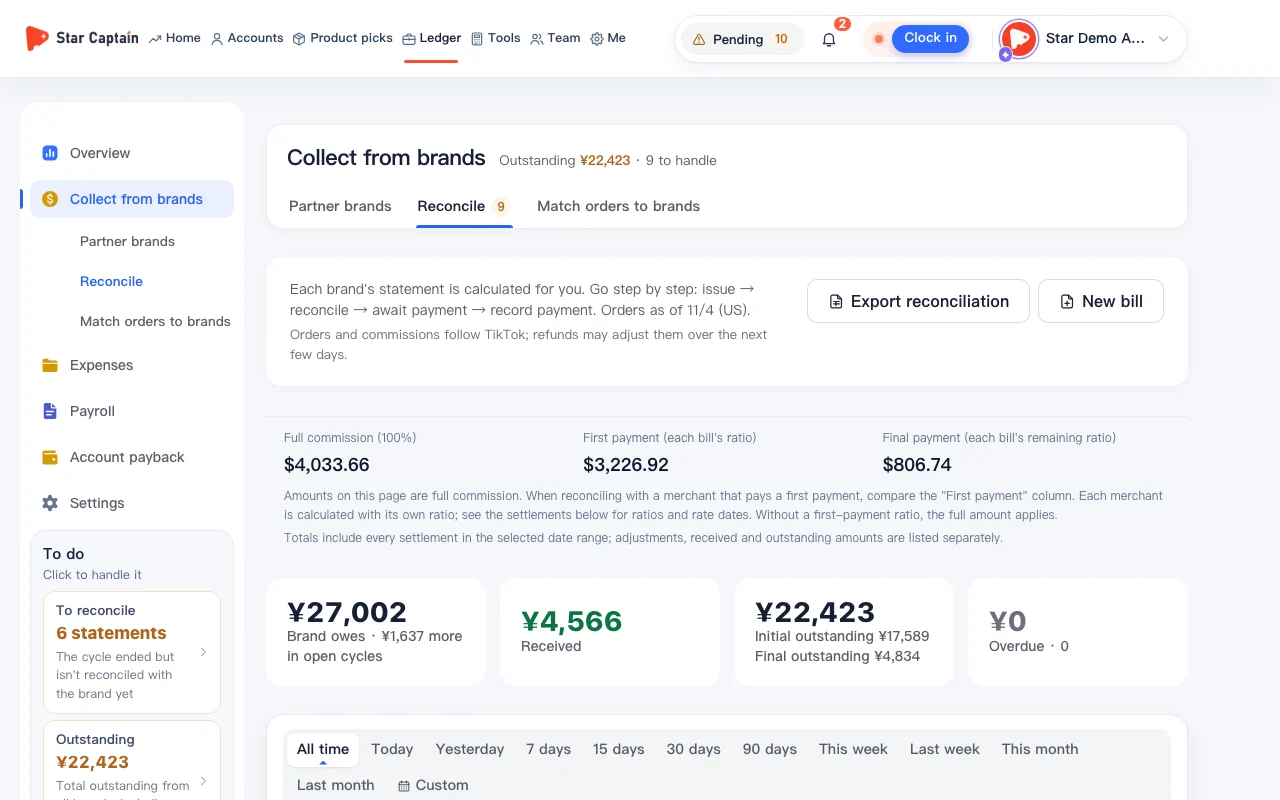
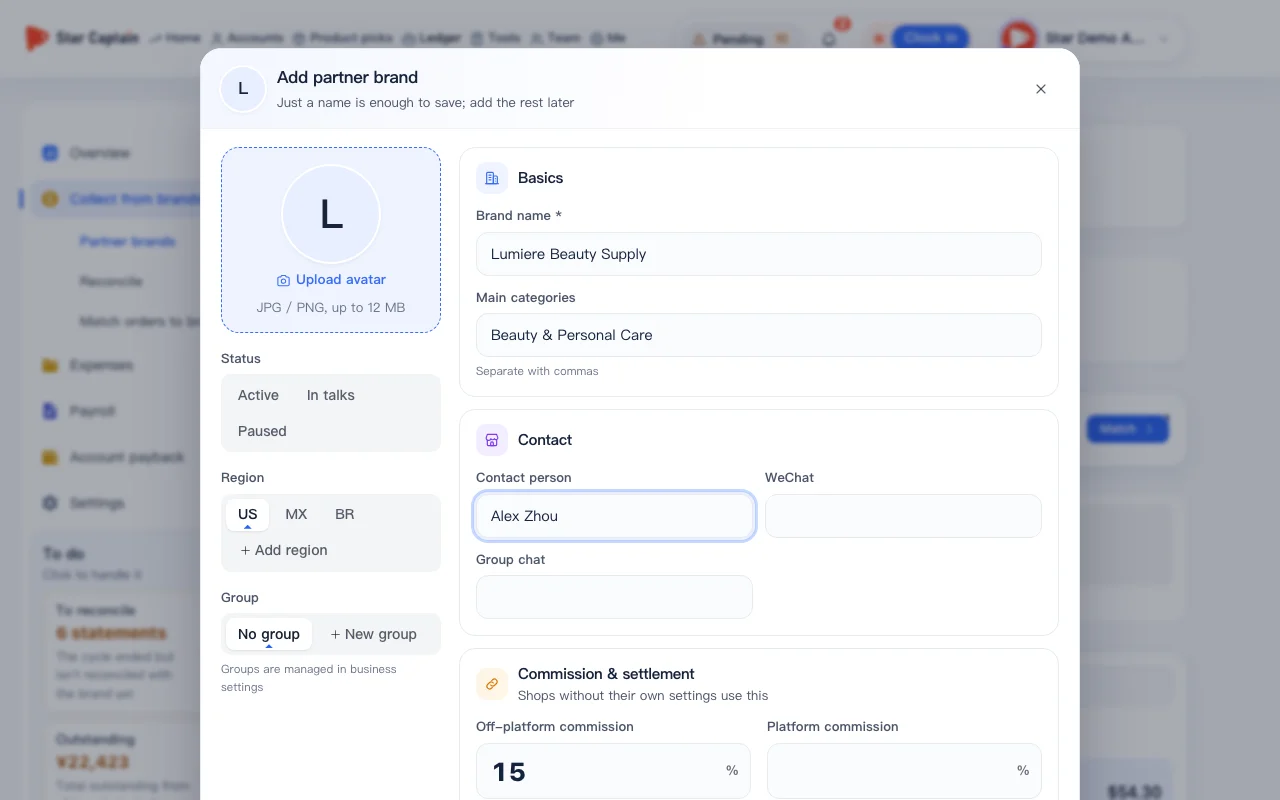
In the left menu, click "Ledger → Collect from brands → Partner brands" to open "Partner brands & shops", then click "Add partner brand" in the top right. Enter the "Brand name *", set the default "Off-platform commission" and settlement cycle ("Monthly", "Twice a month", or "Weekly"), and click "Add partner brand" in the bottom right to save.
02Add a shop to attribute orders to merchants automatically
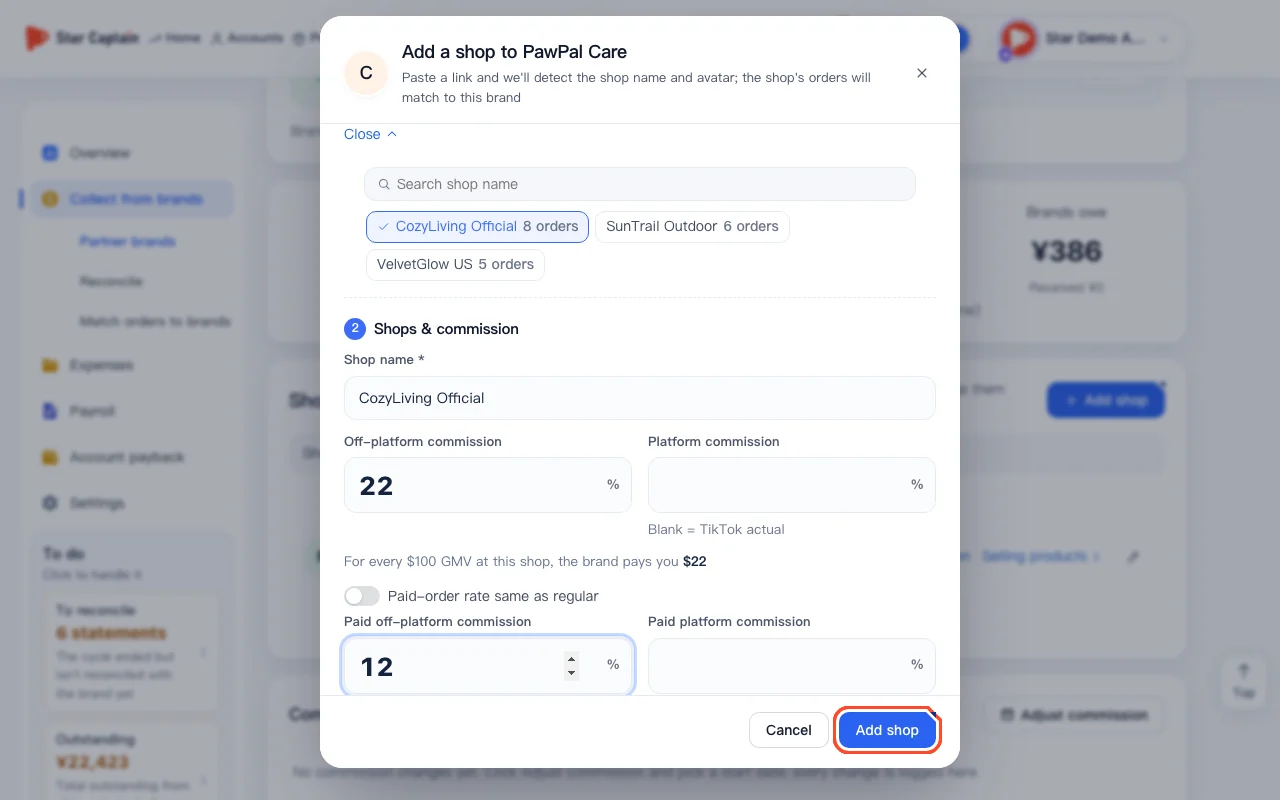
To attribute orders to merchants automatically, click "Add shop" in the right-hand "Shop" section of the brand details. Paste a link under "Paste a link to detect the shop" and click "Detect", or click "Or pick from shops with sales" to choose an unmatched shop directly. Enter the "Off-platform commission" rate (if paid orders use a different rate, uncheck "Paid-order rate same as regular" and fill in "Paid off-platform commission"), then click "Add shop".
03Match shops in bulk under "Order matching"
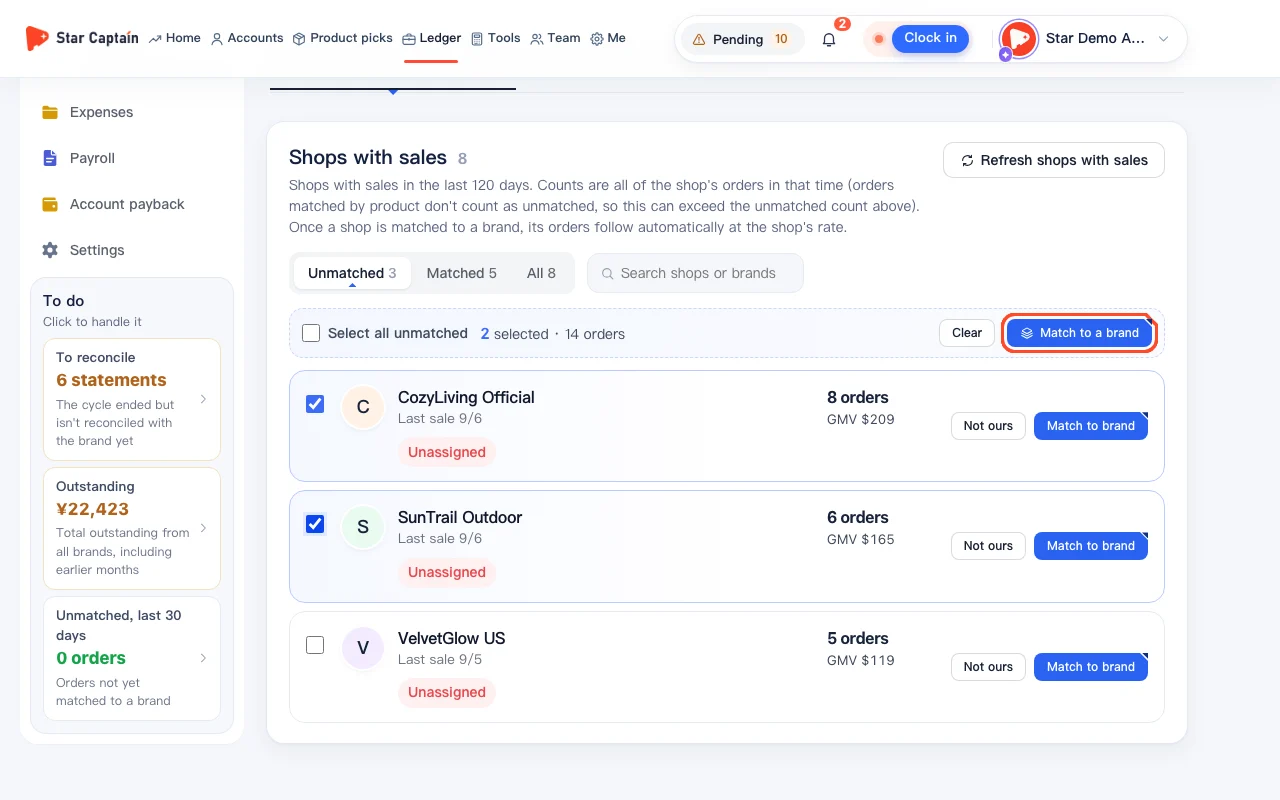
If shops already have sales but aren't linked to a brand yet, click "Match orders to brands" in the left menu to open "Order matching". Under the "By shop" tab, filter by "Unmatched" to see shops with sales in the last 120 days. Click "Match to brand" on a single row, or click "Select all unmatched" and then "Match to a brand" to link them in bulk.
04Mark non-partner shops as "Not ours"
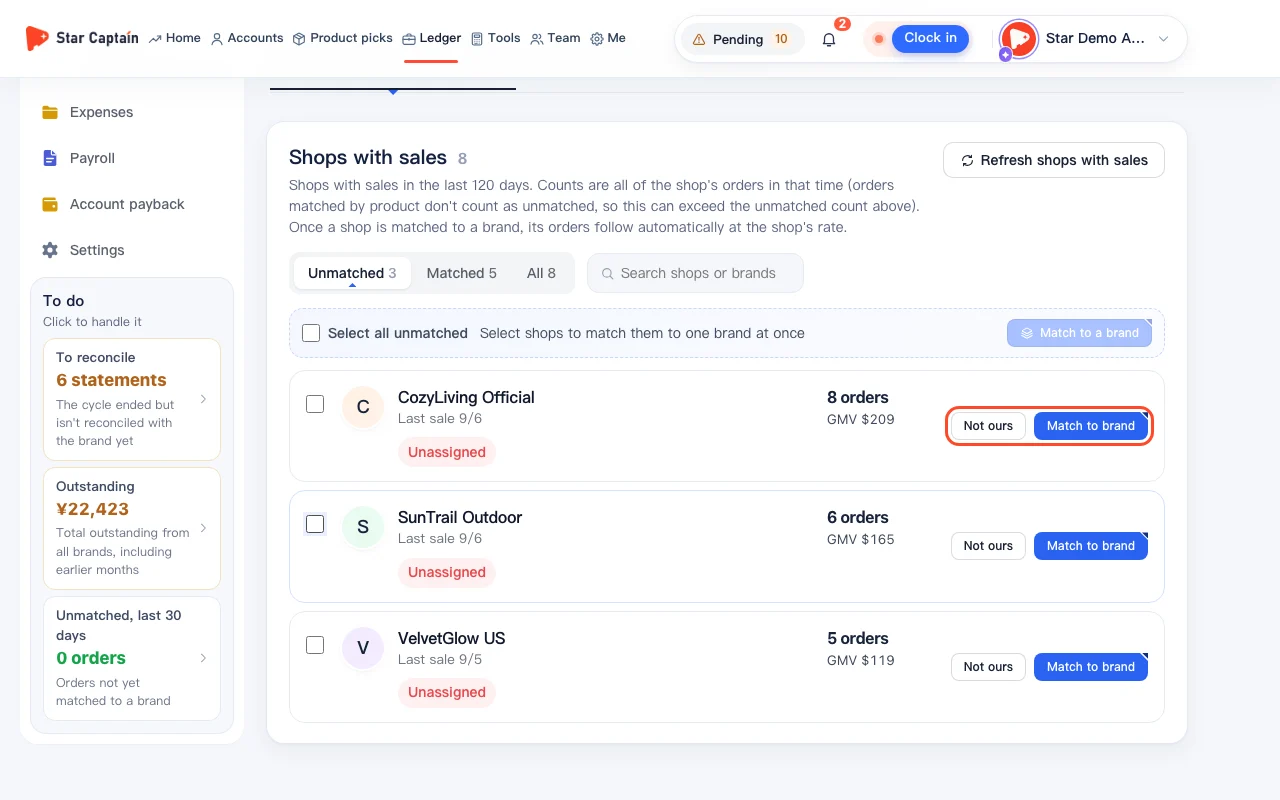
If operators added products from random shops that don't settle off-platform commission with your team, click "Not ours" on the right side of those shops under "Unmatched". They won't trigger unmatched alerts anymore, and you can restore them anytime under the "Not ours" filter.
05Match individual products or set a product-level rate
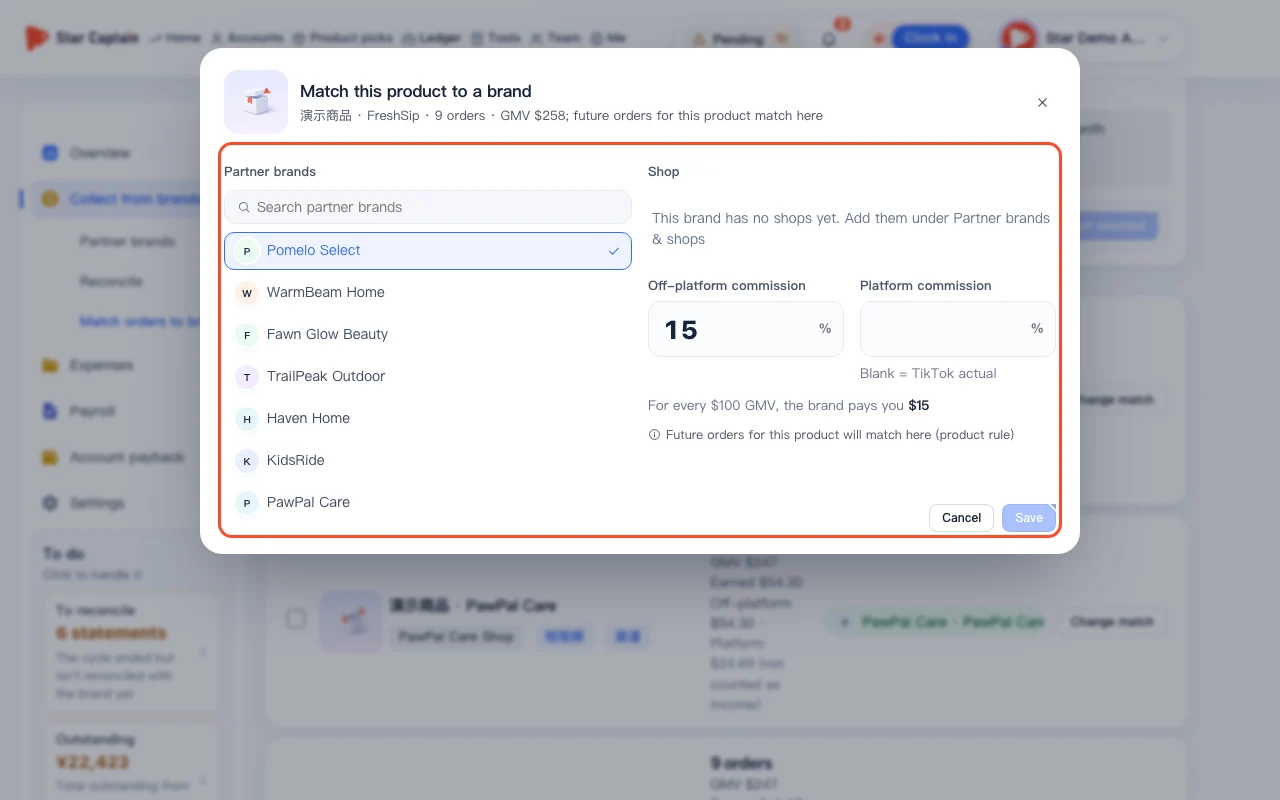
If a specific product inside a shop belongs to a different brand or has its own commission rate, switch to the "By product" tab on the "Order matching" page. Click "Match to brand" on that item (or select several items and click "Match selected"), choose the brand and shop in the "Match this product to a brand" window, enter the commission rate, and click "Save". Future orders for that product ID will follow the product rule.
Screenshots use demo data. Check the product for what you actually see.
FAQ
Will past orders also match when I attribute orders to merchants?
Yes. Once you attribute orders to merchants by linking a shop or product to a partner brand, synced orders from that shop are automatically assigned to the brand and their estimated off-platform commission is recalculated at the configured rate.
How do I set different commission rates for organic and paid orders in the same shop?
In the "Add shop" or "Edit shop" window, enter the default "Off-platform commission", uncheck "Paid-order rate same as regular", and enter the "Paid off-platform commission" rate.
What if a brand changes its commission rate mid-way?
In the brand details, click "Adjust commission" on the shop row or click "Adjust by date" under "Commission history". Set the effective date and the new rate so orders before and after that date use their respective rates.
Who can edit partner brands and commission rates?
Only the team owner and members with business permissions can edit them. Changes to commission rates and attribution are logged.