TikTok accounts
 Orders & performance
 Team management
 Profit & cost
 Brand deals
 Creator toolbox
 Solo creators
 Creator teams
 Multi-department companies
Who is this for?
- Agency owners and product researchers who look for trending US TikTok Shop products every day for their operators and editors
- Operations leads who want to verify upfront whether their team's TikTok accounts meet the follower and shop-score thresholds to list a product
- Team managers who want to assign selected products and reference videos directly to staff with a clear due date
What to prepare before starting?
- You have connected your team's active TikTok accounts under "Accounts", so Star Captain can calculate match scores from your usual categories and follower counts and check which accounts can list each item
- If you plan to assign products to staff to shoot, you have already added those team members under "Team" → "Members"
01Open "Product picks" and review the "Today" overview card and 5 sidebar groups
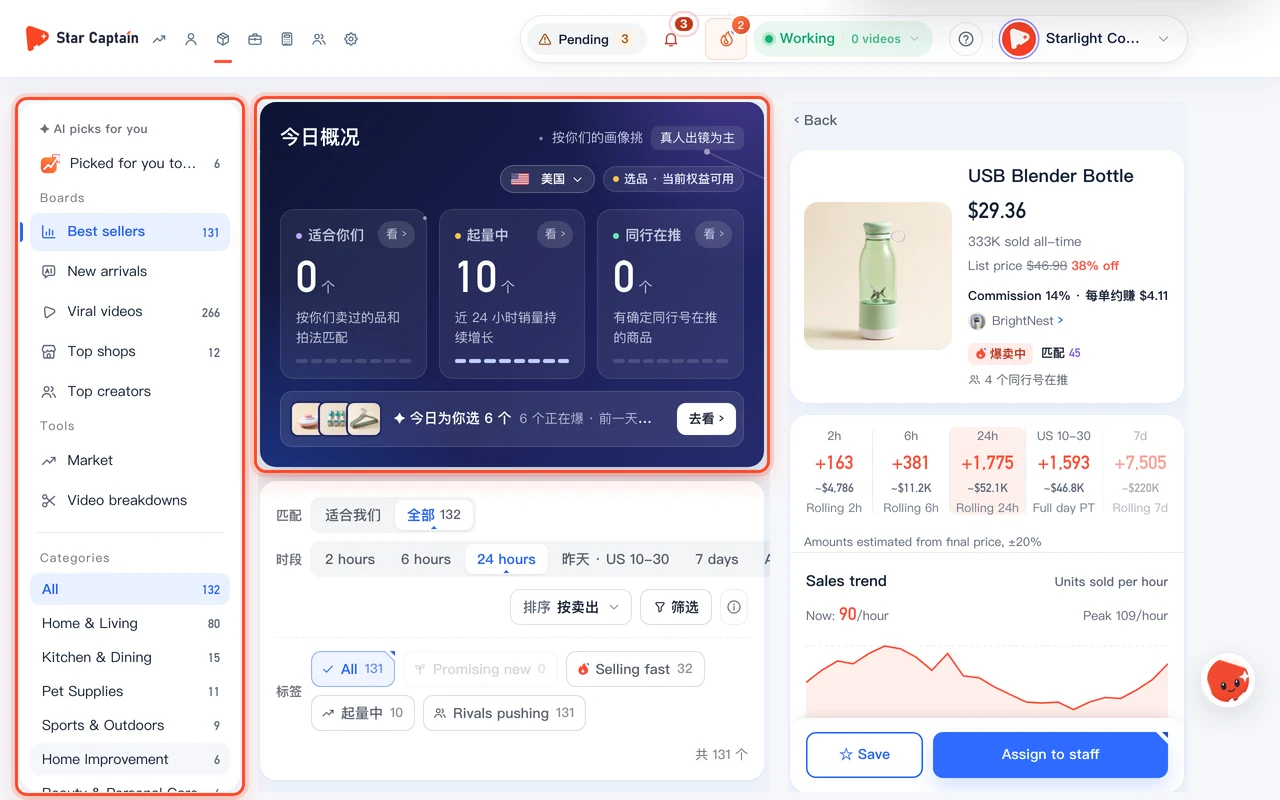
To find products in Product Picks, sign in to the workspace and click "Product picks" (`/app/selection`). At the top, the dark "Today" overview card summarizes counts for "Fits you", "Picking up", and "Peers pushing", with a bottom bar showing "✦ For you today: {n}" and "See all ›". The left navigation is grouped into "AI picks for you" ("For you today"), "Boards" ("Best sellers", "New arrivals", "Viral videos", "Top shops", "Top creators"), "Tools" ("Market", "Video breakdowns"), "Categories" ("All" plus 15 general-merchandise categories such as "Home & Living", "Kitchen & Dining", and "Phones & Electronics"), and "Mine" ("Monitoring", "Saved", "Not a fit"); on viewports 1440px or narrower, the sidebar collapses to an icon bar that you can expand anytime.
02Switch to "Best sellers", sort by "Units sold", "Match score", or "Growth", and open the "Filter" popover
Click "Boards" → "Best sellers" in the left navigation. At the top, switch between "AI picks" ("Fits us") and "Top Charts" ("All"), choose a "Period" ("Live 2h", "6 hours", "24 hours", "Yesterday", or "Last 7 days"), search by product or shop keyword, and switch "Sort:" at the top right between "Units sold", "Match score", and "Growth". Click the "Filter" button to open the filter popover and combine "Topics" ("Partnered", "We've sold", "Seasonal / holiday", "Apparel accessories"), "Price" ("Any", or `$0–10`, `$10–25`, `$25+` under "Lowest variant"), and "Style" ("Any", "Mostly real footage", "Mostly AI").
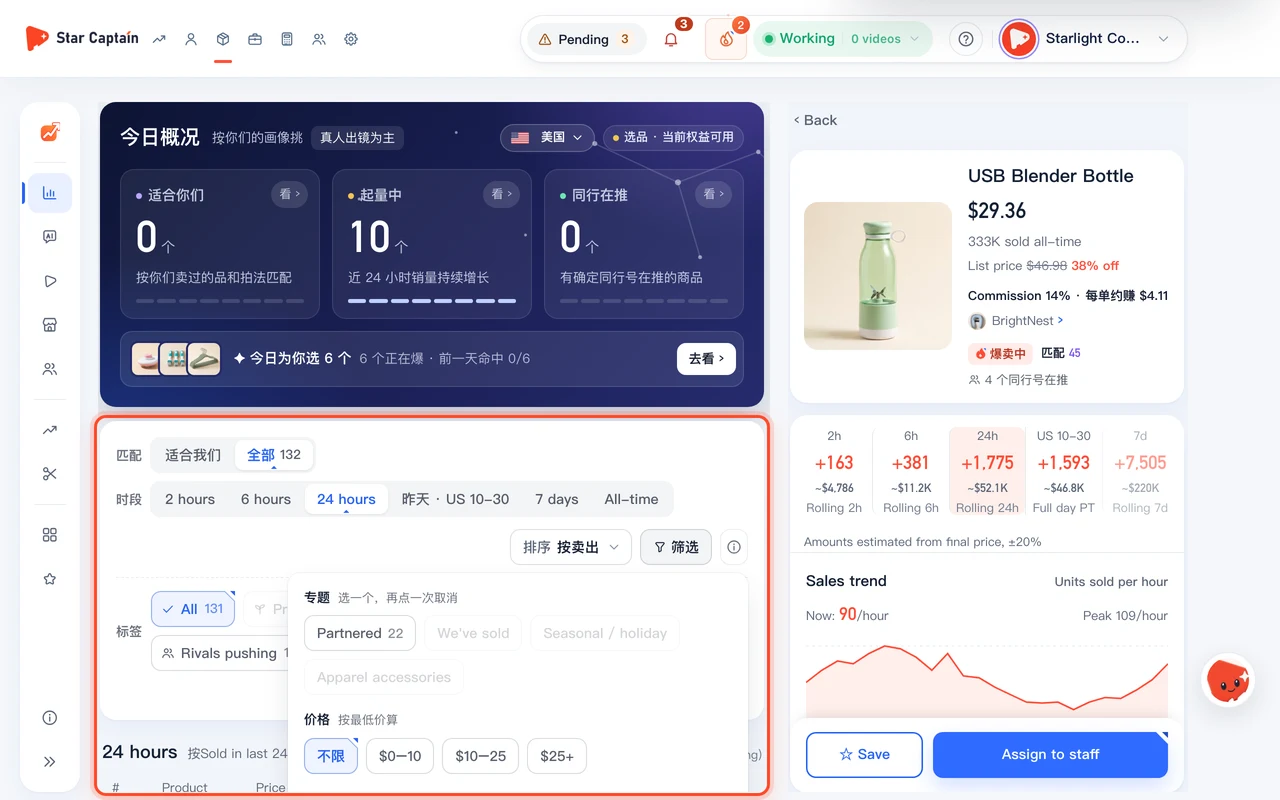
03Open the right-hand product detail pane to check "Why we picked it", "How to shoot this product", and "Can you list it?"
Click any product row in the list to open the right-hand detail drawer. The header shows the final price, all-time units sold, list price and discount, "Commission {n}", shop info, and tags ("Selling fast", match score, "{n} peer accounts pushing"). Below that, review the period sales cards ("2h", "6h", "24h", "Full day {zone}", "7d") and "Sales trend", "Why we picked it" (listing "What works" and "Watch out"), "How to shoot this product" (with storyboard points and "Iterate this script"), "Shoppable videos for this link", "Accounts pushing", "Can you list it?" (checking how many accounts can list it based on shop rating and follower thresholds), and "Best accounts to push it".
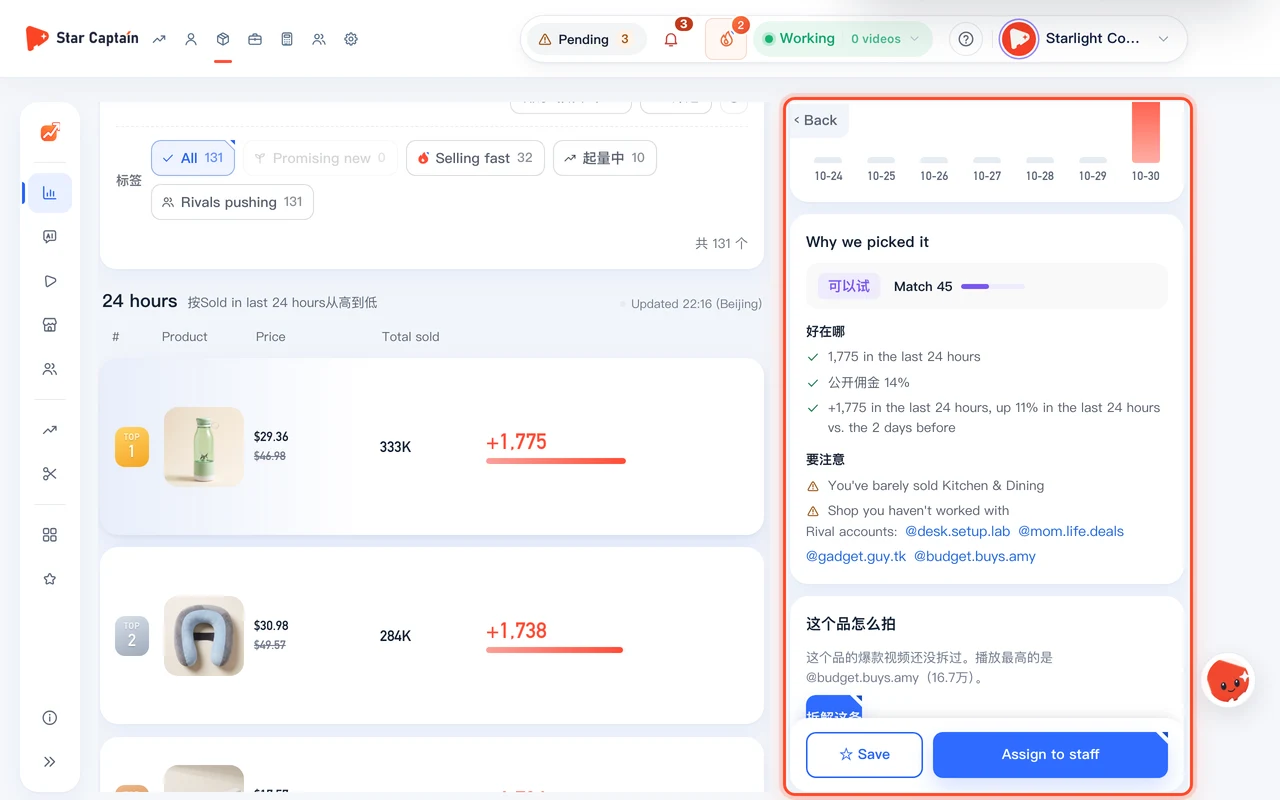
04Click "☆ Save" to add to shared saves, or click "Not a fit" to exclude with 4 quick reasons
When you find a candidate product worth keeping on your shortlist, click "☆ Save" at the bottom so it changes to "★ Saved" and enters "Mine" → "Saved" in the left sidebar (shared across the team). If a product does not fit your workflow, click "Not a fit" at the bottom to expand "Why isn't it a fit?" ("Optional — you can just submit"), pick from the 4 quick reasons—"Not our category", "Wrong price", "Tried it, didn't sell", or "Can't shoot it"—or fill in "Other reason (optional)" and click "Submit". It moves to "Not a fit" in the left sidebar, and you can open its details and click "Recommend again" anytime.
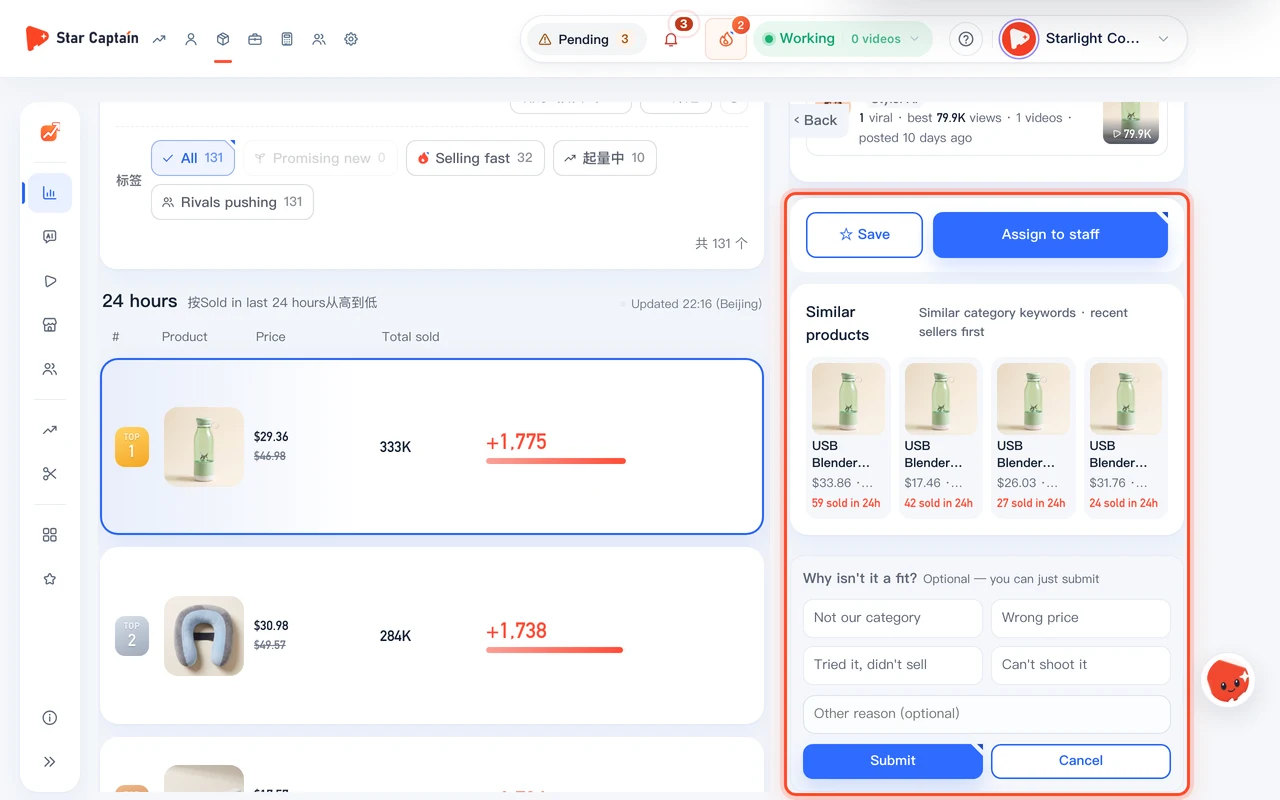
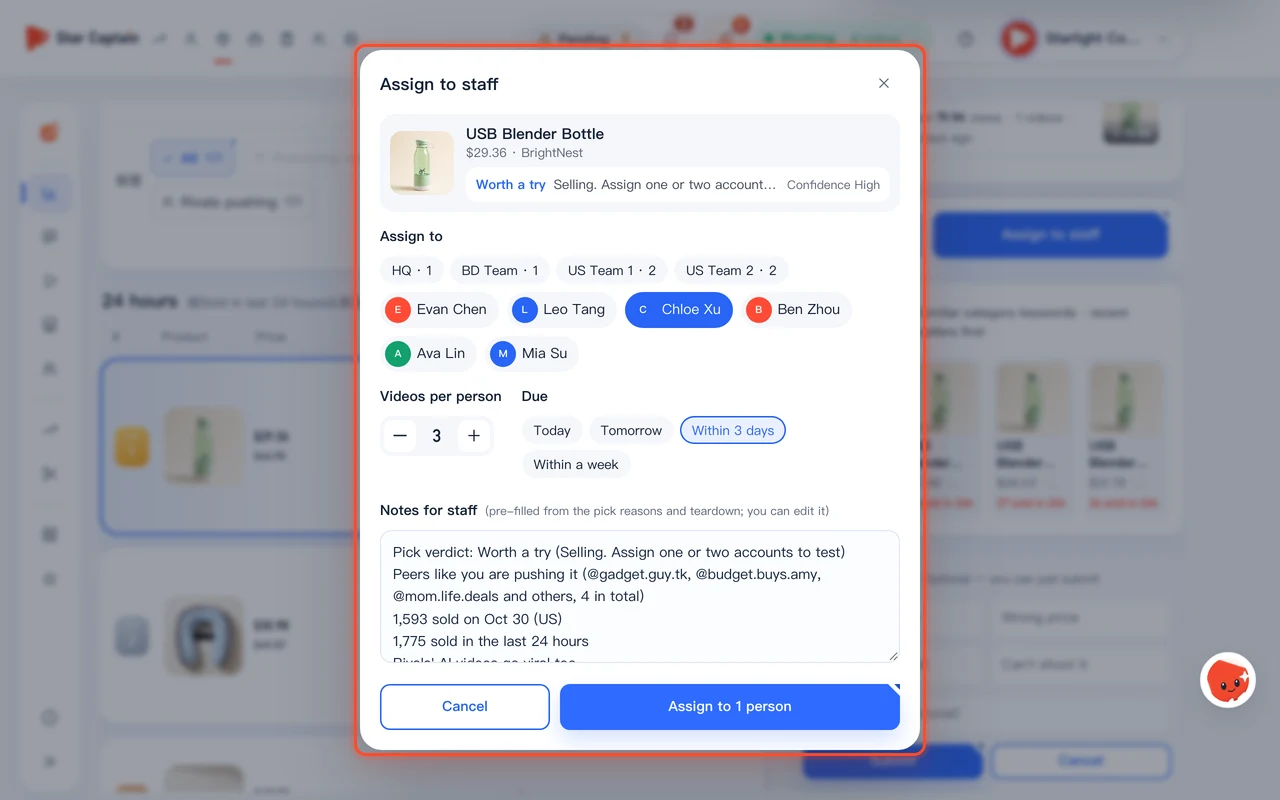
05Click "Assign to staff" to pick teammates, video counts, and due dates
Once you decide to promote a product, click "Assign to staff" in the product detail pane to open the dispatch modal: select teammates or groups under "Assign to" (the top note highlights "Your accounts that sold the most similar items"), set "Videos per person", choose a "Due" window ("Today", "Tomorrow", "Within 3 days", or "Within a week"), review or edit "Notes for staff" (pre-filled from the pick reasons and script breakdown), and click "Assign to {n} people" at the bottom to send the task straight to their Personal Center and add the item to the Product library.
Screenshots use demo data. Check the product for what you actually see.
FAQ
How does "Can you list it?" know whether our accounts can add the product link?
It compares the shop's rating and TikTok listing requirements against the follower counts of the TikTok accounts connected in your workspace, then shows how many of your accounts can list the product right now.
Can other teammates see the products I save with "☆ Save"?
Yes. "Mine" → "Saved" in the left sidebar (titled "My saves", marked "Products your team saved; everyone can see them") is shared across your organization, so any product saved by an owner, manager, or product researcher is visible to operators and editors.
What if I mark a product as "Not a fit" by mistake?
Open "Mine" → "Not a fit" in the left sidebar, click the product to open its detail pane on the right, and click "Recommend again" at the bottom. It will return to your recommendations and charts immediately.
Can I tear down or iterate a viral video script right inside a product's details?
Yes. In the product drawer's "How to shoot this product" card, you can review the storyboard points, click "Iterate this script" to generate a rewritten version on the spot, or click "Full teardown ›"; if the product's top viral video hasn't been torn down yet, click "Tear down this one" right in the card.