TikTok accounts
 Orders & performance
 Team management
 Profit & cost
 Brand deals
 Creator toolbox
 Solo creators
 Creator teams
 Multi-department companies
Who is this for?
- Agency owners managing dozens of TikTok handles who want to configure account groups and viral threshold settings so accounts stay organized by team and type
- Operations leads who want a unified "Viral line" (such as 5K, 10K, 20K, or 50K views) across viral rankings and account analytics
- Workspace admins customizing default account sorting ("Smart", "Recently added", "Most viral", "Most followers"), card fields, and top-video periods
What to prepare before starting?
- Your login has account-management and settings permissions under "Accounts"
- You have decided on your team's group names (such as "Home team" or "AI team") and custom account types (such as "Test account")
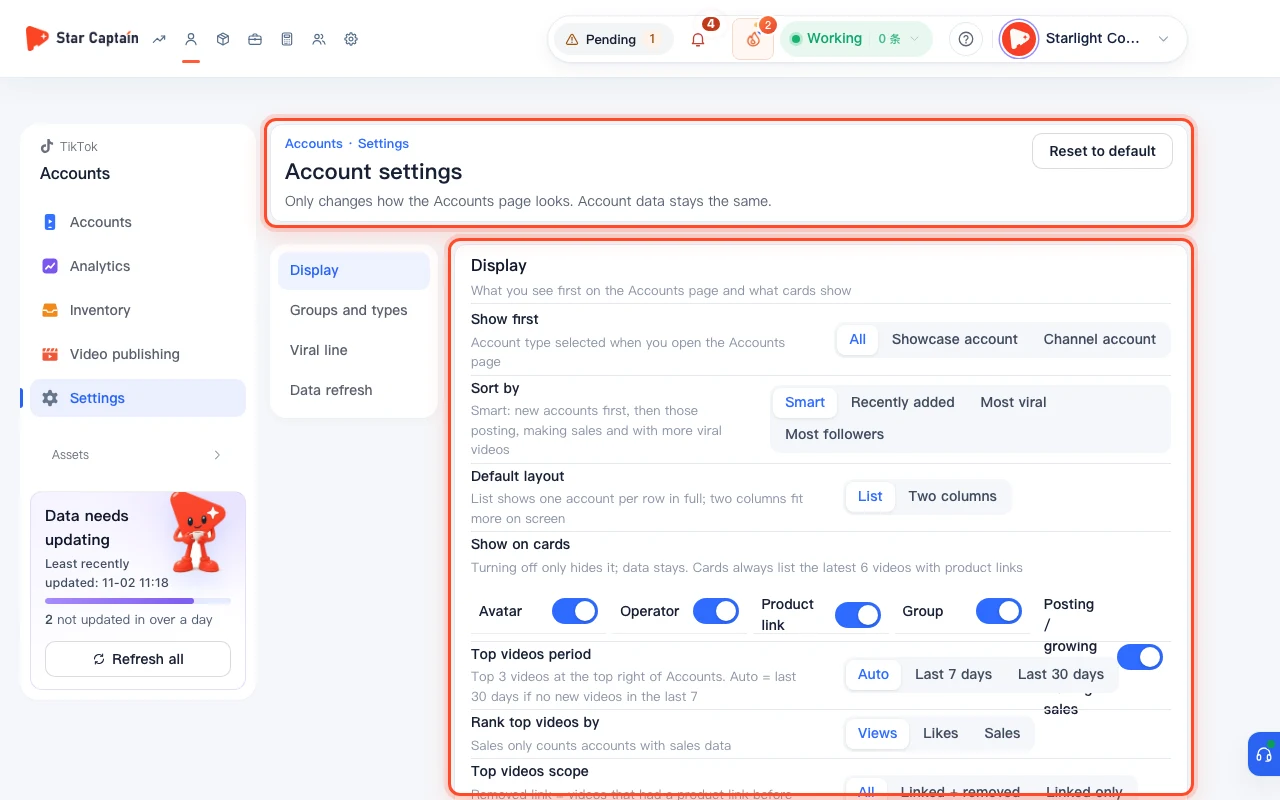
01Open "Accounts → Settings" and configure "Display" sort and card options
To set up Star Captain account group settings, click "Accounts → Settings" (`/app/accounts/settings`, titled "Account settings") in the left sidebar. The top "Display" card controls "What you see first on the Accounts page and what cards show": pick "Show first", "Sort by" ("Smart", "Recently added", "Most viral", "Most followers"), "Default layout" ("List" or "Two columns"), "Show on cards" ("Avatar", "Operator", "Product link", "Group", "Posting / growing / making sales"), and top-3 video rules ("Top videos period", "Rank top videos by", and "Top videos scope").
02Add team groups and custom types in "Groups and types"
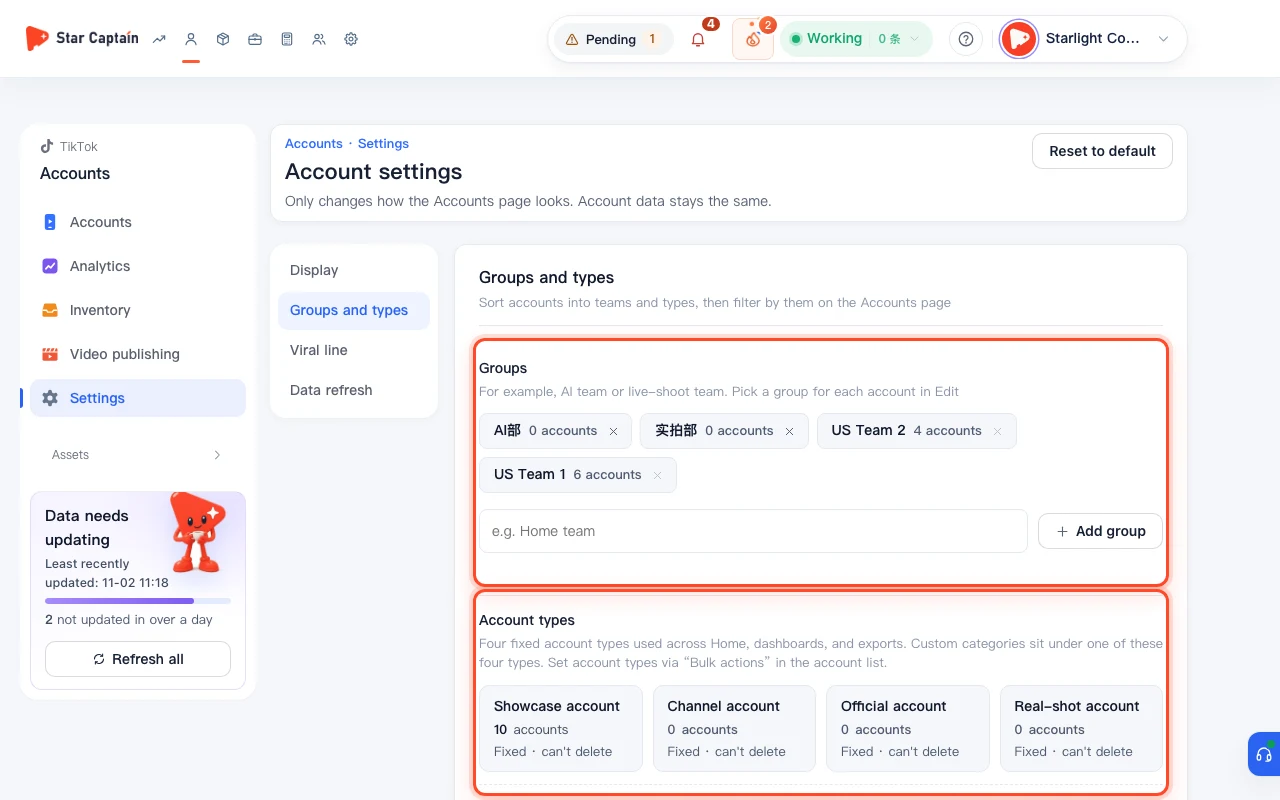
In the second card, "Groups and types" ("Sort accounts into teams and types, then filter by them on the Accounts page"), enter a team name under "Groups" (`e.g. Home team`) and click "Add group"; each existing group shows `{n} accounts` using it. On the right under "Types" (`Showcase and channel accounts are built in. Add your own types`), type a label (`e.g. Test account`) and click "Add type". You can then assign groups and types in each account's "Edit" modal.
03Set your team-wide view cutoff in "Viral line"
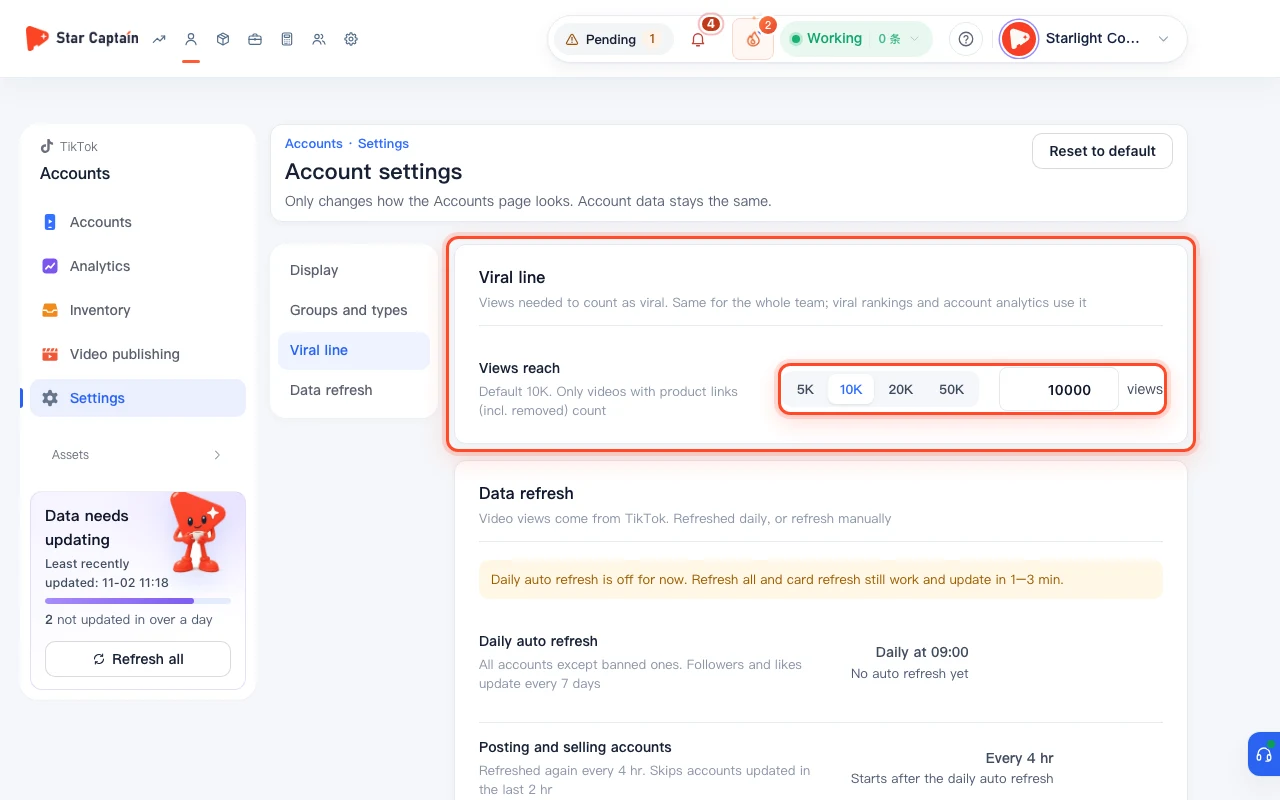
In the third card, "Viral line" ("Views needed to count as viral. Same for the whole team; viral rankings and account analytics use it"), adjust "Views reach" (`Default 10K. Only videos with product links (incl. removed) count`). Click a quick preset (`5K`, `10K`, `20K`, `50K`) or enter a custom number of "views" so every analytics page uses the same viral cutoff.
04Review "Data refresh" rules and click "Save settings"
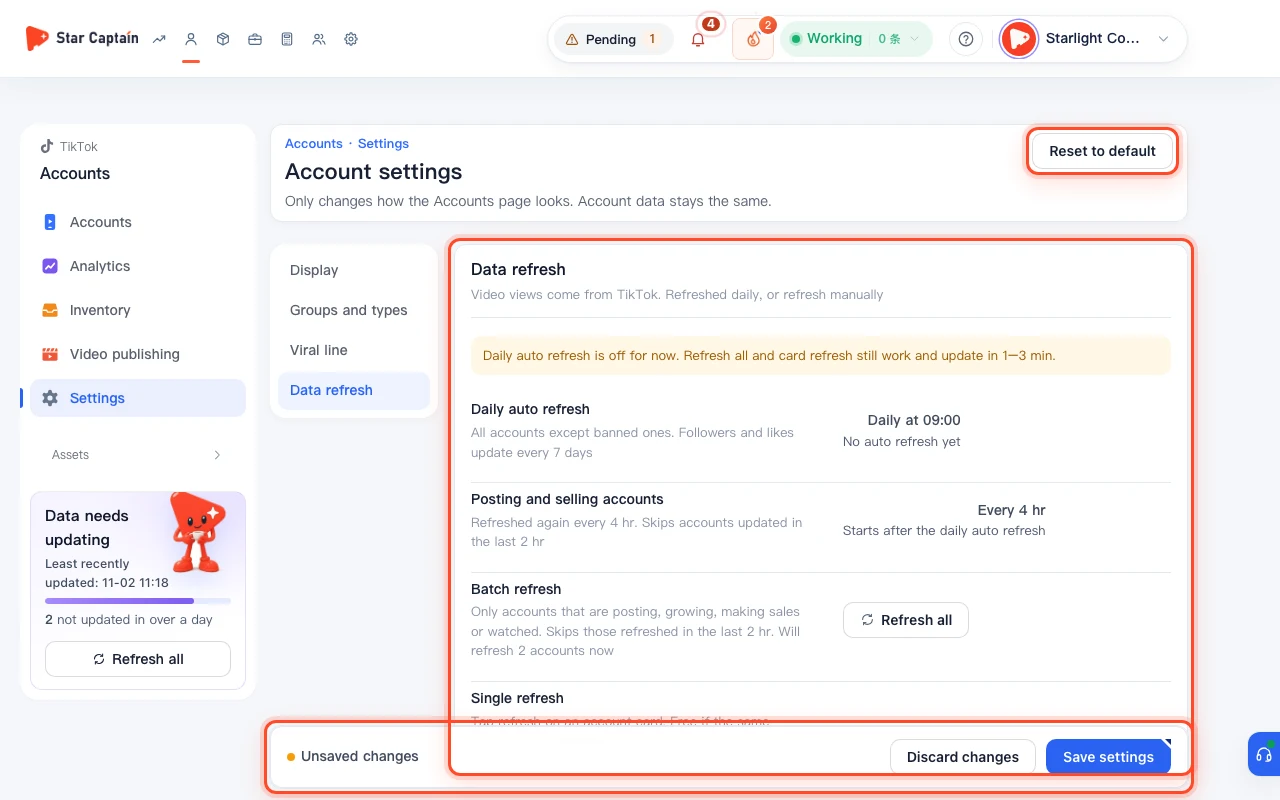
Before you save your Star Captain account group settings, review the bottom "Data refresh" card: "Daily auto refresh" (all accounts except banned ones), "Posting and selling accounts" (`Every {hours} hr`), "Single refresh", and "Recent refreshes" (showing `Last synced {time}` and any accounts not updated in 3+ days). Whenever you make changes on this page, an "Unsaved changes" notice appears—click "Save settings" (or "Discard changes" / "Reset to default") at the top right.
Screenshots use demo data. Check the product for what you actually see.
FAQ
Why does deleting a group say "{n} accounts are still in this group. Change them in Edit first"?
To prevent active filters from breaking, Star Captain blocks deleting a group while accounts are still assigned to it. Reassign those accounts to another group in "Edit" on the Accounts page until the badge reads `0 accounts`, then click "Delete this group".
Which pages update when I change the "Viral line" view threshold?
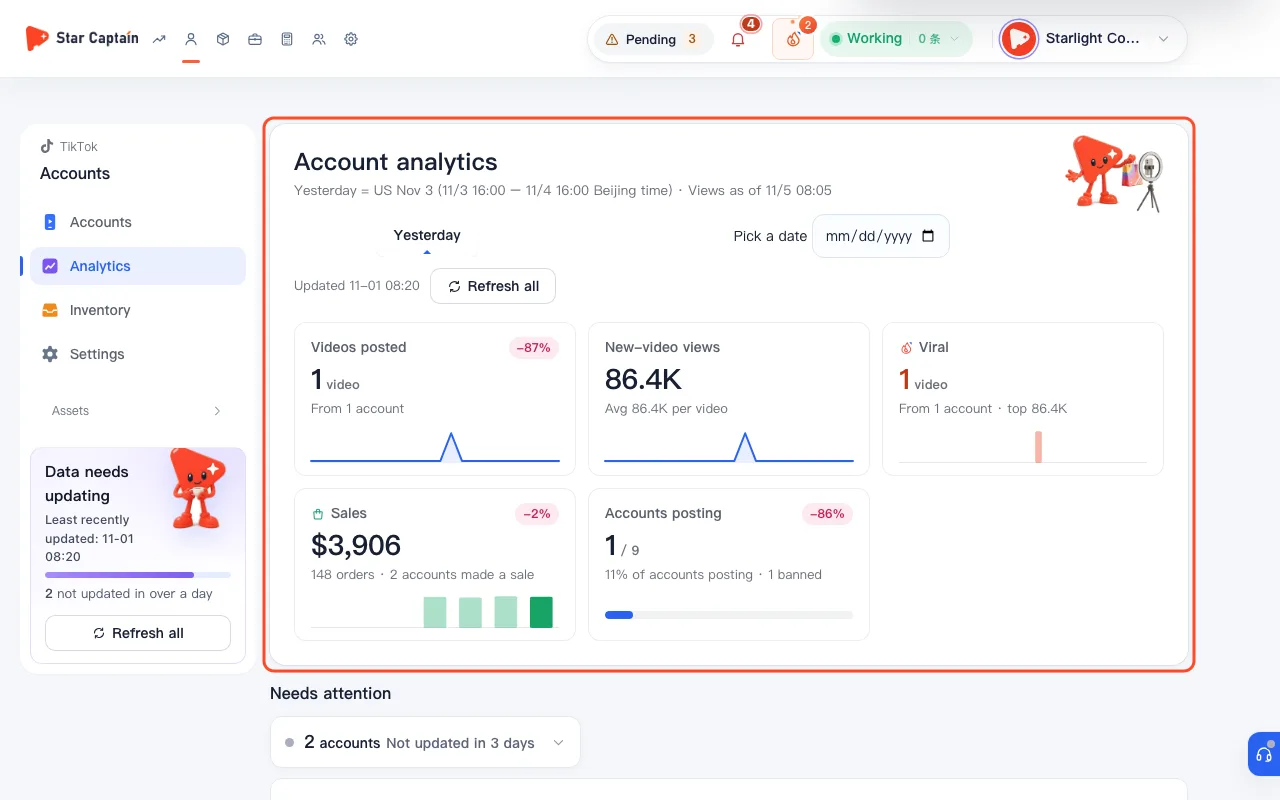
The "Viral line" applies to the whole team for videos with product links (including removed links). Once you click "Save settings", the top-videos podium on Accounts, "Accounts → Analytics", and every single-account detail page immediately recalculate viral counts and viral rates using the new threshold.
If I uncheck "Product link" or "Group" under "Show on cards", does it delete any account data?
No. As the card notes, "Only changes how the Accounts page looks. Account data stays the same" and "Turning off only hides it; data stays. Cards always list the latest 6 videos with product links." You can re-enable any field at any time.
Will clicking "Reset to default" erase the custom groups and types I created?
No. The button tooltip states "Reset display and viral line to recommended settings. Groups and types stay", so your custom groups and account types remain intact while display preferences and the 10K viral line reset.