TikTok accounts
 Orders & performance
 Team management
 Profit & cost
 Brand deals
 Creator toolbox
 Solo creators
 Creator teams
 Multi-department companies
Who is this for?
- Operators and team leads diagnosing why a specific showcase account gets views without orders or relies too heavily on one viral clip
- Content managers who tag video titles with editor or date prefixes (such as `zy10.27`) and want to filter performance on a single account
- Operators taking over an existing account who want a fast summary of its "Content focus", "Traffic pattern", and "How it earns"
What to prepare before starting?
- The TikTok account has been added under "Accounts" and authorized for data syncing
- Recent video and order records have synced (if data is stale, click "Refresh" at the top right or "Sync again" on the banner)
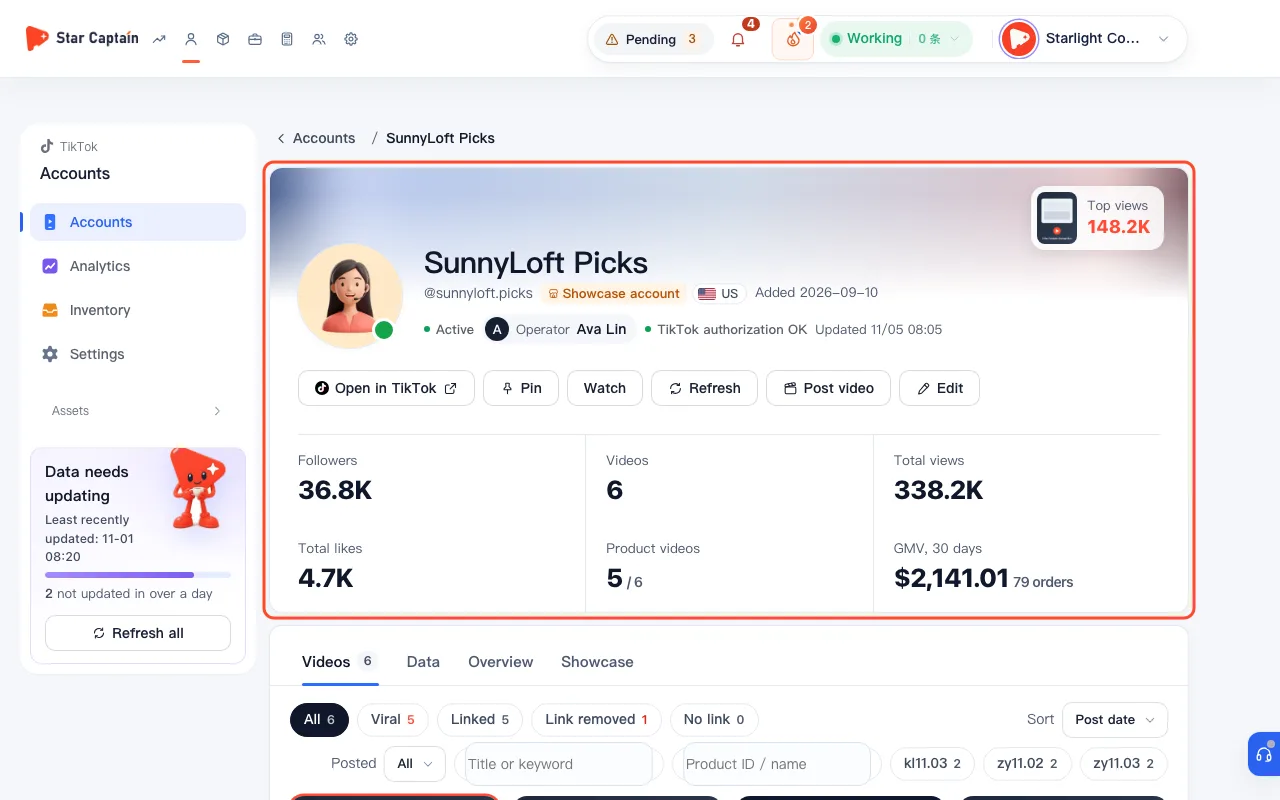
01Open the account detail page to inspect single account conversion and works
To inspect single account conversion and works, open "Accounts" and click any account row to open its detail page. The header displays "Followers", "Videos", "Total views", "Total likes", "Product videos", and live health pills ("Videos syncing normally", "Product links OK", or a top alert if a viral video lost its product link). At the top right, click "Pin" to keep this account at the top of the agency's default sort order, or click "Monitor" ("Monitored accounts stay in bulk refresh even when they stop posting").
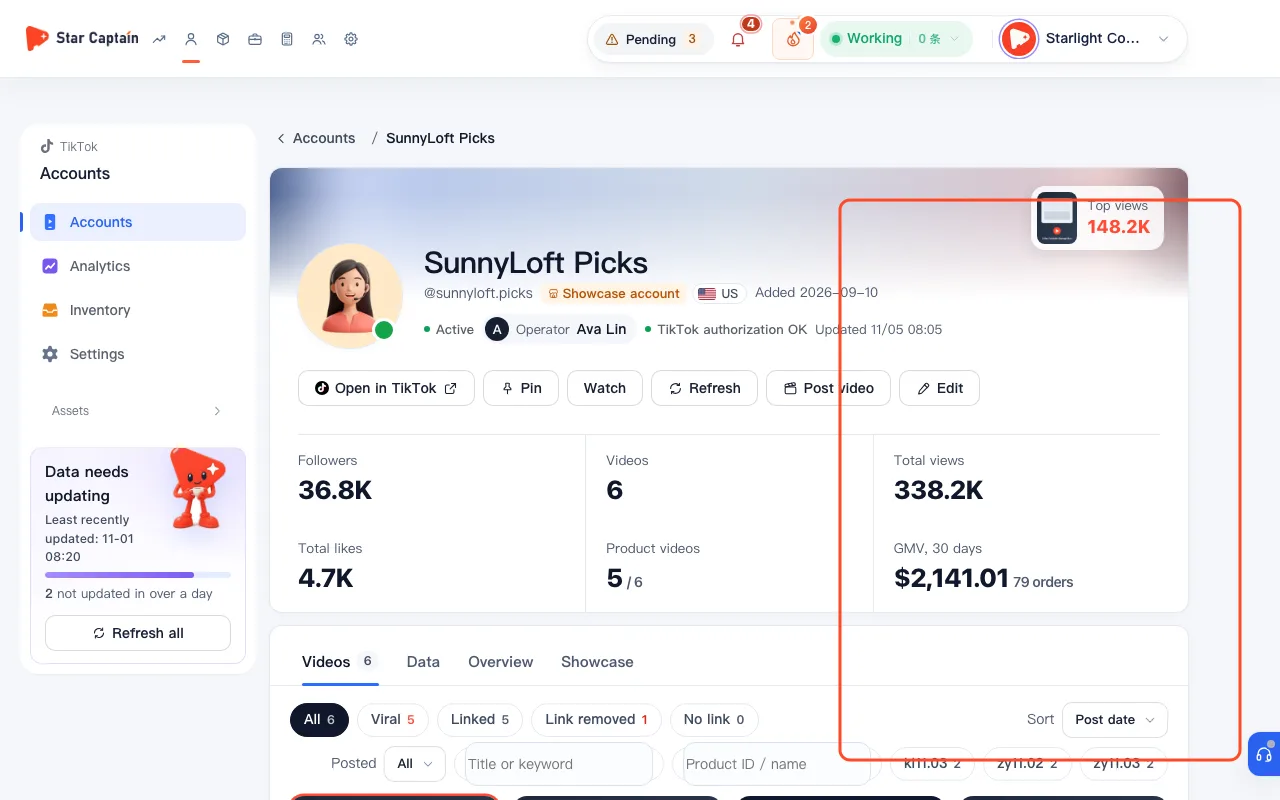
02Analyze the "Sales conversion" funnel and "View distribution" in the right column
In the right sidebar, look at the "Sales conversion" card to inspect single account conversion and works across "Product impressions", "Product clicks", "CTR" (`Product clicks ÷ product impressions`), "Items sold", and "Conversion rate" (`Items sold ÷ product clicks`). Above it, check "View distribution" to see whether `{pct}% of views come from 1 video` ("Relies on one viral video") or "Views are well spread".
03Compare "Avg views per video" and "Median views (all videos)" on the "Data" tab
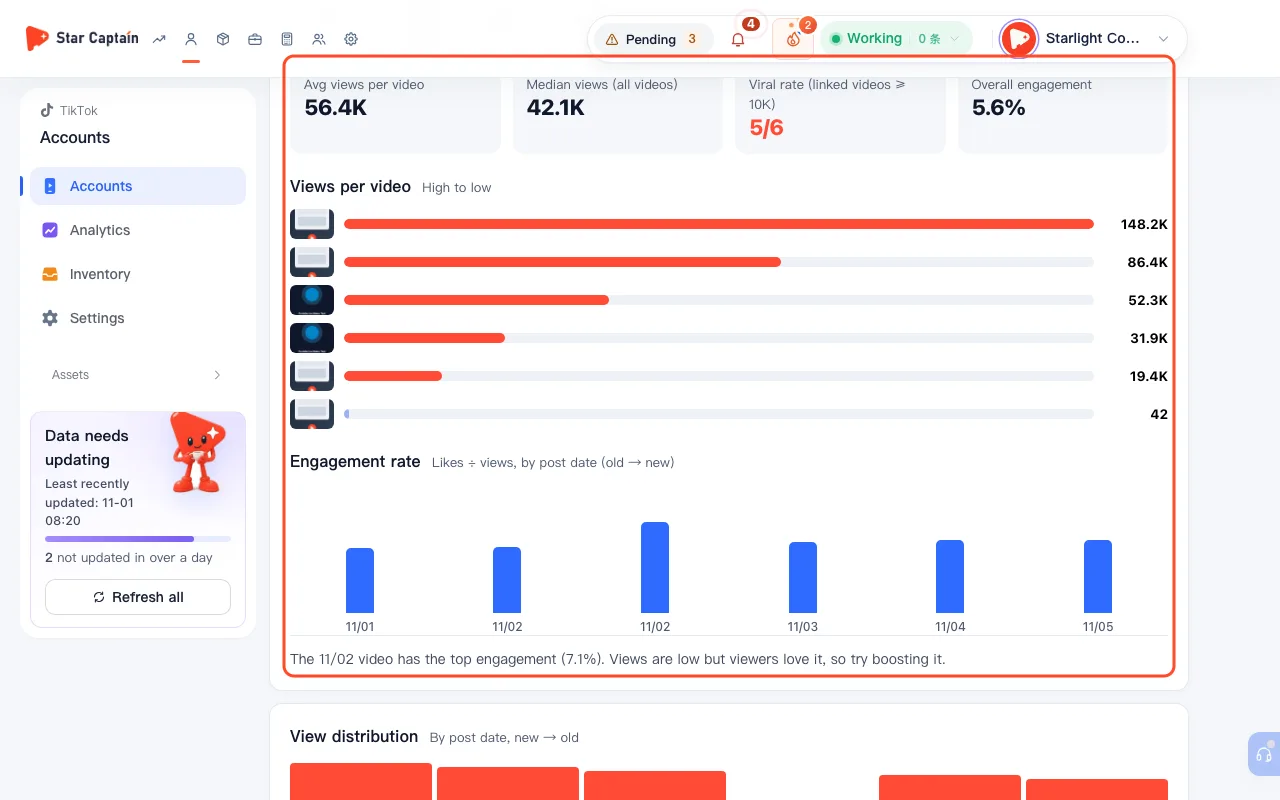
Under the "Data" tab, compare "Avg views per video", "Median views (all videos)", "Viral rate (linked videos ≥ {n})", and "Overall engagement". Whenever a single breakout hit skews the average, Star Captain notes: "Viral videos pull the average up. The median, {median}, is closer to this account's typical level." The engagement chart below also highlights high-engagement, lower-view clips that are good candidates for boosting.
04Filter and sort the video list by link status, title keyword, or product ID
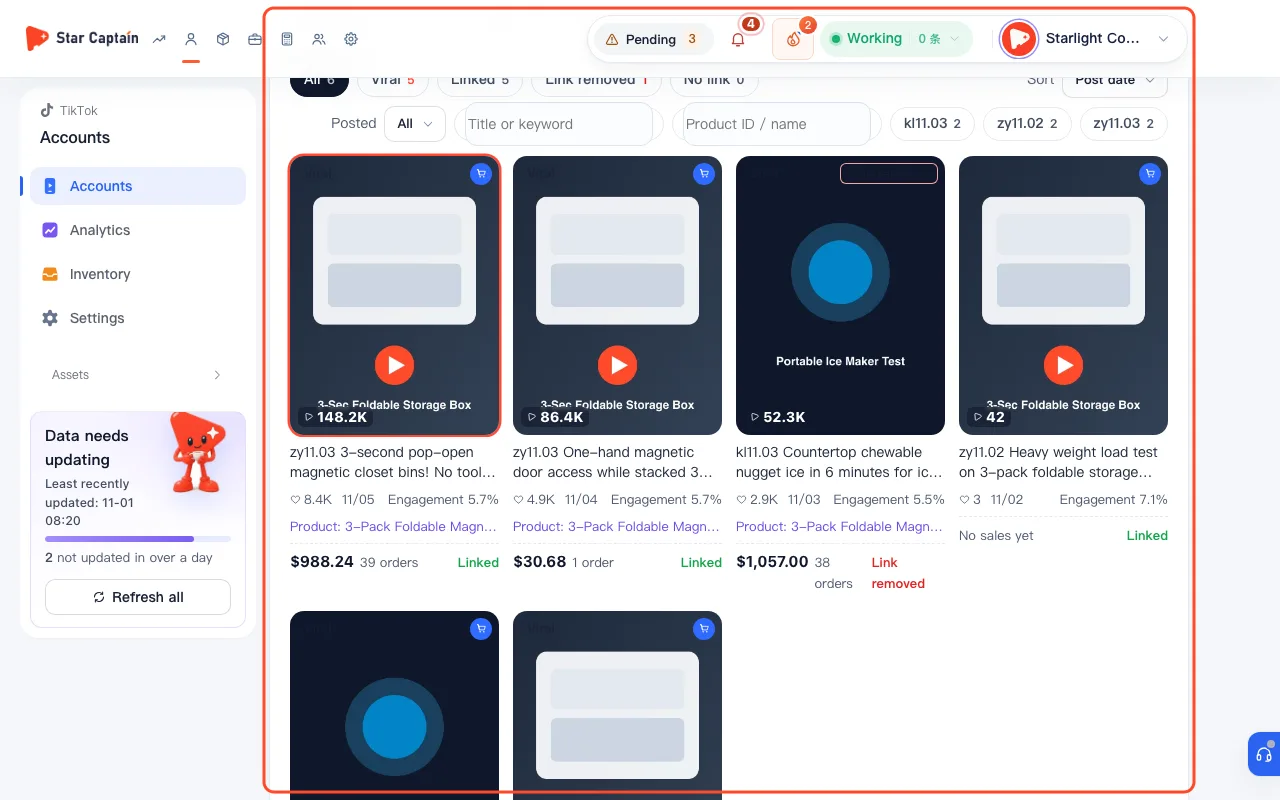
Above the video list, filter by status ("All", "Viral", "Linked", "Link removed", "No link") and "Post date" ("Last 7 days", "Last 30 days"). Enter an editor prefix or keyword in "Title or keyword" (like `zy10.27`) or a product in "Product ID / name", and change "Sort" between "Post date", "Views", and "Sales" to see which videos drove the most orders.
05Switch to the "Overview" tab to review "Content focus", "Traffic pattern", and "How it earns"
Click the "Overview" tab in the middle navigation bar. Star Captain summarizes the account into three diagnostic cards—"Content focus" (such as "Home & living" or "Beauty & personal care"), "Traffic pattern" ("Relies on one viral video", "Several steady performers", or "Steady overall"), and "How it earns" ("Product links are making sales" with saved order counts)—giving any new operator an instant profile of the account.
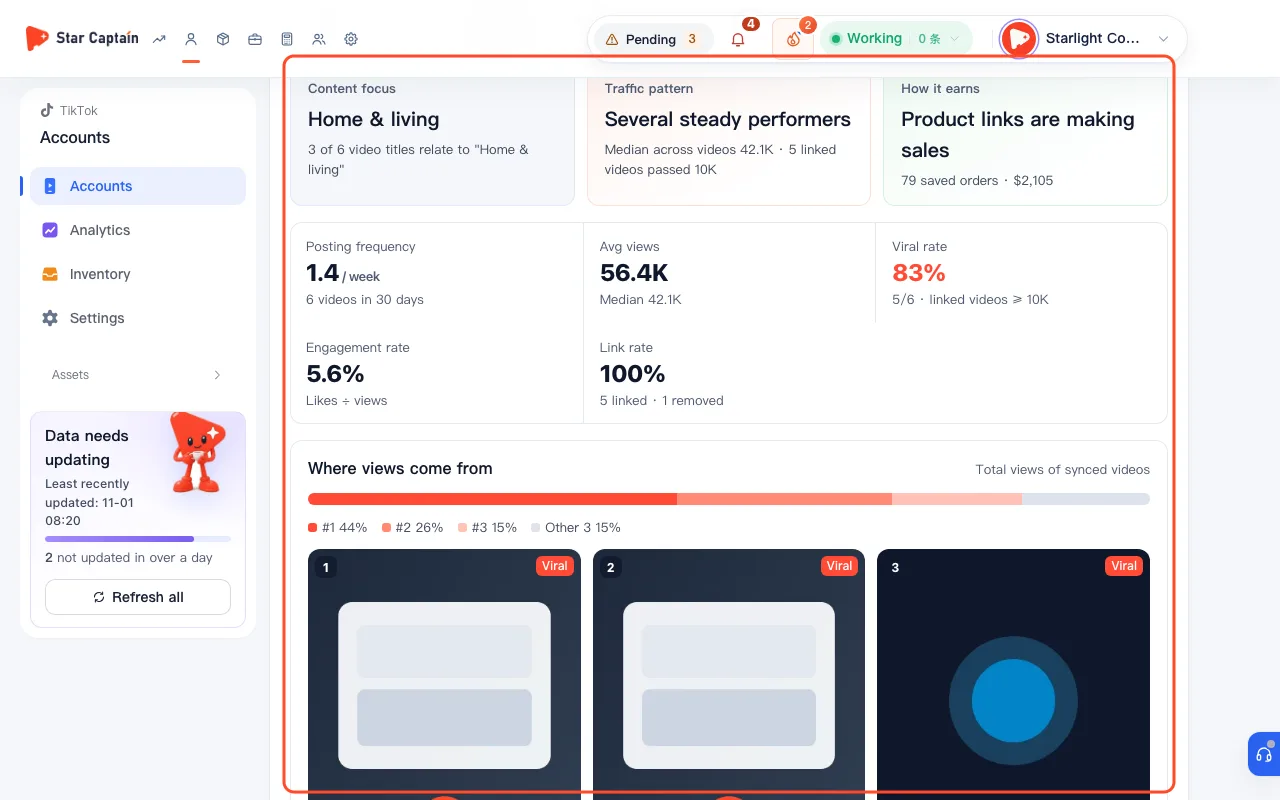
Screenshots use demo data. Check the product for what you actually see.
FAQ
Why is "Median views (all videos)" more reliable than "Avg views per video"?
When you inspect single account conversion and works, one viral video with 500,000 views will make a 30-video account's average look high even if its last 10 uploads got 300 views each. "Median views (all videos)" filters out that single spike so you can see the account's everyday baseline.
What does the "Monitor" button at the top right do?
Accounts that stop posting new videos for a long time are normally skipped during routine bulk refreshes. Turning on "Monitor" ("Monitoring") keeps the account in every bulk refresh—ideal for older accounts whose past viral videos are still generating long-tail orders.
What does "Videos with data outside the video library: N" at the bottom of the list mean?
"The video library keeps about the latest 30. These come from Creator Center (last 7 days) and TikTok official sales, sorted by sales." That ensures older evergreen videos that are still selling never get hidden outside the 30-video window.
How can I filter videos made by a specific editor on a shared account?
If editors include a short prefix or code in their video titles (such as `zy10.27`), type that prefix into "Title or keyword". The list immediately filters to `{n} of {total} videos` matching that prefix along with their views, engagement, and sales.