TikTok accounts
 Orders & performance
 Team management
 Profit & cost
 Brand deals
 Creator toolbox
 Solo creators
 Creator teams
 Multi-department companies
Who is this for?
- Operators and team leads who check daily whether new videos have active product links, lost their cart links, or show signs of view throttling
- Video editors and creative leads who want to see each video's "Product impression rate", "Product CTR", "Completion rate", and linked sales
- Managers taking over an account who want a fast summary of "Which videos drive traffic", "Which products are selling", and "What to do next"
What to prepare before starting?
- You have connected your TikTok accounts under "Accounts" and synced their recent videos and orders
- Official video metrics ("Product impression rate", "Product CTR") and Creator Center metrics ("Completion rate", "New followers") have synced for your connected accounts
01Open "Video results" and switch between "Most views", "Most orders", "Link removed", and "Throttled"
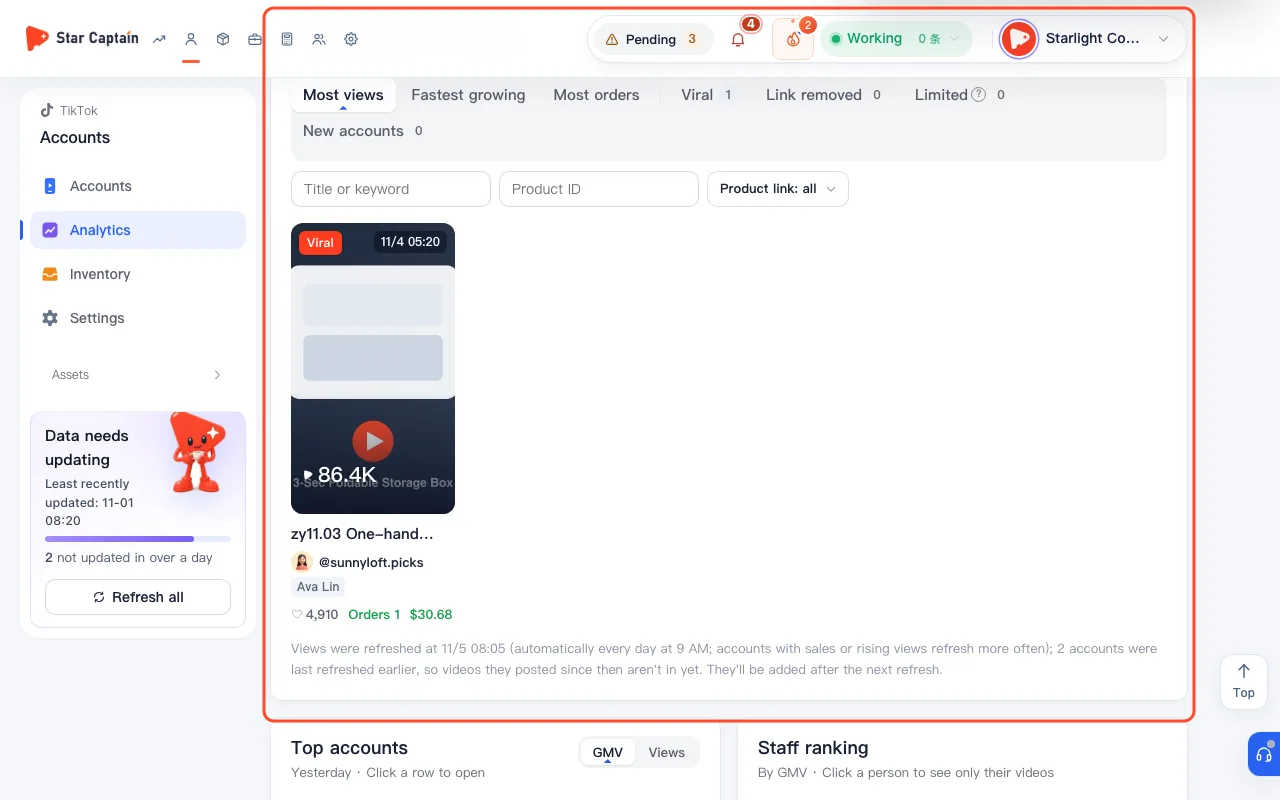
To analyze videos and product links, go to "Accounts → Account analytics" and stay on the default "Video results" tab. Above the "Videos posted" wall, click the mode buttons to switch between "Most views", "Fastest growing", "Most orders", "Link removed", and "Throttled". On the right sidebar, check "Staff ranking" (switchable between "By GMV" and "By views"—click any person to view only their videos) and "Star Captain insights".
02Filter videos by "Title or keyword", "Product ID", and "Product link" status
Use the filter bar above the video wall to analyze videos and product links by batch: enter a batch tag or phrase in "Title or keyword" (such as `zy10.27`), paste a number into "Product ID", and switch the "Product link" dropdown between "Product link: all", "With product link", and "Without product link". The counter updates to "{n} / {total} videos match" so you can verify an entire campaign batch at once.
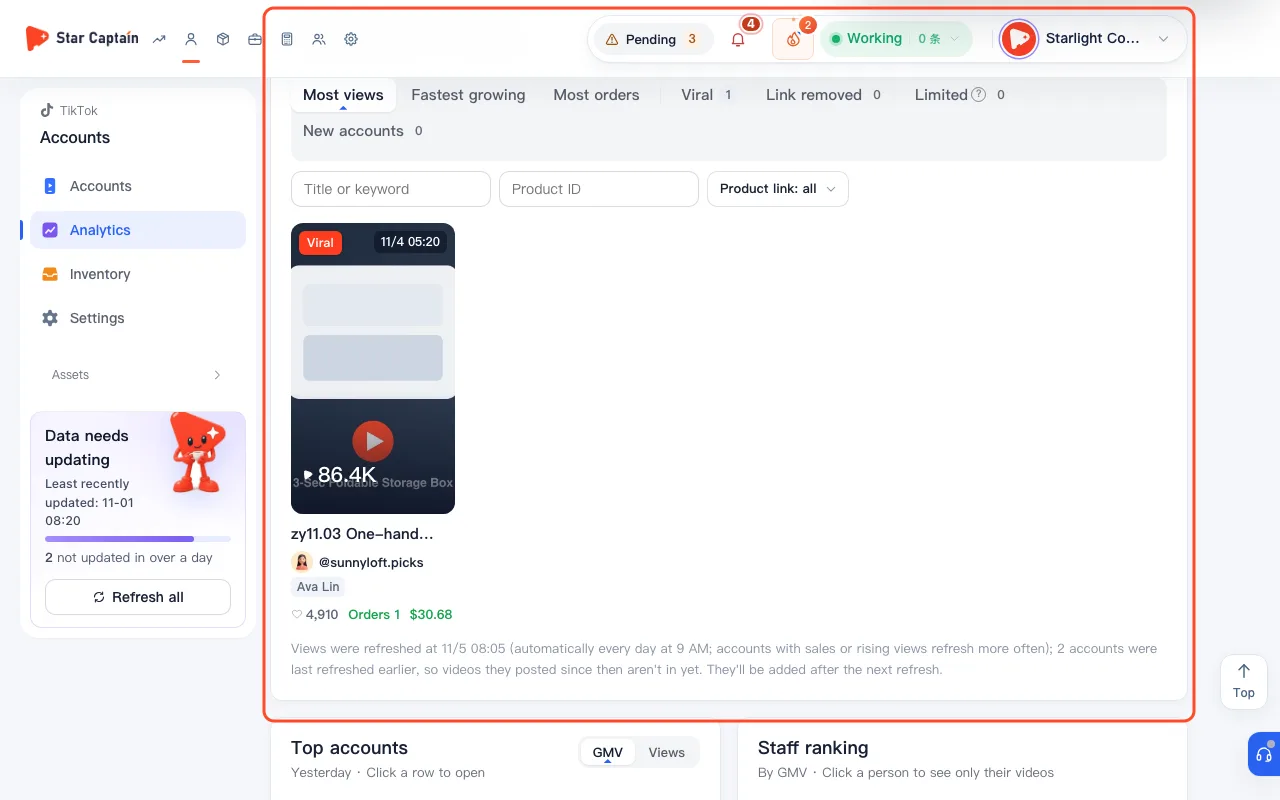
03Act on "Link removed", "Possibly throttled", and "Viral video has no product link" alerts
Scan the badges on the video cards (or filter directly by "Link removed" and "Throttled"): "Link removed" / "Product link expired" means a video had a product link when posted (or previously drove sales) that is now gone—since published TikTok videos cannot re-attach a lost link, post a fresh video with the same product right away; "Possibly throttled" flags videos that have been up for hours with unusually low views; and "Viral video has no product link" highlights high-view videos that haven't attached a product yet.
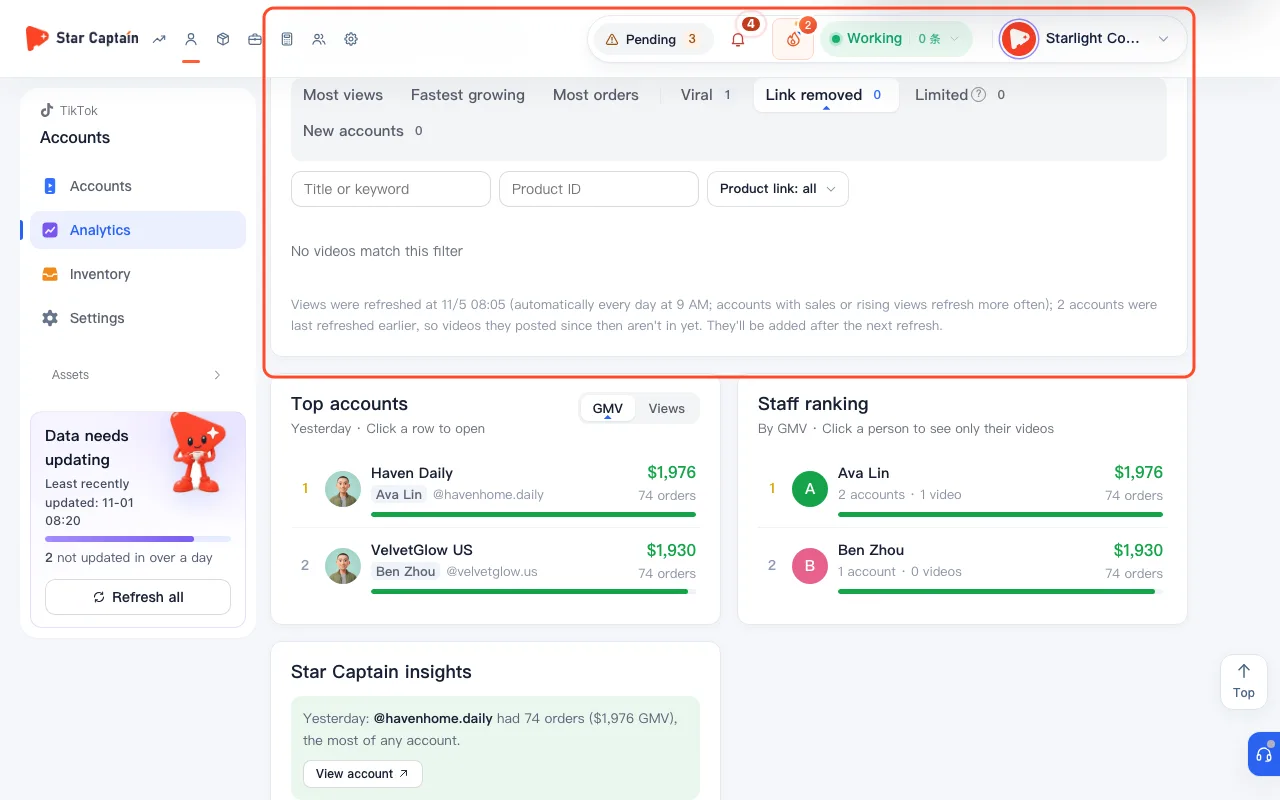
04Open "Video details" to inspect "Product impression rate", "Product CTR", and "Completion rate"
Click any video card to open the "Video details" drawer. At the top, compare "This video" against "Account avg" for views, likes, engagement rate, and sales. In "Official video data", check daily orders, items, "Product impression rate" (how often the product anchor was shown), and "Product CTR" (how often viewers clicked the anchor). In "Creator Center · last 7 days", check "Completion rate" and "New followers", then review "Linked products" at the bottom.
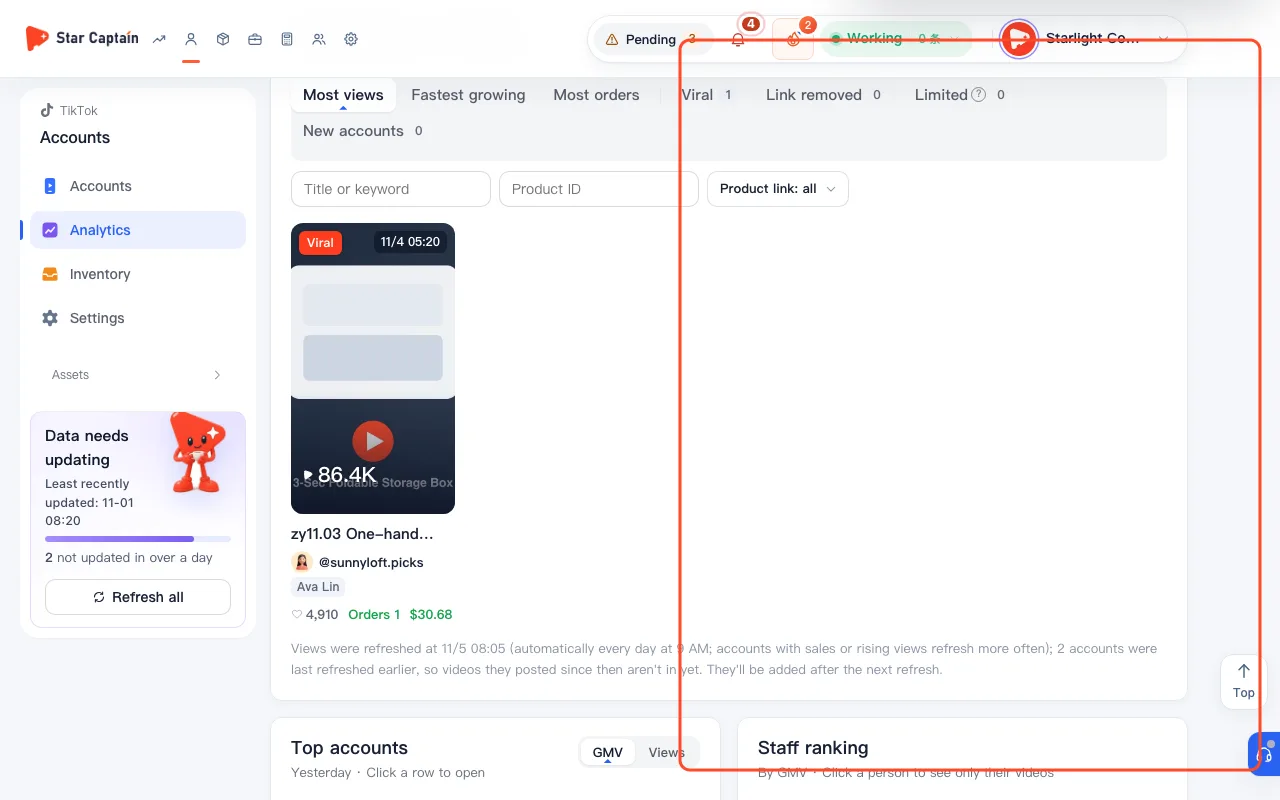
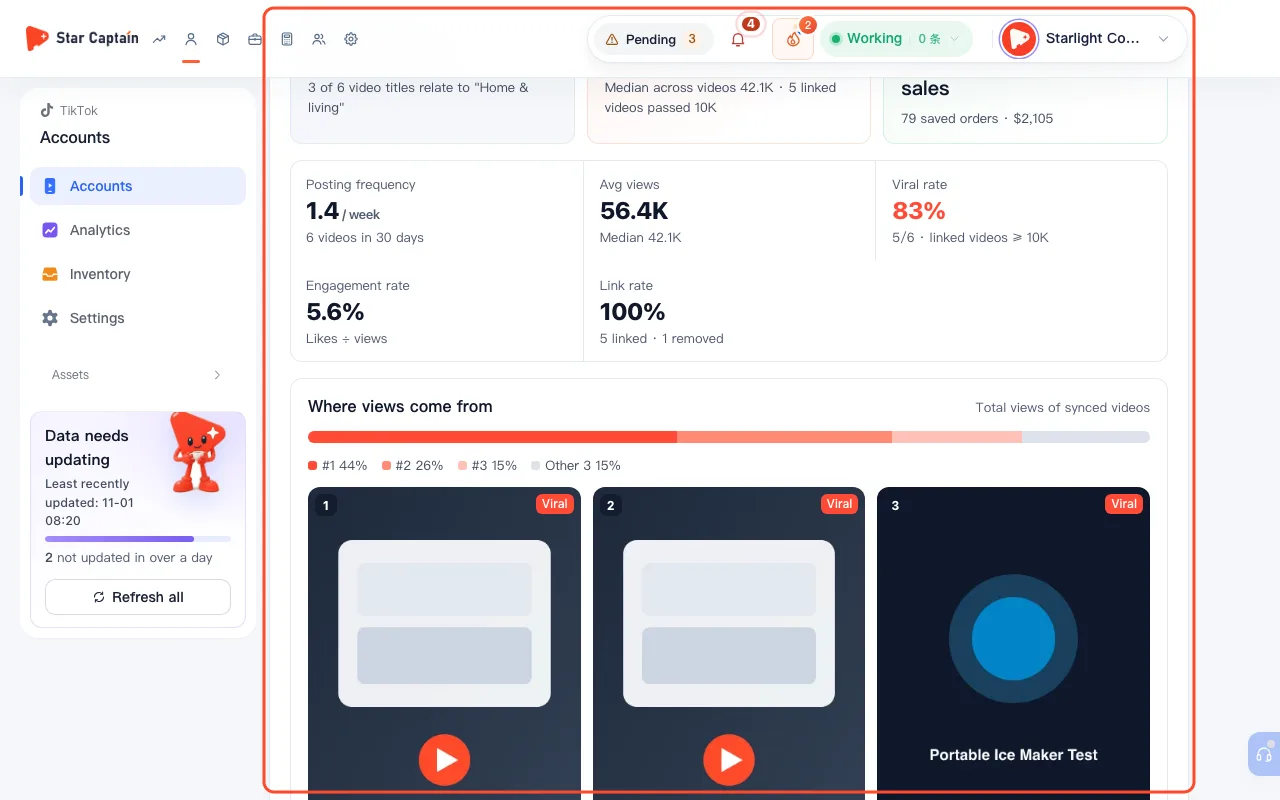
05Open "Understand this account" to see which videos drive traffic and which products sell
Inside an individual account's detail view, open "Understand this account". Built from synced videos and the last 30 days of video-linked sales, it summarizes: "Content focus clues" and "Top video's share of views"; "Which videos drive traffic"; "Which products are selling" (items sold and how many videos drove them); the "Are views growing?" snapshot chart; and tailored recommendations under "What to do next".
Screenshots use demo data. Check the product for what you actually see.
FAQ
How does Star Captain detect "Link removed" on a video?
When you analyze videos and product links, a video is marked "Link removed" only when an earlier sync confirmed it had an active product link and a subsequent sync found the link missing. Videos on banned accounts are excluded ("Videos from banned accounts don't count as link removed") so you don't chase false alarms.
Is "Possibly throttled" an official penalty notice from TikTok?
No—it is Star Captain's early-warning estimate based on how many hours the video has been live versus its view count at refresh. When you see "Possibly throttled", open the video in TikTok to check for any violation notices, and if several videos in a row on the same account stall, pivot your content angle before posting again.
Why does an account show "{n} account orders · not credited to a video"?
Sometimes TikTok returns account-level orders without specifying which video drove the sale. Star Captain keeps those orders in the account's total and labels them "{n} account orders · not credited to a video" rather than guessing which video made the sale.
Can I re-attach a product link to a video marked "Product link expired"?
Once a published TikTok video's product link expires or is removed, TikTok does not allow re-attaching a new link to that same post. Follow the prompt in "Star Captain insights" and publish a new video featuring the product or a replacement store link.