TikTok accounts
 Orders & performance
 Team management
 Profit & cost
 Brand deals
 Creator toolbox
 Solo creators
 Creator teams
 Multi-department companies
Who is this for?
- Agency owners managing dozens or hundreds of TikTok accounts who want an instant count of sellable, active, and idle accounts
- Team leads who need early warnings when an account is newly banned, keeps losing product links, or hasn't synced in over 3 days
- Operations managers who evaluate operators and accounts using a consistent 100-point rubric across activity, traffic, viral hits, and sales
What to prepare before starting?
- You have connected your TikTok accounts under "Accounts" and synced their profile and video data
- You have assigned accounts to their operators under "Accounts" so "Staff performance" can roll up metrics by person
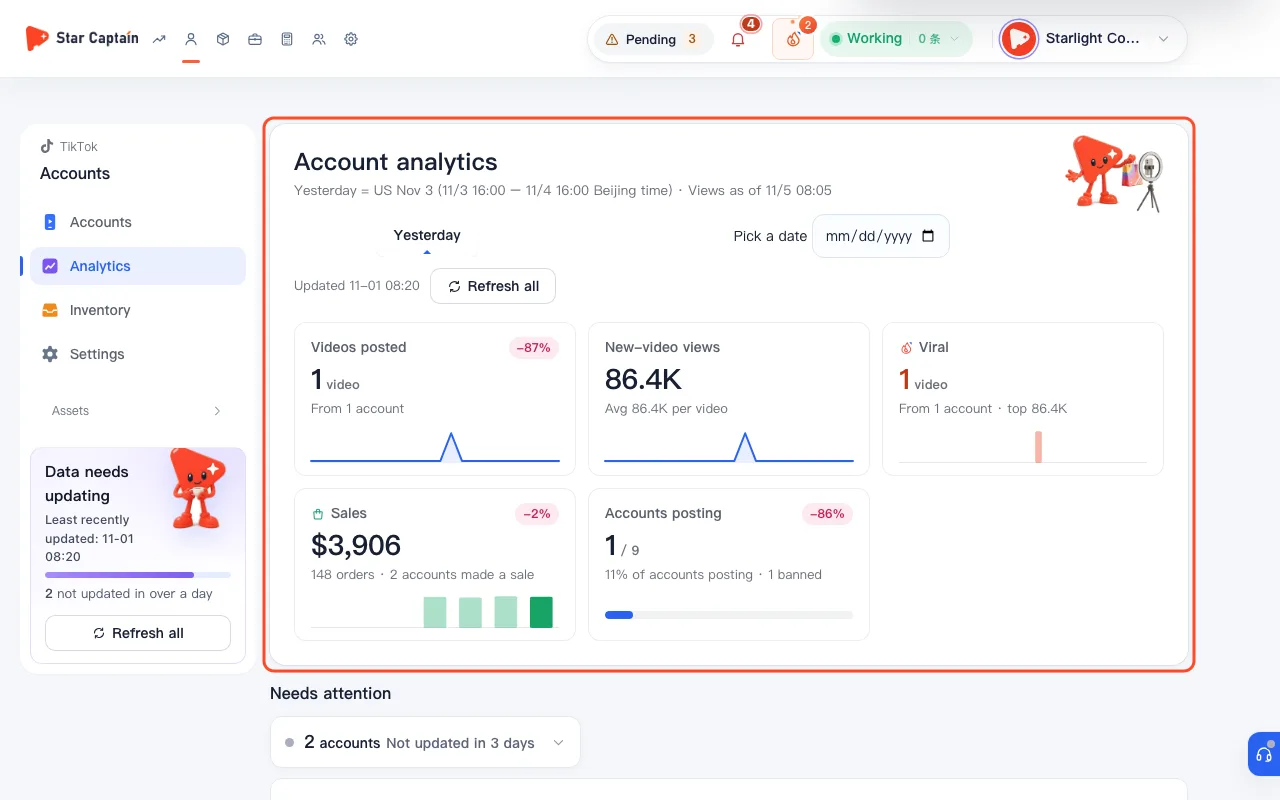
01Open "Accounts → Account analytics" and review the "Account overview" cards
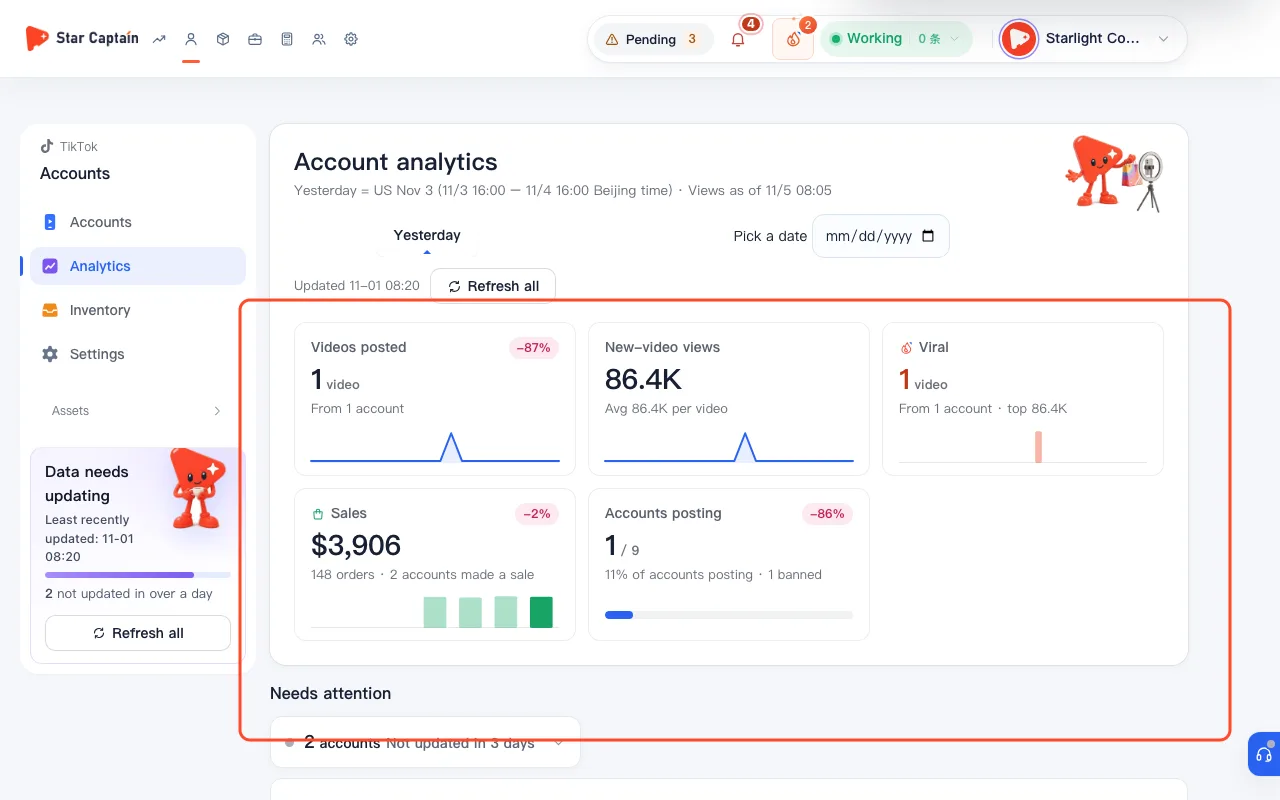
To analyze account performance and health, click "Accounts" in the top navigation and switch to "Account analytics". Pick your reporting window at the top right ("Today", "Yesterday", "Last 7 days", "Last 30 days", or "Pick a date") and check the five "Account overview" cards: "Accounts that can sell" (with counts for "Showcase banned" and "Banned"), "Account utilization" (posting accounts divided by countable accounts), "Idle accounts" (fresh data but no recent posts), "New accounts this week", and "10K+ view videos".
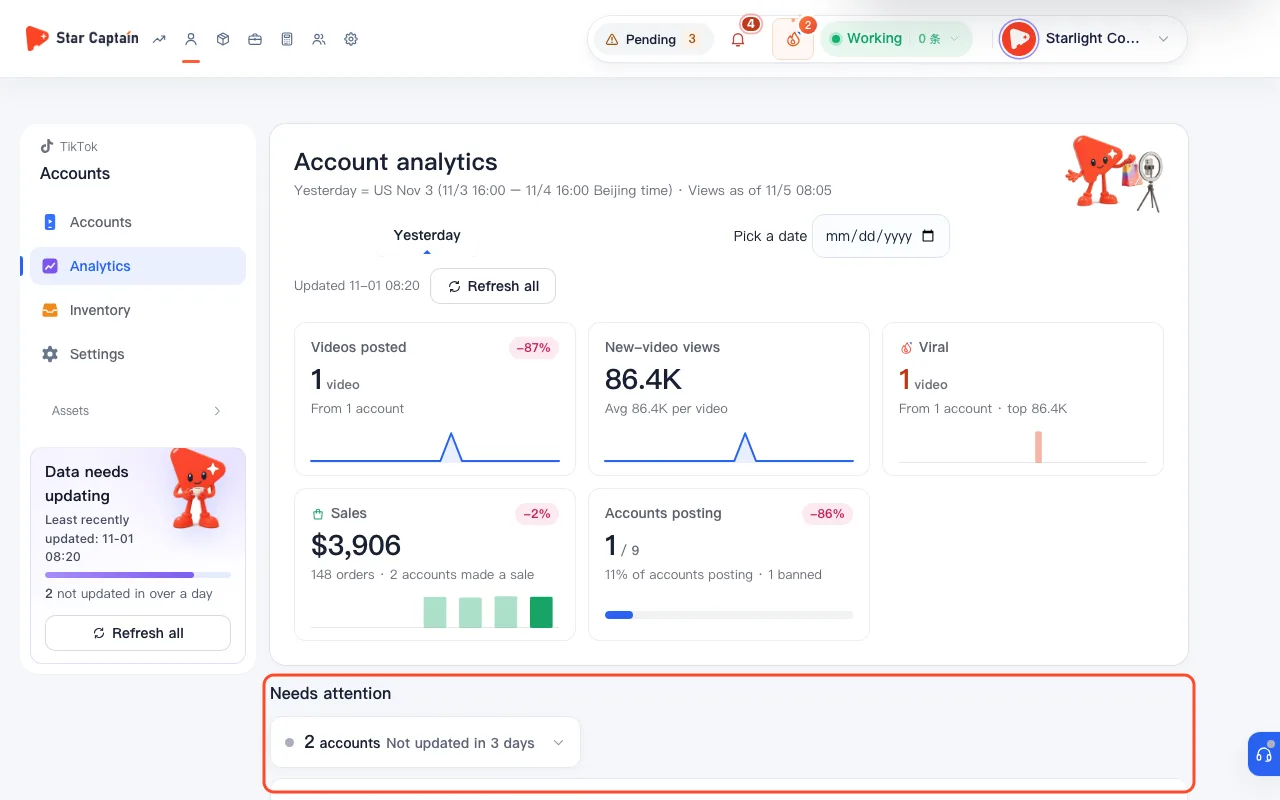
02Check "Needs attention" for bans, repeated link removals, and stale data
Scroll to the "Needs attention" panel, which groups problem accounts into three actionable buckets: "Newly banned" accounts, accounts with "Repeated link removals" ("Product links keep getting removed, likely delisted products or broken links"—click "Take a look" to inspect), and accounts "Not updated in 3 days" (click "Refresh" to sync immediately). When everything is healthy, the panel reads "All good. No accounts or videos need attention.".
03Switch to "Account rankings" to see top sellers, fast risers, and steady posters
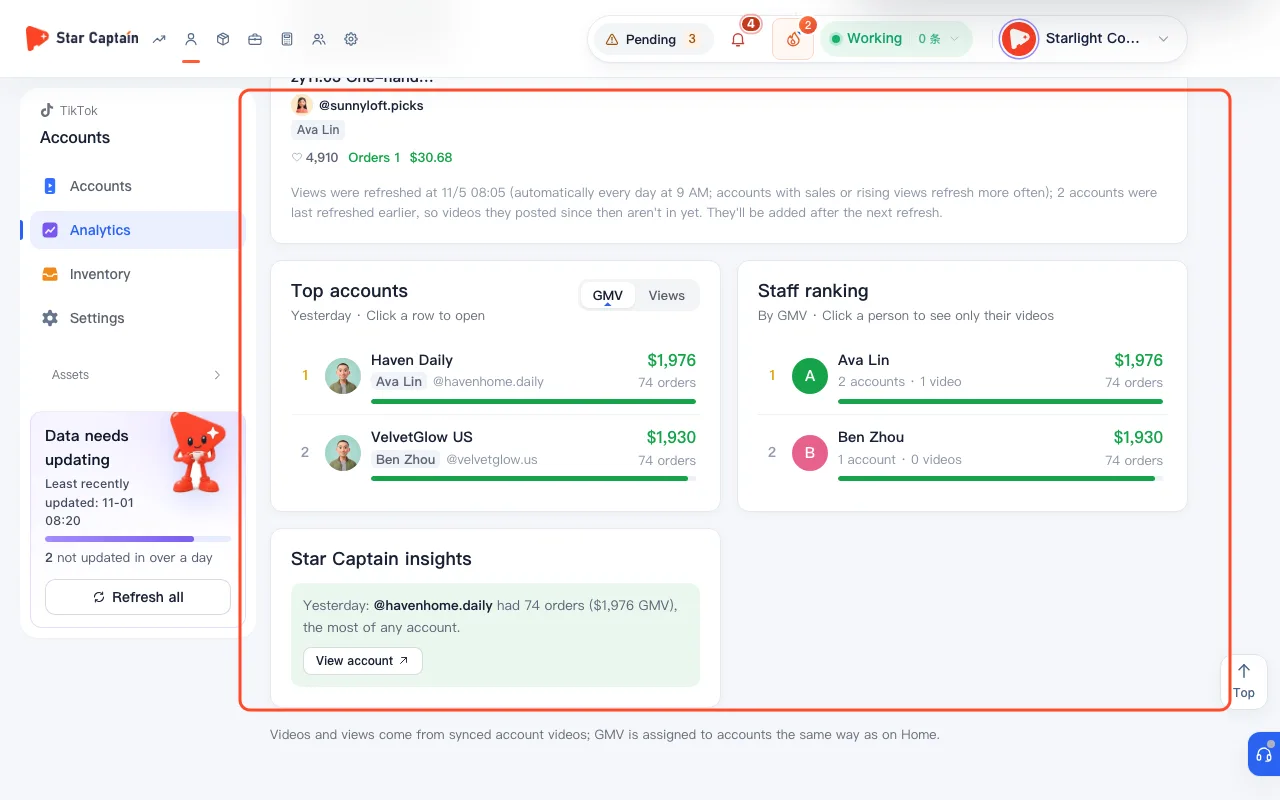
In the "Analysis sections" tabs, click "Account rankings" to view three side-by-side leaderboards: "Top-selling accounts" (most orders and GMV in the selected period), "Fastest-growing accounts" (new-video views multiplying over the previous period or flagged as "New traction"), and "Consistently posting accounts" (accounts posting every single day up to the latest sync). Click any account row to open its details.
04Switch to "Staff performance" to compare operators side by side
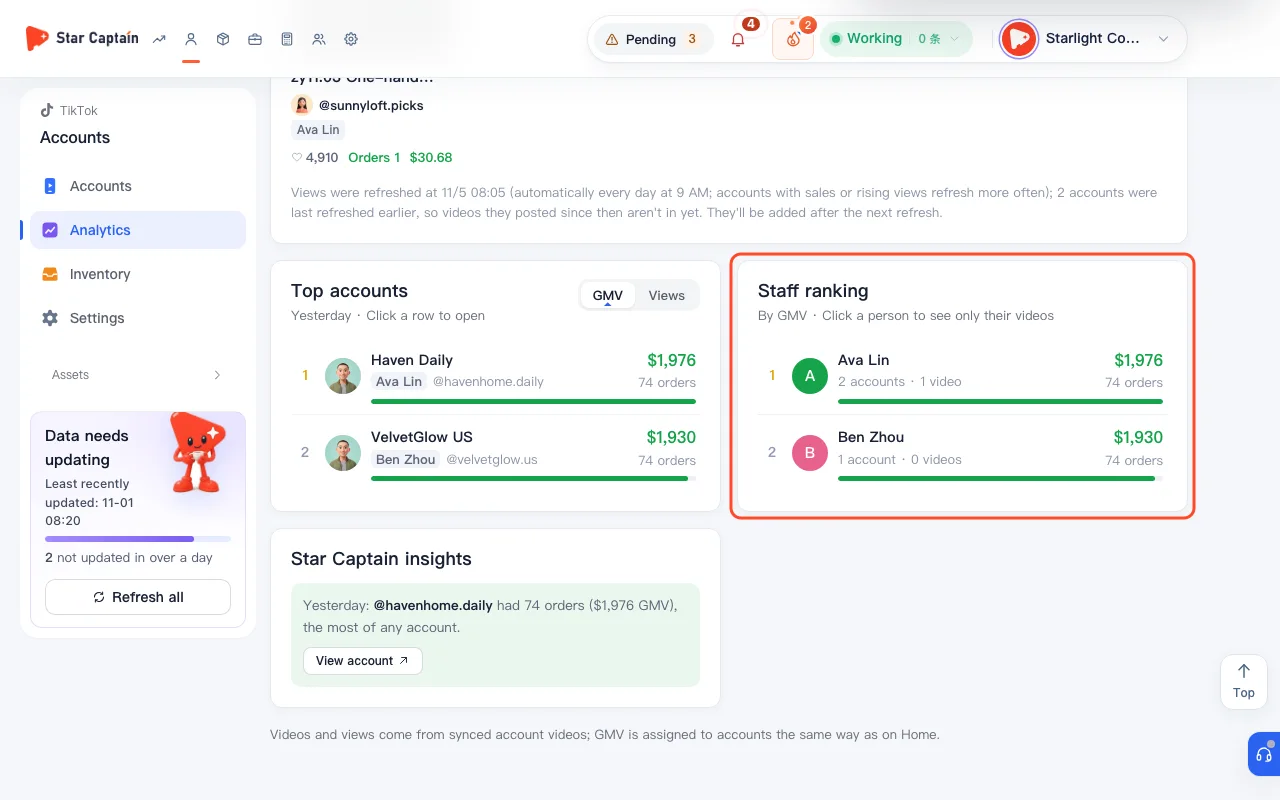
Click the "Staff performance" tab to compare every "Operator" in one table sorted by orders and posts: total "Accounts" (showing "Can sell" and "stale" counts), "New this week", "Posting / utilization", "Videos posted", "10K+ views", "Top views", "Orders · GMV", and "Avg score". Click any operator's row to filter the view down to just that person's accounts.
05Switch to "Account details" to sort all accounts by their 100-point "Score"
Click the "Account details" tab. The "How scores work" banner explains the 100-point rubric over the last 30 days ("Activity 30" + "Traffic 30" + "Viral 20" + "Sales 20", graded S / A / B / C / D, with showcase-banned accounts capped at 39). Filter by "All", "Can sell", or "Showcase banned / banned", and click column headers like "Score", "Posts", "Streak", "Last post", "Avg views", or "Orders · GMV" to sort.
Screenshots use demo data. Check the product for what you actually see.
FAQ
How is the 100-point "Score" calculated in Account details?
It totals four 30-day components out of 100: "Activity 30" (full marks at 12 videos in 30 days, or 3 per week), "Traffic 30" (full marks when median video views reach 5× the viral threshold), "Viral 20" (7 points per viral video, full marks at 3), and "Sales 20" (full marks at 50 orders). Grades are S (≥ 85), A (≥ 70), B (≥ 55), C (≥ 40), and D (< 40), with showcase-banned accounts capped at 39.
What is the difference between "Idle accounts" and "Stale data"?
"Idle accounts" have fresh data synced within the last 3 days, meaning we know for sure the operator hasn't posted any new videos in the selected period. "Stale data" means the account hasn't synced for over 3 days, so you should click "Refresh" to pull its latest videos before judging output.
What does "Repeated link removals" mean under "Needs attention"?
It flags an active account where multiple recent shoppable videos had a confirmed product link when posted but subsequently lost their product links—usually because the product was delisted, ran out of stock, or had its link invalidated.
How often do video views refresh in Account analytics?
Views refresh automatically every day at 9:00 AM Beijing time for all active accounts, and accounts with recent sales or rising views refresh more frequently during the day. You can also click "Refresh" manually anytime.