TikTok accounts
 Orders & performance
 Team management
 Profit & cost
 Brand deals
 Creator toolbox
 Solo creators
 Creator teams
 Multi-department companies
Who is this for?
- Operators and agency owners who want to check notifications and alerts on the top-bar flame and WeChat the moment a product starts spiking in orders so they can post follow-up videos right away
- Team leads who want to check notifications and alerts automatically when a promoted product's sales drop, a brand changes price or cuts commission, or a TikTok account goes offline, needs reauthorization, or gets banned
- Owners, admins, and team leads who broadcast announcements to the whole agency or specific groups and want to see who has read them
What to prepare before starting?
- You are signed in to the workspace with your team's active TikTok accounts connected under "Accounts"
- If you want to check notifications and alerts pushed to your phone on WeChat, have your WeChat app ready to scan the binding QR code
01Click the top-bar flame and bell icons to check sales spikes and categorized messages
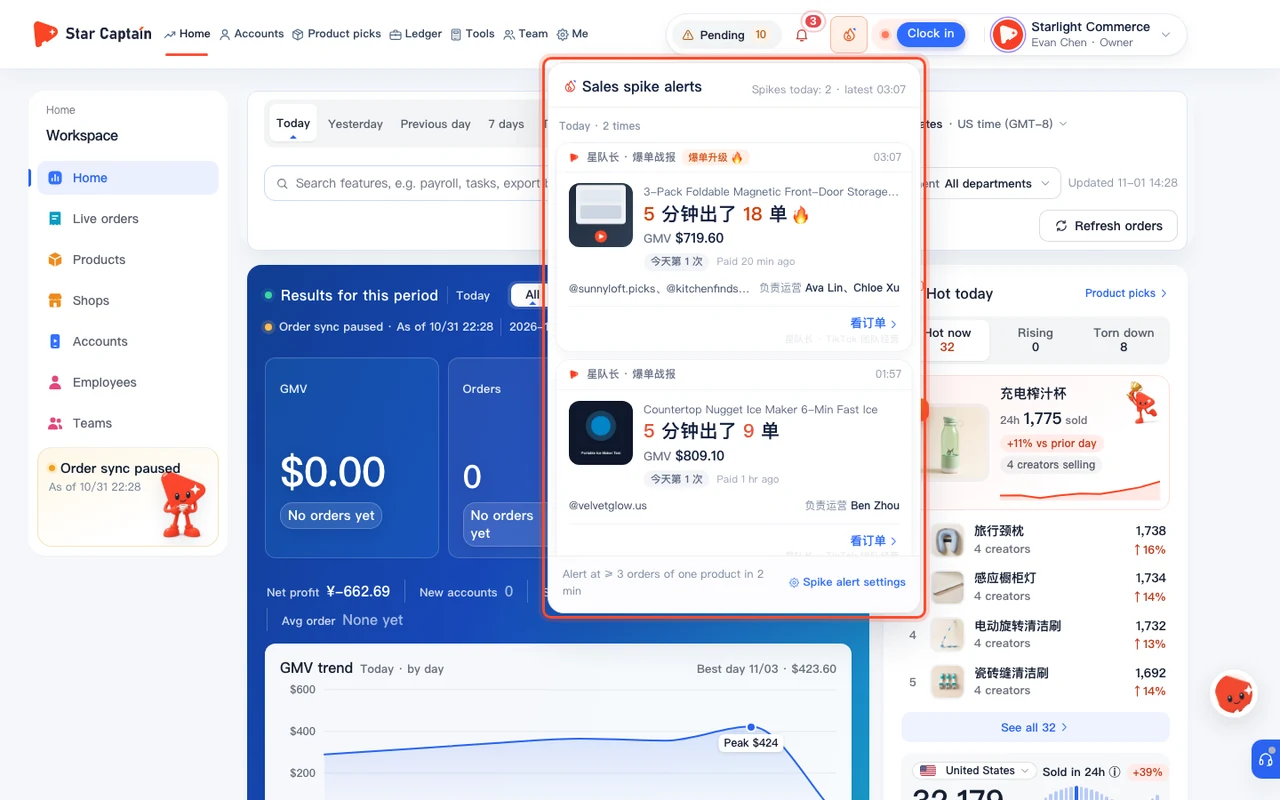
To set up Star Captain notification settings, use the two icons at the top right of the workspace header, both updated in real time: click the **flame icon ("Sales spike alerts")** to "See every spike" (including "Sales spikes in the last 7 days") grouped under "Today", "Yesterday", and "Earlier"; click the **bell icon ("Message categories")** to filter by "All", "Team notice", "Sales spike", "Hot picks", "Tasks", "Approvals", and "System". Each message includes a one-click action button—such as "Handle", "View", "My tasks", "Review video", or "Approve"—plus "Mark {tab} read" or "Mark all read" at the top.
02Open "Spike alert settings" to configure the "Spike threshold" and Home display
Next in your Star Captain notification settings, go to "Me" ("Settings & shortcuts") and open "Spike alert settings" under "Sales spike alerts". Turn the main switch "On" ("Shared across the organization · Set by the owner"). Under "Spike threshold", click "Use recommended" to apply the threshold calculated from your last 7 days' daily order average, pick one of the "Presets" (`{m} orders / {w} min`), or choose "Custom". At twice the threshold, spikes are marked as a surge. You can also toggle "Show spikes on Home" for yourself and click "Save".
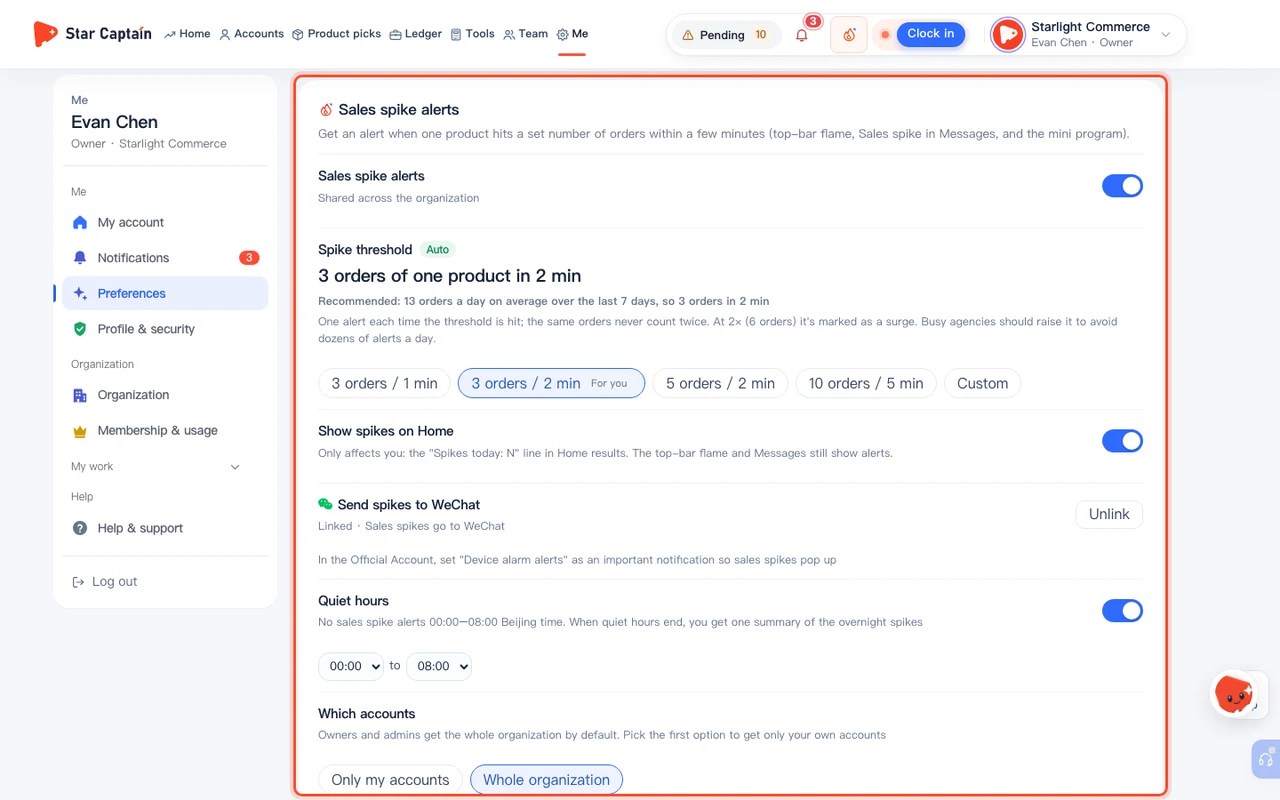
03Toggle "Daily morning brief", product alerts, and account status alerts in "Morning brief and alerts"
On the same settings page, find the "Morning brief and alerts" card to manage daily notifications and alerts by toggling the five switches you need: "Daily morning brief" (delivers "Today's morning brief" each morning), "Product sales drop", "Brand price change", "Commission cut", and "Account offline / needs reauthorization / banned". Between 11 PM and 8 AM ("From 11 PM to 8 AM alerts only go to Messages, with no push"), alerts are saved quietly to your inbox without overnight pop-ups.
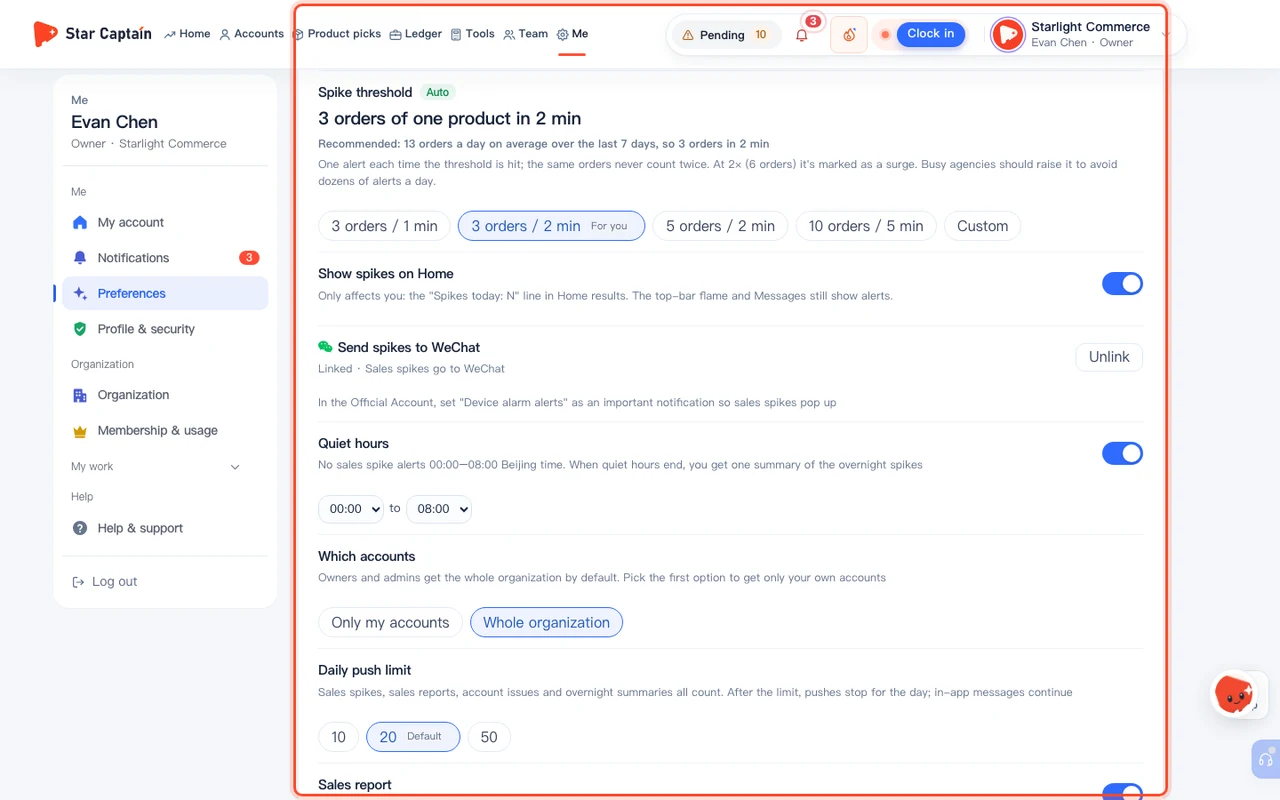
04Link the Official Account under "Send spikes to WeChat" and set "Quiet hours", account scope, and daily limits
To receive sales spike notifications and alerts on your phone, find "Send spikes to WeChat" and click "Link Official Account". Scan the QR code with WeChat until the status shows "Linked · Sales spikes go to WeChat". Right below, customize your personal WeChat push preferences: enable "Quiet hours" (mutes overnight pushes and sends one summary of overnight spikes when quiet hours end), set "Which accounts" ("Whole organization" or "Only my accounts"), and configure "Daily push limit", "Sales report" ("Report times"), and "Account issue alerts".
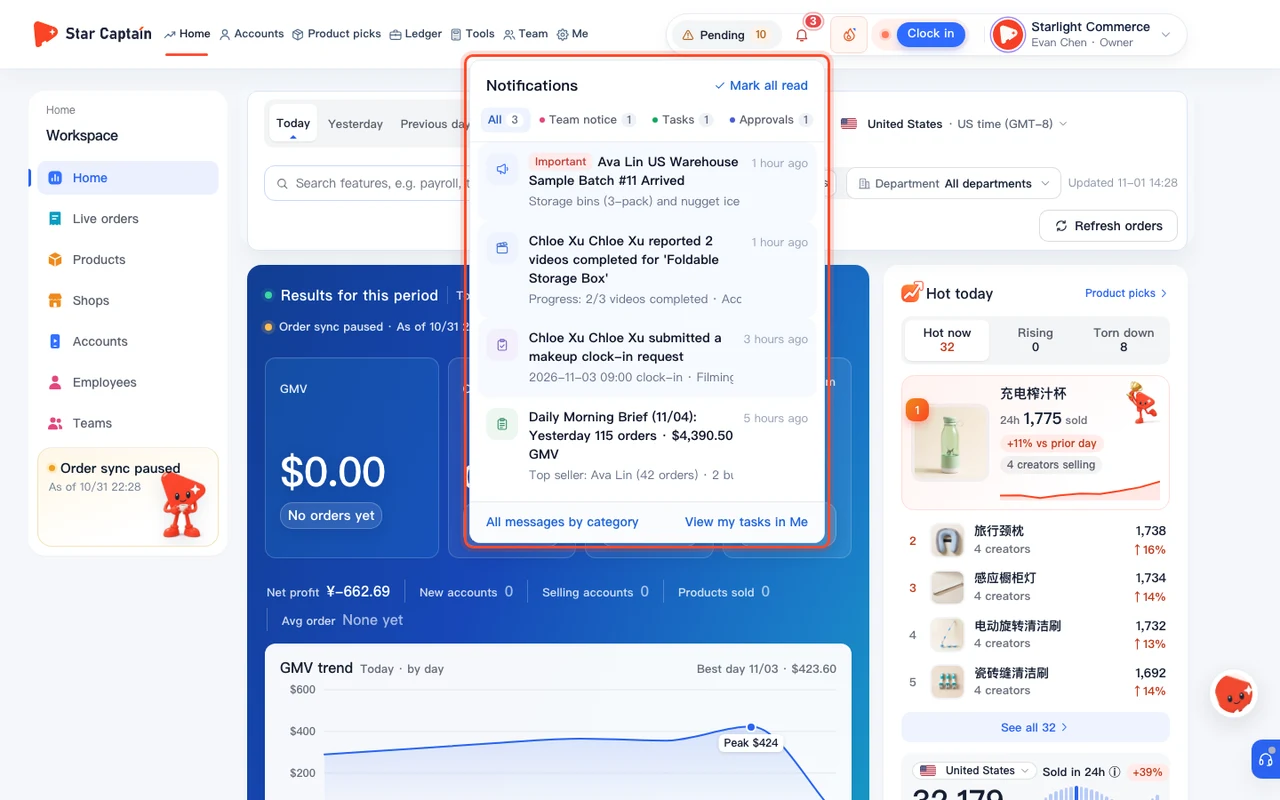
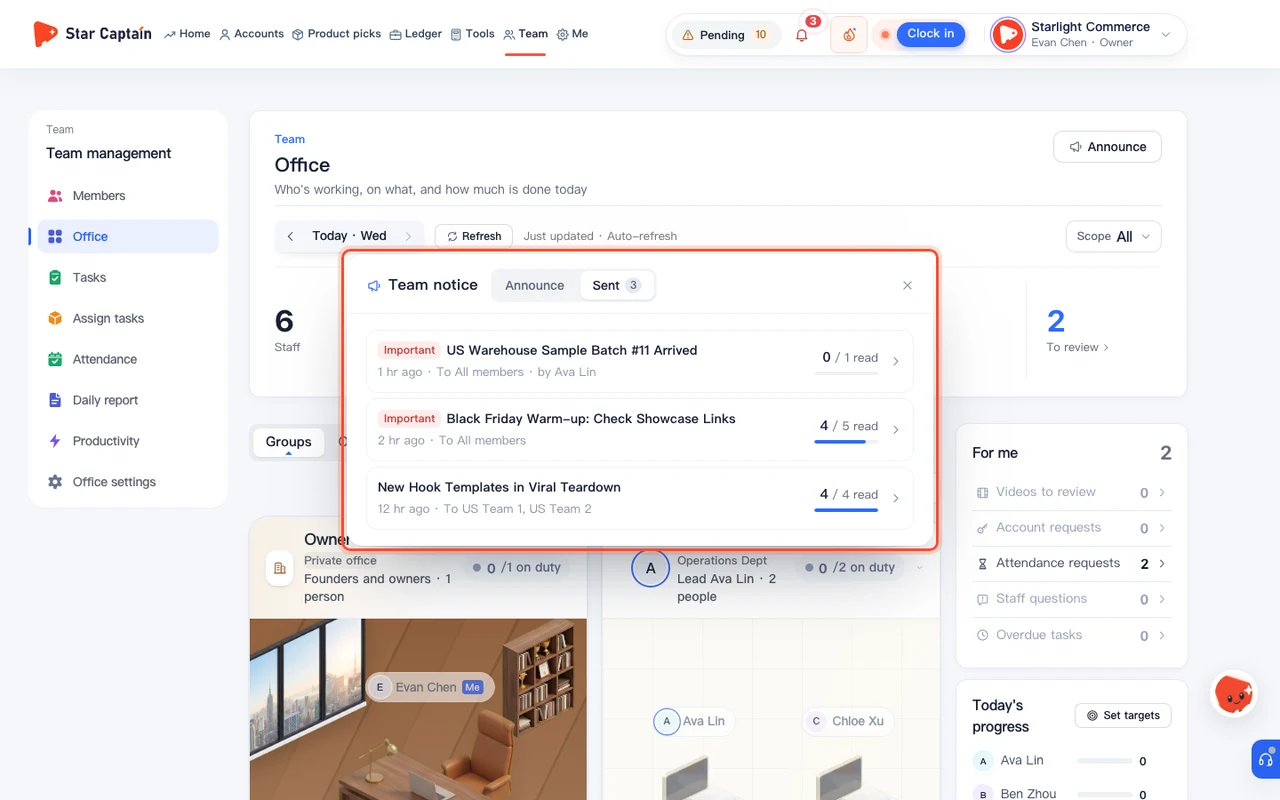
05Send a "Team notice" from "Team → Announce" and check "Who read it" under "Sent"
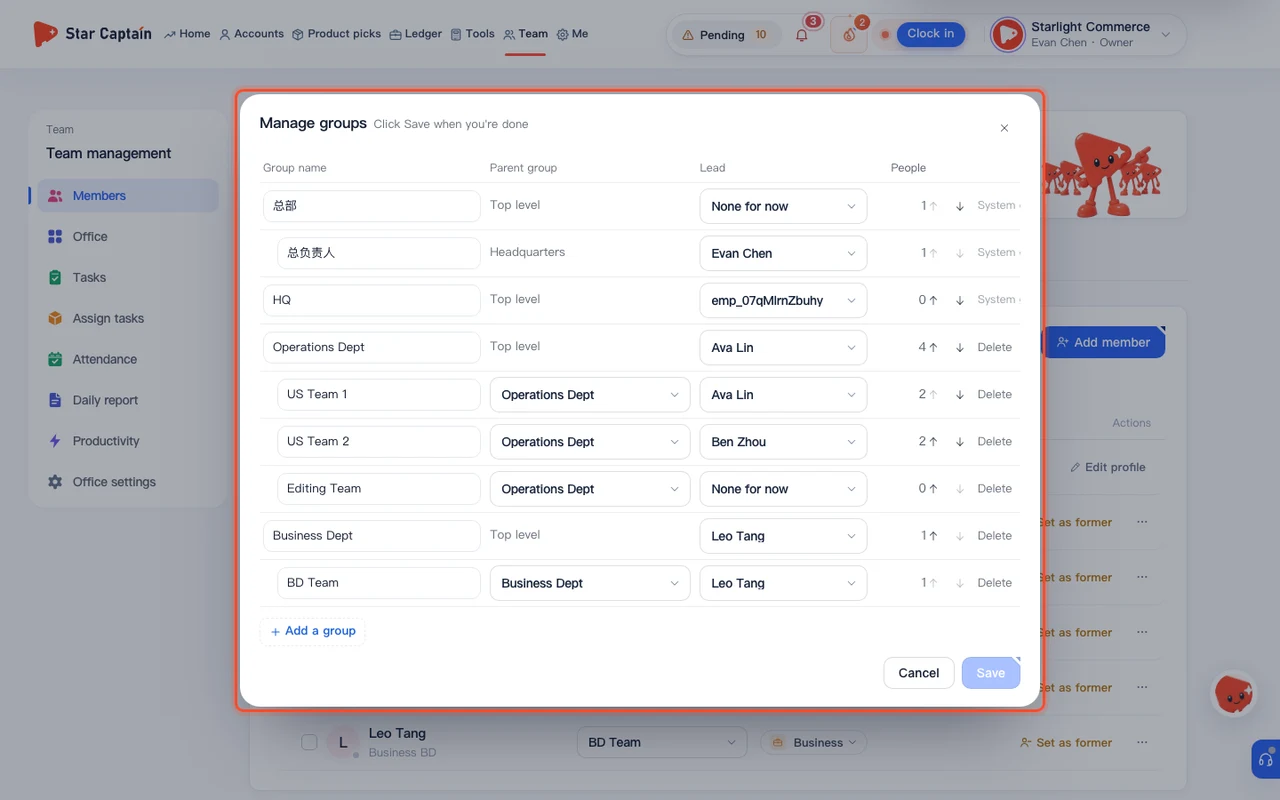
When an owner, admin, or team lead needs to post an announcement, open "Team" and click "Announce" ("Send a team notice"). Under "Send to", pick "Everyone", "Everyone I manage", or "Choose departments / groups". Enter an optional "Title", write your "Message" (up to 500 characters), optionally click "Add an image", and check "Important" ("Pinned, with a more visible bell badge") before clicking "Send". Switch to the "Sent" tab to see `{read} / {total} read`, inspect the "Unread" and "Read" lists under "Who read it", or click "Recall this notice".
Screenshots use demo data. Check the product for what you actually see.
FAQ
Our agency gets dozens of orders an hour and the spike alerts fire too often. How do we quiet them down?
To fine-tune your notifications and alerts, have the agency owner raise the "Spike threshold" in "Spike alert settings", or set a personal "Daily push limit" under your WeChat push settings. Once your daily push limit is reached, WeChat pushes pause for the rest of the day while in-app messages continue as normal.
Why did my WeChat spike alerts stop arriving after I linked my account?
If you unfollowed the Official Account in WeChat, the status row will note `You unfollowed in WeChat. Link again to get alerts`. Click "Link again" and scan the QR code with WeChat to restore mobile pushes.
Can any staff member change the "Spike threshold" for the agency?
No. The "Spike threshold" is shared across the organization and set by the owner. However, every member can control their own "Show spikes on Home" switch, link their own WeChat, and set their own "Quiet hours" and "Daily push limit".
Can I recall a team notice after sending it?
Yes. Open "Team → Announce", switch to the "Sent" tab, open the notice, and click "Recall this notice". Once recalled, it is removed immediately from everyone's desktop bell drawer and mini program.