TikTok accounts
 Orders & performance
 Team management
 Profit & cost
 Brand deals
 Creator toolbox
 Solo creators
 Creator teams
 Multi-department companies
Who is this for?
- Agency owners scaling from a handful of staff to multiple teams who want a clean `Department → Team 1 / Team 2` structure
- Founders who want team leads to assign tasks, review videos, track attendance, and check orders for their own group without seeing other groups' accounts or company-wide net profit
- Operations managers who move staff between groups and want account visibility and reporting scopes to follow group membership automatically
What to prepare before starting?
- You have already added the team leads and staff members under "Team → Members" (see *How to Add Team Members, Set Up Logins, and Assign Roles*)
- You have mapped out your team hierarchy (which top-level departments you need, which subgroups sit under each department, and who leads each group)
01Open "Team → Members", click "Manage groups", and create departments and subgroups
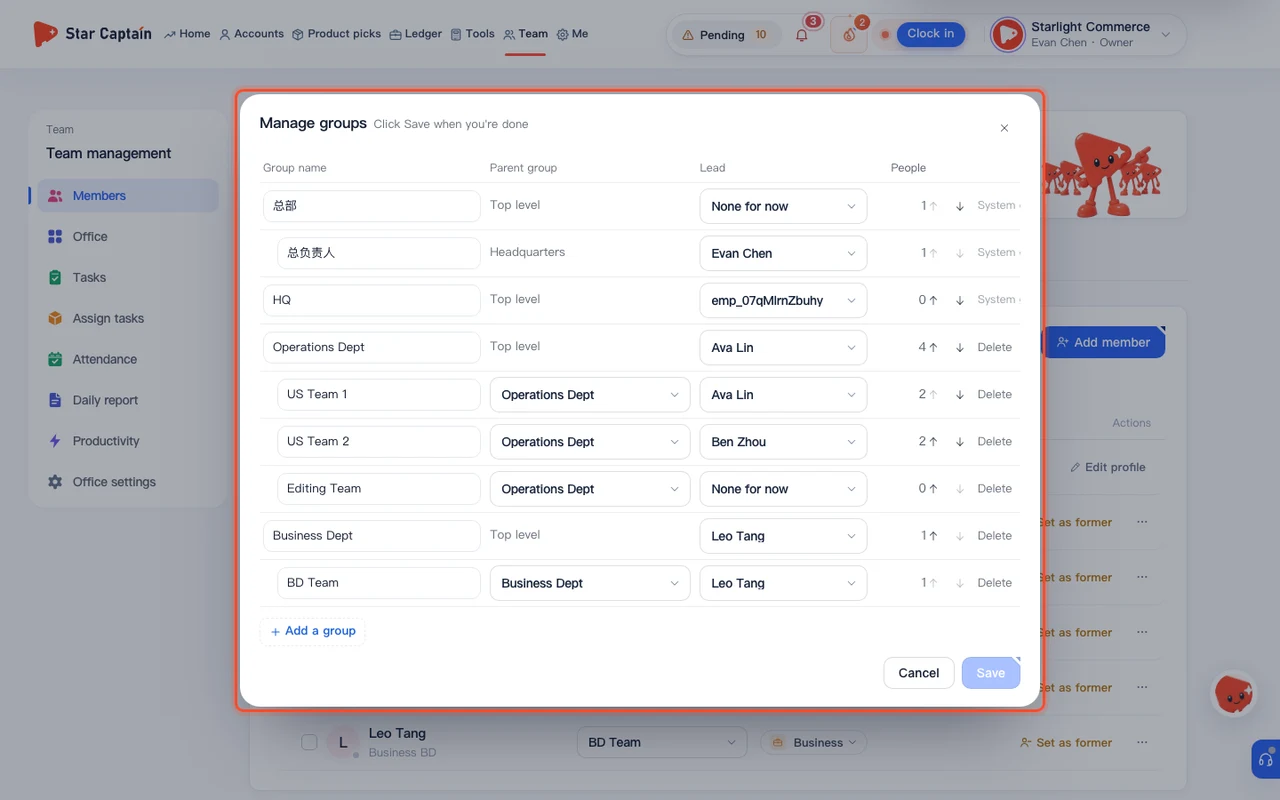
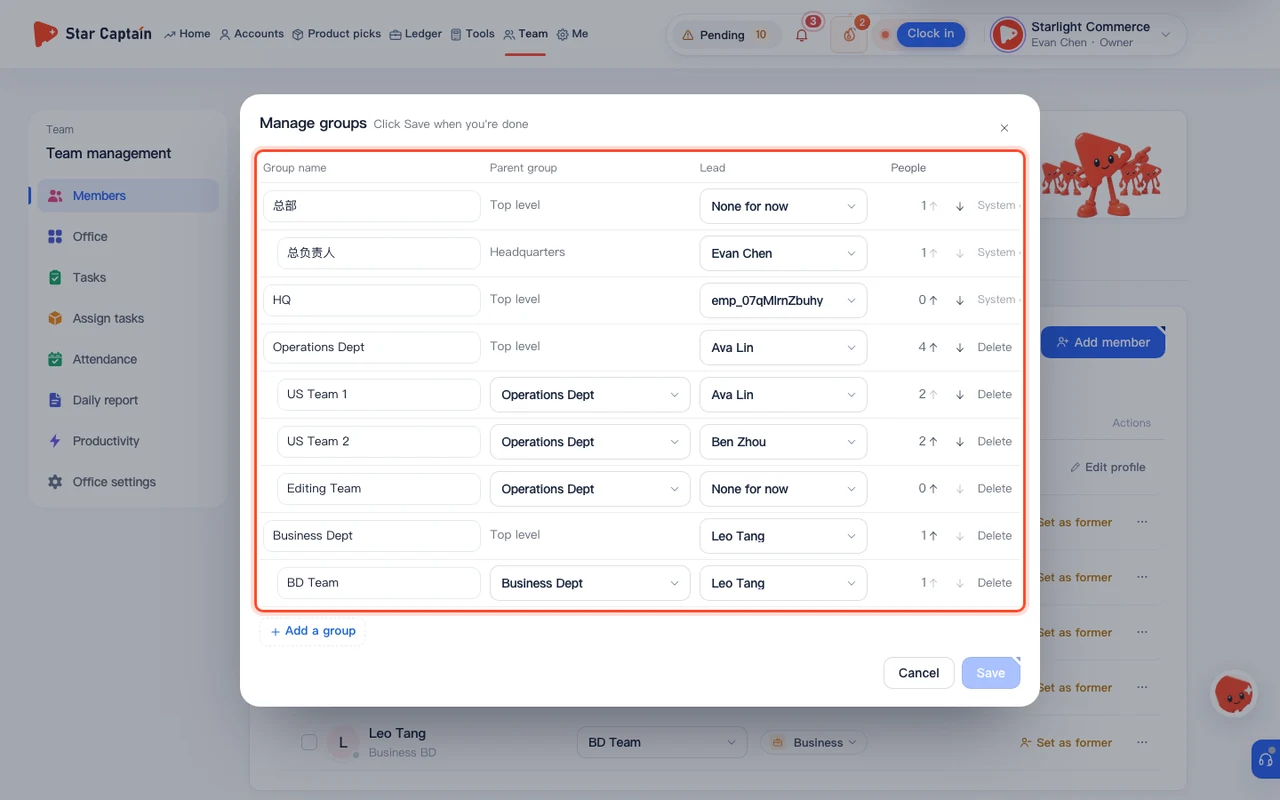
To set up departments and team leads, sign in to the workspace, click "Team → Members" in the left navigation, and click "Manage groups" at the top right. The modal table lists every existing group with columns for "Group name", "Parent group", "Lead", "People", and "Order and delete". Click "Add a group" at the bottom left: to create a top-level department (such as `Operations Dept`), enter the "Group name" and leave "Parent group" set to "Top level"; to create a subgroup under it (such as `Ops team 1` or `Ops team 2`), click "Add a group" again and set "Parent group" to that department.
02Pick each group's "Lead" in "Manage groups" and click "Save"
Still inside "Manage groups", use the "Lead" dropdown on each department and subgroup row to pick the person in charge. In Star Captain, "A department's lead is its department head automatically" and "A group's lead is its team lead automatically" ("No need to set team leads: whoever leads a group becomes its team lead"). If the person you pick currently belongs to another group, Star Captain notes "They'll move into this new group" and updates both their group and role automatically when you click "Save".
03Move members into their groups individually or in bulk
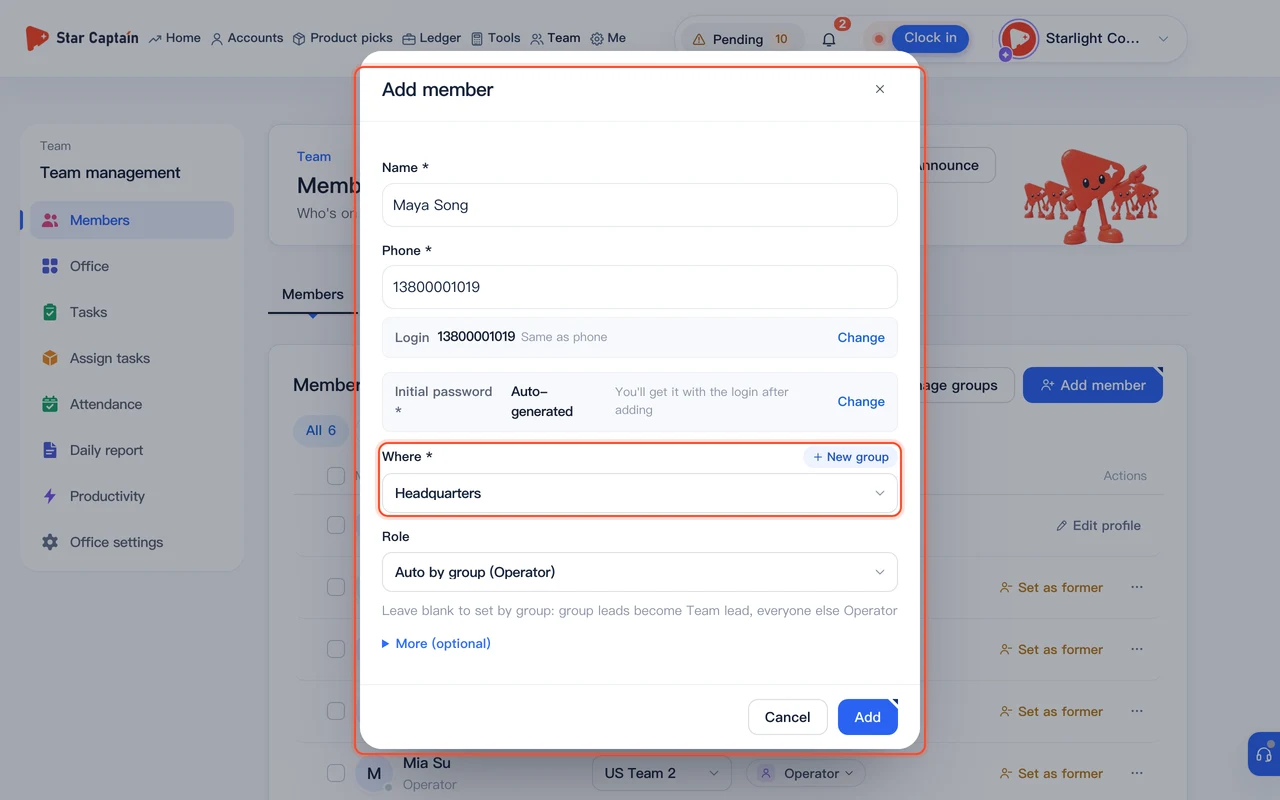
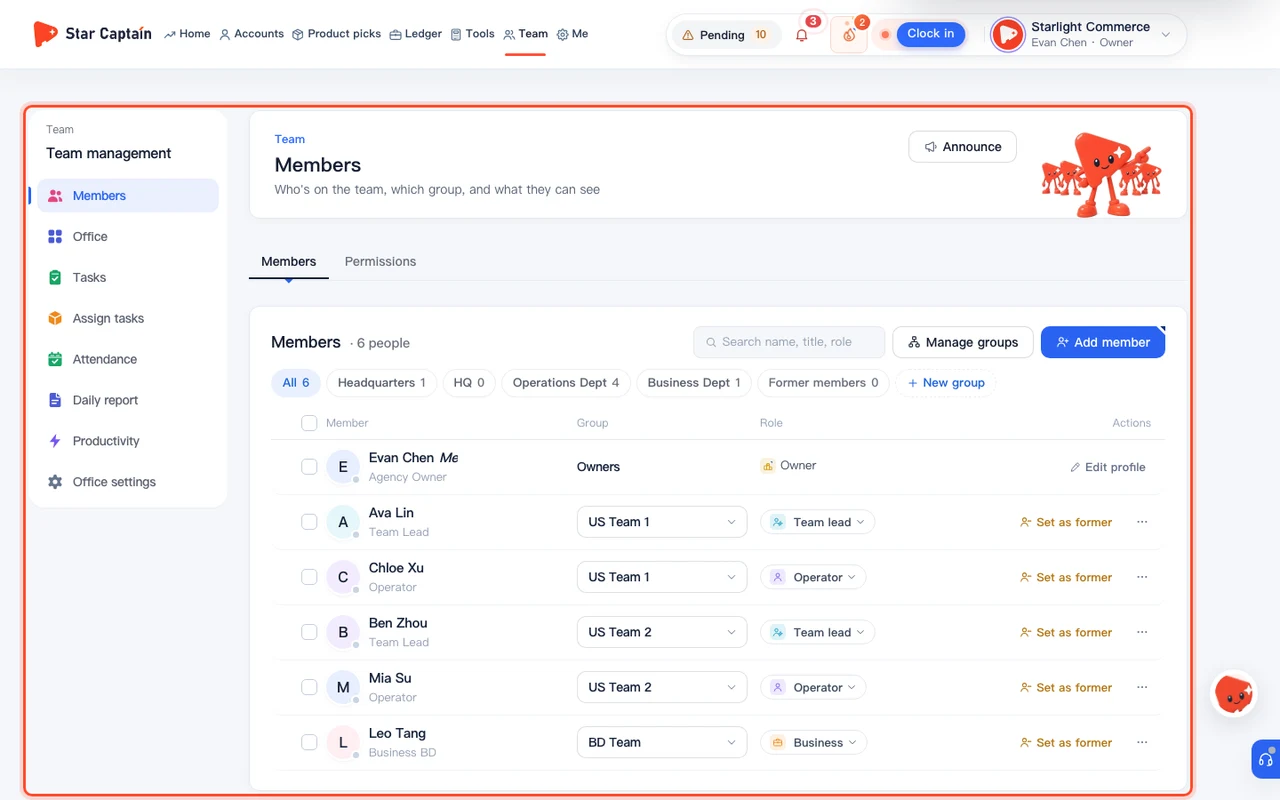
Back on the "Members" list, place your team members into their respective groups. When adding a new employee via "Add member", pick their group under "Where *". For existing members, either change the "Group" dropdown on a member's row, or check multiple teammates, choose the target group next to "Move to" on the "Bulk actions" bar, and click "Move" to transfer everyone at once.
04Check the team lead's data scope, management scope, and features in "Permissions"
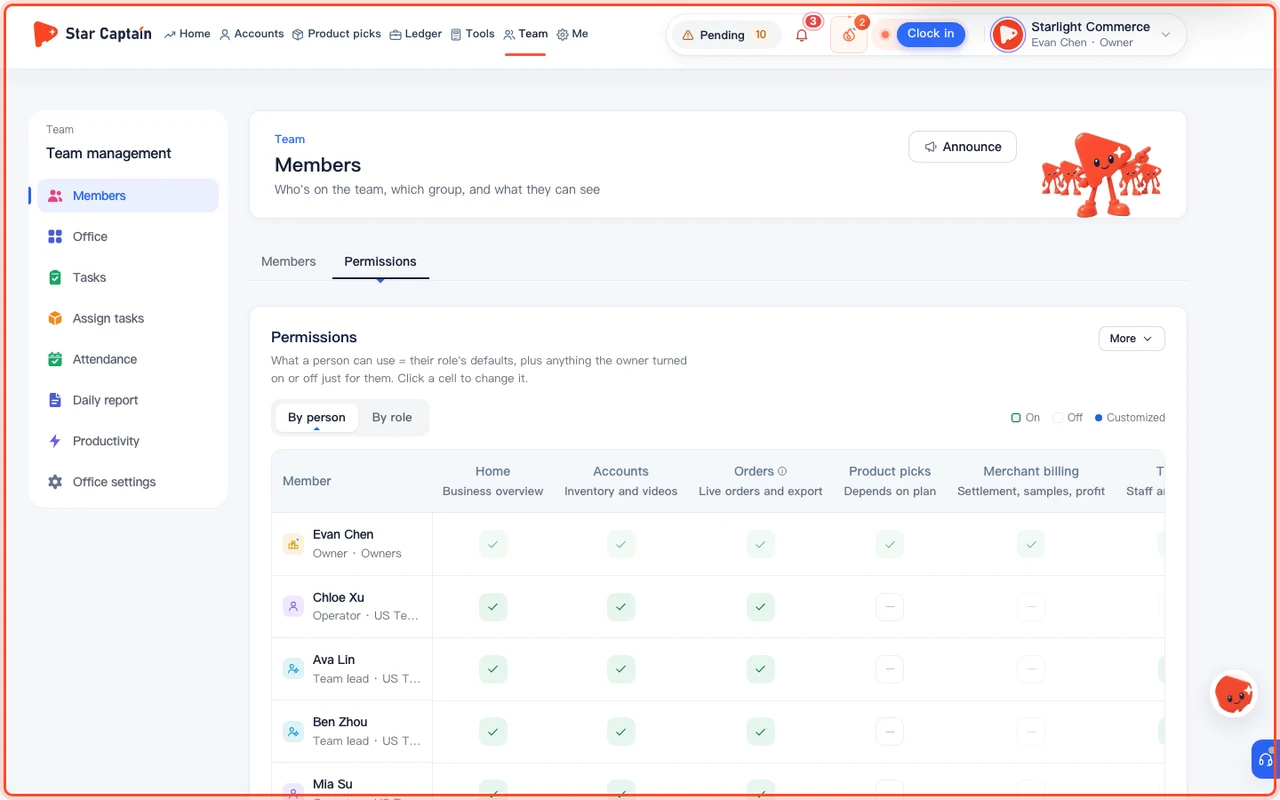
Click "Team → Permissions" in the left navigation (or "Roles" at the top). You can view permissions "By person" or "By role" across all seven sections ("Home", "Accounts", "Orders", "Product picks", "Merchant billing", "Team", and "Tools"). Click "Role settings" at the top right to inspect or fine-tune the "Team lead" role: "Whose data" defaults to "Own team" ("their team's accounts and orders"; for a "Department head", it is "Own department"); "Who they manage" defaults to "Manages team" ("manages their team's people and accounts"); and "Commission display" can be set to "Full commission", "Partial commission", or "No commission". In a member's drawer, you can also toggle "Add, edit, authorize accounts" or "Set daily targets".
05Verify that the team lead only sees and manages their own group across the workspace
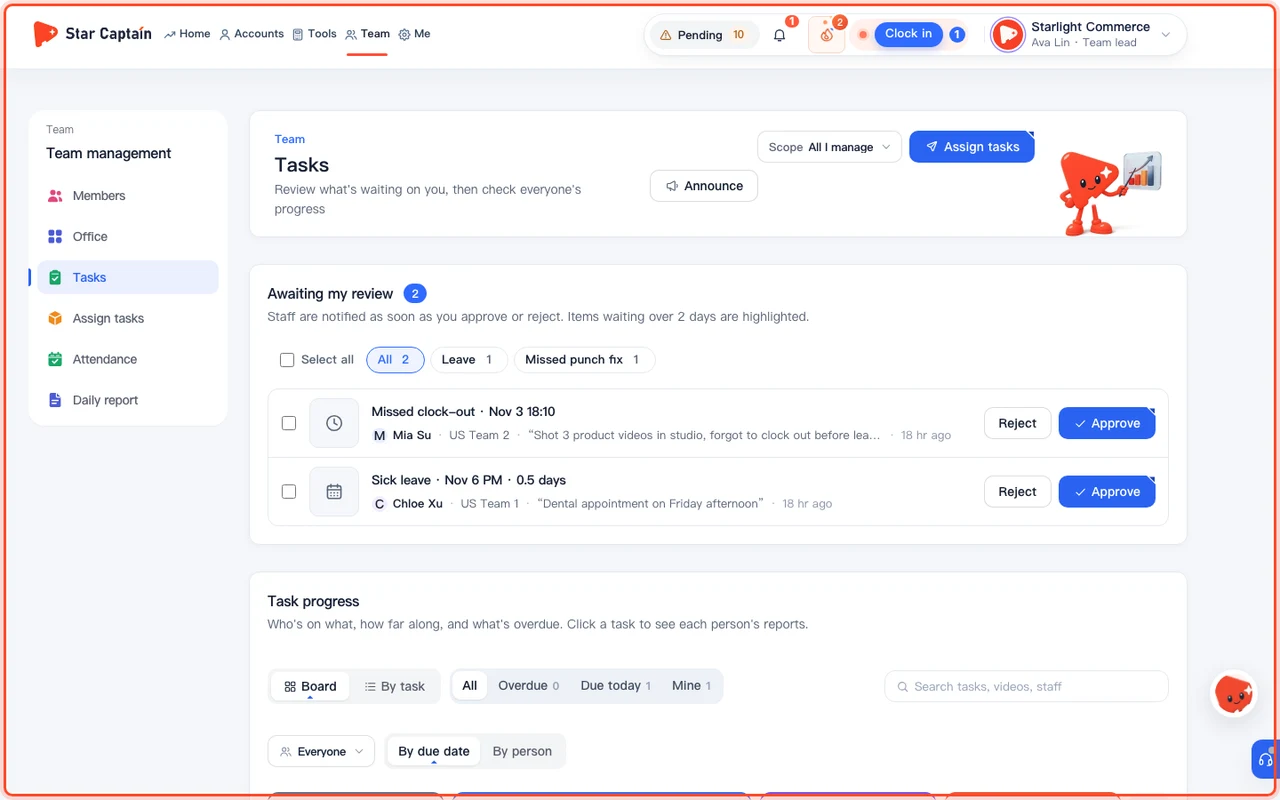
When the team lead signs in with their own login: in "Accounts" and "Orders", they only see the TikTok accounts and orders belonging to members of their own group, with no access to other teams' accounts or the agency's "Ledger" ("Profit"). In "Team" ("Office", "Tasks", "Assign tasks", "Attendance", and "Daily report"), the "Scope" filter defaults to "All I manage", so they can set daily targets, assign products, review submitted videos under "Awaiting my review", and approve attendance requests for their own team.
Screenshots use demo data. Check the product for what you actually see.
FAQ
To promote an operator to team lead, should I change their role or set them as the group's "Lead"?
Set them as the group's "Lead" inside "Manage groups". Whoever leads a group becomes its "Team lead" automatically—so once you save the group, their role and management scope update on their own.
Why wasn't a team lead moved when I used "Bulk actions → Move"?
Because they are still set as the "Lead" of their current group ("still lead a group. Change the lead in group settings first"). Open "Manage groups", change that group's "Lead" to the new lead (or "None for now"), click "Save", and then move them.
If I delete a subgroup, what happens to the members inside it?
Nothing is lost. When you click "Delete" on a group that has members in "Manage groups", Star Captain asks "Move N people to which group?" so you can pick a destination group before saving. All their accounts, orders, and history stay intact.
Can I let one specific team lead access "Product picks" without changing the default for all team leads?
Yes. In "Team → Permissions", switch "View by" to "By person", find that team lead's row, and click the "Product picks" cell to turn it "On" (marked with a blue dot for "Customized"). Their data scope for "Accounts" and "Orders" will still stay restricted to "Own team".