TikTok accounts
 Orders & performance
 Team management
 Profit & cost
 Brand deals
 Creator toolbox
 Solo creators
 Creator teams
 Multi-department companies
Who is this for?
- Agency owners who want instant answers to questions like "Which account had the most orders yesterday?" or "Who performed best in the last 7 days?" without clicking through multiple filters
- Operations leads and team leads who check "How many accounts got banned today?", "Who hasn't clocked in today?", and "Who didn't finish their edits yesterday?" every morning
- Brand managers and finance staff who want to drag a partner brand's Excel or CSV statement into the chat to compare orders line by line
What to prepare before starting?
- You are signed in to the Star Captain workspace (the assistant automatically respects your role's data scope: owners see the whole agency, team leads see their own group, and operators see their own accounts)
- If you want to check a brand statement, have the brand's `.xlsx`, `.xls`, or `.csv` file ready on your computer
01Click "Ask Star Captain" in the top bar (or press Ctrl+K) from any page
To ask Star Captain Assistant, from anywhere in the workspace, click "Ask Star Captain" on the right side of the top bar (or press `Ctrl+K` / `⌘K`) to slide open the "Ask Star Captain" drawer. Below the header ("Ask about data, assign tasks, manage your team — just say the word"), the assistant greets you with starter chips you can click right away: "How's today going?", "Who's performing best?", "Who hasn't clocked in today?", "Profit this month", and "Account-buying advice".
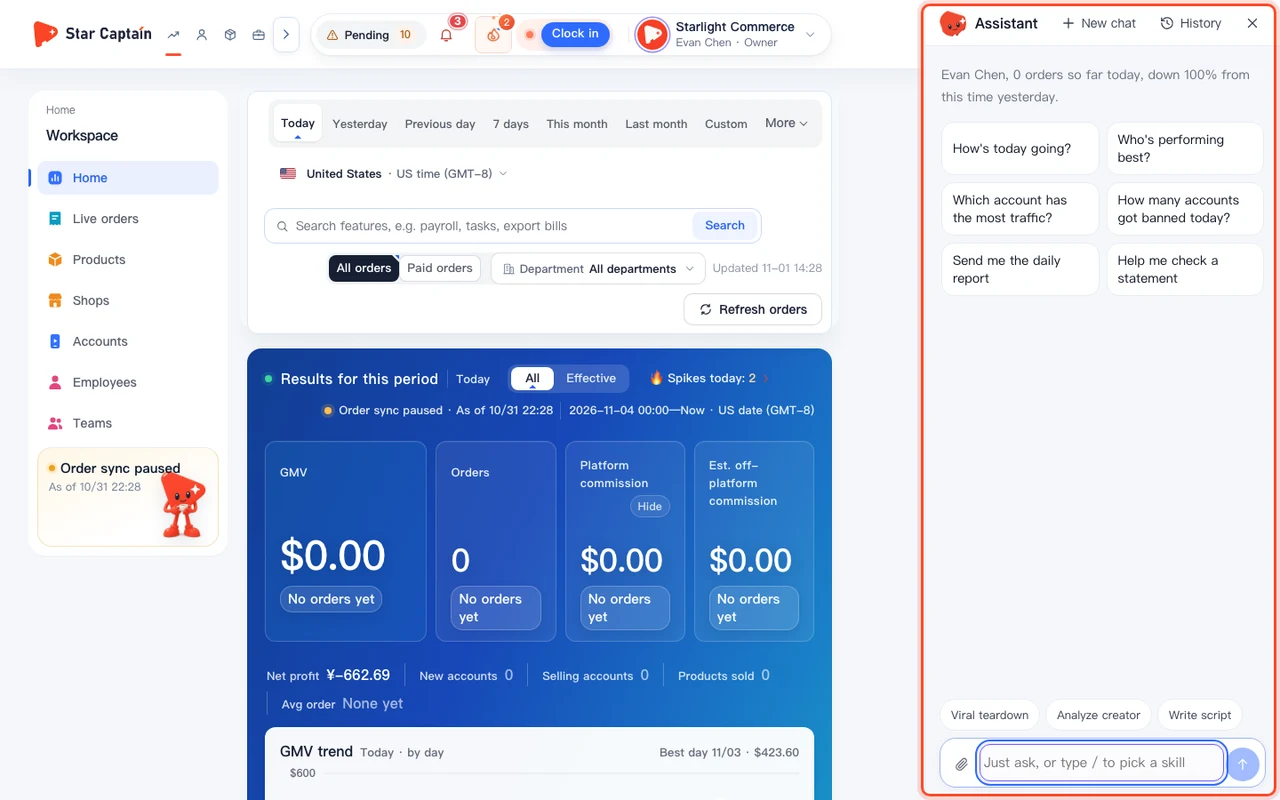
02Ask natural-language questions about account orders, views, staff performance, and profit
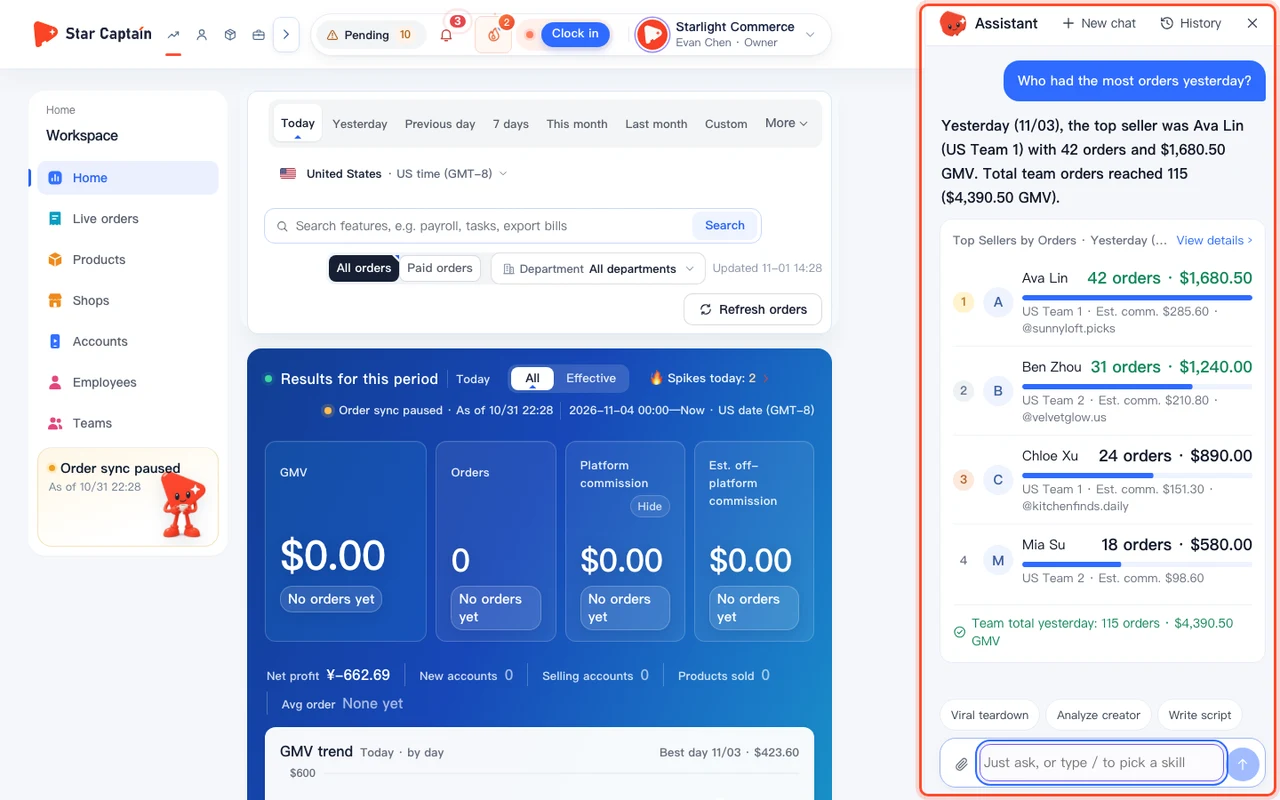
In the input box at the bottom ("Ask anything, or tap a question above…"), type your question in plain language and press `Enter` or click "Send". You can ask about accounts and sales ("Which account had the most orders yesterday?", "Which account has the most traffic?", "How many accounts got banned today?", "What products are selling well lately?"), team and attendance ("Who performed best in the last 7 days?", "Who hasn't clocked in today?", "Who didn't finish their edits yesterday?"), or profit and ROI ("Profit this month", "Account-buying advice"). You can also ask how to use any workspace feature (such as "How do I calculate account payback?" or "How do I push sales spike alerts to WeChat?") and receive a step-by-step answer with a direct tutorial link.
03Tell the assistant to run team actions and click "Confirm" on the preview card
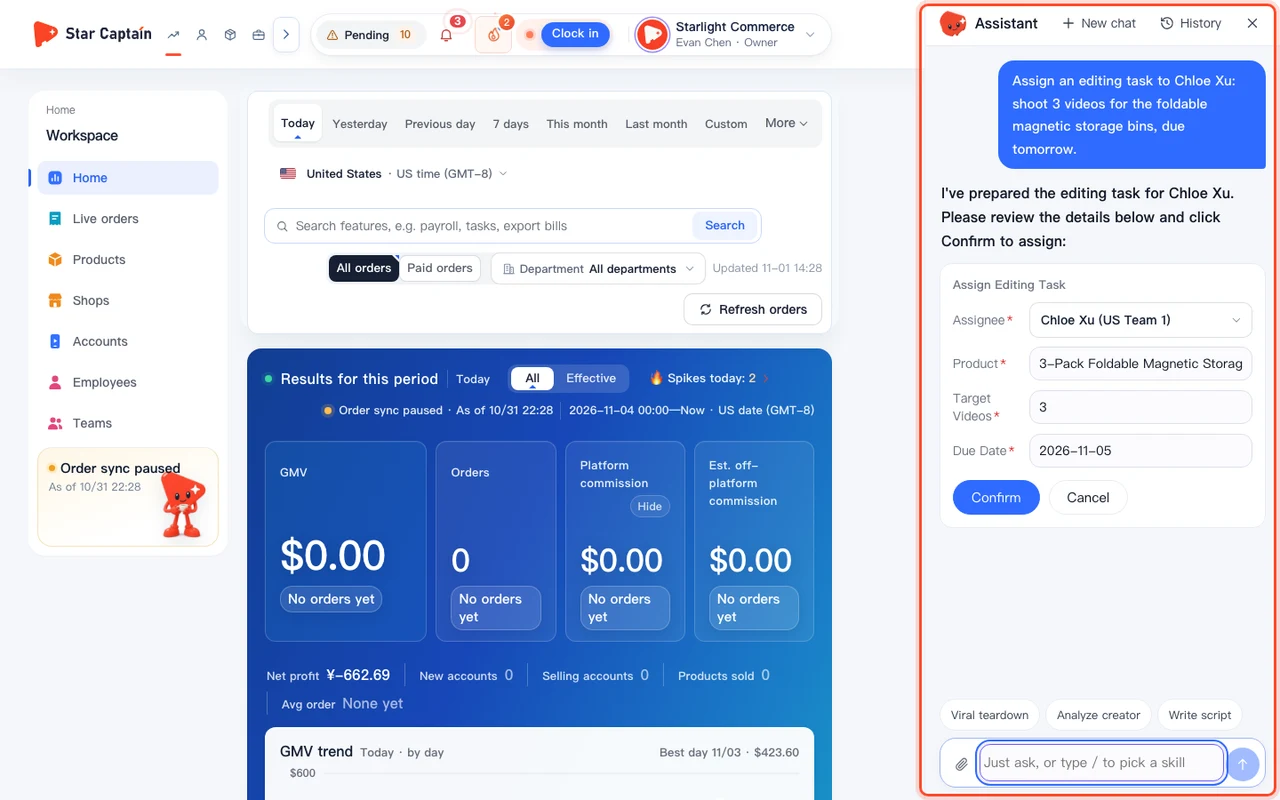
Beyond answering data questions, the assistant can carry out everyday management actions when you ask: reassign a TikTok account to another operator, move a member between departments or groups, add an employee, assign an editing task, change someone's daily editing target, or send today's daily report to your inbox. Whenever an action would modify data, the assistant first displays a "Should I do this?" confirmation card summarizing the exact change. Nothing is changed until you click "Confirm" (or "Cancel"), after which it updates to "Done".
04Click "Help me check a statement" or drag in an Excel/CSV file to compare orders line by line
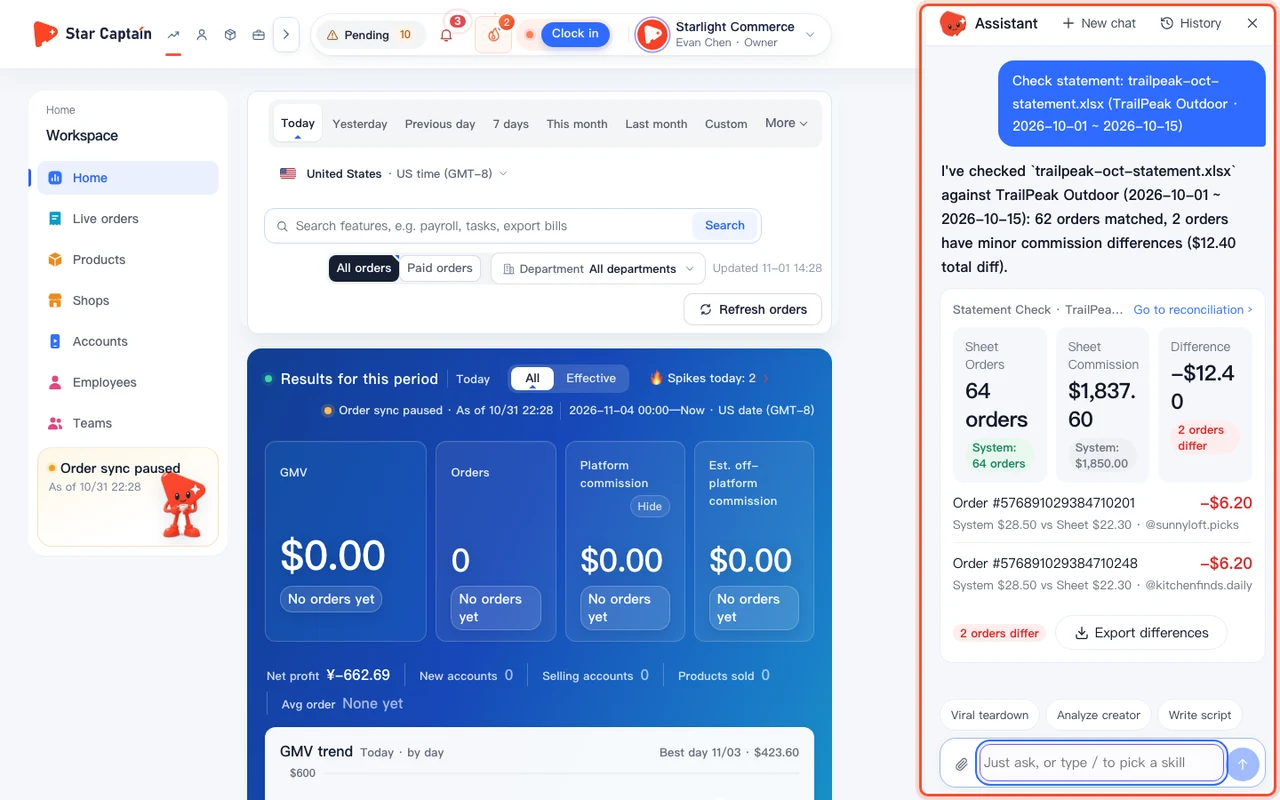
To check a partner brand's settlement sheet, click the paperclip icon at the bottom left of the input box (or click "Help me check a statement"), or drag and drop the brand's `.xlsx`, `.xls`, or `.csv` file into the drawer. The assistant parses the file ("Parsing the file and matching orders…"), compares every row against your orders in Star Captain, and returns a summary card showing "Valid rows", "Matched & equal", "Amount mismatch", and "Not found in system". Click "Show N mismatched orders" to inspect each order's "Order ID", "Sheet amount", "System amount", and "Diff".
05Use bottom skill shortcuts ("Viral teardown", "Analyze creator", "Write script") and revisit "History"
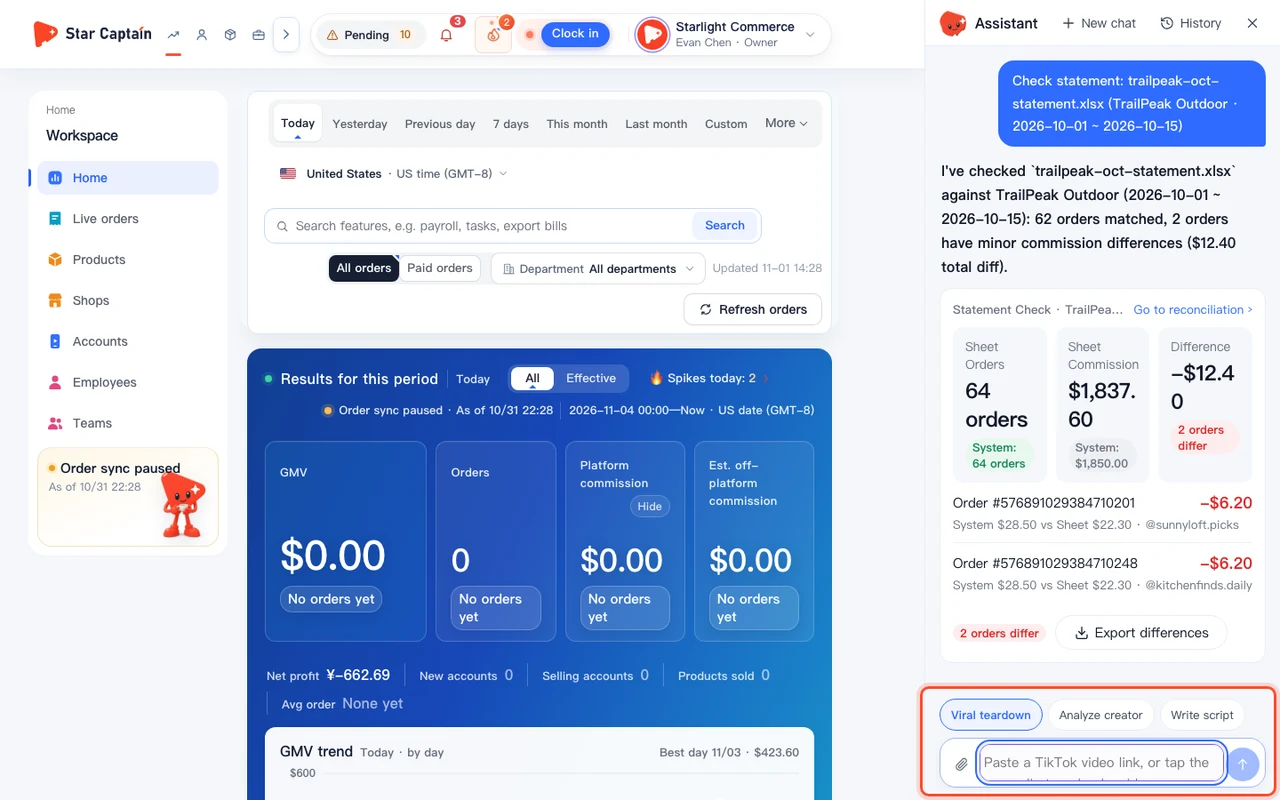
Above the input box, a row of skill pills helps with content creation: click "Viral teardown" and paste a TikTok video link to break down the 3-second hook, storyboard, and selling points; click "Analyze creator" with a profile link or `@handle` to see how they grew; or click "Write script" with a product name to get three 15–25 second TikTok scripts. At the top right of the drawer, click "New chat" to start a fresh thread, "History" to reopen earlier conversations, or "Contact support" to reach human support.
Screenshots use demo data. Check the product for what you actually see.
FAQ
Can a regular operator ask the assistant for company-wide profit or other people's orders?
No. The assistant enforces the exact same role and data-access rules as the rest of the workspace: operators only see their own accounts and tasks, team leads only see their own group, and only agency owners or authorized admins can query company-wide profit and full-team rankings.
What if the assistant misunderstands who I want to reassign an account or task to?
It will never apply a change without your approval. Every write action pauses at a "Should I do this?" preview card showing the target member, account, or task details—just click "Cancel" if anything looks off.
Does a brand's Excel sheet need to follow a strict template before I drag it in?
No. The assistant automatically detects standard order ID and commission/settlement amount columns in `.xlsx`, `.xls`, and `.csv` files (up to 5 MB per file).
Are my past chats saved if I close the drawer or refresh the page?
Yes. Every conversation is saved under "History" at the top right of the drawer, so you can reopen past answers or delete old threads whenever you like.