TikTok accounts
 Orders & performance
 Team management
 Profit & cost
 Brand deals
 Creator toolbox
 Solo creators
 Creator teams
 Multi-department companies
Who is this for?
- Subgroup leads and department managers who approve daily account requests, attendance corrections, and video submissions for their subgroup
- Operations directors who want a single inbox for team blockers instead of chasing requests across multiple group chats
- Admins and inventory managers who receive escalated staff questions or issue accounts after a lead approves a request
What to prepare before starting?
- Your departments, subgroups, and team leads are configured under "Team → Members" so staff requests route to the right lead
- Staff members have submitted video cuts, new account requests, attendance requests, or questions from their Personal Center
01Open "Team" to handle team inbox and approvals in the "For me" panel
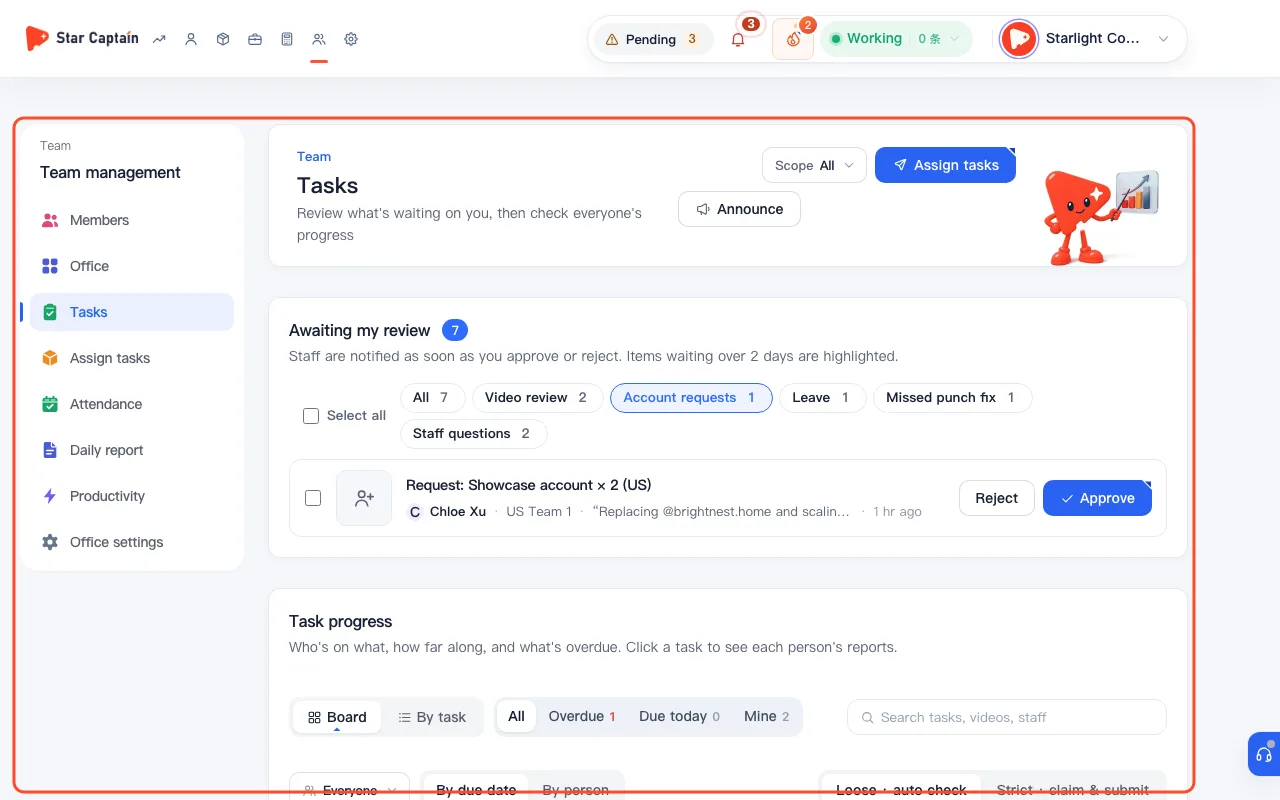
To handle team inbox and approvals, go to "Team" and locate the "For me" panel. It groups every pending item across your management scope into five tabs: "Videos to review", "Account requests", "Attendance requests", "Staff questions", and "Overdue tasks" (showing "All clear" once everything is handled). For submitted edits showing `v{n}`, click "Review" to jump straight into the frame-by-frame review player.
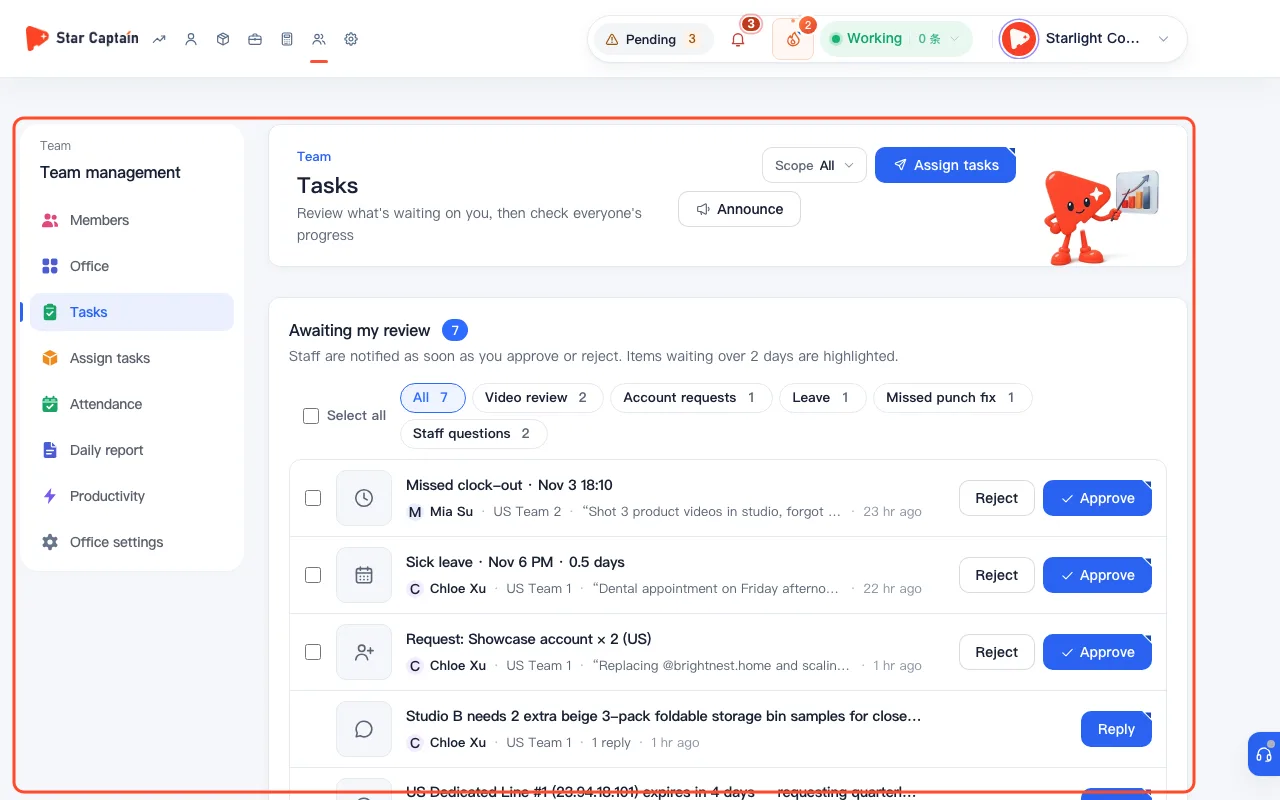
02Approve or decline "Account requests" from team members
Switch to "Account requests" to inspect each application—showing the member's name, request timestamp, `Requested {n} × Showcase account ({region})`, and their stated reason. Click "Approve" to confirm (`Approved. The business team gets a reminder to issue it`), or click "Decline" and enter a "Reason for declining (the member can see it)" so the operator knows why right away.
03Process missed punches and leave under "Attendance requests"
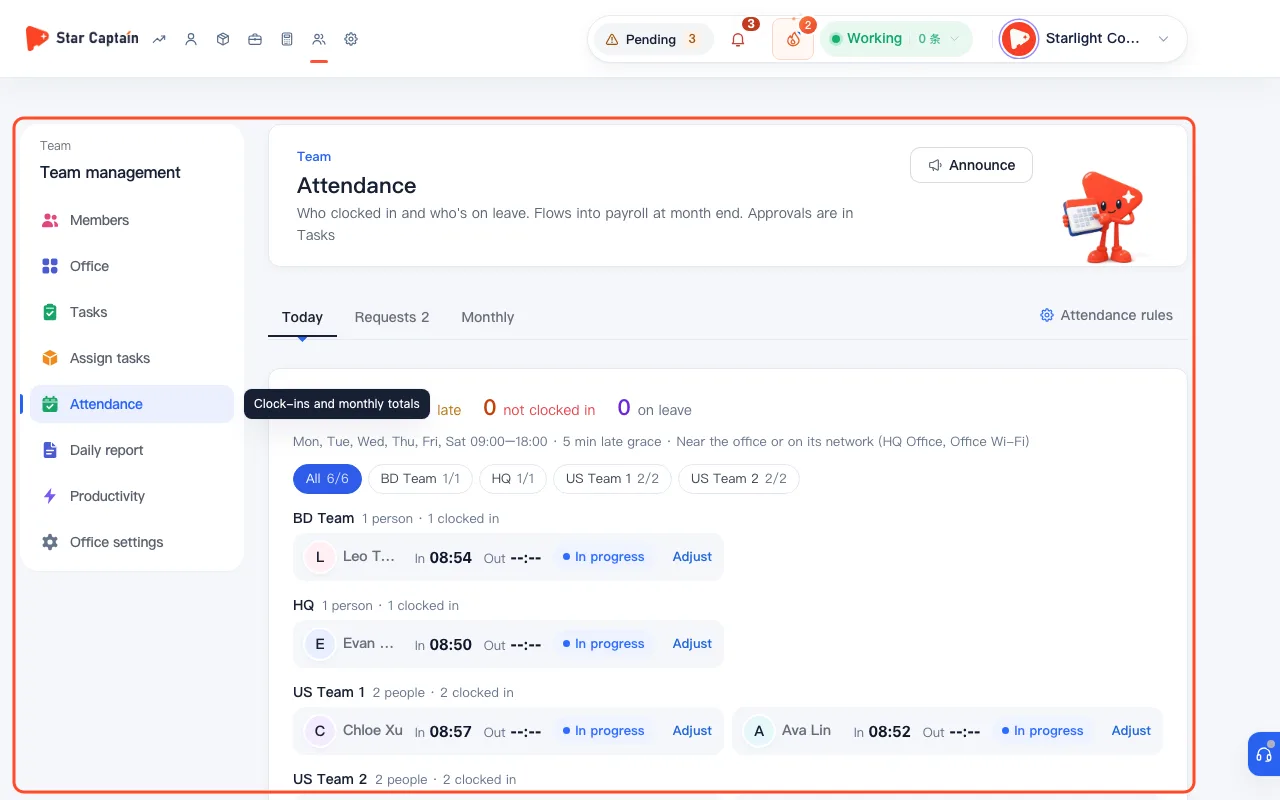
Click "Attendance requests" to review missed-punch fixes or leave requests submitted by your staff. After checking the shift time and note, approve or decline the request; approved updates flow automatically into the monthly attendance log and payroll worksheet so month-end payslips need no manual patching.
04Reply with screenshots, "Forward up", or "Mark resolved" in "Staff questions"
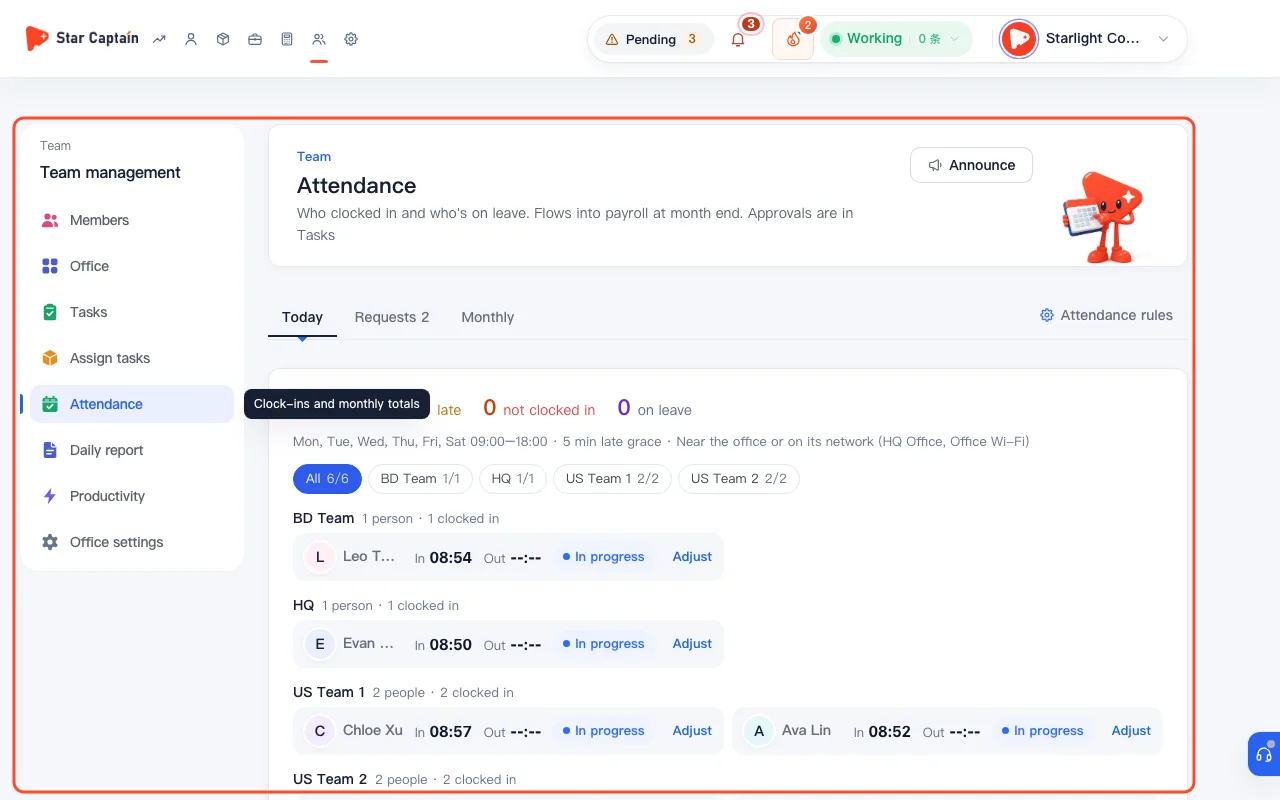
Open "Staff questions" (or the "Issues" board filtered by "Pending" and "Resolved"). Type your answer in `Reply. You can paste screenshots…`—you can click "Add screenshot" or press `Ctrl+V` to attach up to 6 screenshots—and click "Reply". If an issue requires higher-level permissions, click "Forward up" (`Forwarded to their manager`). Once solved, click "Mark resolved" (you can click "Reopen" anytime if the issue returns).
05Extend, edit, or cancel "Overdue tasks"
Click "Overdue tasks" (or use the "Overdue" and "Due today" quick filters on the task board) to see assignments past their deadline along with `{done}/{target} done`. Open the task to click "Extend" for a new due date, "Edit task / people" to adjust assignees, "End (work done still counts)", or cancel the task for a specific person without affecting posts they have already logged.
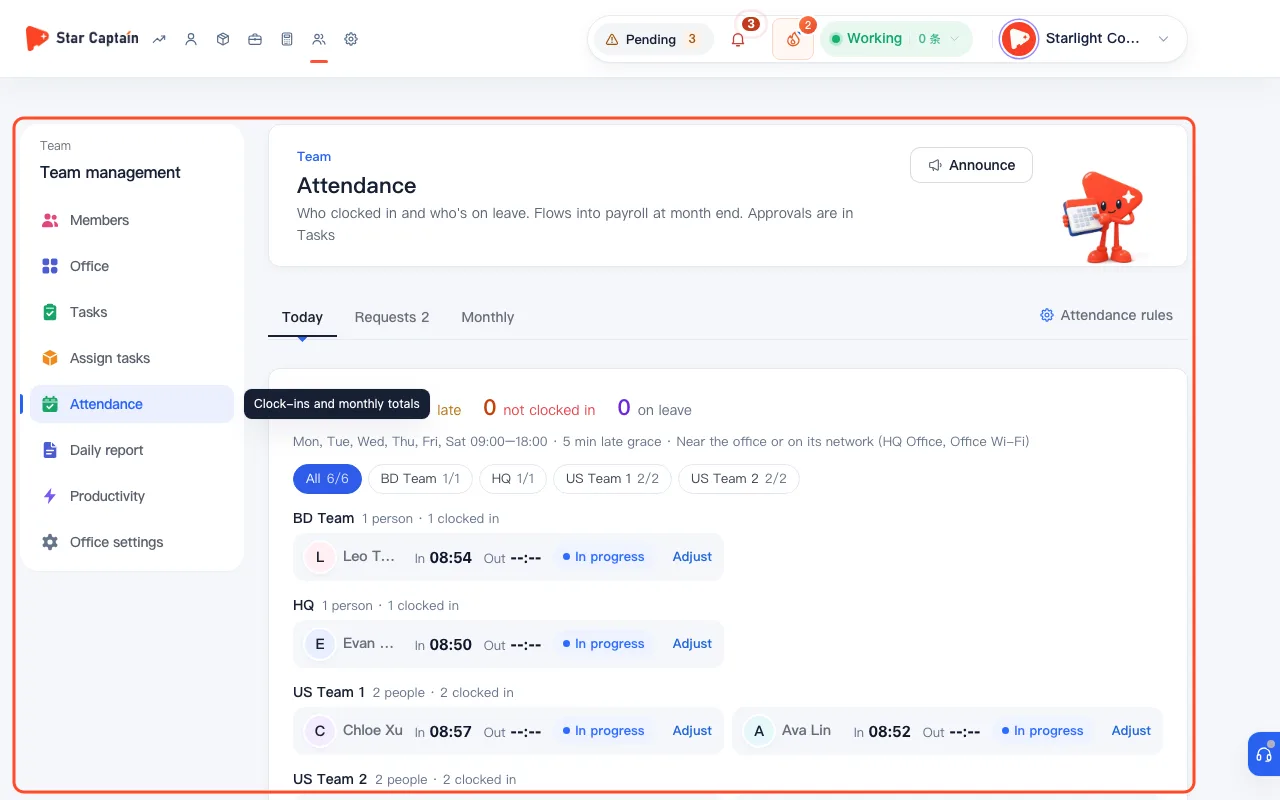
Screenshots use demo data. Check the product for what you actually see.
FAQ
What happens after a team lead clicks "Approve" on an account request?
When leads handle team inbox and approvals and click "Approve", Star Captain records the approval and notifies the business/inventory admin (`Approved. The business team gets a reminder to issue it`) so they can assign a specific showcase account from "Accounts → Inventory".
Who receives a staff question when a team lead clicks "Forward up"?
Clicking "Forward up" attaches a "Forwarded" tag along with the original question timestamp and routes the thread into the upper department manager's or organization admin's "For me → Staff questions" queue.
How many screenshots can we attach when reporting or replying to an issue?
Both staff members and reviewers can upload or paste (`Ctrl+V`) up to 6 screenshots per message (`Up to 6 screenshots`), making it easy to share phone error screens, order IDs, and product links in one reply.
If I cancel an overdue task, does it delete the posts staff already logged?
No. Canceling a task for one person or for everyone stops overdue reminders and removes the remaining quota, while all previously logged posts stay intact. Whole tasks that were canceled can also be reopened under `By task → Ended`.