TikTok accounts
 Orders & performance
 Team management
 Profit & cost
 Brand deals
 Creator toolbox
 Solo creators
 Creator teams
 Multi-department companies
Who is this for?
- Video editors and operators who sign in daily to claim product briefs, check viral script teardowns, upload edits, and log published videos
- Operators who need to request replacement or expansion TikTok accounts online and view encrypted login passwords and 2FA keys
- Team members who want a transparent breakdown of their monthly net pay, attendance days, base pay, and per-account commissions
What to prepare before starting?
- An owner or admin has created your login and linked it to your staff profile under "Team" → "Members"
- To view a monthly payslip under "My pay", your manager has confirmed that month's payroll sheet under "Ledger" → "Payroll" (unconfirmed drafts stay hidden)
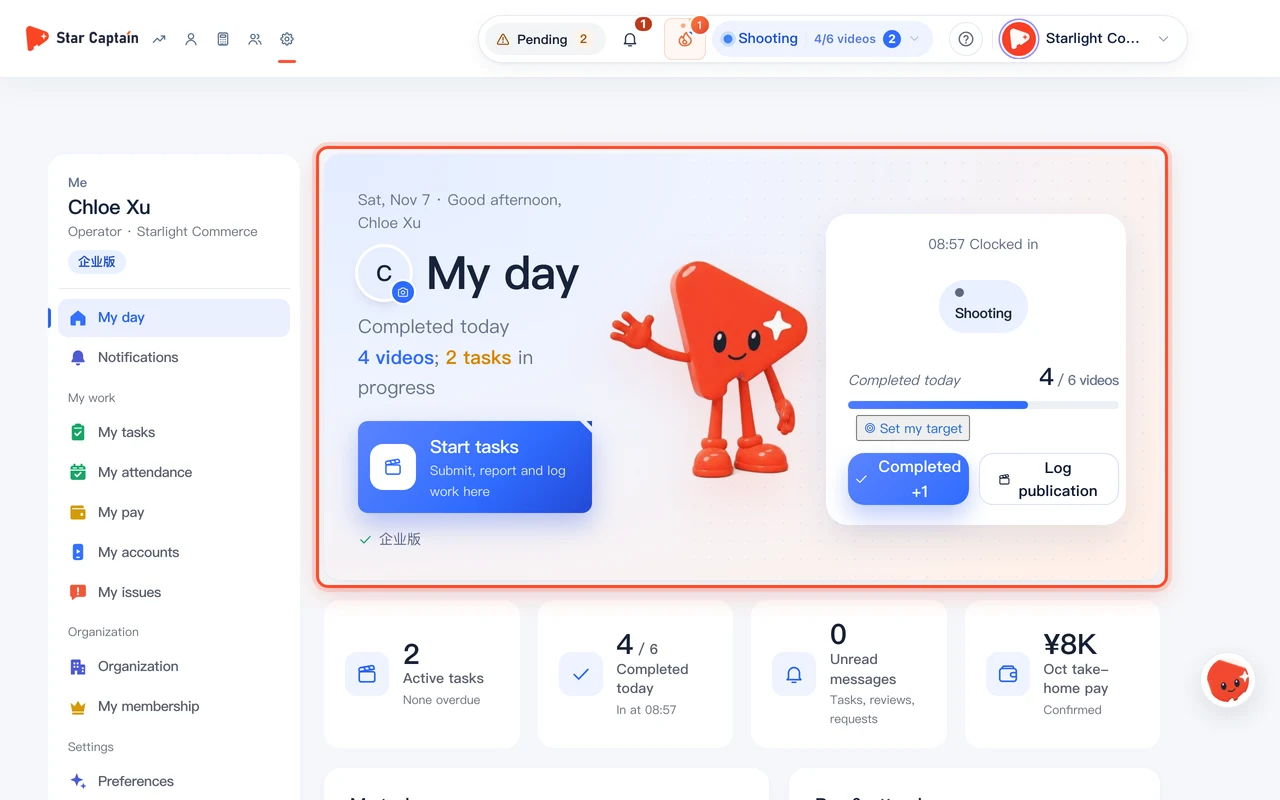
01Open "Me" to check "My day", click "Completed +1" and "Log publication", and view the 4 summary cards
To use Personal Center for daily work, sign in and click "Me" (`/app/me`) at the top right. In the top "My day" section, the right-hand card shows your clock-in time (such as `08:57 Clocked in`), current status pill (such as `Shooting · #5`), daily completion progress bar (`Completed today 4 / 6 videos` and `Set personal goal`), and quick action buttons "Completed +1" and "Log publication"; right below are 4 summary cards for "Active tasks", "Completed today", "Unread messages", and monthly "Pay" (`take-home pay`).
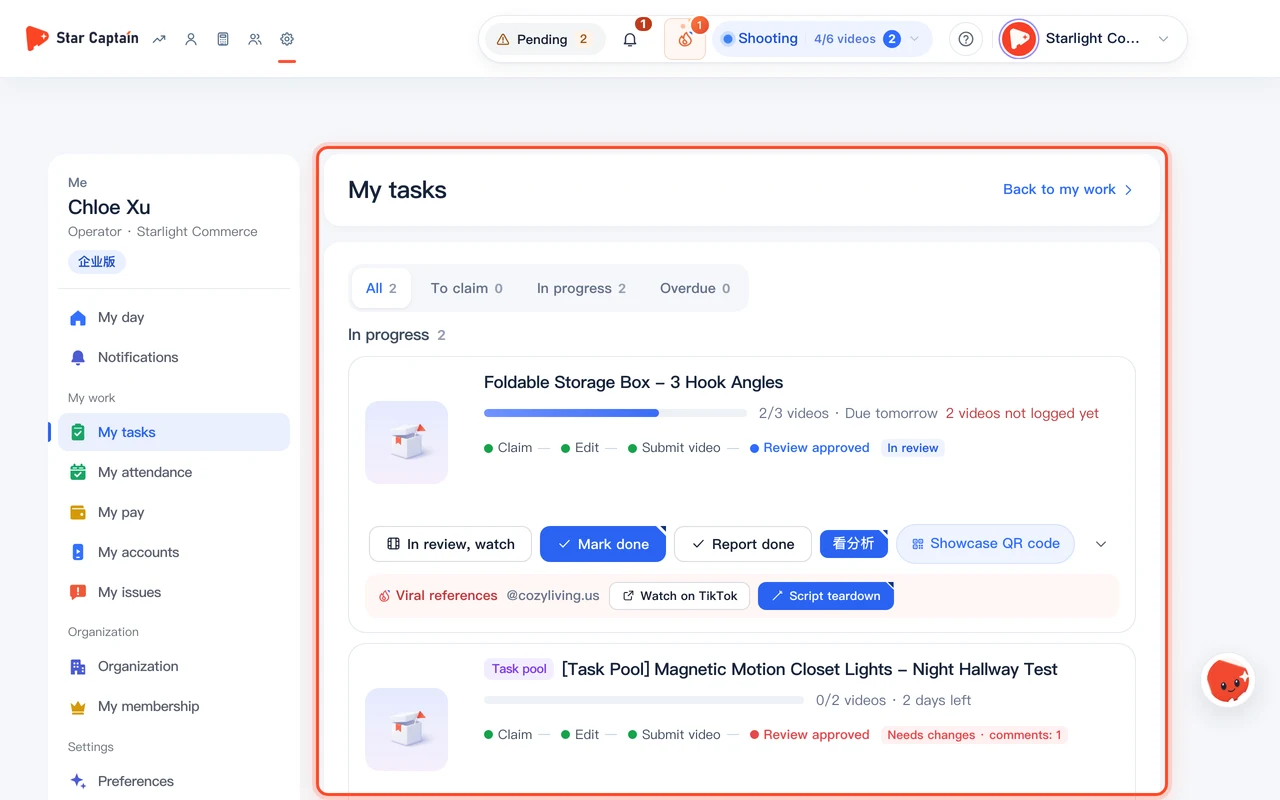
02Switch to "My tasks" to follow the 4-step progress bar, view "Script teardown", or click "Mark done" and "In review, watch"
Switch to "My tasks" (`/app/me/tasks`) in the left navigation. Each task card shows a 4-step progress bar (`Claim — Edit — Submit video — Review approved`) alongside open "Task pool" cards ("Grab it"). Inside a task card, click "Showcase QR code", or use "Watch on TikTok" and "Script teardown" in the "Viral references" bar at the bottom; as you work through edits, click "Mark done", "Report done", "Submit video", "In review, watch", or view product analysis, with passed cuts stored under "Approved videos" on the right.
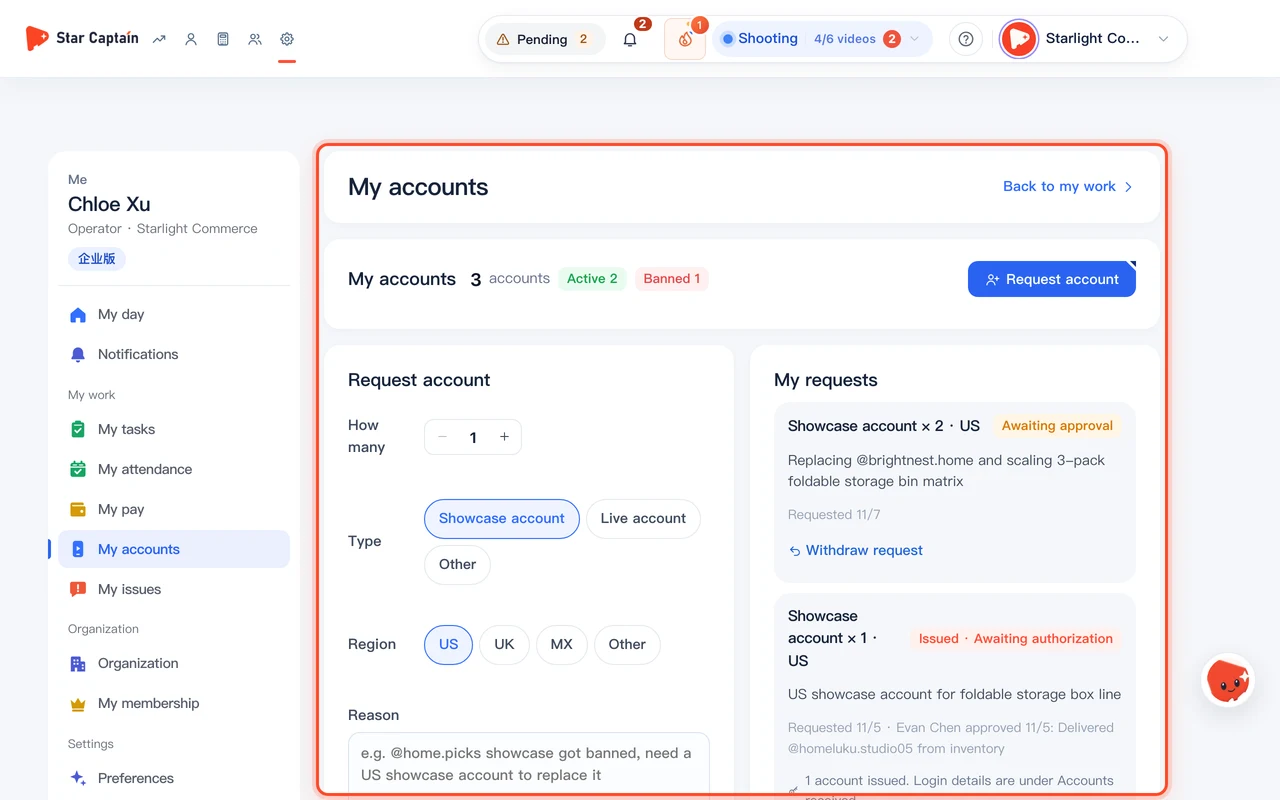
03Click "Request account" at the top right of "My accounts" when you need new TikTok accounts
Open "My accounts" (`/app/me/accounts`) in the left navigation and scroll to the "My accounts" section to check your summary of "Active", "Needs attention", and "Banned" accounts. When you need more accounts, click "Request account" at the top right of that section, fill in "How many" (`− / +`), "Type" ("Showcase account" or "Live account"), "Region", and "Reason", and click "Submit request". Track approval and delivery status anytime on the right under "My requests".
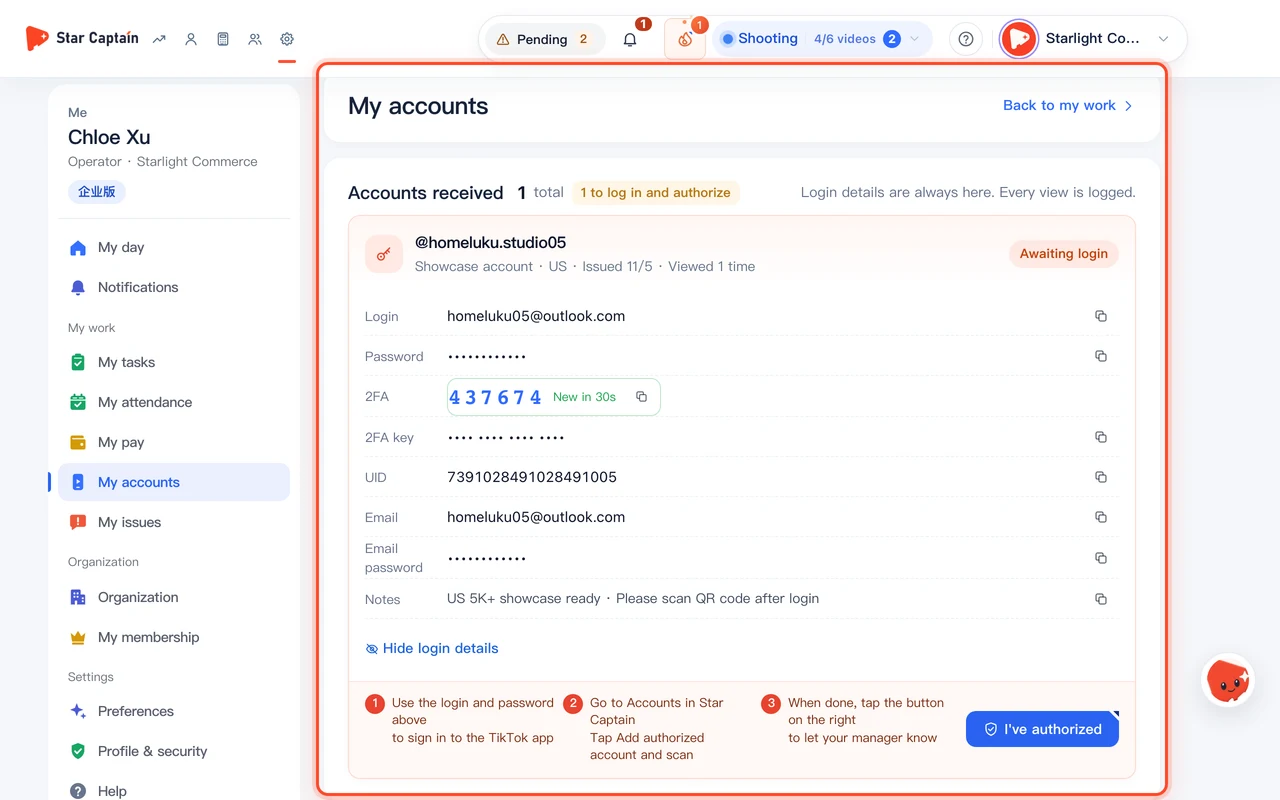
04Open "View login details" under "Accounts received" at the top to copy passwords and live 2FA codes
Once the business team issues accounts from inventory, they appear at the top of `/app/me/accounts` under "Accounts received" marked "Awaiting login". Click "View login details" to copy the encrypted "Login", "Password", "Email", and live 6-digit "2FA code" (with countdown timer), sign in to the TikTok app on your work phone, scan the authorization QR code under "Accounts" → "Add authorized account", and click "I've authorized".
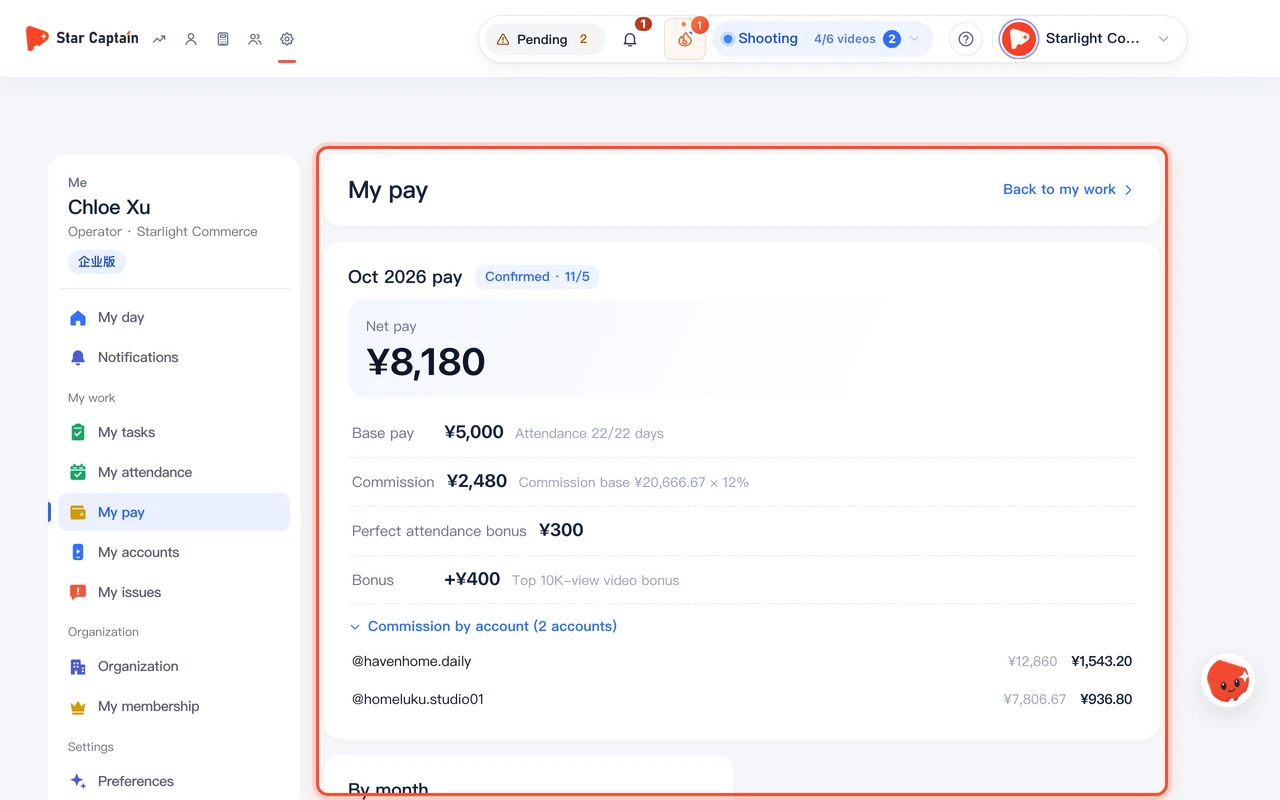
05Check confirmed monthly payslips in "My pay" and update "My account" preferences
Open "My pay" (`/app/me/pay`) to view your monthly payslip once confirmed by your manager: "Net pay", "Base pay" (showing "Attendance {present}/{required} days"), "Personal commission" (showing "Commission base {base} × {pct}%"), "Perfect attendance bonus", "Deduction", and "Commission by account ({n} accounts)". In the left sidebar under "My account", you can also update "Photo & name", "Password", "WeChat" one-tap login, "Order time" (`GMT-8` or Beijing time), and your default "Start page".
Screenshots use demo data. Check the product for what you actually see.
FAQ
What if I see "Your login isn't linked to a staff member yet, so you can't clock in or log work. Ask your owner to link you in Team → Members."?
Before you can use Personal Center for daily work, your login account must be connected to a staff row on the team roster. Ask your organization owner or admin to open "Team" → "Members" and link your login to your staff name—once linked, clock-in, tasks, and post logging unlock immediately.
Are password views under "Accounts received" logged?
Yes. Login details are stored encrypted, and only the requester, business team, and agency owner can click "View login details". Every view is logged with the viewer's name and timestamp, and you can reopen the card later whenever you need to sign in again or read a 2FA code.
How long are video files kept under "Approved videos"?
Approved video files remain on the server for the retention window shown on the card ("Video kept for {n} days") and are then cleaned up automatically to save storage. Download any final cuts you want to archive locally; all written feedback and task records stay permanently.
Why does my pay section say "No pay slips yet"?
Monthly payslips become visible to staff only after your manager reviews and confirms the payroll sheet in "Ledger" → "Payroll". Unconfirmed draft sheets are not shown to employees.