TikTok accounts
 Orders & performance
 Team management
 Profit & cost
 Brand deals
 Creator toolbox
 Solo creators
 Creator teams
 Multi-department companies
Who is this for?
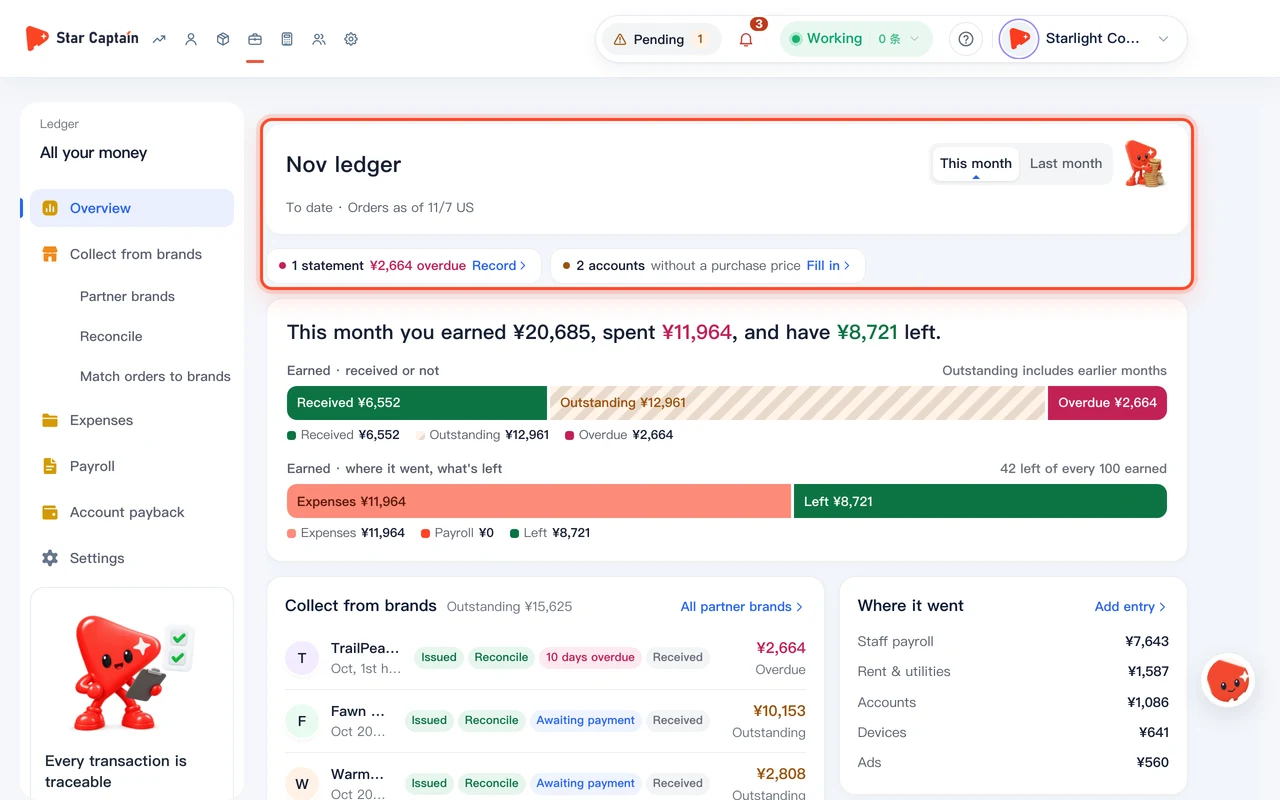
- Agency owners who want to check daily profit and team profit ranking across "Today", "Last 7 days", "This month", or "Last month"
- Finance managers reconciling off-platform commission, platform commission, operating expenses, and prorated daily payroll
- Operations directors comparing team margin and ROI under "Most profitable teams" and expanding "See profit or loss by account" to spot accounts losing money
What to prepare before starting?
- Your login has permission to view "Ledger → Profit overview" (staff payroll totals are visible to the agency owner only and deducted there)
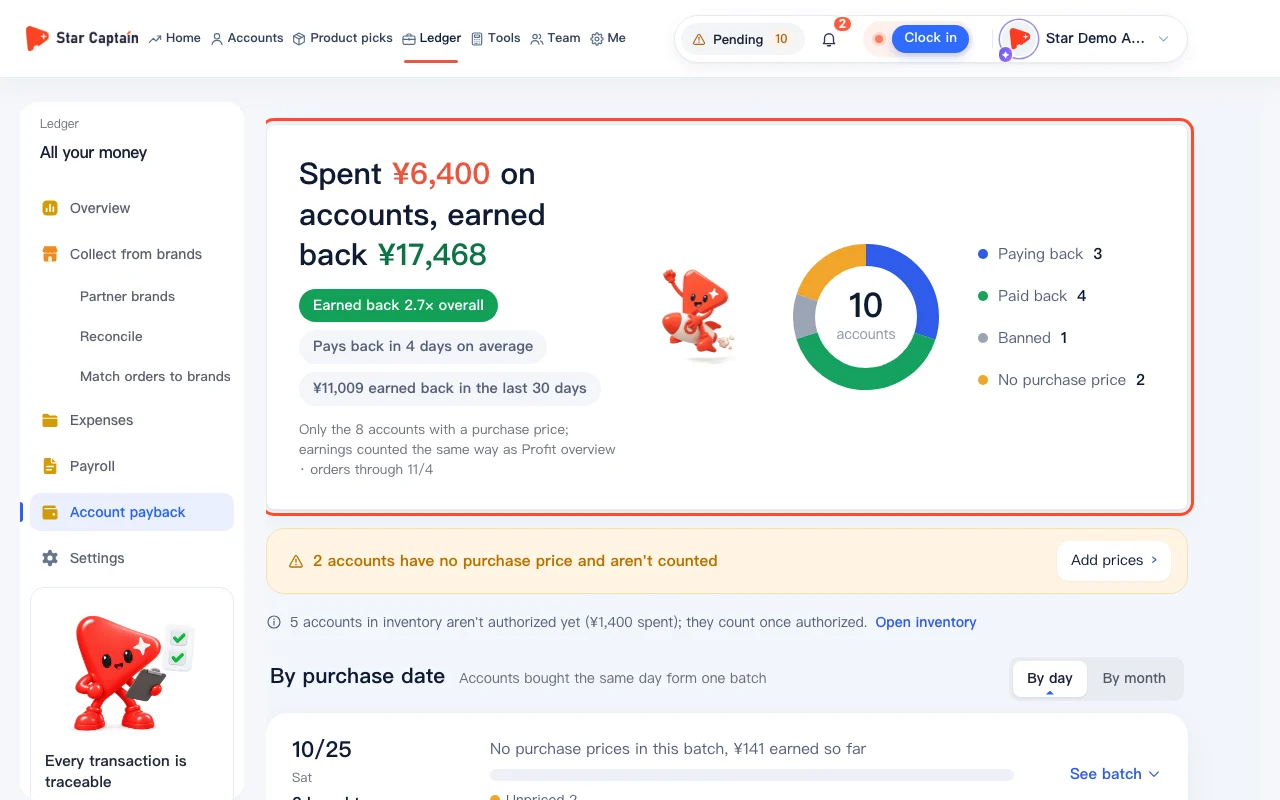
- Staff members have been grouped under "Team", account owners have been assigned under "Accounts", and expenses or account setup prices are logged
01Open "Ledger → Profit overview" and choose a period to check daily profit and team profit ranking
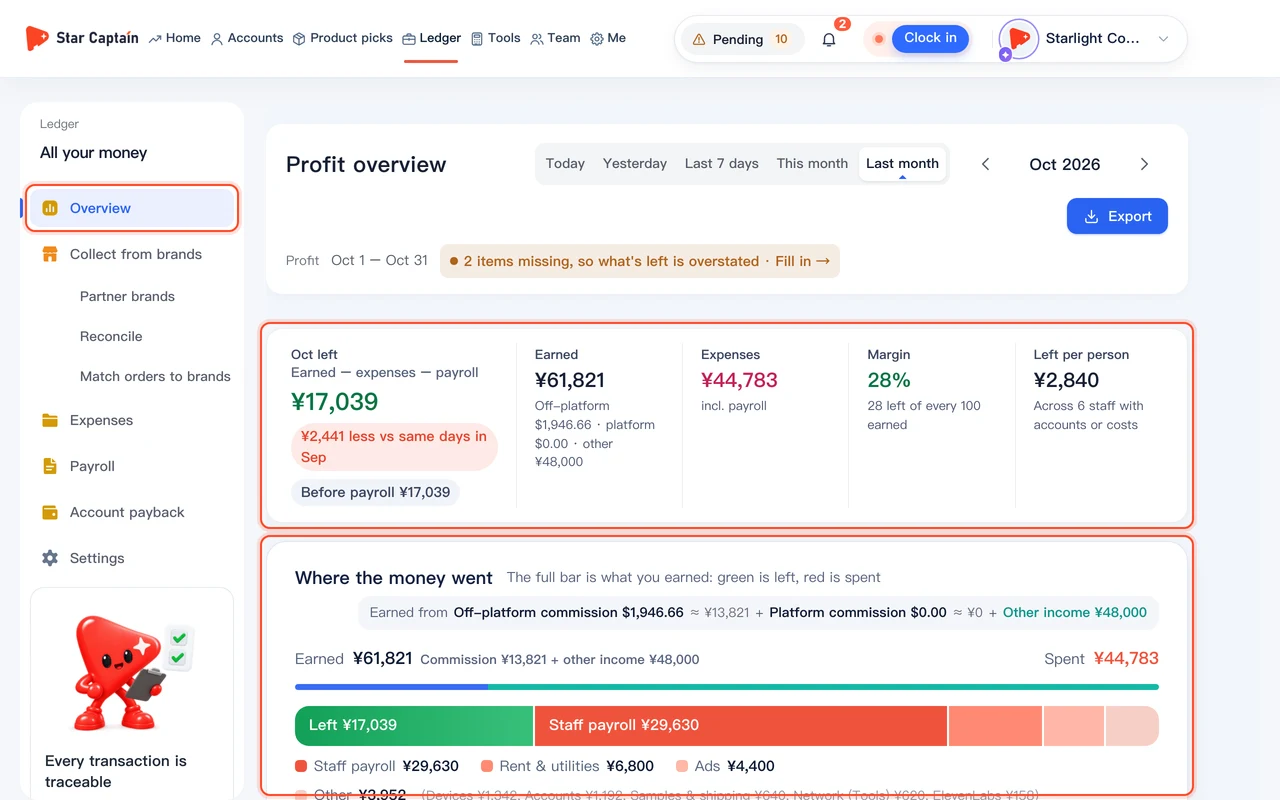
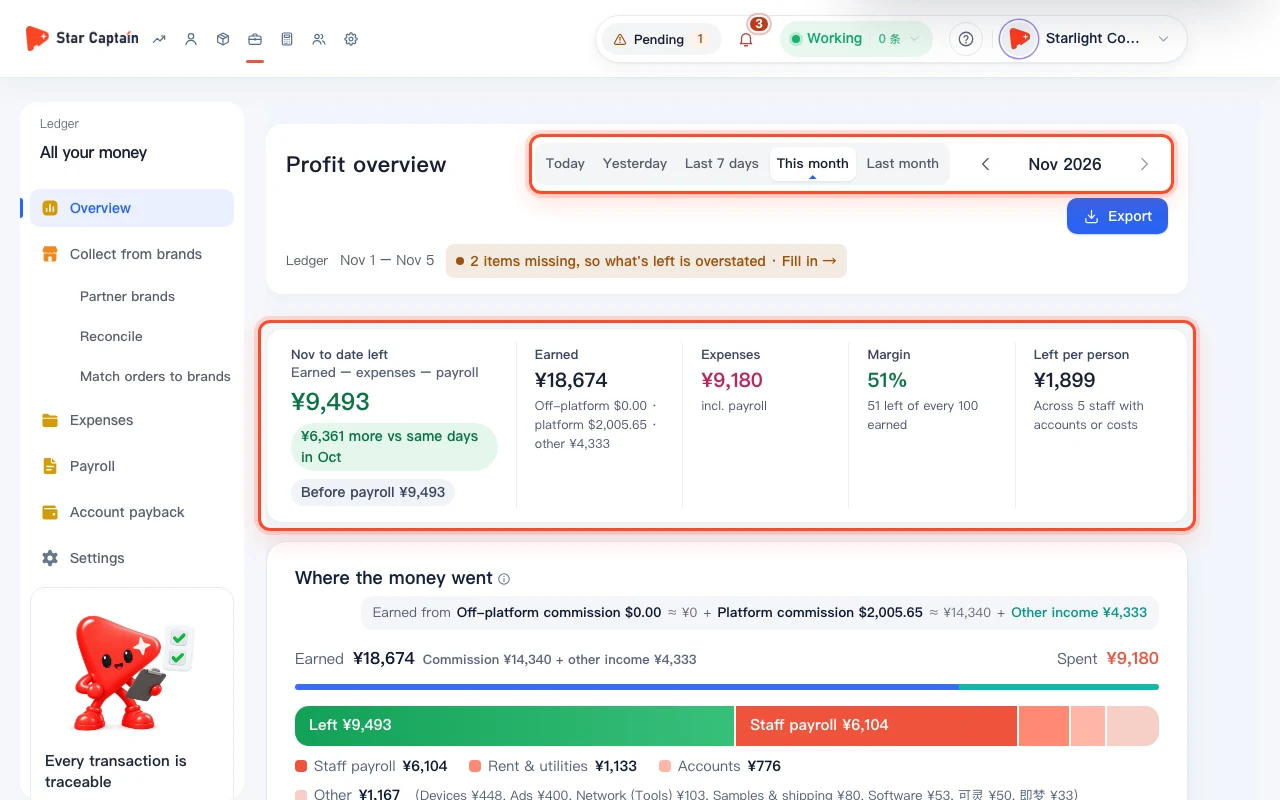
To check daily profit and team profit ranking, go to "Ledger → Profit overview" (`/app/profit`) in the left sidebar. At the top right under "Period", switch between "Today", "Yesterday", "Last 7 days", "This month", and "Last month" (or click "Previous month", "Next month", or "Export"). The top card calculates net profit using `Earned − expenses − payroll`, showing period-over-period change, "Margin" (`{n} left of every 100 earned`), and "Left per person".
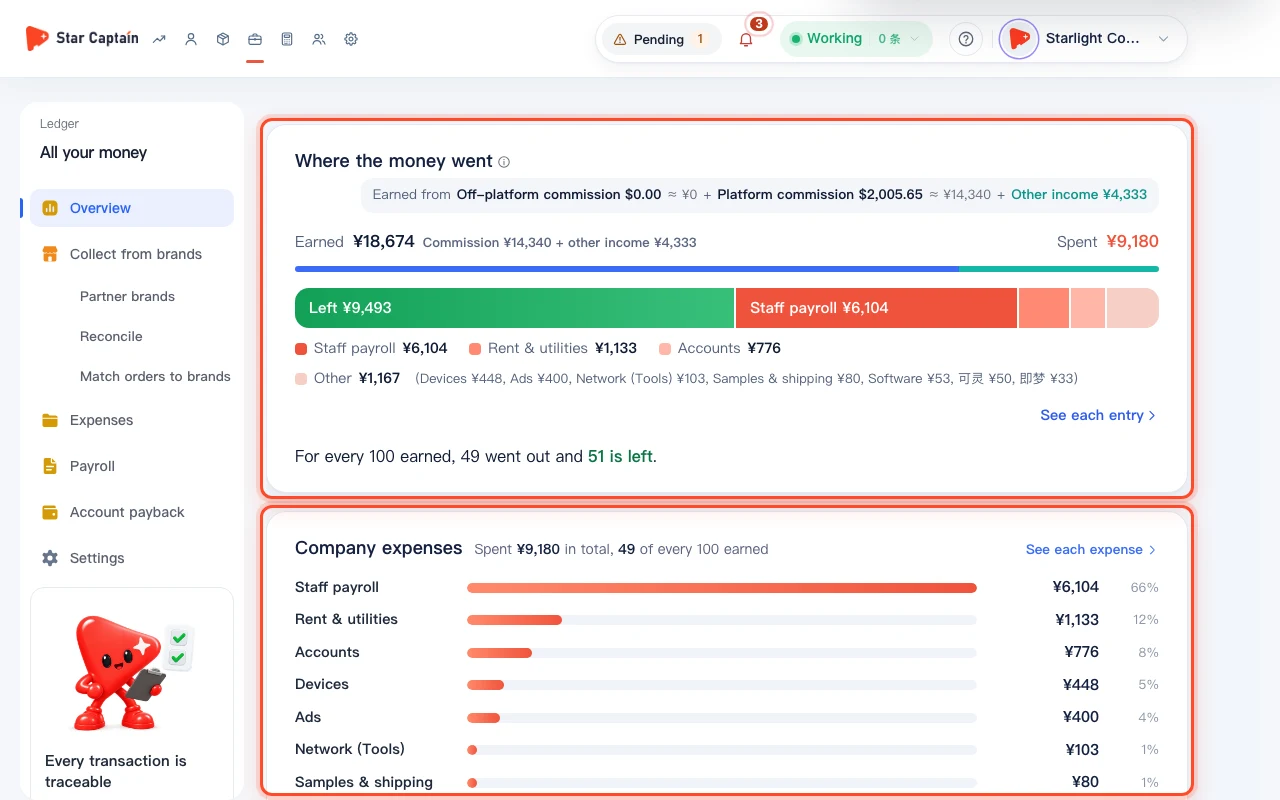
02Review "Where the money went" and "Company expenses" breakdown
In the "Where the money went" card, inspect the proportional bar (`The full bar is what you earned: green is left, red is spent`), which splits revenue into `Earned from Off-platform commission {amount} + Platform commission {amount} + Other income {amount}` and summarizes `For every 100 earned, {spent} went out and {n} is left.` Next to it, "Company expenses" lists "Staff payroll" and cost categories, with a "See each expense" link to open the full expense ledger.
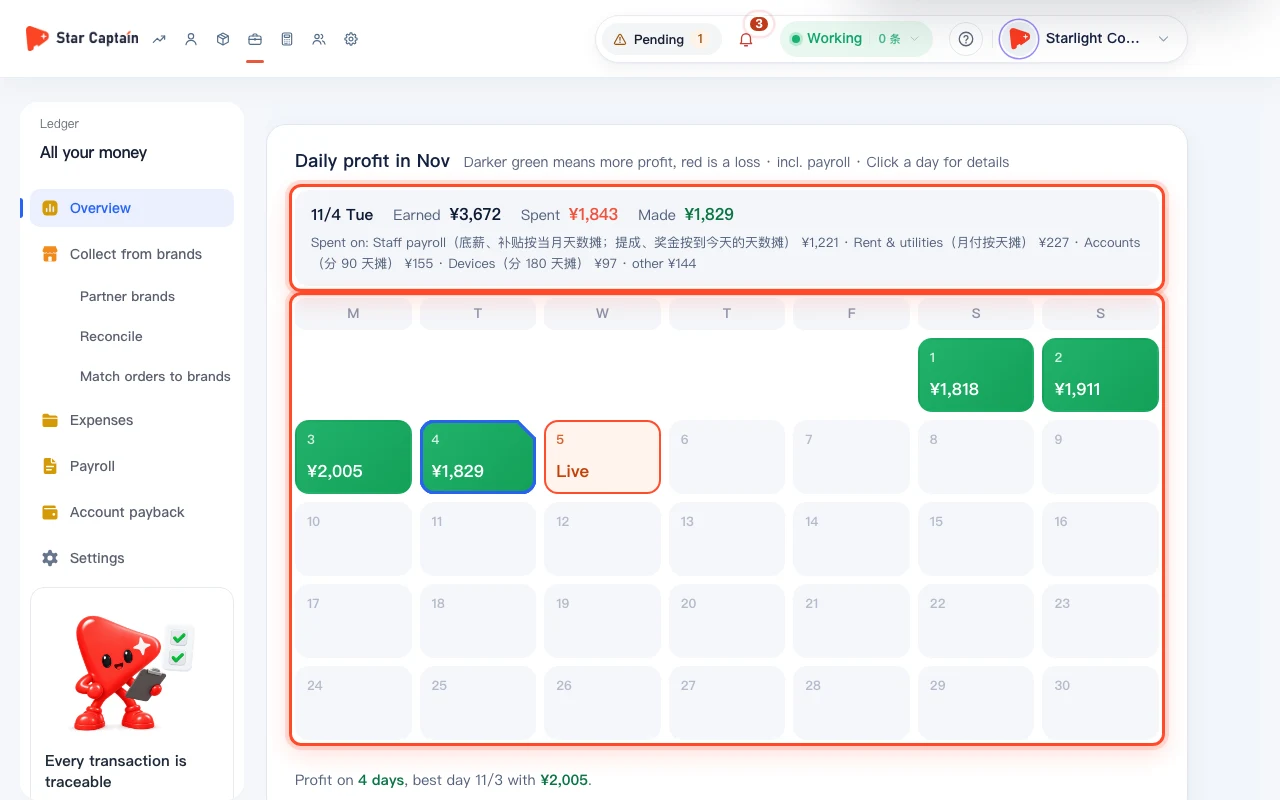
03Click any day in the "Daily profit" calendar or bar chart for daily details
In the "Daily profit" section (also accessible at `/app/profit/daily`), monthly views display a color-coded calendar (`Darker green means more profit, red is a loss · Click a day for details`) while shorter windows show daily bars (`Bars show earnings: {left}left {spent}spent · Click a bar for details`), along with a summary of profitable days, loss days, and the best day. Click any calendar cell or bar to inspect that day's "Earned", "Spent", and net gain (`Made {amount}`) or loss (`Lost {amount}`).
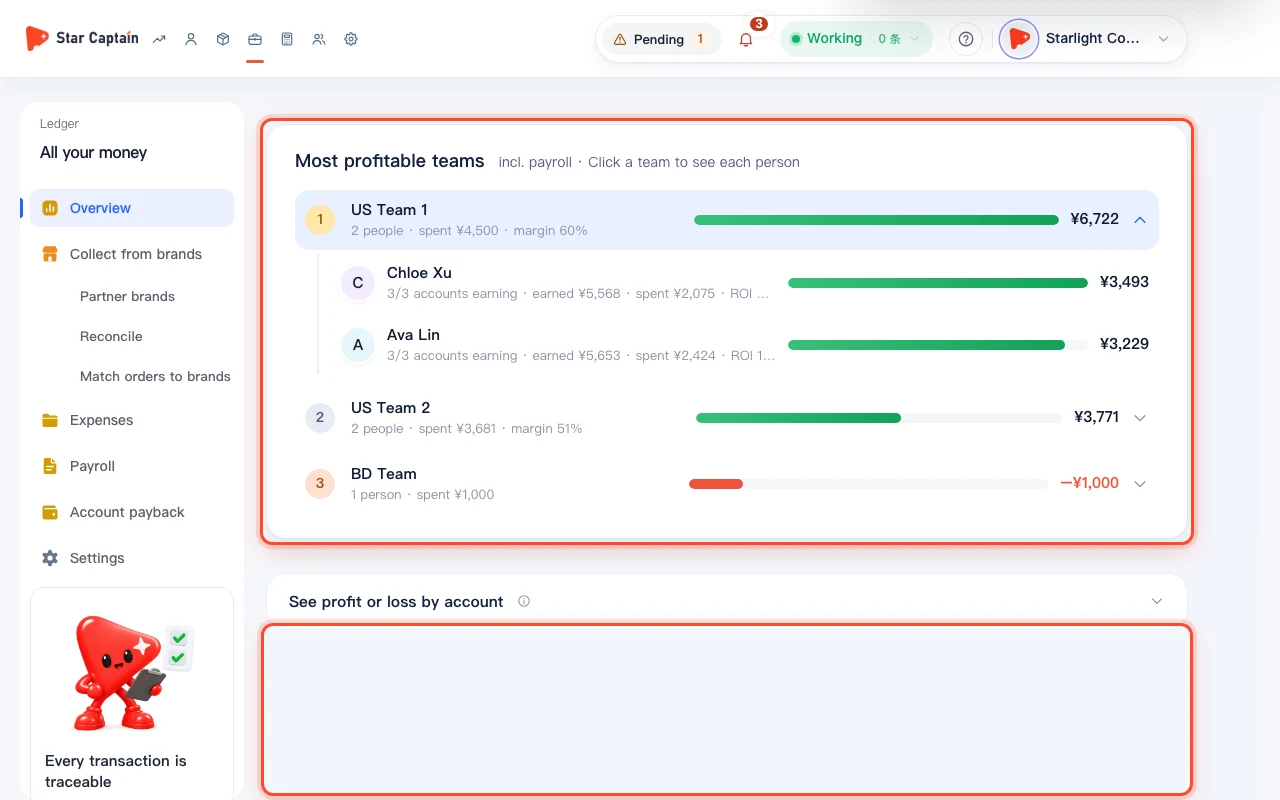
04Compare teams in "Most profitable teams" and expand "See profit or loss by account"
Scroll to "Most profitable teams" to check daily profit and team profit ranking across your subgroups, showing each team's headcount, spent amount, `margin {pct}%`, and net profit; click any team (`Click a team to see each person`) to see each operator's earning accounts, earned/spent totals, and `ROI {roi}`. At the bottom, click "See profit or loss by account" (`Per account: earned − its share of expenses, excl. payroll`) to view `{count} making money` and `{count} losing money`.
Screenshots use demo data. Check the product for what you actually see.
FAQ
Why are some days red in "Daily profit" with a note saying "usually because account setup costs were recorded that day"?
When you check daily profit and team profit ranking, account costs are counted in full on the onboarding date on the daily calendar, which can create a single-day loss. One-time operating expenses are spread evenly across the month by default, or you can change that under `Settings → How costs work → One-time expenses`.
How is "ROI" calculated when I click a team in "Most profitable teams"?
As the tooltip explains: `ROI = earned ÷ the recorded cost of their accounts (the share for this period, per settings). Excludes devices, network, rent and payroll; shows “—” with no recorded cost in this period.` This lets you compare how quickly each operator's accounts earn back their recorded cost.
Why does "Most profitable teams" say "No team sales in this period"?
Team profit rolls up from each order's selling account to that account's owner and the owner's subgroup. Follow the prompt (`Group your staff under Team and set owners under Accounts first`) so orders roll up to each team, while unowned handles appear under "Accounts without an owner".
How is staff payroll included on the Profit Overview page?
Star Captain syncs with your payroll sheet (`Base pay and allowances are spread by day; commission, bonuses and deductions match the payroll sheet`). When viewing "This month", payroll is included as `Staff payroll (est. to date)`, whereas the per-account breakdown under "See profit or loss by account" deducts account-level expenses only and excludes payroll.