TikTok accounts
 Orders & performance
 Team management
 Profit & cost
 Brand deals
 Creator toolbox
 Solo creators
 Creator teams
 Multi-department companies
Who is this for?
- Product researchers and team leads who shortlist promising products into a shared "My saves" folder while hiding categories or price bands the team doesn't shoot
- Video editors and operators who want to filter recent TikTok Shop viral videos by "Real" versus "AI" type
- Agency managers who track what rival creator teams are pushing in the last 24 hours and turn winning clips into shootable scripts
What to prepare before starting?
- You are signed in to Star Captain with your team's active TikTok accounts connected under "Accounts" (used to match "Your accounts" and "Sold / partner products")
- If you want to assign shortlisted products and reference videos to editors, your team members are added under "Team" → "Members"
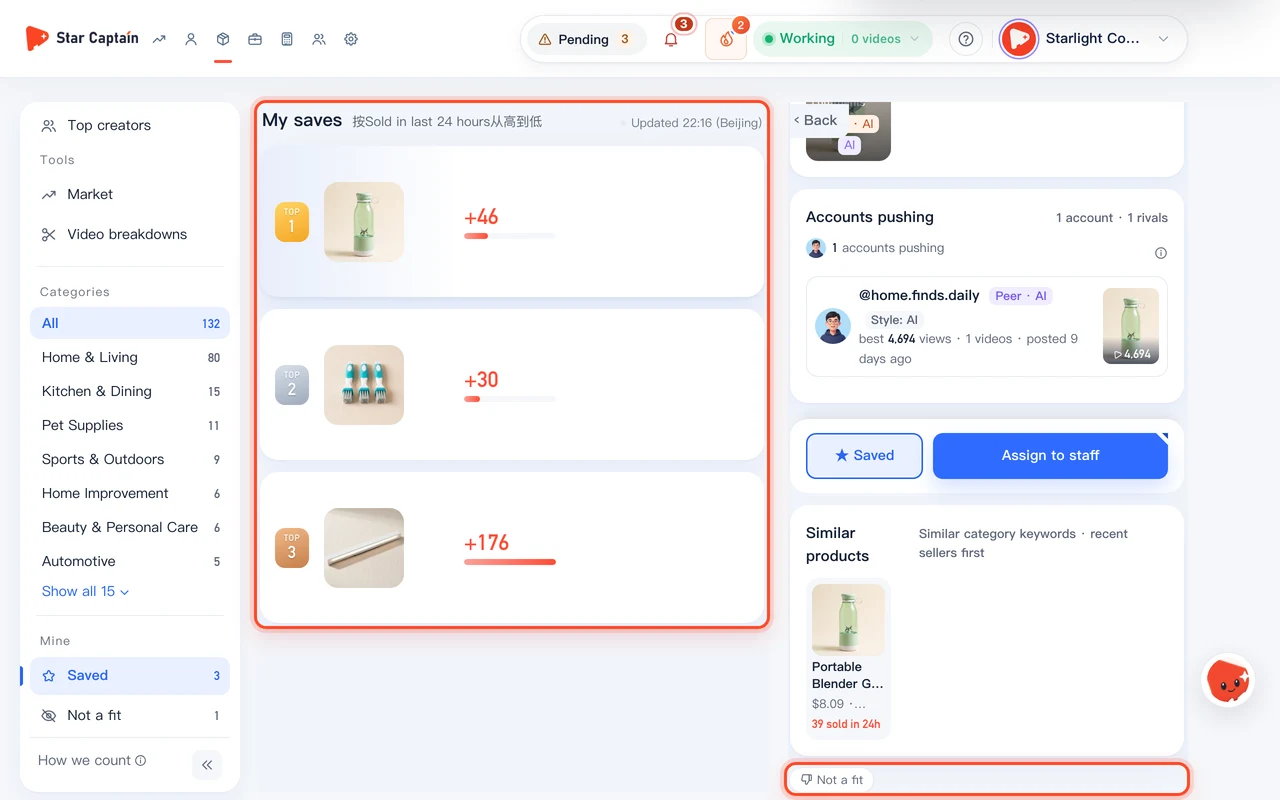
01Click "☆ Save" and review shared candidate products under "Mine" → "Saved" in the left sidebar
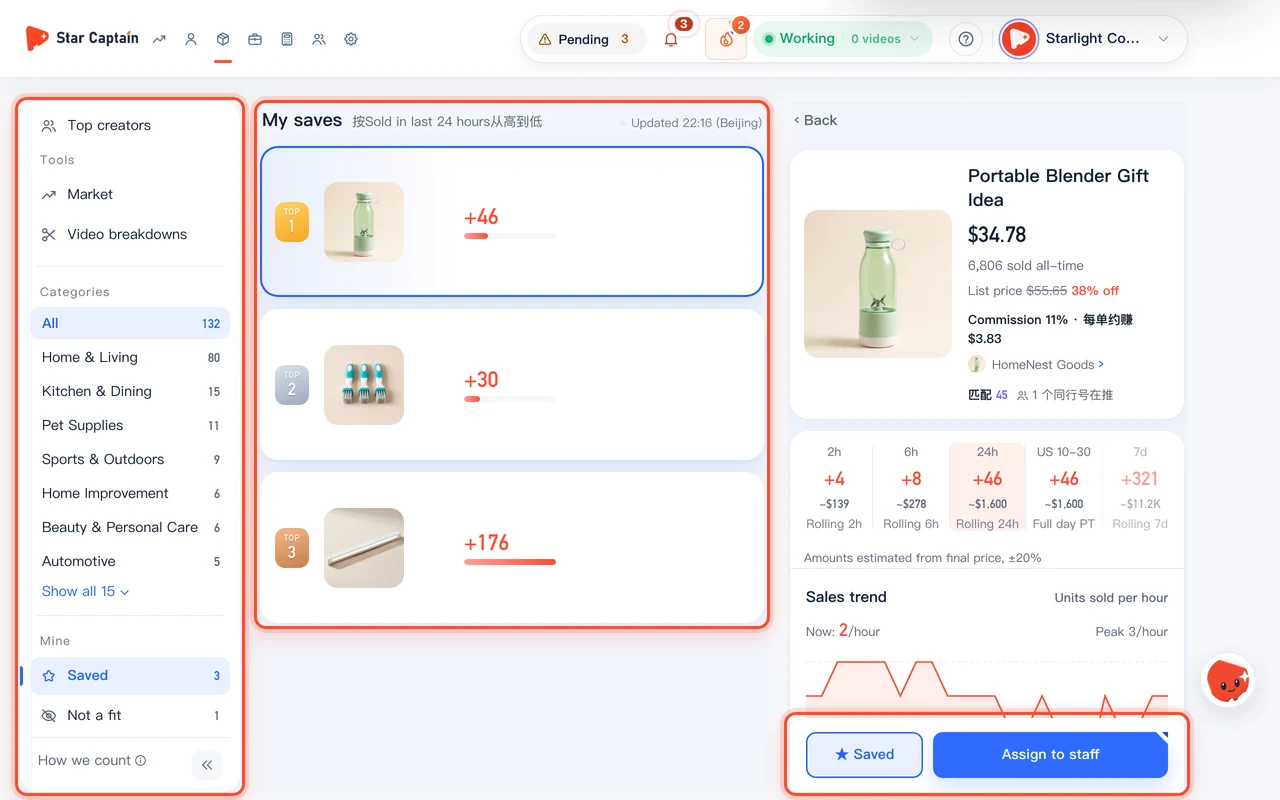
To manage saved picks and viral videos, click "☆ Save" on any promising product in "Product picks" so the button turns into "★ Saved". Then click "Saved" under the "Mine" group at the bottom of the left sidebar (`/app/selection/saved`, titled "My saves" with the subtitle "Products your team saved; everyone can see them")—everyone on the team can view the shared shortlist, check "Mostly real" or "Mostly AI" style badges, and click "Assign to staff".
02Click "Not a fit" to exclude products with 4 quick reasons, or click "Recommend again" in the detail pane
When a product doesn't match your team's workflow, click "Not a fit" to open "Why isn't it a fit?" ("Optional — you can just submit"), choose from the 4 quick reasons—"Not our category", "Wrong price", "Tried it, didn't sell", or "Can't shoot it"—or enter "Other reason (optional)" and click "Submit". The item moves into "Mine" → "Not a fit" in the left sidebar; to restore it later, click the product in "Not a fit" and click "Recommend again" at the bottom of the right-hand detail pane ("You marked this Not a fit; it won't be recommended again.").
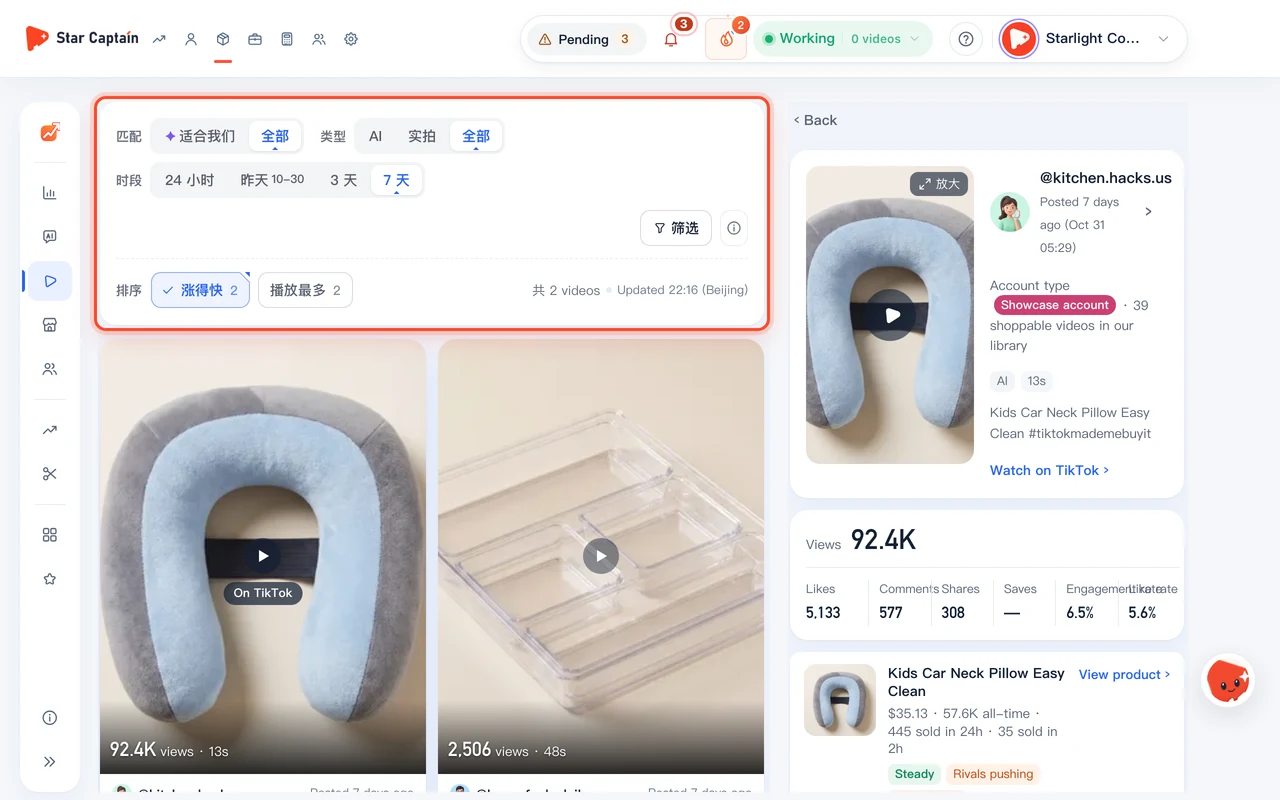
03Switch to "Boards" → "Viral videos" and use the top filter bar for Match, Type, and Period
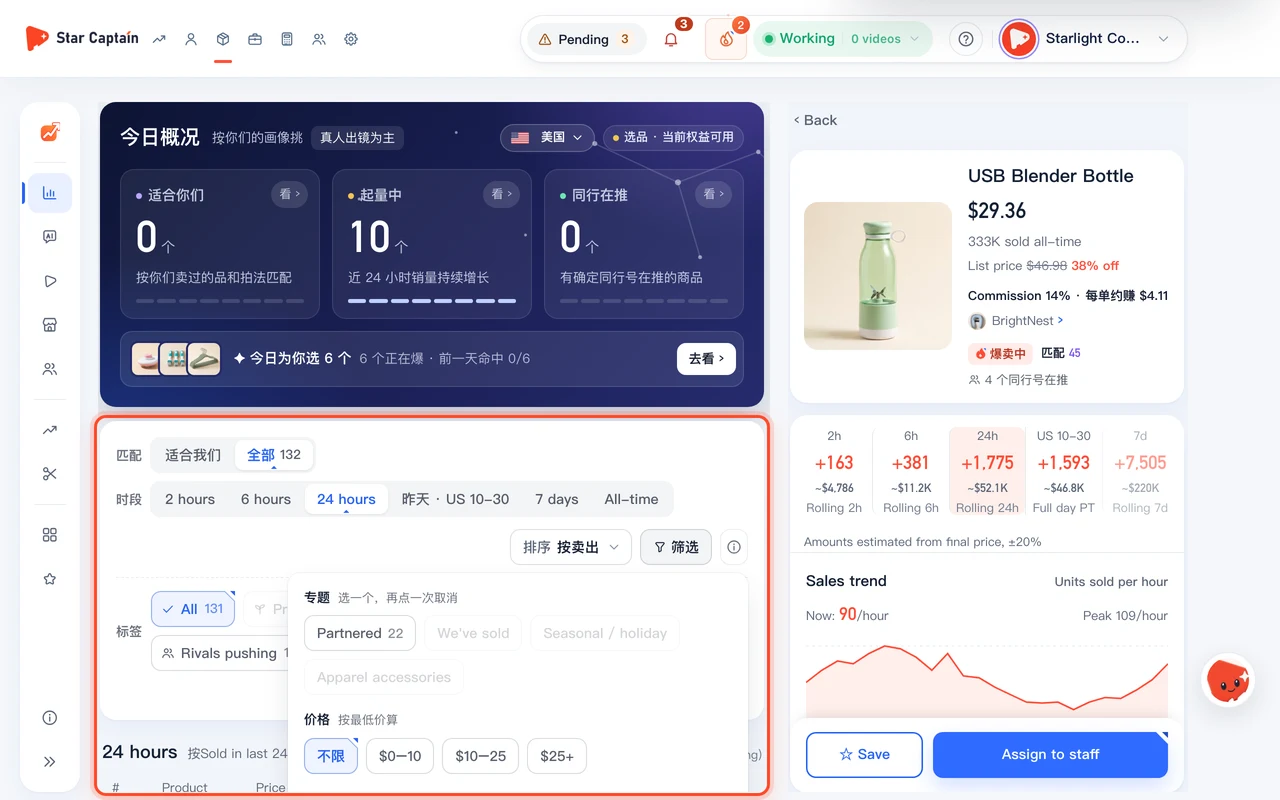
Click "Viral videos" under "Boards" in the left navigation (`/app/selection/videos`). The top filter bar provides quick toggles for "Match" ("Fits us" or "All"), video "Type" ("AI", "Real", or "All"), "Period" ("24 hours", "Yesterday", "3 days", or "7 days"), and quick "Sort" pills ("Fastest growth" and "Most plays").
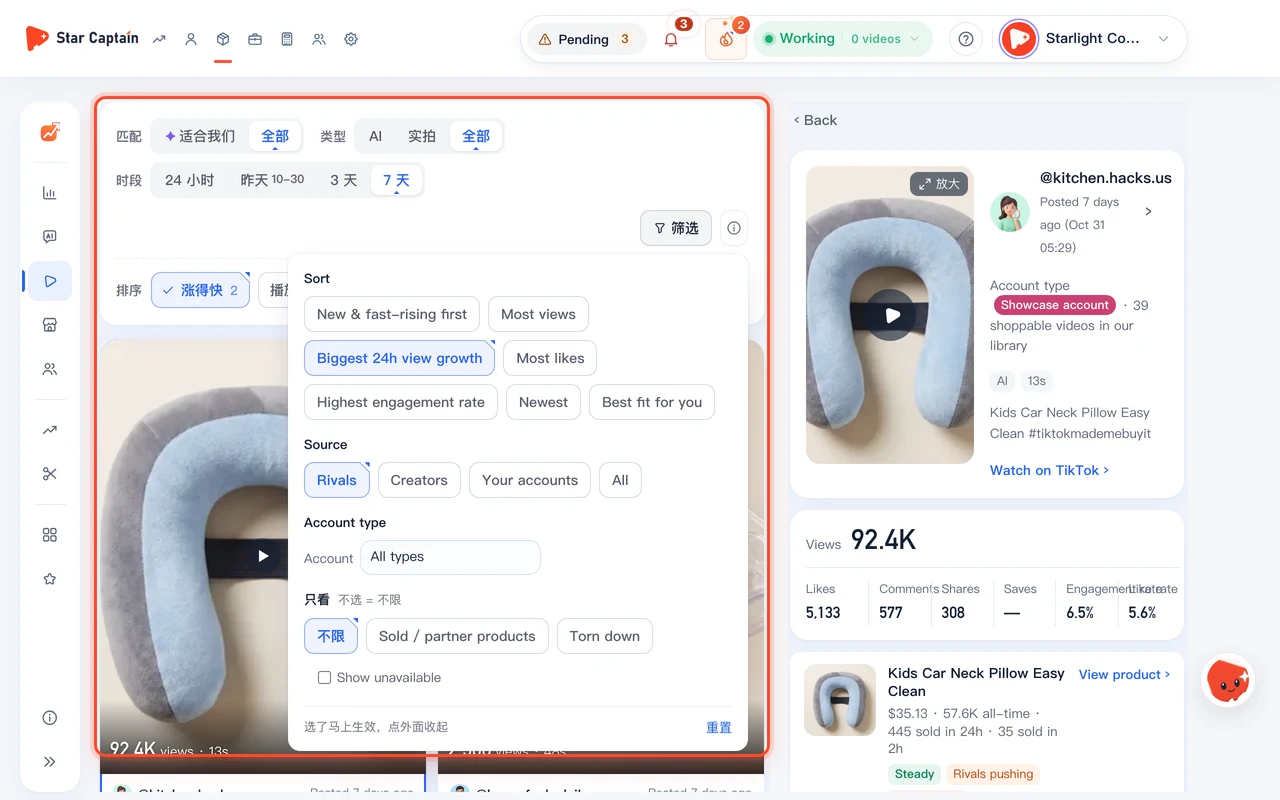
04Open the "Filter" popover to combine full Sort options, Source, Account type, and "Only show"
For deeper filtering, click the "Filter" button on the right side of the top filter bar to open the popover: pick from the full "Sort" options ("New & fast-rising first", "Most views", "Biggest 24h view growth", "Most likes", "Highest engagement rate", "Newest", or "Best fit for you"), filter by "Source" ("Rivals", "Creators", "Your accounts", or "All"), select an "Account type" from the dropdown, and set "Only show" to "Any", "Sold / partner products", or "Torn down" (plus the "Show unavailable" checkbox).
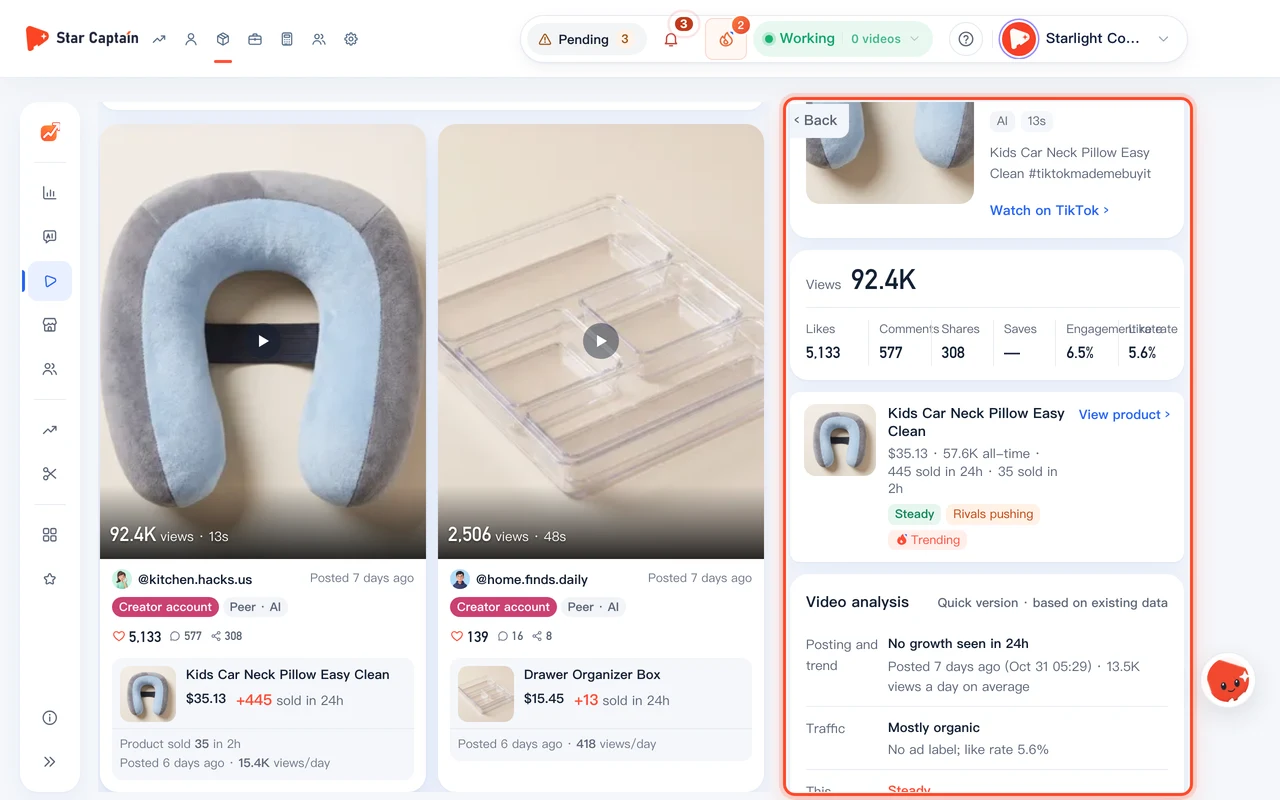
05Open any video for right-hand "Video analysis" and "Script to remix", or click "Tear down"
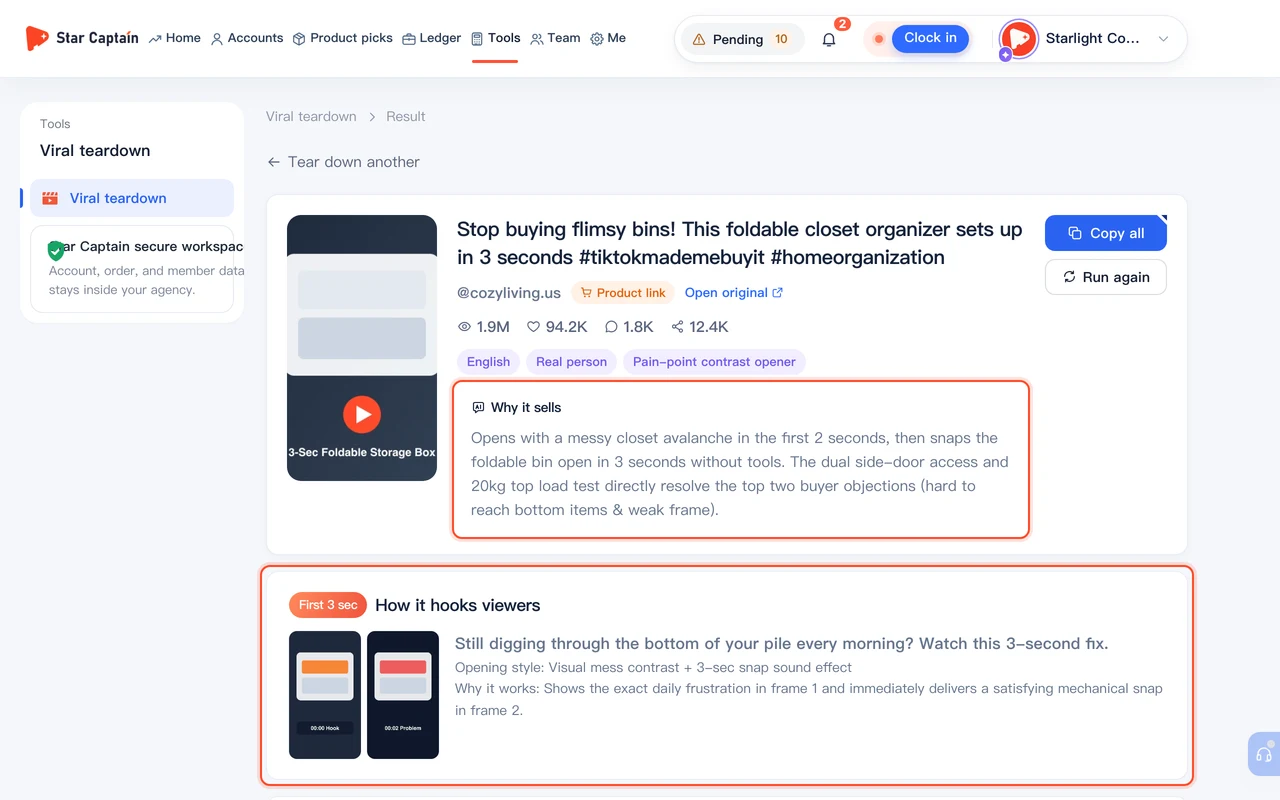
Each video card and right-hand detail pane displays total views, 24h view growth, likes, comments, shares, engagement rate, like rate, and the linked product's price, commission, and units sold ("Sold in 24h" and "Sold in 2h"). The right-hand detail pane includes built-in "Video analysis" ("Posting and trend", "Traffic", "This product") and "Script to remix" (with one-click "Copy script"); click "Tear down" on a card for a full shot-by-shot teardown, or open the product to click "Assign to staff".
Screenshots use demo data. Check the product for what you actually see.
FAQ
Is "My saves" private to my login or shared across the team?
It is shared across your entire organization ("Products your team saved; everyone can see them"). When a product researcher or manager clicks "☆ Save", operators, editors, and team leads can all open "Mine" → "Saved" in the left sidebar to see the same shortlist.
How does Star Captain tell "Real" apart from "AI" videos?
Star Captain classifies shoppable videos so you can toggle "Type" between "AI", "Real", and "All" on the top filter bar, and also tags products as "Mostly real" or "Mostly AI" so hands-on filming teams and AI editing teams can each filter for references they can produce.
What accounts are included under the "Rivals" source filter?
In the "Filter" popover, "Rivals" under "Source" filters for shoppable videos posted by other creator agencies and matrix accounts on US TikTok Shop (as opposed to official brand storefronts). Combining "Rivals" with "24 hours" or "3 days" shows what peer teams just launched and scaled.
Where can I find videos we have already torn down?
Open the "Filter" popover on "Viral videos" and set "Only show" to "Torn down", or click "Tools" → "Video breakdowns" in the left navigation. Every transcript, translation, and storyboard brief is saved in your history so the team can reuse it anytime.