TikTok accounts
 Orders & performance
 Team management
 Profit & cost
 Brand deals
 Creator toolbox
 Solo creators
 Creator teams
 Multi-department companies
Who is this for?
- Brand managers and agency owners who issue weekly, semi-monthly, or monthly statements to collect off-platform commission from partner brands
- Finance staff who split settlements into "Initial payment" and "Final payment" installments and need to track each stage separately
- Team leads managing many partner brands who want automatic overdue reminders when a payment passes its agreed due date
What to prepare before starting?
- You have added your partner brands, linked their TikTok Shops, and configured off-platform commission rates under "Ledger → Collect from brands → Partner brands"
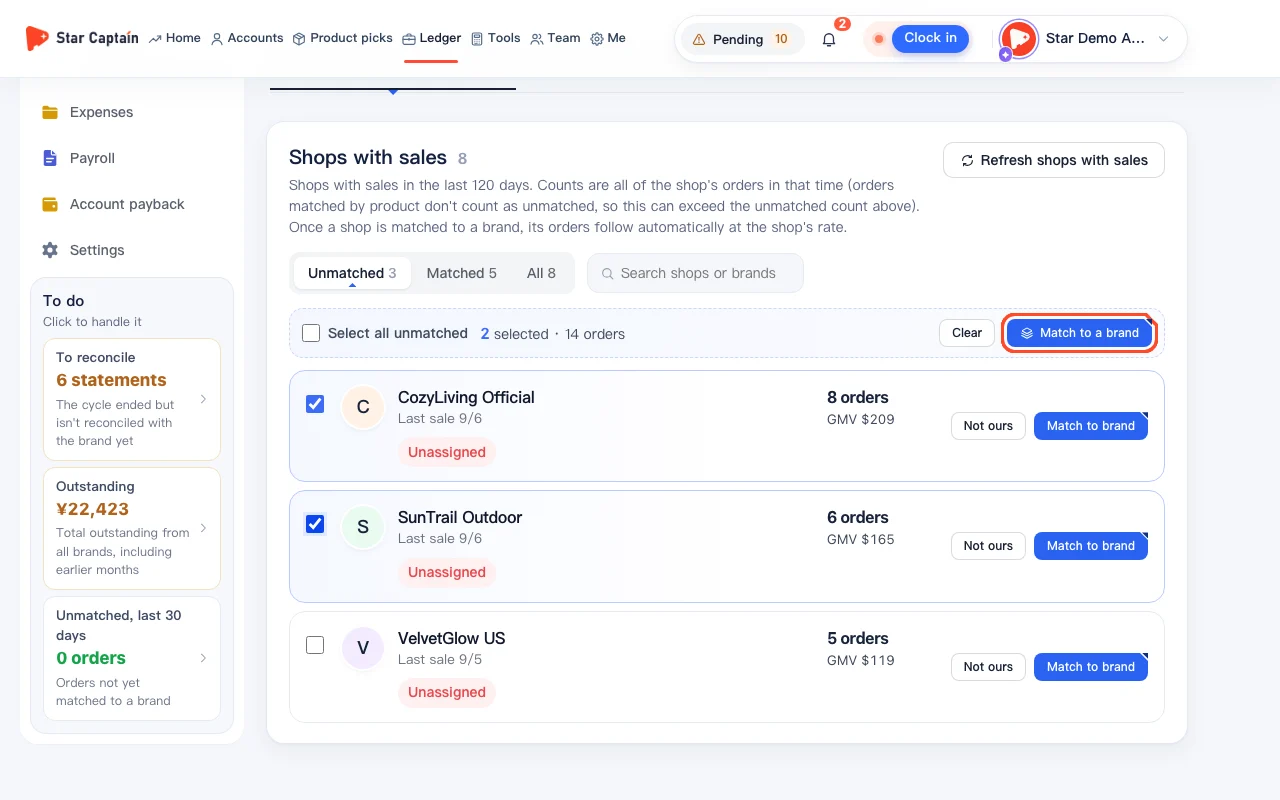
- Orders for the period have already been matched to the right brands under "Match orders to brands" (see *How to Match Orders to Partner Brands Automatically*)
01Set the settlement cycle, payment split, and due days in "Collect from brands · Settings"
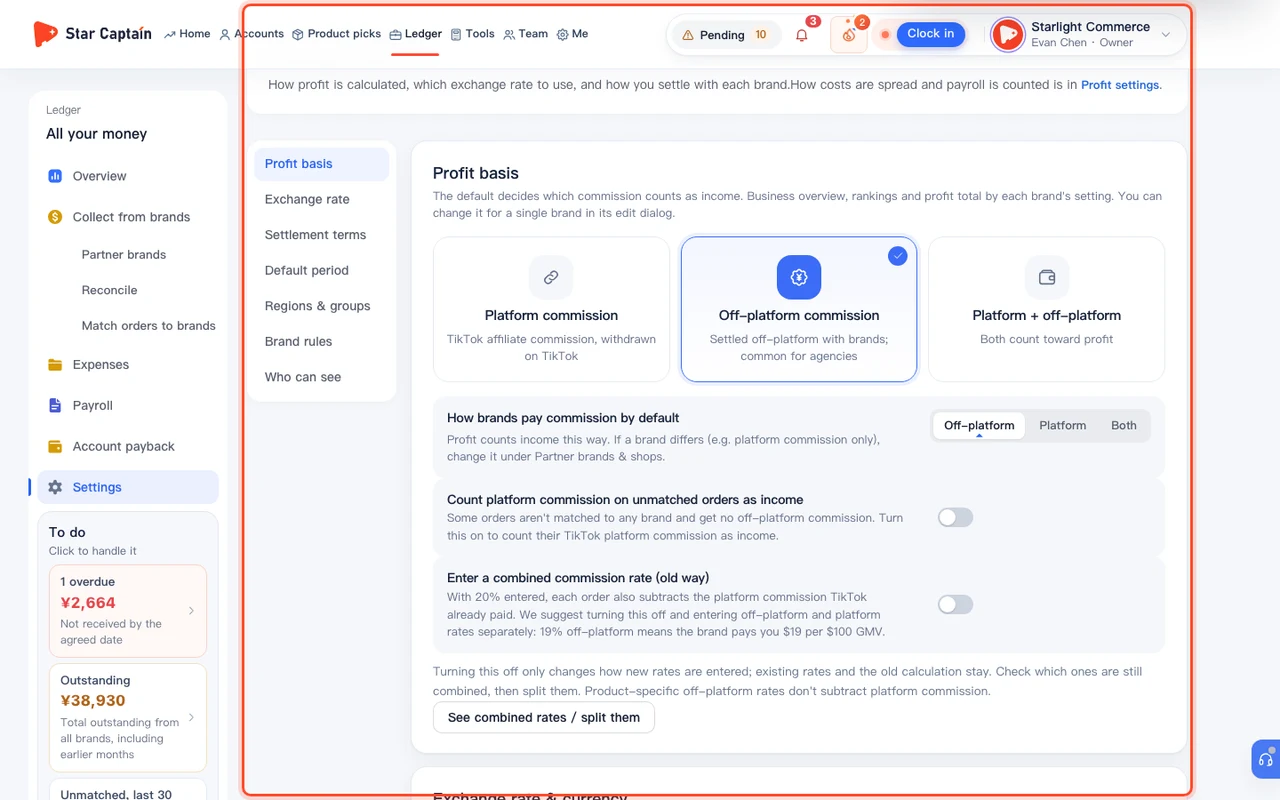
To issue statements and record brand payments, click "Ledger → Collect from brands → Settings" in the left navigation to open "Collect from brands · Settings". Under "Partner brand rules", find the partner brand and set "How often" ("Weekly", "Twice a month", "Monthly", or "Custom days") and "Number of payments" ("Single payment" or "Initial + final"). For split payments, fill in "Initial payment share" (for example, 80%) along with "Initial payment in" and "Final payment in" days, and set your "Default settlement rate" at the top.
02Select the partner brand and date range in "Reconcile", check amounts, and issue the statement
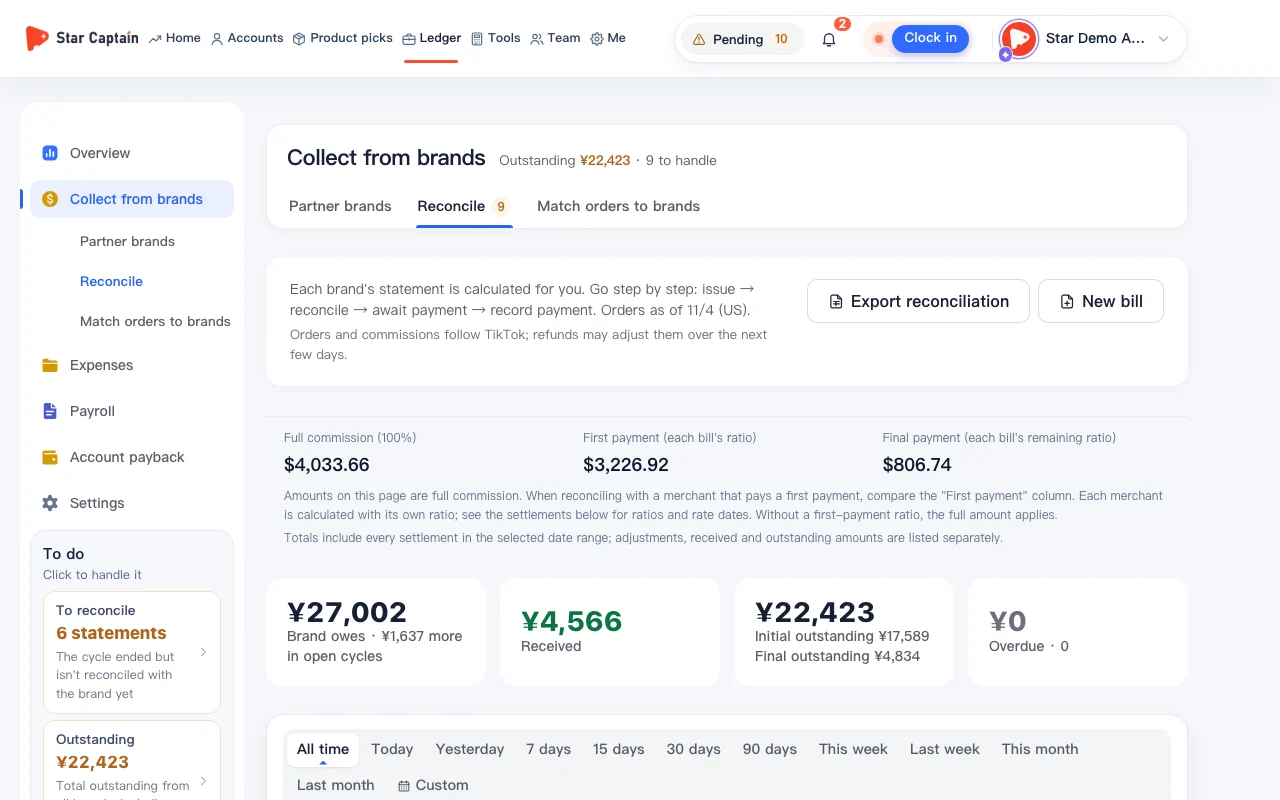
Click "Ledger → Collect from brands → Reconcile" in the left navigation. Pick "1 · Partner brand" and choose the "Statement scope" (by default "Whole partner brand (excluding shops settled separately)", or a single shop settled on its own). Select "2 · Date range" and confirm the "Settlement rate". Under "3 · Check amounts", review the order count, total commission earned, and the calculated "Initial payment" and "Final payment". Generate the "Statement", then click "Download this statement (to send the brand)" on the card to export it for the brand.
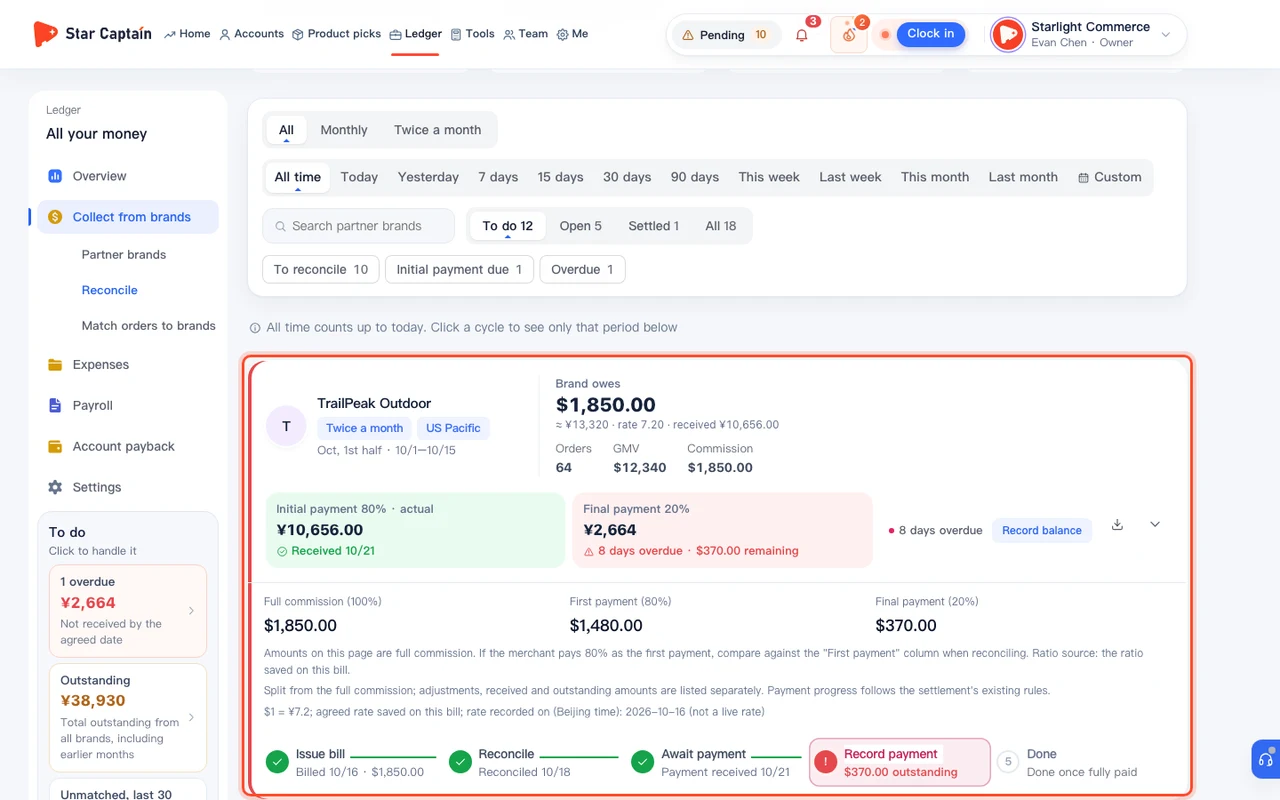
03Align discrepancies under "Adjustments & differences" if the brand's numbers differ
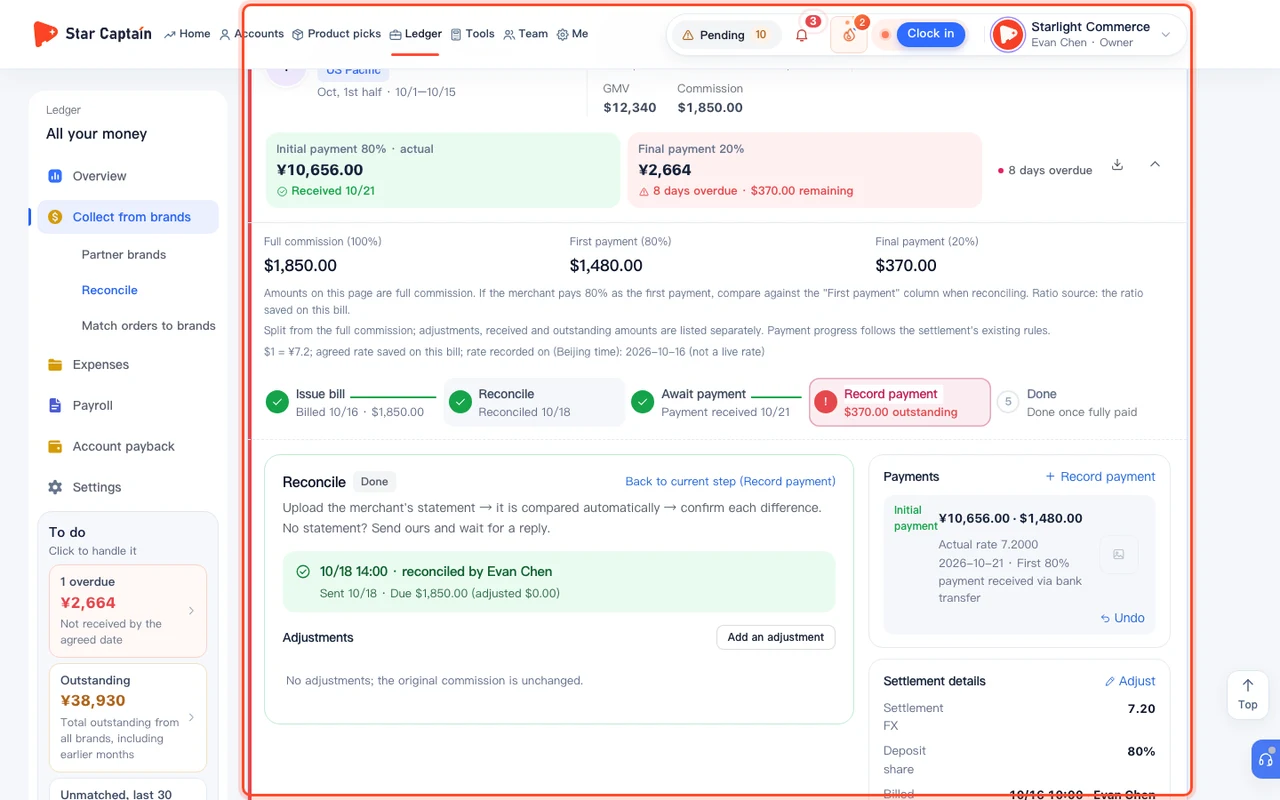
If the brand's finance team comes back with a different total after returns or campaign adjustments, expand "Adjustments & differences" on the statement card. Under "Amounts don't match?", click "Go with the brand's amount", enter the "Brand's amount" (in USD) plus a short note, and click "Use this amount" so Star Captain calculates the adjustment automatically, or click "Add an adjustment" to log a specific addition or deduction. You can also click "Import the brand's statement" to upload their spreadsheet and compare orders line by line.
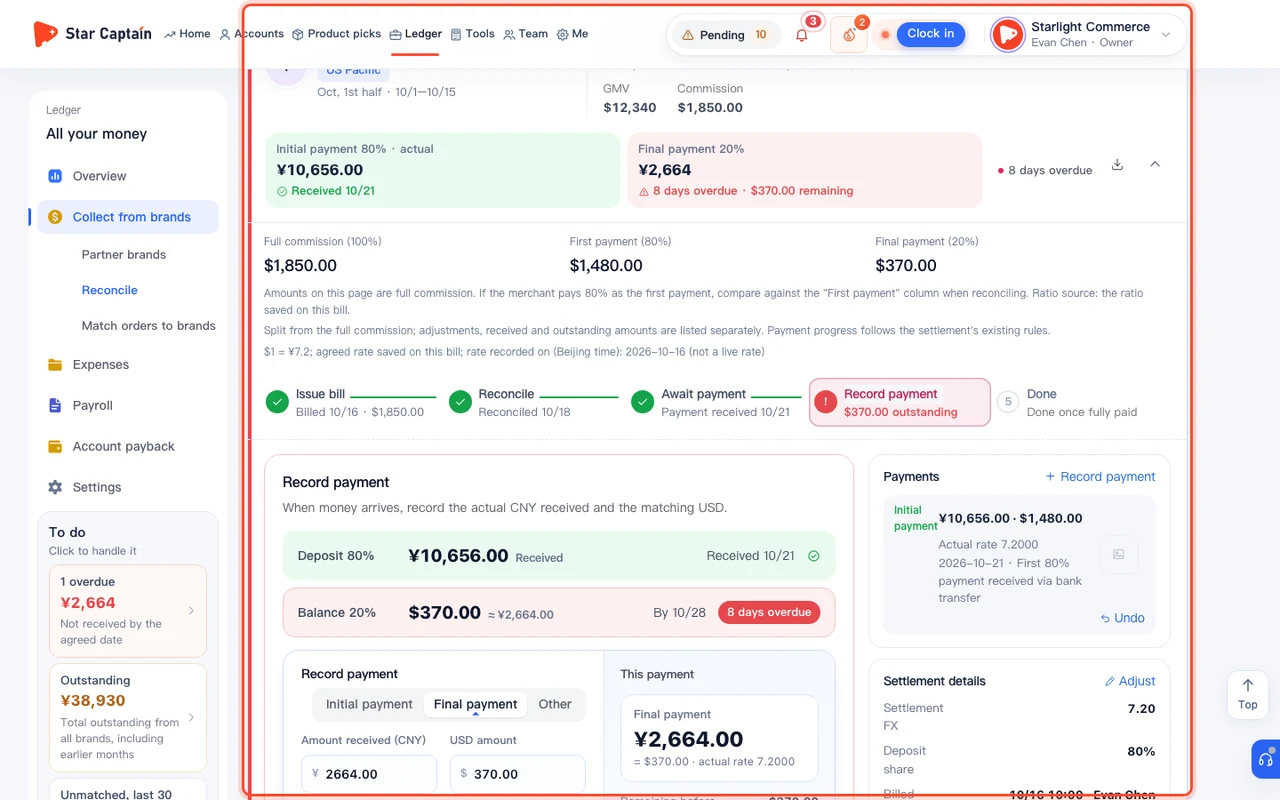
04Click "+ Record payment" when the brand pays to log initial and final payments
When the brand transfers funds, find the statement card and click "+ Record payment" (or "Record initial / final payment" on split statements). Select the "Payment stage" ("Initial payment", "Final payment", or "Full payment"), enter "Amount received (CNY)", "USD amount", and "Date received", and optionally attach a bank slip under "Upload payment screenshot (optional)". Click "Record". The payment is added to the statement's collected total and flows into "Ledger → Overview" ("Profit overview") automatically.
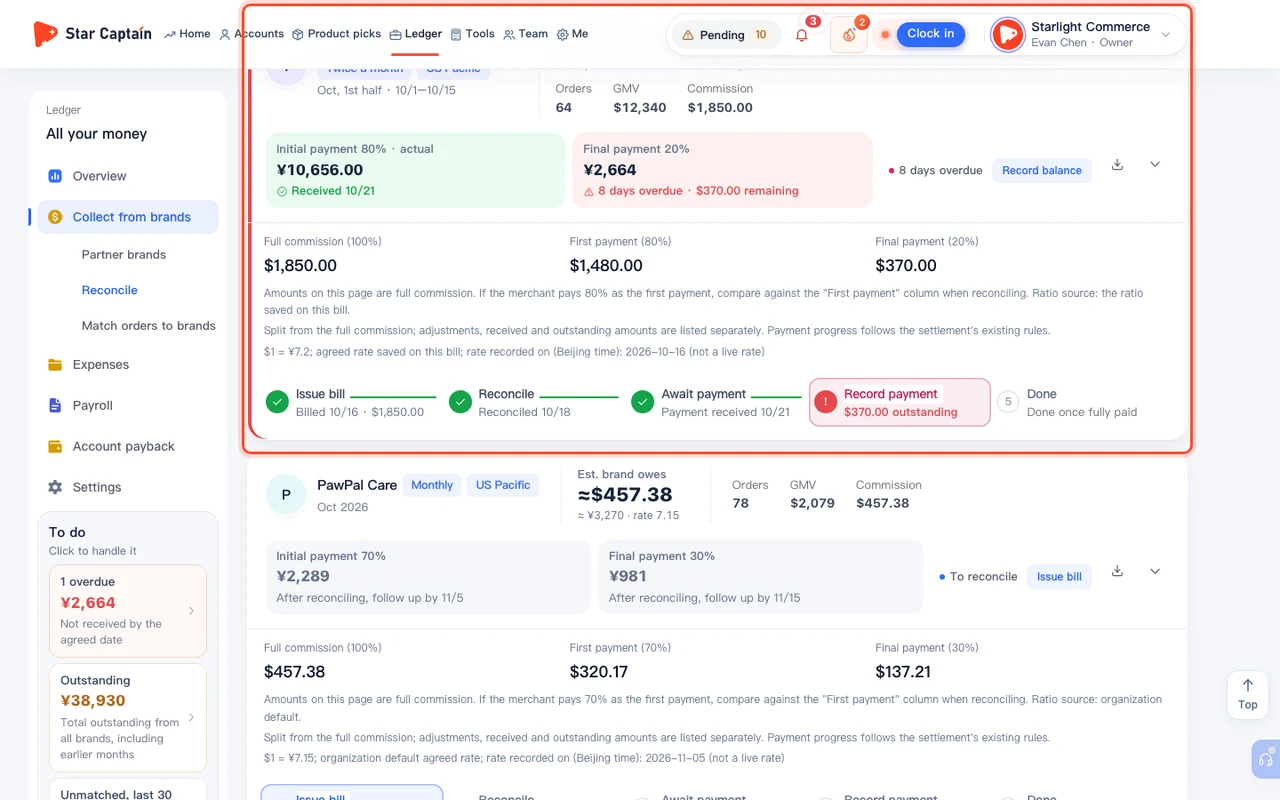
05Track "Overdue" alerts in "To do" and close out small balance differences
Each statement moves through five statuses: "To reconcile", "Initial payment due", "Final payment due", "Overdue", and "Settled". As soon as an unpaid installment passes the agreed due days from Step 1, the card is marked "N days overdue", and both the top "To do" bar and left sidebar highlight "N overdue · $X outstanding". For small exchange-rate or rounding differences after payment, open "Handle the difference", choose "Keep following up", "Move to next cycle", "Write off (discount / bad debt)", or "Settle at the amount received", and click "Save".
Screenshots use demo data. Check the product for what you actually see.
FAQ
One partner brand has multiple TikTok Shops, and one shop needs its own separate statement. How do I set that up?
In "Collect from brands · Settings" (or in the shop's edit dialog under "Partner brands & shops"), mark that specific shop as "Settle this shop separately" ("Settled separately"). Next time you create a statement in "Reconcile", you can pick that shop on its own under "Statement scope", while the remaining shops continue to bill together.
Can I log a partial payment if the brand pays less than the full initial payment?
Yes. Every time you click "+ Record payment", Star Captain adds a payment entry under "Payments", sums what has been collected so far, and updates the remaining balance until the full amount is paid or you choose "Settle at the amount received".
What if I typed the wrong amount when recording a payment?
Expand "Payments" on the statement card, delete the incorrect payment line, and click "+ Record payment" again to enter the right numbers.
Do I need to re-enter these payments manually in "Ledger → Overview"?
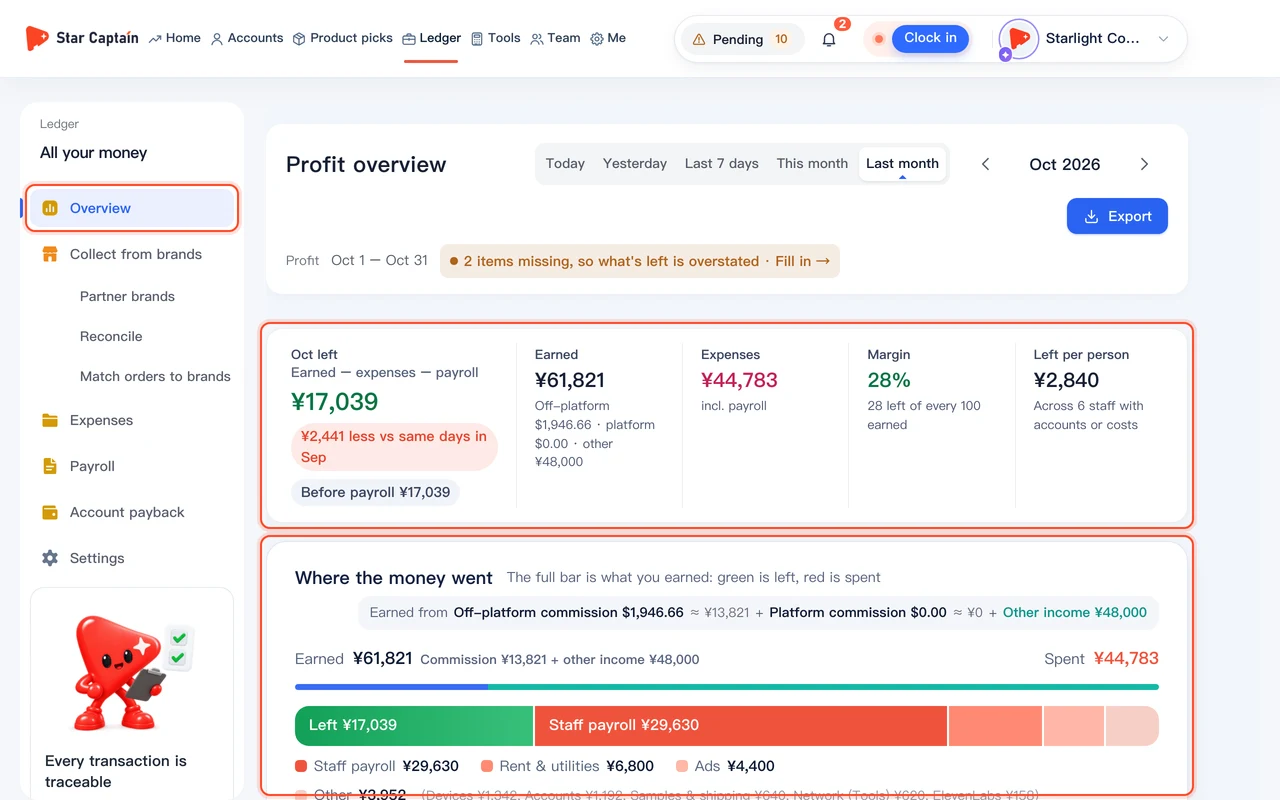
No. Commission receivable and recorded payments from "Collect from brands" flow into "Ledger → Overview" ("Profit overview") automatically, so you never have to log income twice.