TikTok accounts
 Orders & performance
 Team management
 Profit & cost
 Brand deals
 Creator toolbox
 Solo creators
 Creator teams
 Multi-department companies
Who is this for?
- Agency owners and team leads who set daily output targets across different subgroups and roles (editors, product pickers, brand managers)
- Operations managers who use the live office to see who is editing, shooting, or in a meeting and how today's progress is tracking
- Admins configuring seating layouts ("Simple floor plan" for larger teams) and excluding HR or finance from editing completion rates
What to prepare before starting?
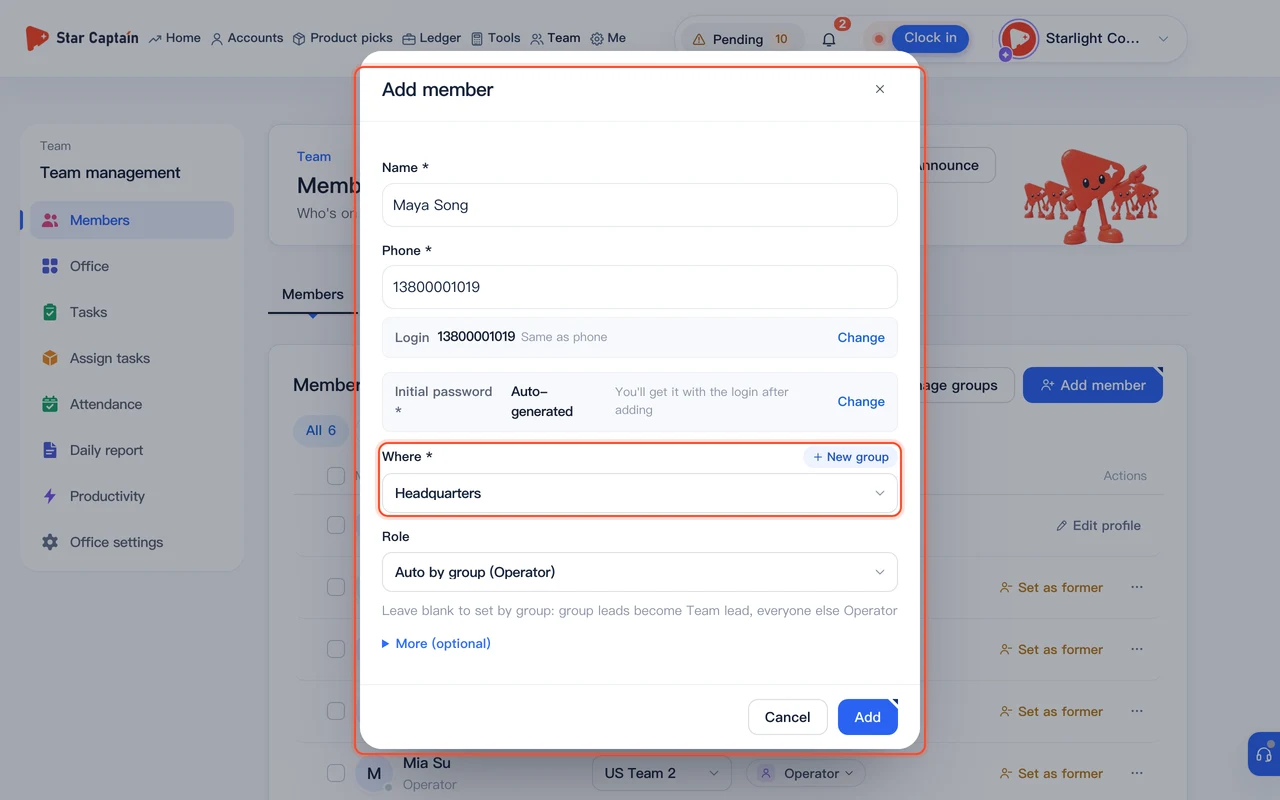
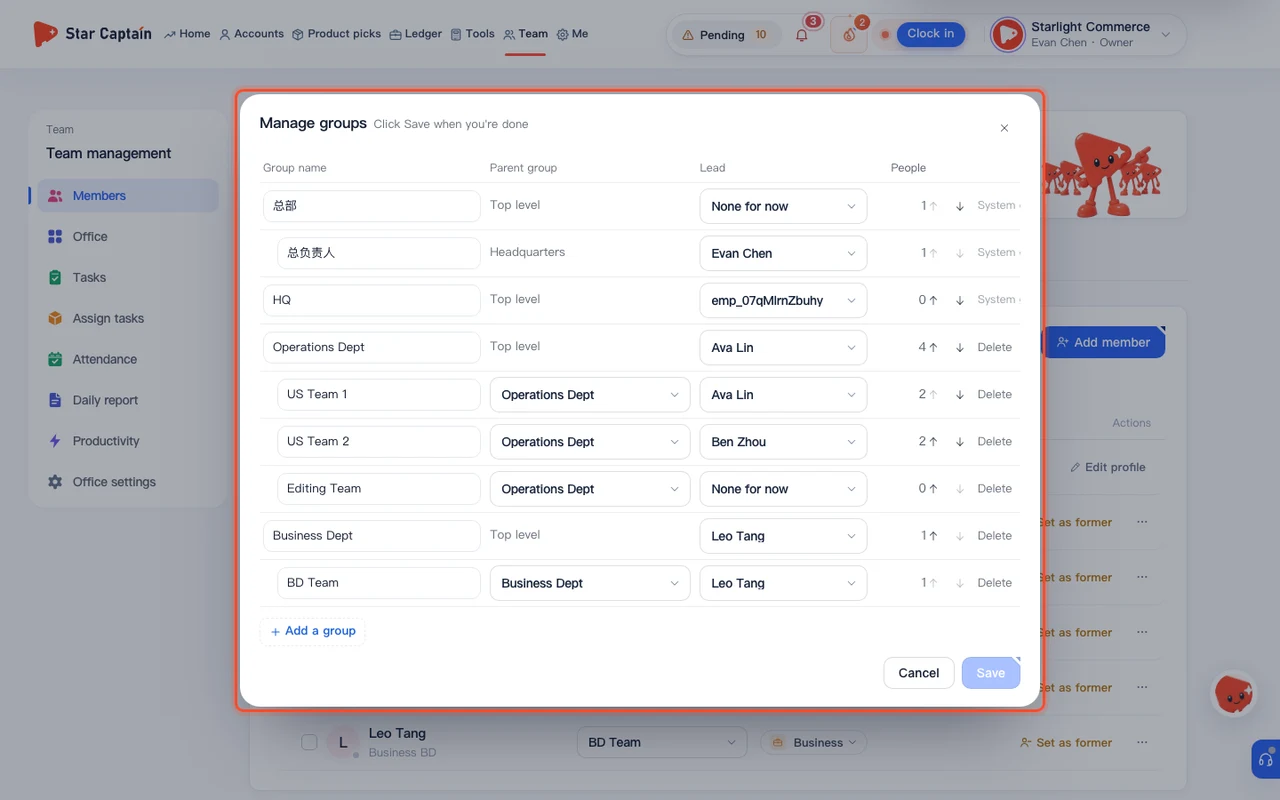
- You have created your departments and subgroups under "Team → Members" and assigned roles to your staff
- You are signed in as an owner, admin, or group lead with permission to manage team settings
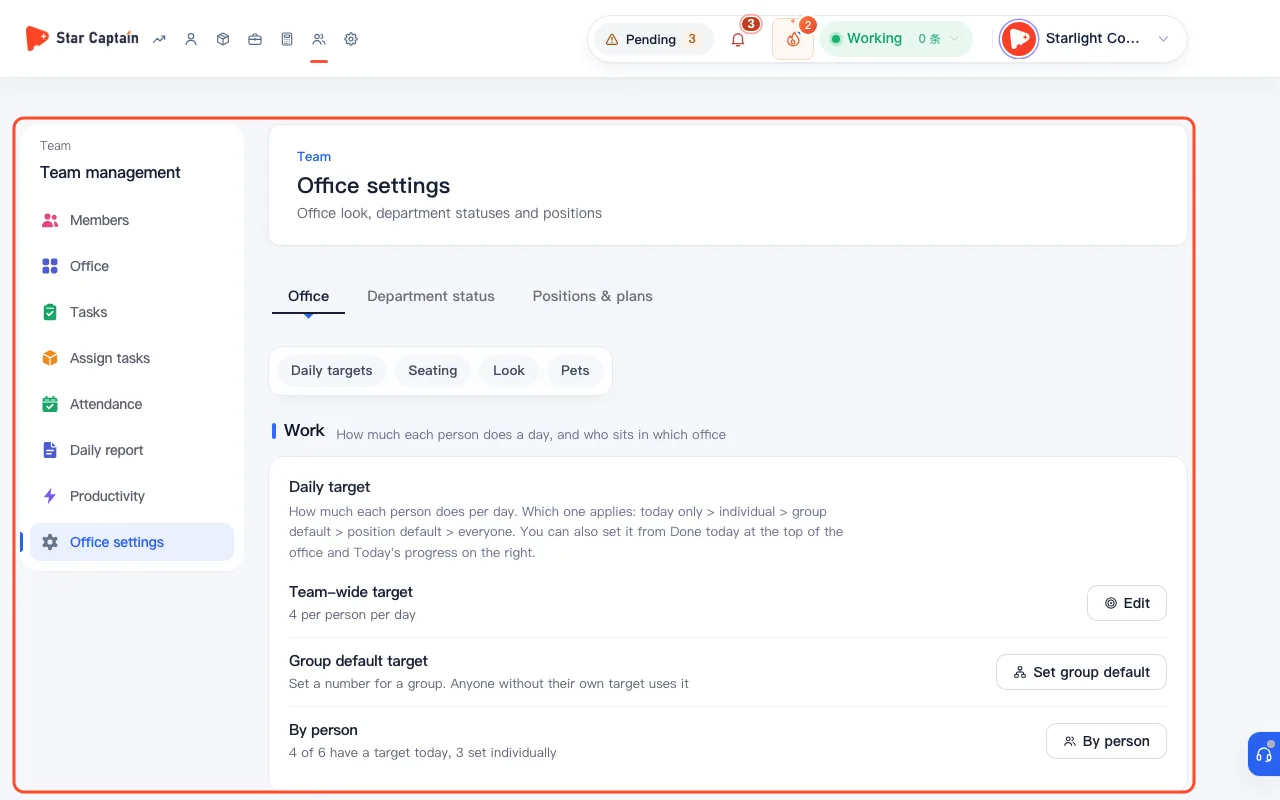
01Open "Team" and configure "Group / role default targets" under "Daily targets"
To set daily targets and department statuses, in "Team", click "Set targets" next to "Today's progress" (or open "Office settings → Daily targets"). Under "Group / role default targets", switch between "Groups" and "Roles" to enter default daily targets for each group, team, or role, then click "Save ({n})". Leaving a field blank means no default target is set at that level.
02Override a single member's target for "Today only" or "From today on"
To adjust an individual teammate's goal (for example, a new hire ramping up), click their card in the office or open "Edit {name}'s daily target ({src})". Choose whether the change applies "Today only" or "From today on", enter the daily count, and click "Save". Targets follow a strict precedence order: `Today only > Set individually > Group default (closest level) > Role default > Company-wide target` (and if a member sets a higher personal target, the higher one counts).
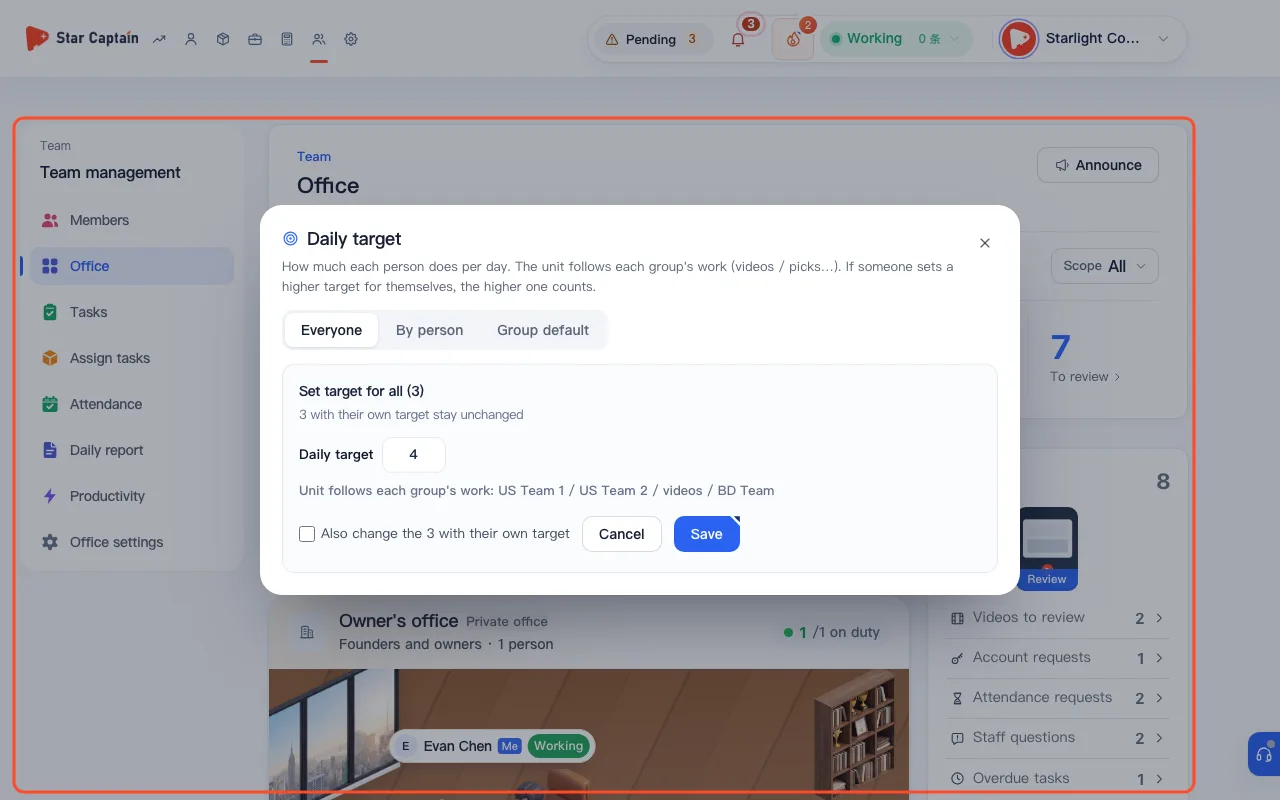
03Customize statuses and counting units per department in "Department statuses"
Switch to "Department statuses" in "Office settings". For each department, toggle "In live office", check which "Statuses" staff can pick (or add custom ones in "Status library" with a color and office animation such as "Editing", "Shooting with lights", or "On a call"), and choose what to "Count in": "videos", "product picks", "brands", "orders", "live streams", "images", or a "Custom" unit.
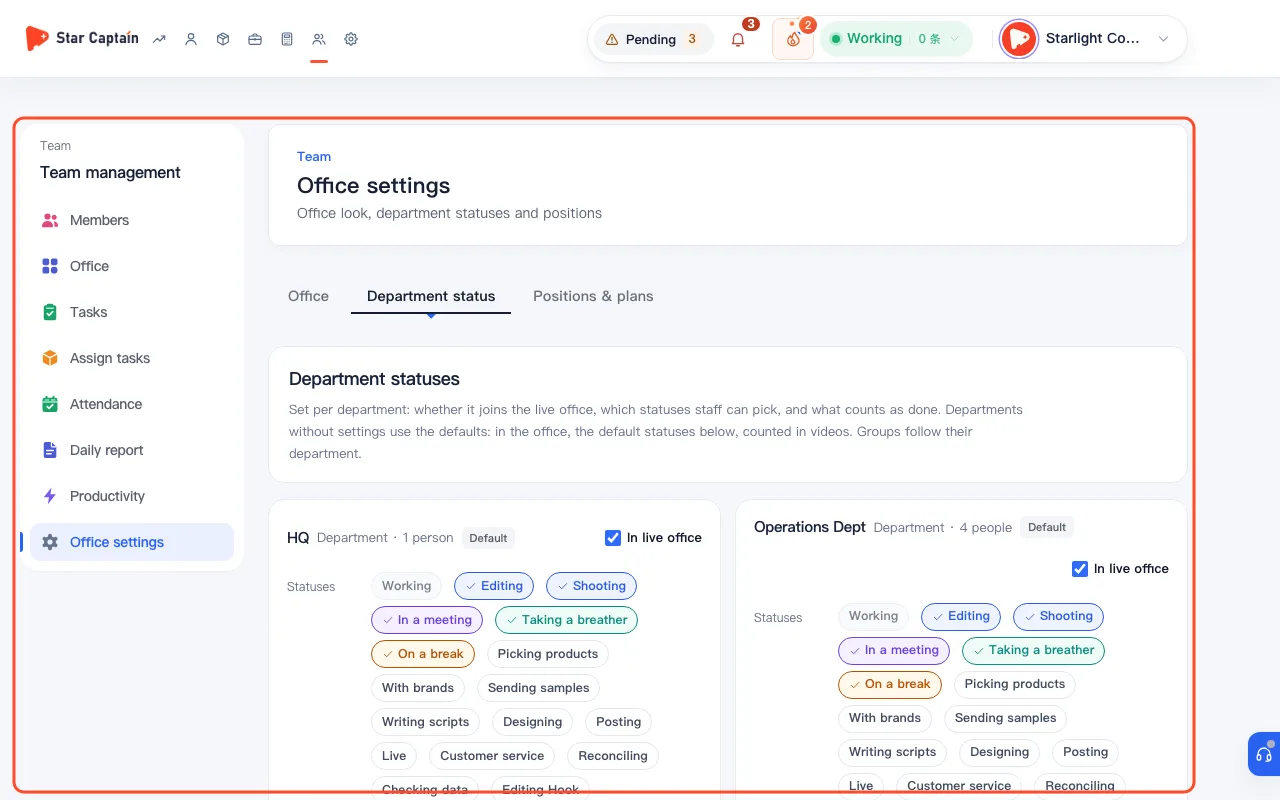
04Arrange private offices and group desks under "Seating"
Open the "Seating" section. By default ("Auto (by role)"), founders and owners sit in the "Owner's office", admin, HR, and finance sit in the "Admin office", and everyone else sits at their group desks. Under "Private offices", use "Add someone" to assign a specific person to a room, or click any person's card in the live office and click "Seat" to move them (click "Back to auto" anytime to restore default seating).
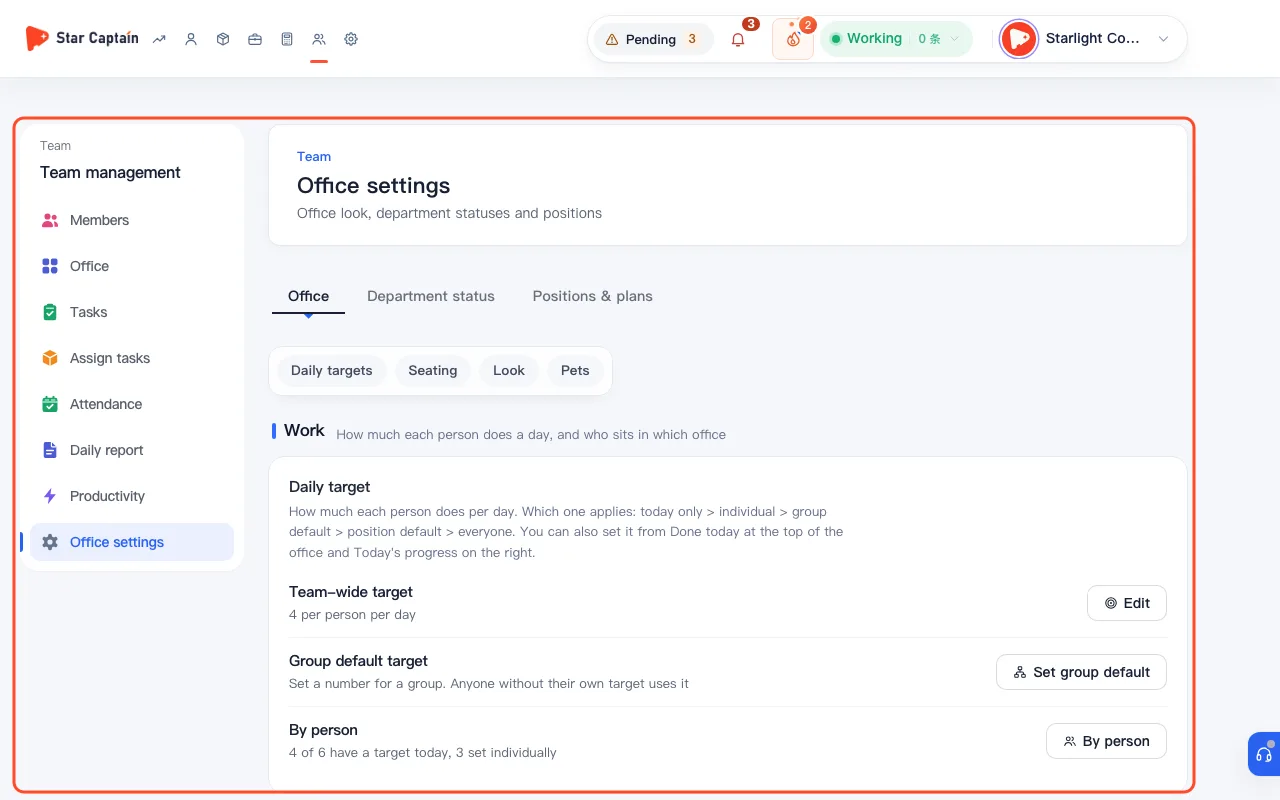
05Choose a floor template, reception brand, and office pets under "Look" and "Pets"
Switch to "Look" to pick an office "Template": "Modern open" (recommended), "Tech studio", or "Simple floor plan" (top-down seat map, best for larger teams). Choose whether "Team" "Opens with" "Groups" or "Main office", toggle "Animation", and set "Reception brand" to "Your company" with your company name and transparent PNG logo. You can also visit "Pets" to adopt and customize office pets.
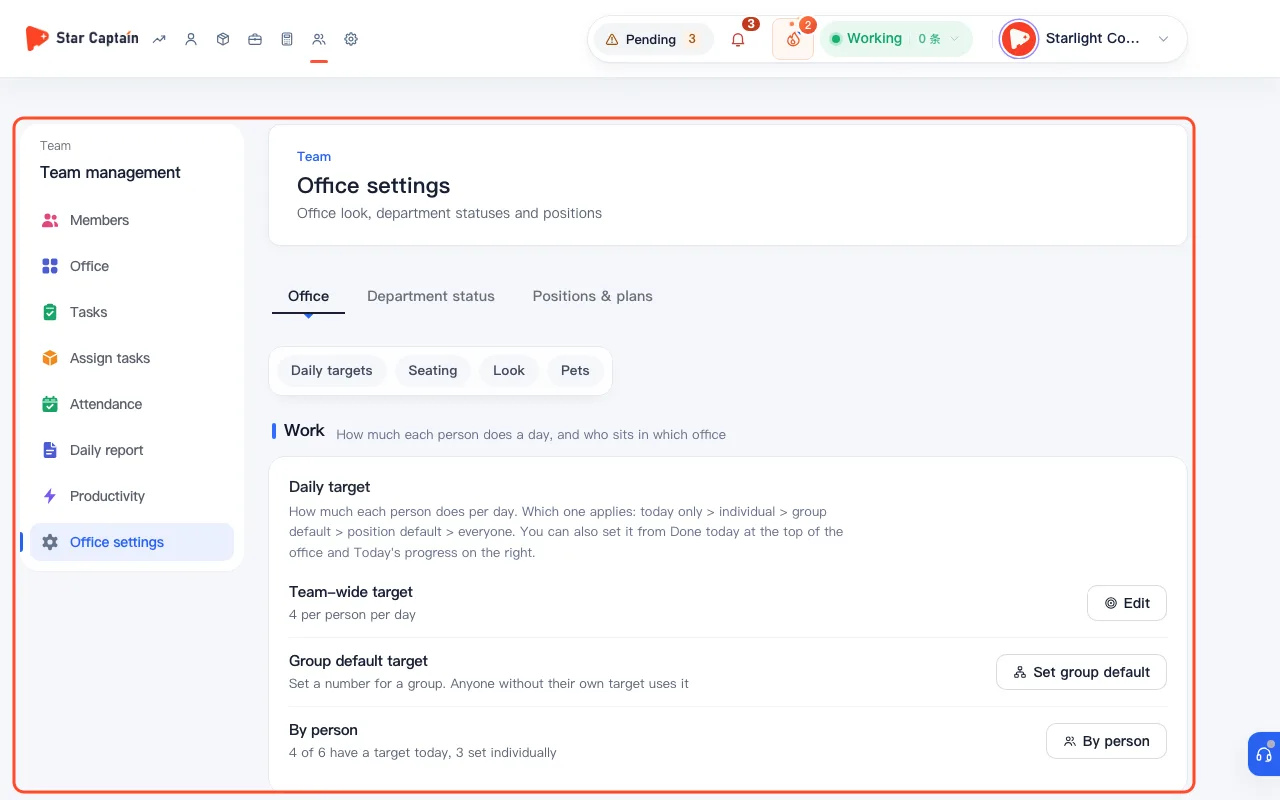
Screenshots use demo data. Check the product for what you actually see.
FAQ
Which target wins when a staff member has both a role default and a group default?
Star Captain applies the most specific rule in this exact order: `Today only > Set individually > Group default (closest level) > Role default > Company-wide target`. If the staff member sets their own "My personal target" higher than their manager's target, the higher of the two counts.
How do we track daily output for product pickers or BD staff who don't edit videos?
In "Office settings → Department statuses", find their department and change "Count in" from "videos" to "product picks", "brands", "orders", or a custom unit. Staff in that department will then see `Finish 1 product pick +1` on their progress button.
What happens if we turn off "In live office" for an admin or finance department?
"This department stays out of the office and today's progress. Attendance and daily reports still count; they're left out of the editing completion rate."
Which office template works best once our team passes 25 people?
When many people are clocked in at once, 3D templates can feel crowded. Switch to "Simple floor plan" under "Office settings → Look" for a clean top-down seat map, and use the "Zoom in", "Zoom out", "Reset", and "Full screen" controls at the top right of the office canvas.