TikTok accounts
 Orders & performance
 Team management
 Profit & cost
 Brand deals
 Creator toolbox
 Solo creators
 Creator teams
 Multi-department companies
Who is this for?
- Agency owners who open Home each day and want to view Star Captain performance rankings to see which products, shops, accounts, and operators are driving orders
- Brand managers who want to inspect top-selling products and link unattributed items to partner brands directly from the leaderboard
- Team leads running daily stand-ups who compare subgroup and department GMV rankings across "Today", "7 days", or "This month"
What to prepare before starting?
- Your TikTok showcase or channel accounts are connected and have synced orders for the selected date range
- To see accurate "Employees", "Teams", and off-platform commission figures, assign operators under "Accounts", organize subgroups under "Team", and configure brand commission rates under "Collect from brands"
01Open "Home" and pick a date window to view Star Captain performance rankings
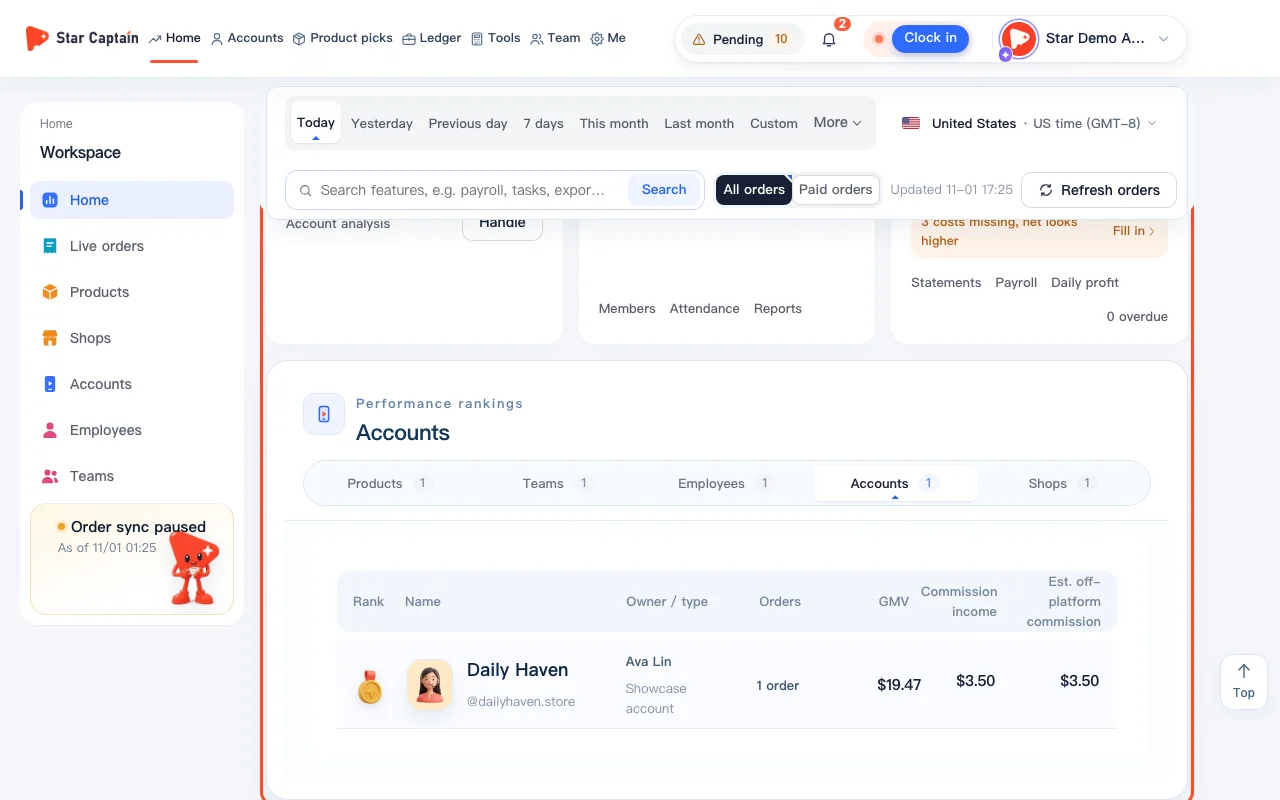
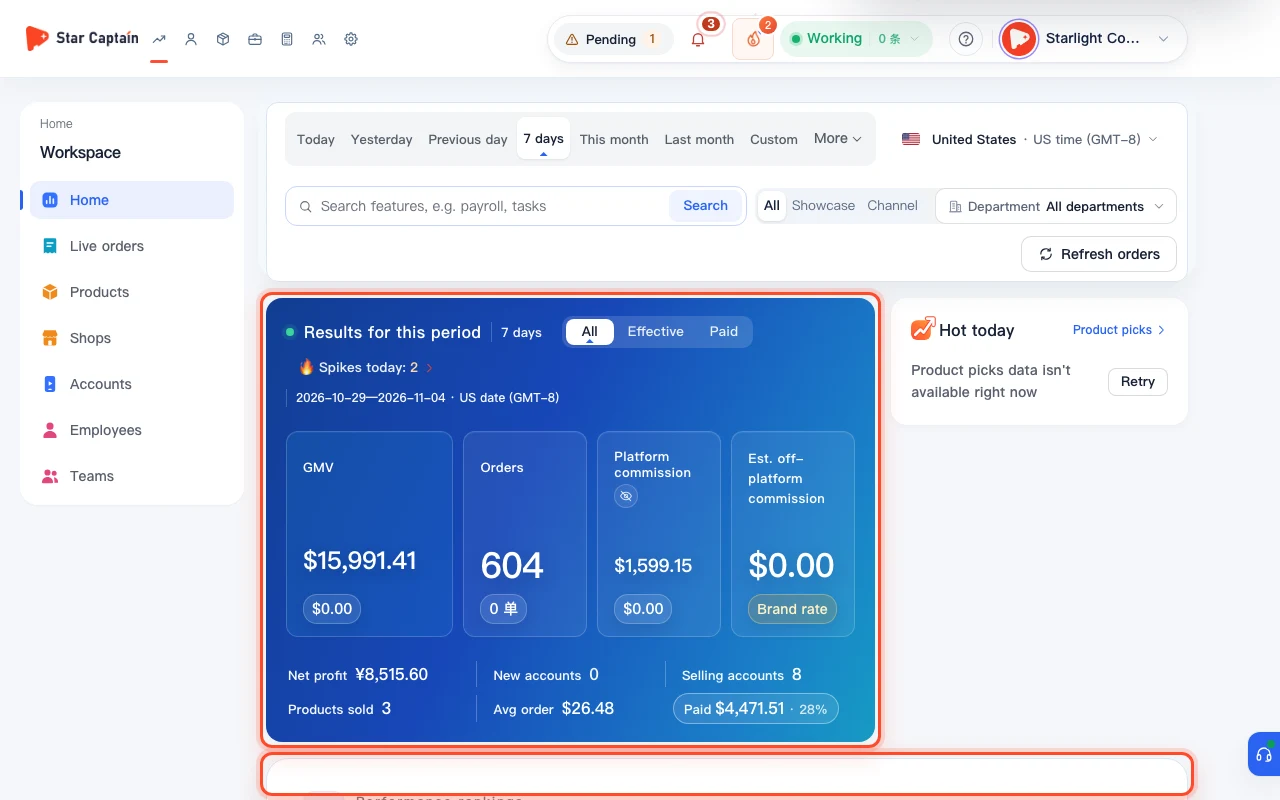
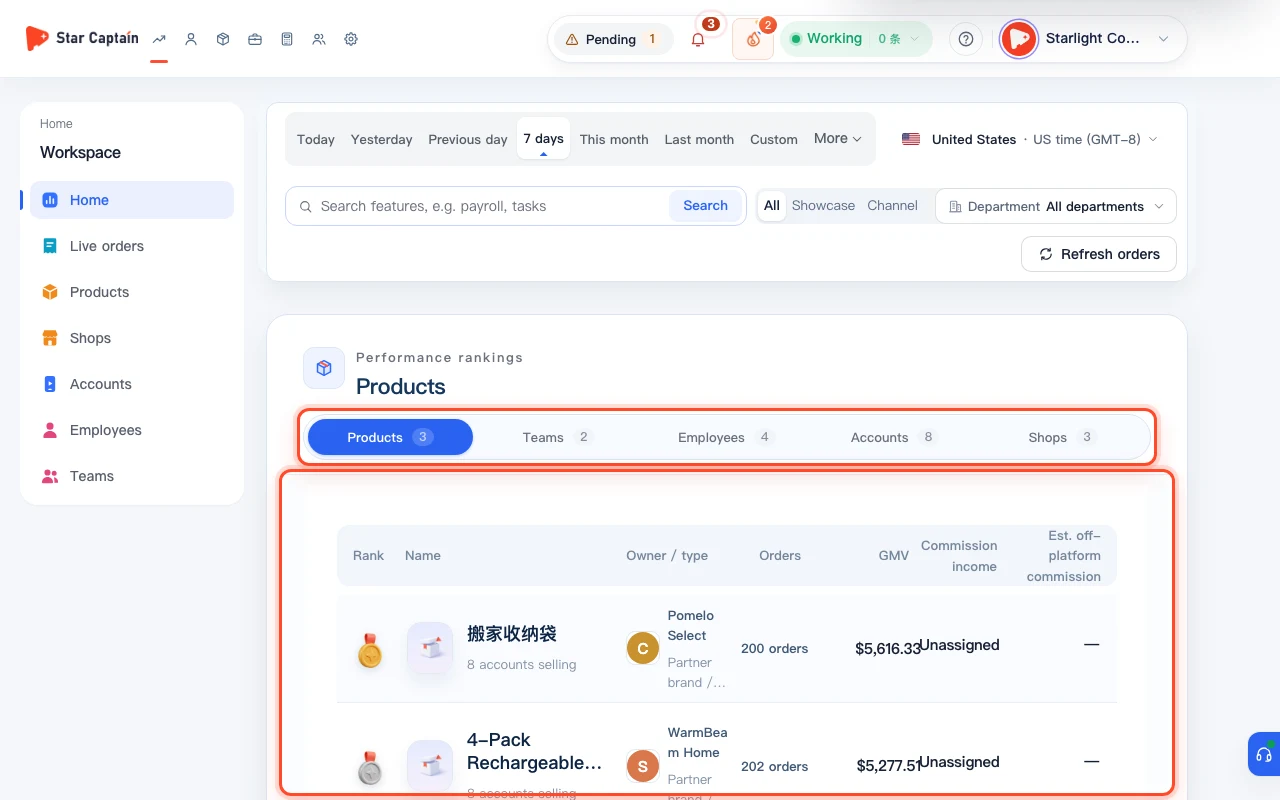
To view Star Captain performance rankings, click "Home" (`/app/home`) in the left navigation bar and select "Today", "Previous day", "7 days", "This month", or "Custom" at the top. The "Performance rankings" section in the middle of the dashboard aggregates live showcase and channel orders for the dates you selected.
02Switch between "Products", "Shops", "Accounts", "Employees", and "Teams" for the top 5
At the top of the "Performance rankings" card, click the tabs for "Products", "Shops", "Accounts", "Employees", or "Teams". Each tab ranks the top 5 performers in the current period with their order counts, GMV, and share bars. To inspect everyone beyond the top 5, click "Full ranking" at the top right of the card.
03Inspect "Products by sales" and "Shops by sales" in the Full ranking drawer
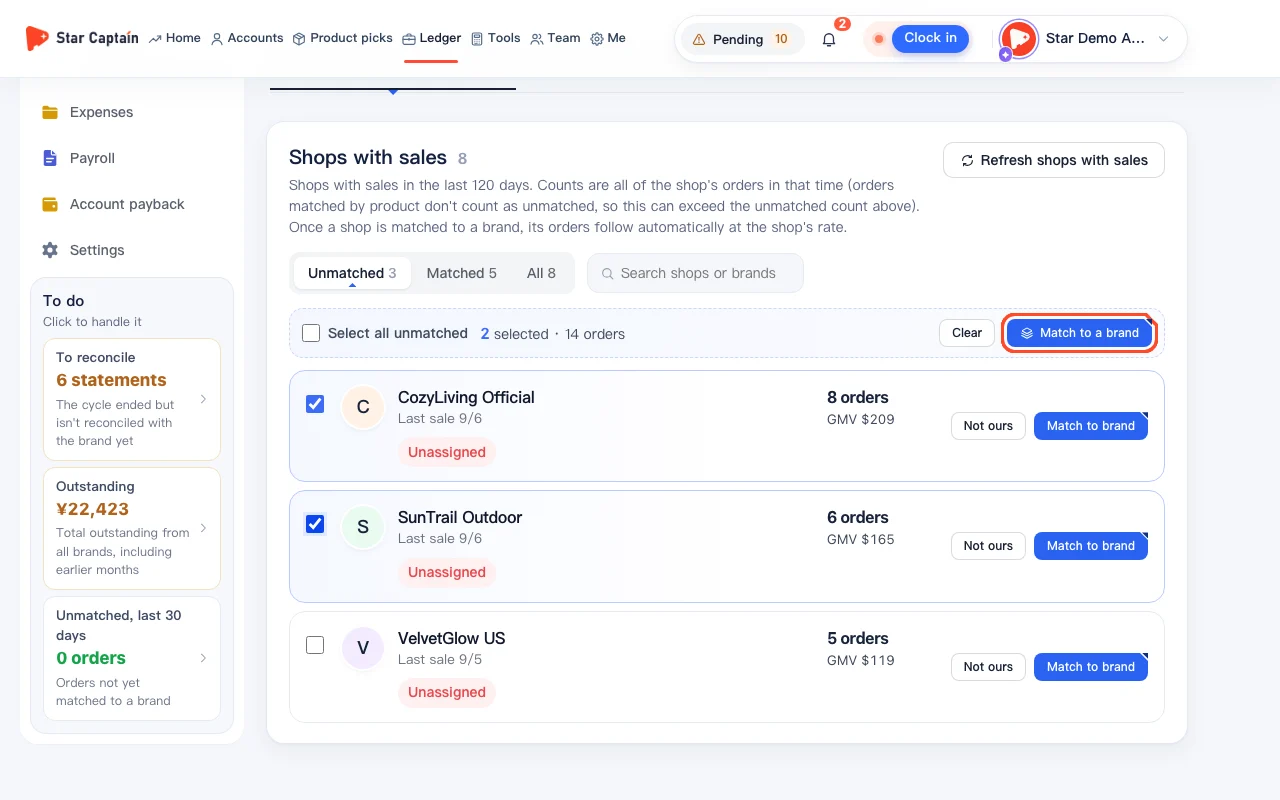
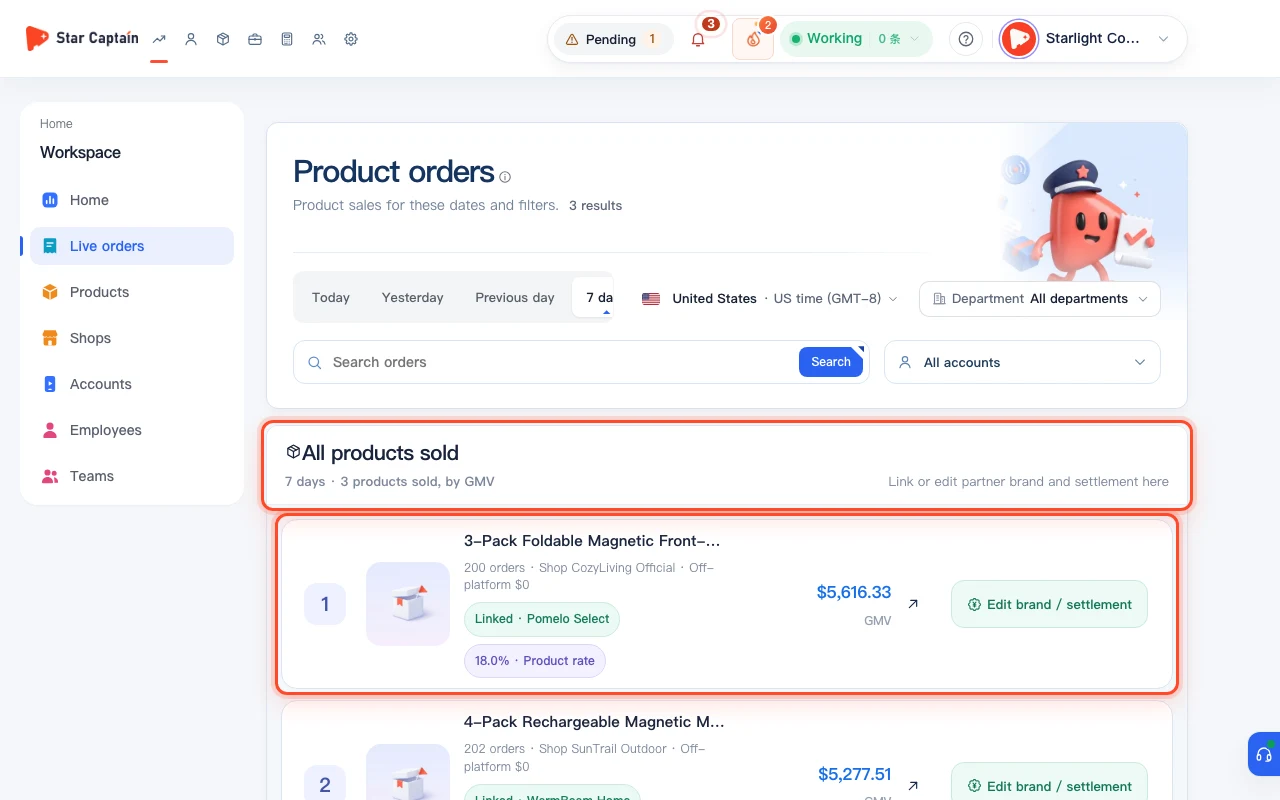
Clicking "Full ranking" opens the full leaderboard drawer (also accessible at `/app/home/ranks/products` and `/app/home/ranks/shops`). Under "Products by sales" (`{count} products sold, by GMV`), each card shows the product, order count, selling shop, off-platform commission, and partner brand status—where you can click "Link brand / settlement" or "Edit brand / settlement" directly. Switch to "Shops by sales" to see totals grouped by the shop that made the sale.
04Switch to "Staff by sales" and "Groups by sales" to compare operator and group output
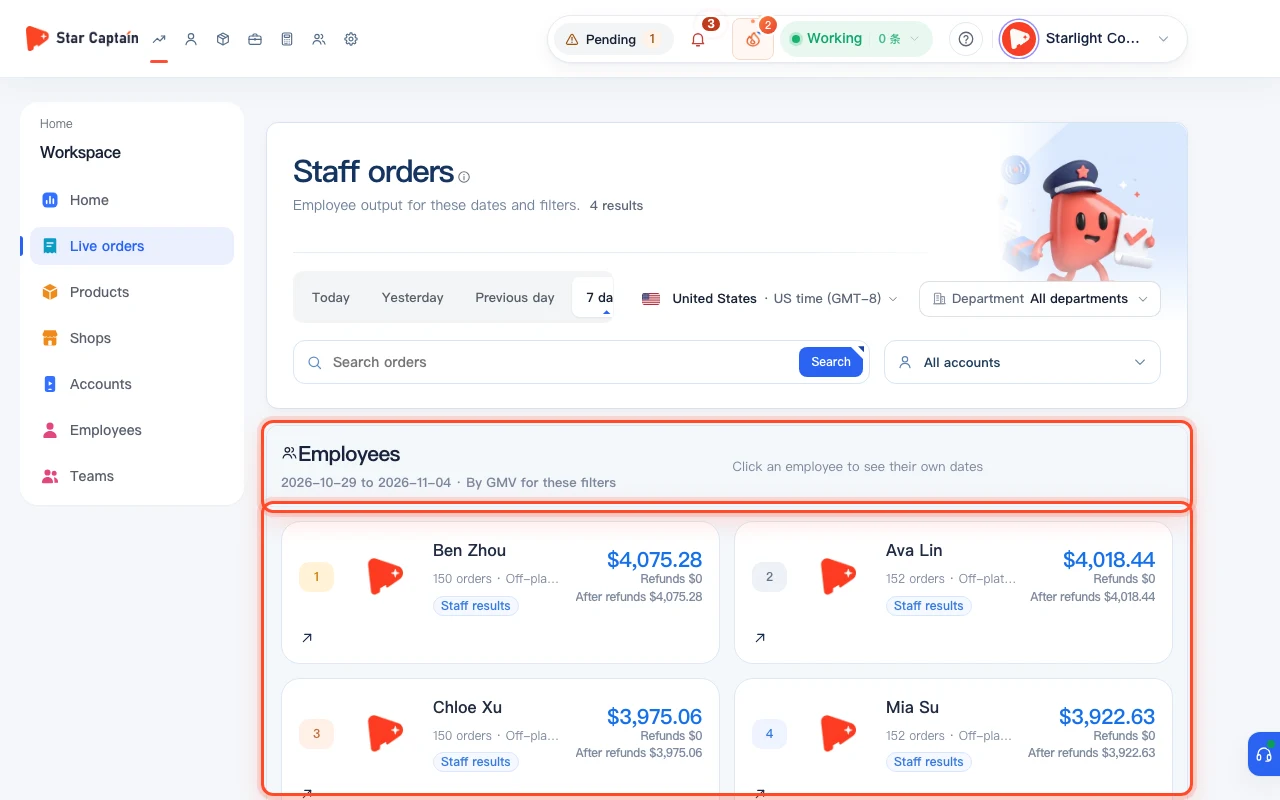
Switch the leaderboard view to "Staff by sales" (`/app/home/ranks/staff`) or "Groups by sales" (`/app/home/ranks/groups`) to compare sales output across your team. "Staff by sales" ranks operators by GMV for the active filters, and clicking an employee card opens their daily breakdown; "Groups by sales" and "Departments by sales" roll up staff count, accounts, orders, and GMV for every group and department.
Screenshots use demo data. Check the product for what you actually see.
FAQ
How are Star Captain performance rankings sorted, and how are refunds handled?
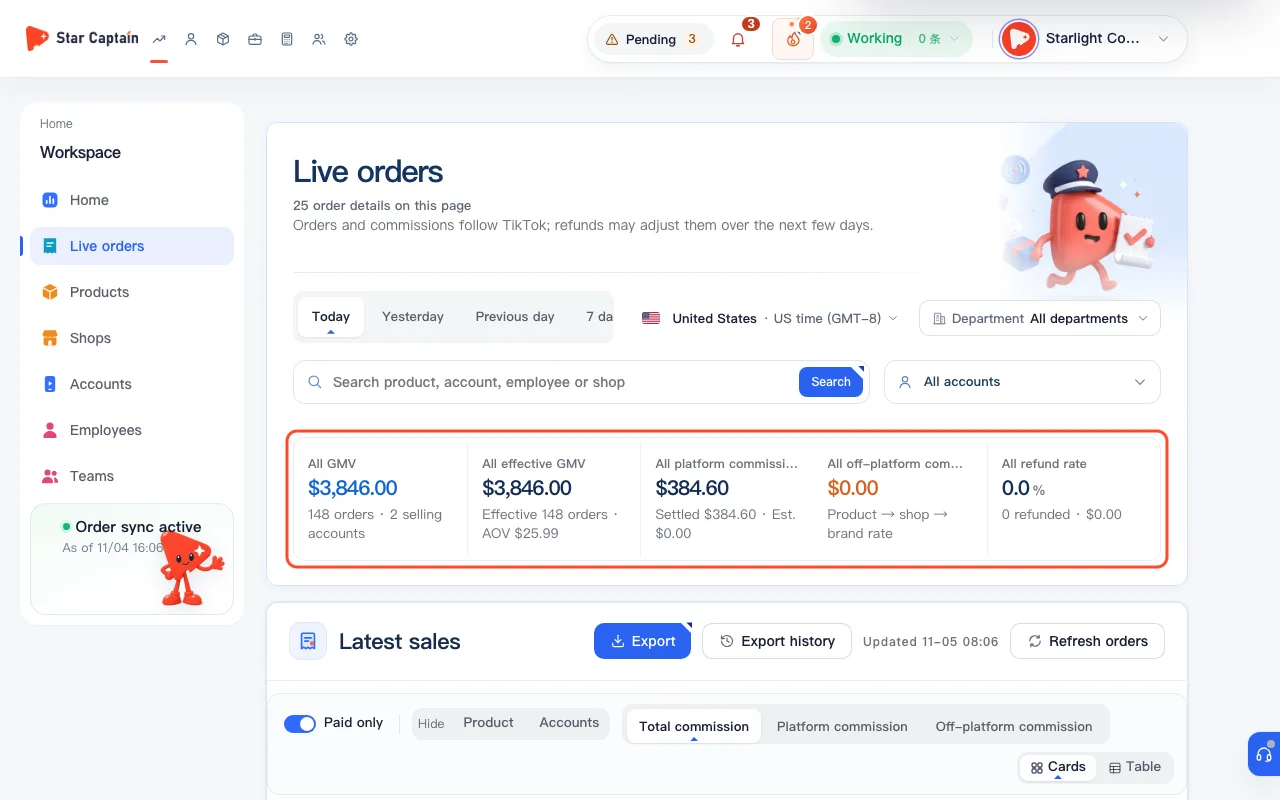
Star Captain performance rankings use the exact same math as Home and the Orders workspace: leaderboards sort from highest to lowest GMV for your selected date window, while header KPIs also show "Effective GMV" and "Refunds removed" so you can compare gross and net output.
Can I link a product to a partner brand directly from "Products by sales"?
Yes. In the "Products by sales" full ranking view, any unlinked item shows "No partner brand yet" alongside a "Link brand / settlement" button. Saving a product settlement rule applies that partner brand and off-platform commission rate to past and future orders for that product ID.
How do operator or subgroup changes affect historical staff and group rankings?
Rankings follow each account's current operator and that operator's current department and subgroup. When an account is reassigned to a new operator, historical order totals in the leaderboard move with the account's current owner.
Why does the leaderboard say "No orders this day" or "Ranked after first sale"?
If no orders have been placed during the selected date window or newly connected accounts show "Orders still syncing", the card displays "No orders this day" or "Ranked after first sale". Switch the top date filter to "7 days" or "This month" to view cumulative rankings.